The Mixos manual
Everything in the studio, chapter by chapter — from importing a model to painting, masking, materials, decals, the AI tools and export. All in a browser tab.
Get started
Overview
Mixos Paint is a 3D texturing studio that runs in a browser tab. Import a model, paint and layer physically based materials on it in real time, and export clean map sets for Cinema 4D, Blender, Unity, Unreal, Godot, Roblox, Arnold, V-Ray and more.
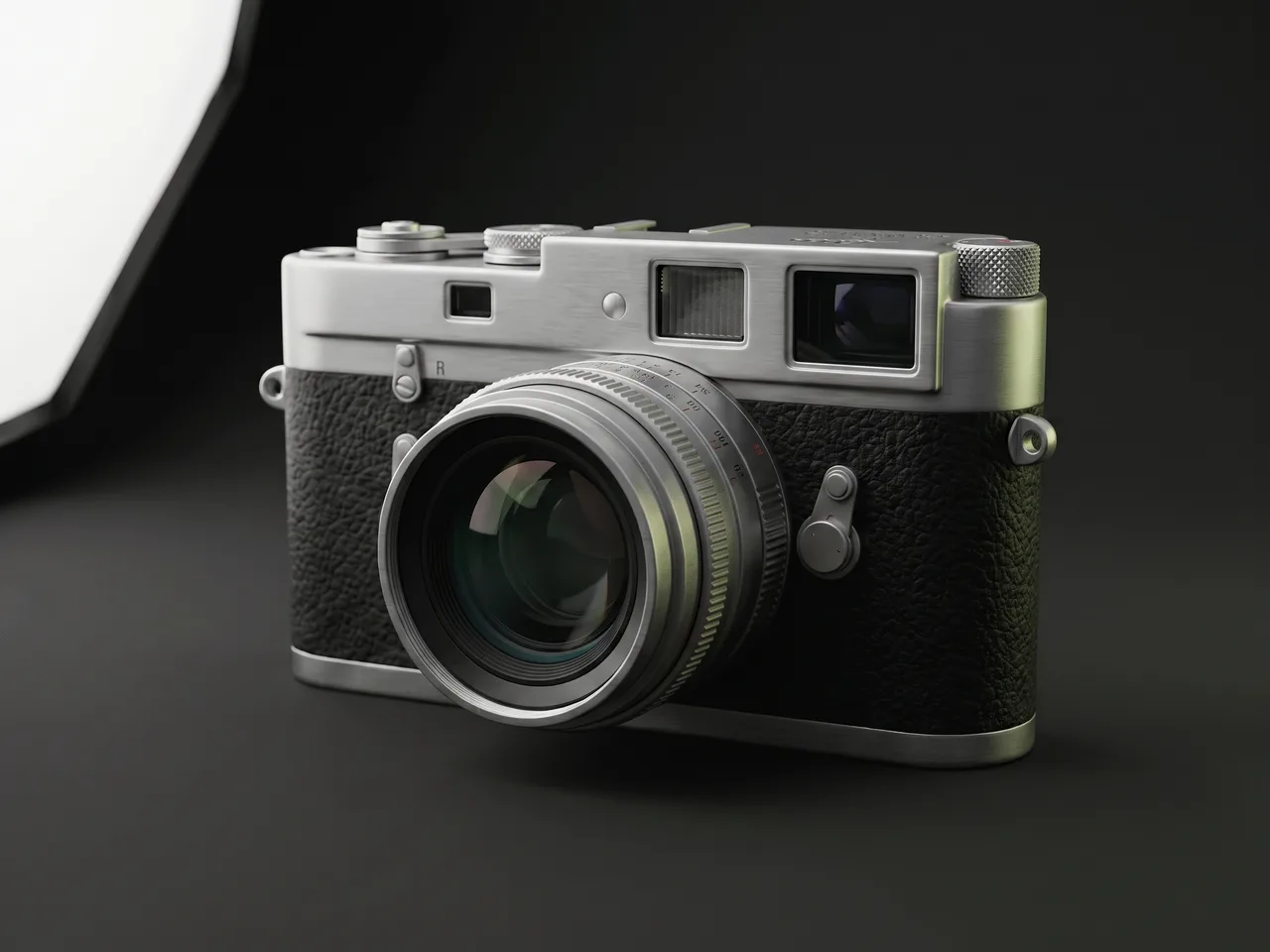
The chapters follow a typical job: the interface, your model, layers, materials, painting, masks, decals and text, the AI tools, then exporting and sharing. Troubleshooting in the Reference chapter covers the problems people hit most.
- 1Bring in a model — Click Import in the menu bar, or drop a GLB, FBX, OBJ or other model file on the window. Paint unwraps it if it has no usable UVs.
- 2Bake it — On the Mesh panel's Setup tab, open Bake Maps and click Bake All Maps. Smart materials and wear masks read these maps.
- 3Layer materials — Drag a material or smart material from the Library onto the model, then add masks to place wear and dirt.
- 4Paint the details — Pick the Brush (B) and paint colour, roughness and metallic straight onto the surface.
- 5Export — Click Export, pick your target app, and download the map set as a ZIP.
Help from anywhere
Right-click a panel in the editor — the tool rail, the options bar, the layers, Properties, the Library and more — and choose Help to open this manual at the matching section.
What's free
Paint needs a free account — sign in with Google or an emailed link. Importing, unwrapping, baking, materials, painting, masking, decals and text cost nothing on any plan. The AI tools run on credits (a free account starts with 10). Taking files out — exported maps and models, rendered images — needs a paid plan or the perpetual licence; see pricing.
Prefer to learn by doing?
On your first visit a small getting-started panel offers three ways in — Import model, Browse surfaces or Create sample — plus a 2-minute guided tour that spotlights each panel. Press ? at any time to open the keyboard cheatsheet: its Getting started and Guided tour buttons bring both back.
The Mixos suite
This manual covers Paint, the texturing app. The same account opens the rest of the suite from the Mixos launcher: Studio for building, modelling and animating whole scenes (see the Studio manual), Mold for sculpting (see the sculpting manual), Blend for stacking and height-blending materials into a seamless tile, Auto for one-prompt AI texturing, and Logo for turning a flat mark into a lit 3D logo.
Requirements & the desktop app
Paint runs in any browser with WebGPU, the graphics API built into current browsers. There is nothing to install.
- Chrome and Edge 113 or later, and other Chromium browsers, on Windows, macOS and Linux.
- Firefox 141 on Windows, 145 on macOS and 147 elsewhere.
- Safari on macOS Tahoe 26, or iOS and iPadOS 26.
Without WebGPU but with a working graphics card, the viewport falls back to WebGL2: the status bar reads WebGL viewport, and object-space projection drops out of the preview. With no usable graphics at all, the editor says so and names the fix. Paint also runs on phones and tablets, in a touch layout (see The workspace).
The same editor ships as a free desktop app for macOS 12+ and Windows 10+, from mixos.io/download — same projects, credits and account. It adds what a browser can't do:
- Bakes spread across every CPU core.
- Height-map inference runs on native ML hardware (the Neural Engine on Apple Silicon, DirectML on Windows).
- It works fully offline, with an optional offline copy of the asset library.
- It installs the Live Link plugins for Blender and Cinema 4D in one click (see Live Link).
- It updates itself in the background, so it is never a version behind the web.
Browser or app — your choice
Everything in this manual behaves the same in both. Reach for the app when you bake heavy models often or need to work without a connection; otherwise the browser tab is the whole product.
The workspace
The editor is one screen arranged around a live 3D viewport, with every panel docked around the model:
- Menu bar, across the top — the project, the view controls and the Import, Product shot and Export buttons.
- Left dock — the Mesh panel (once you import a model) above the Library of materials, models, masks, decals, brushes and HDRIs. The tab on its right edge slides the dock away for a wider canvas.
- Tool rail, down the left edge of the viewport, with the active tool's options bar across the top of the viewport.
- Right dock — the Layer stack, with the selected layer's Properties beneath it.
- Bottom of the viewport — the 3D / 2D / Split switch and the channel strip, with the AI Generate box and the Feedback button in the bottom-right corner.
- Status bar, along the very bottom.
The ⌄ beside Save opens the project menu, for everything you do to the project as a whole: New project, Save a version…, Share…, Open project file…, Sculpt in Mold…, Send material to Studio…, Live Link…, Export PBR maps…, Product shot… and Download copy (.mxo).
Your avatar opens the account menu: My projects, Upgrade account, Help & keyboard shortcuts, Send feedback… and Sign out. On a wide enough window, a badge beside it shows your plan and AI credits.
The status bar shows your preview and export resolutions, the layer count, whether the textures are procedural or AI, and which graphics backend is in use. On the right sit the active tool and a button for the shortcuts cheatsheet. The desktop app leaves the status bar out.
Focus the canvas
Press ⌘⇧F (Ctrl+Shift+F) to hide every panel and toolbar and give the whole window to the model. Press Esc, or the Exit canvas focus button, to bring them back.
On a phone or tablet
On a phone, or a tablet held upright, the same editor switches to a touch layout: a dock along the bottom with Layers, Assets, Properties and View tabs (plus Mesh once a model is imported) opens each panel as a sheet, a Tools chip picks the tool, and the project actions move into the ☰ menu at the top.
The viewport
The viewport is a live, physically based render. Left-drag to orbit and scroll to zoom; press F to recentre on the model. A right-click opens the context menu rather than moving the camera.
By default the orbit pivot is locked to the model's centre. Click Pivot to unlock it: a middle-drag then pans, the scroll wheel zooms toward your cursor, orbiting turns around the point you are inspecting, and a Frame button appears to snap back. On a touch screen, one finger orbits and two fingers pinch to zoom and pan.
The strip also carries the Shape buttons (sphere, cube, plane, cylinder, or Custom for your imported model) and the Preview resolution — 512, 1024 or 2048. Preview sets how sharp the live view is while you work; it doesn't change the export size. Frame, Pivot and HDRI appear in the 3D and Split views only.
Three display modes share the same scene, switched at the bottom of the viewport (Tab flips between 3D and 2D):
- 3D
- The lit model.
- 2D
- The texture flattened into its UV space, so you can paint on it directly.
- Split
- Both side by side, kept in sync.
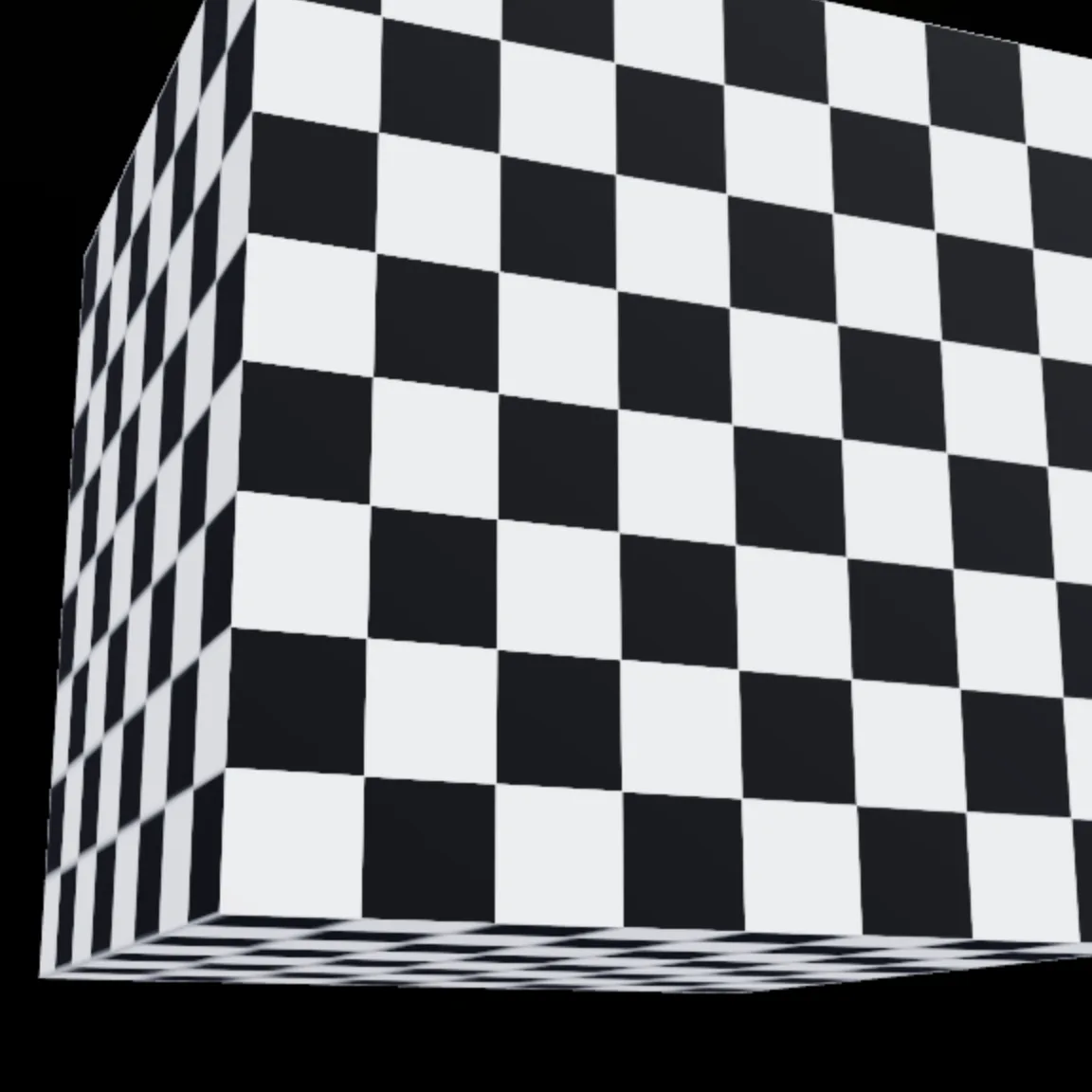
The lit, navigable model.
The 2D view's bottom bar shows the channel you are looking at and a zoom cluster: zoom out, the zoom percentage (click it to fit), zoom in, and 1:1 for one texel per screen pixel (⌘1). Middle-drag, or hold Space and drag, to pan; scroll to zoom.
At the 2D view's top right, Edit UV opens the UV editor (see Unwrap & edit UVs) and Image places a picture flat on the texture. You can also copy an image and press ⌘V to paste it on as a layer of its own, with a box to move, scale and rotate it.
The channel strip beneath the viewport shows the full PBR shade (0), or one channel on its own: Base Color, Normal, Height, Roughness or Metallic (keys 1–5). Opt-in channels a layer has switched on — Emissive, Opacity, Transmission — join the strip on Shift+1, Shift+2 and Shift+3. The strip only changes what you see; it never paints.
Full PBR
The lit result of every channel combined — what the surface actually looks like.
For a final-render look, click Ray in the view controls. The viewport switches to a progressive path-traced render — real bounced light, soft shadows and glossy reflections on the layer stack you are editing. It resolves from noisy to clean as samples accumulate, and any camera move restarts it.
While Ray is on, the right dock becomes the Ray render panel (its Render and Product shot tabs) and the left dock becomes Camera & look. Your project doesn't change: judge roughness, metallic and height under true lighting, then click Ray again to keep painting.
More on Ray
The full path-tracing workflow — depth of field with a physical thin-lens camera, all six tone-mapping curves, and saving a framed render as an image — is covered in the Path-traced preview guide. Save render is included in every paid plan; the Product shot tab is covered under Finish & share.
Lighting & environment
An HDRI environment lights the scene. Click HDRI (the globe) in the view controls to open the Viewport panel, and choose an environment to judge a material under the lighting it will ship in.
The list offers eight featured HDRIs — Studio, Warehouse, Neutral, Outdoor, Golden Gate Hills, Sunset, Moonless Golf and Shanghai Bund. Browse all HDRIs… opens the Library's grid of all forty-eight, grouped into Studio & Indoor, Outdoor & Nature, Sunrise & Sunset, Night and Urban. The upload button beside the list takes your own .hdr or .exr file, or an ordinary image.
Environment
Model Surface
Display
Performance
Preview a material under the lighting it will ship in. The environment is preview-only — it never changes the exported maps.
- Exposure and Env Intensity
- How bright the lighting reads.
- Env Rotation
- Spins the lighting and reflections around the model without swapping the HDRI.
- Show HDRI Background
- Puts the environment behind the model. With it off, Background Color sets a plain backdrop.
- Display
- Brightness, Contrast and Saturation for the viewport only.
- Model Surface
- How the model reads where nothing is textured yet: Shaded, a flat colour you pick with Base Color, or Checker, a UV checker for judging tiling and scale. That base colour also shows through erased areas and is baked into the exported base colour map.
- Performance
- Render Scale (Auto, Full, High or Fast) and Antialiasing (MSAA). Lower them on a high-DPI or 4K display if painting or orbiting feels slow.
Lighting is preview-only
The environment and display settings change how the model looks on screen, not your textures. Base color stays unlit, so your exported maps are identical whatever lighting you preview under.
Your model
Import & primitives
Paint opens with a lit sphere and a default material, so you can start painting immediately. The Shape buttons in the view controls swap the sphere for a cube, plane or cylinder when you just need a surface to test a material on.
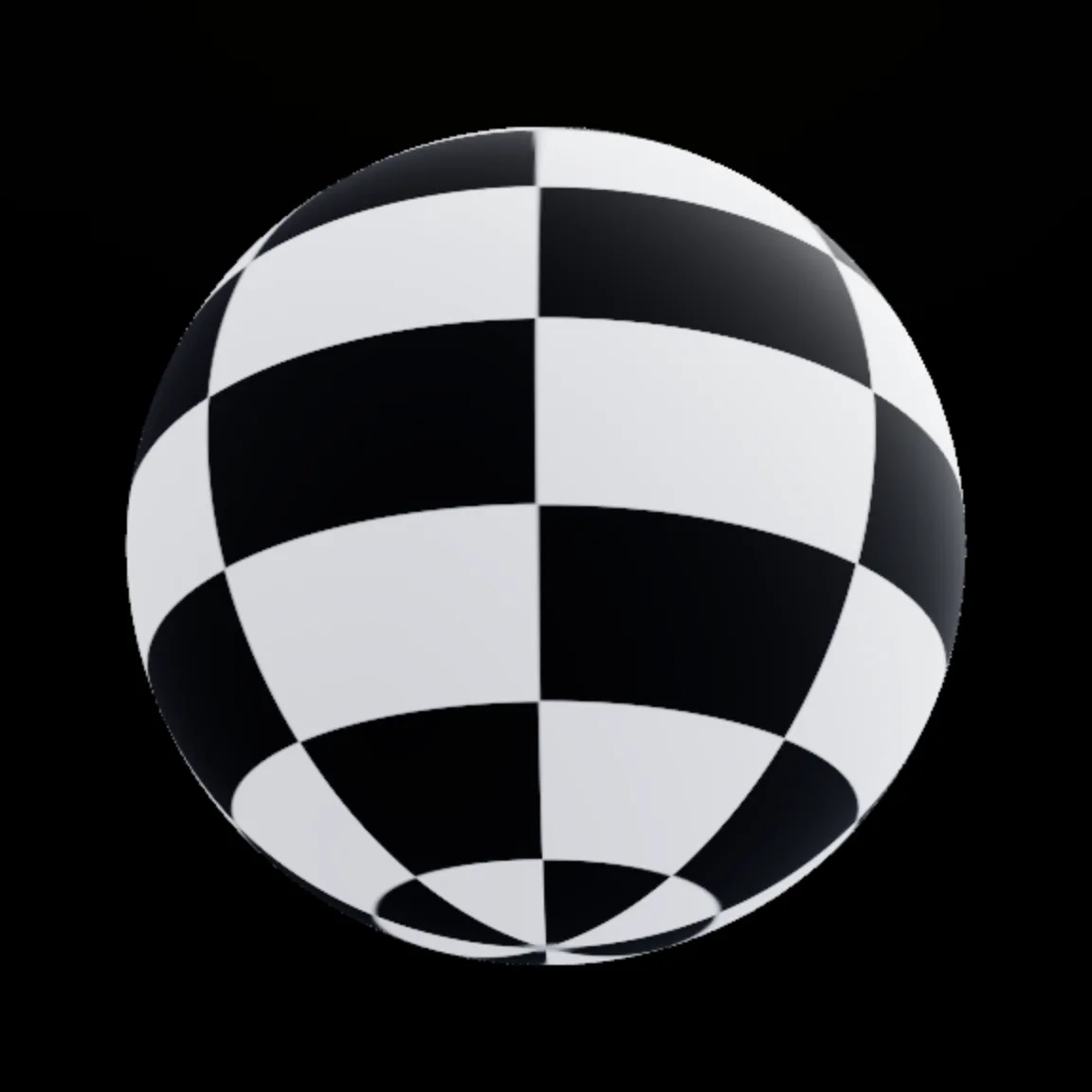
Start on a primitive to test a material, or import your own mesh. (Shown with a UV checker.)
To texture your own asset, click Import in the menu bar or drop a model file anywhere on the window. The Shape strip's Custom button opens the same picker, and the Library's Models source loads a ready-made model.
Mixos accepts GLB, GLTF, FBX, OBJ, PLY, STL, DAE and 3MF files up to 150 MB. If the file carries its own PBR textures and usable UVs, they come in too, as ordinary editable layers:
- one base material, when the object has a single material;
- a masked layer per material slot, when it has several;
- a stack per part, for a multi-part model.
Once a model is imported, the Mesh panel appears at the top of the left dock with two tabs. Parts lists the objects in the model (see Multi-part models).
Setup is a guided Texture Setup checklist — Unwrap UVs, Bake Maps, Texture, Baked Maps and Export — that lights up the step you are on. Bake Maps waits for a UV layout, and Baked Maps waits for a bake. The Texture step holds Color ID and AI Auto-Texture.
No model handy?
The Library's Models source holds a catalog of free CC0 models — furniture, props, decorative pieces, lighting, electronics, containers and tools — plus models other users have generated. Click one to load it and practice on real geometry.
Very large models
Import a model over about 250,000 triangles and Mixos offers to optimize it down to about 250,000 by reducing the triangle count and regenerating the UV layout. You can choose Keep full resolution instead, though UV unwrapping may be slow or fail on a very large mesh. Baking reduces meshes over 280,000 triangles.
Unwrap & edit UVs
A texture needs a UV layout — a flat, non-overlapping map of the surface to paint onto. You don't unwrap by hand: Mixos keeps your model's UVs when they are clean, and unwraps a fresh layout automatically when they aren't.
The Unwrap UVs step on the Setup tab says which layout you are using and offers Re-unwrap UVs to regenerate clean islands.
Unwrapping lays the surface flat into non-overlapping islands — the map you paint onto. Mixos does it in one click.
Re-unwrapping resets the layout
Re-unwrapping a model that already has a layout rebuilds the UV islands and clears the baked maps, along with any paint or masks tied to the old layout. It can't be undone, so Mixos asks first.
A multi-part model keeps a separate 0–1 layout for each part, baked and exported separately. To texture the whole model as one continuous surface, combine the parts first (see Multi-part models). At export you can still pack separate parts into one combined atlas.
To edit the layout, switch the viewport to 2D or Split and click Edit UV at the top right of the 2D view. The Edit UV panel takes over the right dock:
- Layout
- Pack re-packs every island (with a Gap setting), Straighten rotates each island onto its tightest box, Stack dupes piles repeated shapes on top of each other, and Even density gives every island the same texel density.
- Select
- All, None, Invert or Dupes.
- Transform
- Rotates, mirrors, scales, aligns and spreads the selection.
- Checks
- Counts flipped, overlapping, duplicate and zero-area islands.
- View
- Overlays a wireframe, checker, stretch or texel-density map on the atlas, and optionally the checker on the 3D model.
Click an island to select it, drag to move it, drag a corner to scale, and use the handle above it to rotate. Hold Shift to keep scaling uniform and snap rotation to 15°.
Re-bake after editing
Editing islands doesn't clear the baked maps, but they were baked from the old layout, so the panel reminds you to re-bake. The Layer texture section at the bottom of the panel moves the selected layer's texture rather than the islands — see Tiling, transform & projection.
Bake mesh maps
Baking reads the model's geometry into fourteen maps — curvature, ambient occlusion, cavity, thickness and edge wear among them. They record where the edges, cavities and thin areas are, which is what lets smart materials and geometry masks put wear on edges and grime in crevices automatically.
- 1Open Bake Maps — On the Mesh panel's Setup tab, open the Bake Maps step. It unlocks once the model has UVs.
- 2Set the resolution — Choose 512, 1024, 2048 or 4096 to match your texture target. It starts at 2048, or 1024 on phones.
- 3Pick a quality — Preview for a fast look, Balanced for everyday work, or Final for the cleanest result before export.
- 4Bake — Click Bake All Maps. When it finishes, the Baked Maps step shows a thumbnail of every map — click one to look closer.
The step also holds High-poly detail. Load a detailed version of the same model, choose Normal or Normal + AO, set how far the Cage reaches, and bake — then apply the resulting normal map to your material.
Baking turns the model's shape into maps — curvature, occlusion, normals and position — that smart materials and masks read to place wear and dirt.
Downloading the baked maps themselves, one at a time or as a ZIP, is part of the paid plans.
Bake before you texture
Smart materials and every geometry-driven mask rely on the curvature and ambient-occlusion maps. If you skip the bake, those effects have nothing to anchor to and the surface looks flat. The baked mask types bake the model for you when you add them, as long as it has UVs.
Multi-part models
A model built from several parts keeps them separate, and each part is textured independently. Click a part in the Mesh panel's Parts tab to make it active: the viewport outlines it, and the Layer stack switches to that part's own layers.
Painting always lands on the active part. The Layer stack repeats the choice in a Part menu at its top, so you can always see which part you are editing. A badge beside each name counts its layers, and a green dot marks the baked parts.
Hover or select a row for its buttons:
- Eye — hides the part.
- Solo — isolates it while you work.
- Flip normals — for a part that imported inside-out; it reverses the part's surface normals so it shades and paints the right way round.
- Glass — makes the part see-through in the viewport and refract light in Ray.
- Frame — zooms the viewport to the part.
The panel header's Show all brings hidden parts back, and can hide the selection outline.
To treat the whole model as one surface, click Combine into one mesh at the top of the list. It fuses the parts into a single mesh with one unwrap — but it resets every part's layers to a fresh material, clears the baked maps and can't be undone, so Mixos asks first.
Strokes going missing?
A stroke only affects the active part. If paint seems not to land, check the Parts tab or the Part menu above the layers — you are probably painting a part other than the one you selected.
Layers
Layer types
Texturing in Mixos is non-destructive: everything stacks as layers in the right dock, and each layer blends over the ones beneath it. Add one from the + at the top of the Layer stack, or the Add Layer bar at its foot. On a fresh project, three starter cards — Material, Image and Paint Layer — stand in for the empty stack.
Add Layer
- Material
- Opens the Asset Library to pick a whole PBR material.
- Paint Layer
- Holds hand-painted strokes.
- Clone
- Arms the clone tool on its own Clone layer.
- Blank Layer
- An empty canvas to build up.
- Image to Material
- Turns a photo into a material.
- Decal
- Stamps an image onto the surface.
- Adjustment
- Retunes everything below it.
- Node Material
- Builds a material from a graph.
- New Group
- Folds related layers together so you can move, blend and mask them as one.
Text, shapes and gradients arrive as their own layers from the tool rail (see Fill, gradients & shapes and Text).
Double-click a layer's name to rename it. The ⋯ menu that appears when you hover a row holds the rest:
- Every layer — Duplicate Layer, Rename and Delete Layer.
- Material layers — Edit as Nodes and Save as Material….
- Grouping — New Group from Layer, Move to a group and Remove from Group.
- Groups — Ungroup, Flatten Group, Save as Smart Material (a reusable copy of the whole group in your library) and Delete Group.
Right-clicking a row offers the common ones too.
Blending, opacity & order
Set the selected layer's blend mode and opacity in the strip at the top of the Layer stack. Drag a row by its grip to reorder — higher layers cover lower ones — and click its eye to hide it while you work.
Mixos offers twenty-six blend modes, grouped as Normal, Darken, Lighten, Contrast, Comparative and Component — the families you'd find in a 2D image editor. A handful do most of the work:
- Multiply
- Darkens — dirt, grime and shadow passes.
- Screen
- Lightens — dust, glow and worn highlights.
- Overlay
- Boosts contrast — punchy wear and tonal variation.
Normal
Darken
Lighten
Contrast
Comparative
Component
Darkens — great for dirt, grime and shadow passes.
Fold passes that belong together into a group, which has its own blend mode and opacity. Nothing is flattened until export, so you can retune any layer at any time without redoing the work above it.
- 1Lay down a base — Apply a material from the Library — say a clean painted metal.
- 2Add a second layer above it — Apply a dirt or rust material; it lands on top of the stack and covers the base.
- 3Set how it combines — With the new layer selected, pick Multiply in the strip at the top of the stack and lower its opacity.
- 4Confine it — Open its Masks tab and add a mask so it only shows where it belongs — see How masks work.
Height Blend
Height Blend makes two stacked materials interlock by their height maps instead of crossfading: the taller material shows, and the lower one fills its low spots. Gravel beds down into sand; worn paint breaks along the surface's relief.
Select the upper material and find Height Blend in its Properties — Material tab, Advanced, directly beneath Height. Raise it off 0% to switch it on; the higher the value, the harder the seam. A small Blend chip on the layer's row shows that it is on.
The two materials interlock by height — the taller one breaks through instead of fading. 0% is off.
Opacity stays a separate, overall fade, so the two controls never fight.
Height Blend needs height below
It compares this layer's height against the material directly beneath it, so it works once both layers carry height maps. Until then the row reads No height map (this layer has none) or No height below (the layer beneath has none).
Adjustment layers & filters
An adjustment layer (Add Layer → Adjustment) corrects everything beneath it without touching those layers. Its Properties hold an Adjust tab and a Mask tab; use the Mask tab to confine the correction to part of the model.
The Adjust tab carries fourteen filters: Exposure, Brightness / Contrast, Levels, Curves, Color Balance, Hue / Saturation, Vibrance, Gradient Map, Invert, Posterize, Threshold, Blur, Sharpen and Warp. Each has an eye to switch it on or off, and Reset all puts them all back.
Most start switched on but neutral, so they change nothing until you move a slider. Gradient Map, Invert, Posterize and Threshold change the image the moment they're on, so they start switched off — click the eye to use one.
An adjustment layer retunes the material beneath it — here, the object's diffuse colour — non-destructively.
Most filters can target Base Color, Roughness, Metallic or Height with the chips at their top, so you can lift only the roughness or shift only the colour. They start on Base Color. Color Balance, Hue / Saturation, Vibrance and Gradient Map affect base colour only.
Check the export dialog
The export dialog currently warns that adjustment layers aren't included in the exported maps, and its production check flags them before you export. When a correction must ship in the files, prefer the layer's own Look controls (see Adjust a material), which always bake.
Materials
The material library
The Library sits in the left dock, below the Mesh panel, and holds a deep catalog of ready-made PBR materials — brick, concrete, stone, marble, tile, wood, metal, fabric, leather and more. Its Asset Library button, and the add-layer menu's Material entry, open the same catalog in a large window.
Click a material, or drag it onto the model or a layer row, to apply it. It joins your layer stack, where you can re-tint, rescale, reorder and blend it.
Three tabs at the top set what you're doing: Assets browses the library, Import brings in your own maps, and Generate makes new assets with AI. Within Assets, choose an owner first, then a type:
- Your assets — saved materials, models, masks, decals, brushes and HDRIs from your library.
- Mixos assets — the ready-made PBR materials, free CC0 models, smart presets, masks and HDRIs.
- Community — assets shared by other users.
- Use the type control to narrow any collection to the kind you need.
Adjust a material
Select a material layer and open the Material tab in Properties to retune it without touching its source maps. A library material turns glossier, more matte, flatter or warmer in seconds.
Rusted Iron
Material / 2048×2048
Color
- Tiling
- How many times the material repeats (see Tiling, transform & projection).
- Normal
- Scales the strength of the surface bumps.
- Roughness and Metallic
- Shift those channels up or down. Roughness sits at 0.5 when untouched.
- Color
- Brightness, Contrast, Saturation and Hue re-tint the base colour.
- UV Transform, Emissive, Transmission
- Also in Look: the texture's flip, rotation and offset, and the switches for two opt-in channels (see Channels).
- Advanced
- The Opacity channel, Height, Height Blend, Projection, and a Regenerate Maps button that re-derives the layer's maps from its source image.
The Layer actions menu (the sliders button in the panel header) offers Replace Texture…, Regenerate Maps and Reset Look Adjustments. The Nodes button beside it opens the layer in the node editor.
How Height previews
On the sphere, plane and cylinder, the Height slider really moves the surface. On the cube and on imported models it deepens the shading relief instead, on top of the material's normal map — the geometry itself stays put. Only the preview differs; the exported height map is the same.
Tip
Reach for these before adding an adjustment layer: they live on the layer itself, travel with it when you reorder, and always bake into the exported maps.
Tiling, transform & projection
Tiling, at the top of a material layer's Look section, is the quickest way to get the scale of a brick, weave or grain right for your model. Raise it to repeat the material more often; lower it to make the detail larger. The slider runs from 0.1 to 25, and you can type up to 100 into the field.
For finer control, open UV Transform — in the Look section, and as Layer texture at the bottom of the 2D view's Edit UV panel. It flips the layer across U or V, rotates it (with 0°, 90°, 180° and −90° snaps), sets separate tiling on U and V, and nudges it with an X / Y offset.
A material follows the model's UV layout by default. When the UVs are messy, or you want to drape a material over the surface, change the layer's Projection (Material tab → Advanced):
- Planar
- Lays the material flat along one axis you pick.
- Triplanar
- Blends it from all three axes — ideal for rock, terrain and architecture. Blend Sharpness sets how tightly the three meet.
- Cubic, Cylinder and Sphere
- Wrap it to those shapes; Cylinder and Sphere let you pick the axis.
Every projected mode has its own Projection Scale.
Preview only — projection isn't baked into exported maps yet (exports use the UV layout).
Projection is preview-only for now
Exported maps are still written from the UV layout, so a triplanar or planar layer looks different in the exported files than on screen. Tiling and the UV Transform work in UV space and do bake into the export. Projection needs an imported model: it isn't offered on the built-in shapes, and on an unbaked model the panel offers the Unwrap or Bake step first.
Smart materials
Smart materials are layered presets that read your baked maps, so edge wear lands on edges and grime gathers in crevices automatically. The Library's Smart source holds more than eighty — rusted iron, weathered steel, mossy stone, aged wood and others.
- 1Bake the model — Run Bake All Maps on the Setup tab first — see Bake mesh maps.
- 2Apply a smart material — Switch the Library's source to Smart, then click a preset or drag it onto the model. On a multi-part model it lands in the active part's stack.
- 3Retune it — It arrives as a group named after the preset. Open the group and adjust its layers and masks like any others.
A smart material is a stack — a base, wear on the edges and dirt in the cavities — each reading the baked maps. Toggle the layers.
To make your own, build a group of layers and choose Save as Smart Material from the group's ⋯ menu. It joins your library, ready for the next model.
Bake first
Smart materials only place wear correctly once the model is baked. With no bake, their masks have nothing to read and you get the flat base material.
Color ID
A Color ID map splits the model into flat colour regions, so you can texture by part — all the metal trim, all the rubber, all the glass — in one click. Find Color ID on the Mesh panel's Setup tab, in the Texture step below AI Auto-Texture.
- 1Make the ID map — Generate from mesh builds it from the model's material slots, or from its object groups when it has only one slot. Upload map takes your own.
- 2Assign materials — Give each region a material with its Assign material… menu: Basalt, Black Marble, Dark Walnut, Granite, Limestone, Oak, Pine, Rough Stone, Sandstone, Slate or White Marble.
- 3Build the layers — Click Apply (or Create Layers From Assigned Regions) to add a masked layer for each region.
Each flat ID colour is a region. Reassign a part's material in one click — no hand-masking required.
Note
Color ID and AI Auto-Texture are separate tools that share the Texture step. Color ID needs a UV layout, runs locally and costs nothing; once its layers exist, retune or replace them like any other material layer. AI Auto-Texture instead textures the whole model from a single prompt.
Image to material
Image to Material turns one photo of a surface into a full PBR material — normal, height, roughness and metallic derived from the photo — and adds it to your stack as a material layer. It runs in the browser and costs nothing.
Choose it from the add-layer menu, or press ⌘⇧I (Ctrl+Shift+I). In the 3D view, dropping a photo onto the window does the same, unless you are holding a brush or placing a decal. In the 2D and Split views, a dropped photo is placed flat on the texture instead.
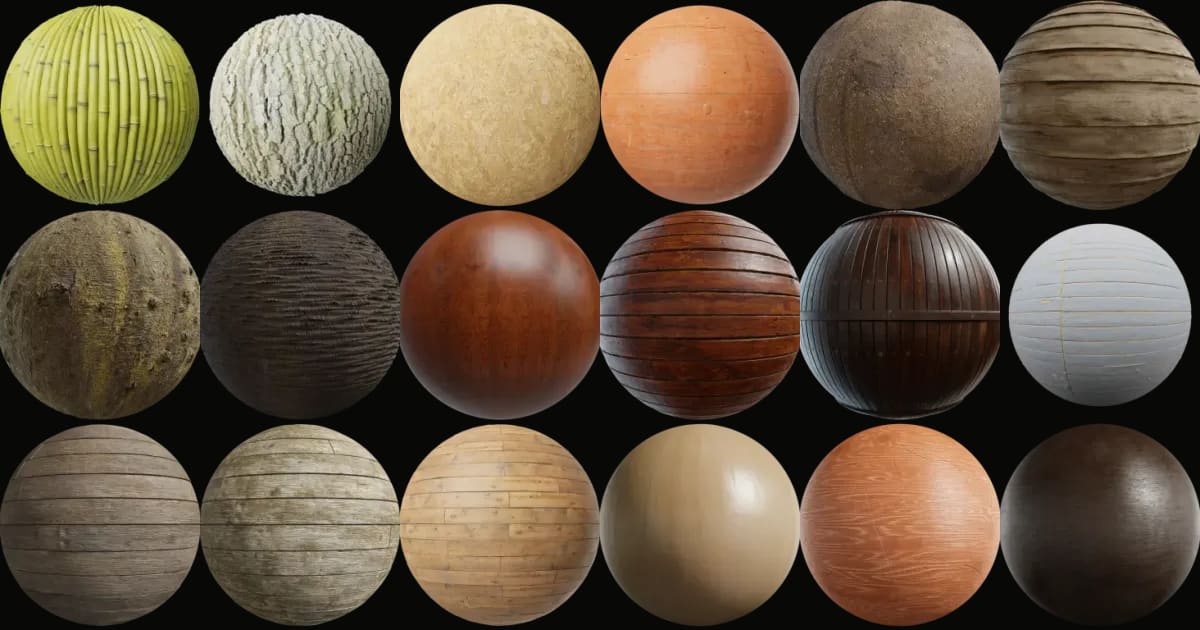
One photo becomes a full PBR set — base color, normal, roughness and height — ready to tile and edit.
Channels
A material is a stack of channels, each describing one physical property of the surface. Five are always present, and they are what the viewport shades with and every export preset expects:
- Base Color
- The surface's plain, unlit colour.
- Normal
- Fine bumps that catch the light.
- Height
- Depth.
- Roughness
- Matte versus glossy.
- Metallic
- Non-metal versus metal.
Three more are opt-in, switched on per layer on the Material tab — Emissive and Transmission in the Look section, Opacity under Advanced:
- Emissive
- Makes the surface give off its own light. Paint it, or set one flat colour for the whole layer. It honours blend modes, so a glow stacked with Add or Screen works as you'd expect.
- Opacity
- Marks where the surface is solid or see-through — leaves, grates, torn edges.
- Transmission
- Carries light through the surface, for glass and thin foliage.
Emissive and Opacity each take a full map or one flat value: a layer that should be forty percent see-through takes the Opacity slider, while a cut-out leaf takes a map. Transmission takes a map. A channel no layer has switched on costs nothing and appears nowhere in the interface.
Where Transmission shows up
Transmission appears in the Ray path-traced preview and in your exported maps, but the fast raster viewport does not render it — its row carries a Ray only tag. To judge glass live on the model, use the per-part Glass toggle on the Mesh panel's Parts tab, which previews in real time.
Mixos recognises the opt-in channels by file name — emissive, emission, opacity, alpha, transmission and the usual variants. Maps embedded in an imported model switch their channel on automatically; after importing a map set through the Library, switch the channel on in the layer's Properties.
On export each is written as its own map. Opacity is also packed into the base colour's alpha for glTF and GLB, where those formats expect it.
Node materials
A node material builds a surface from a graph instead of a picture. Generator nodes make patterns, filter nodes shape them and blend nodes combine them, and the result drives every PBR channel at once. Each step stays live, so changing one number re-derives the whole material.
There are two ways in. Add Layer → Node Material starts a fresh graph. Edit as Nodes, in any material layer's ⋯ menu (or the Nodes button in its Properties), rebuilds that layer as a graph you can take further. The editor opens full-screen: the node canvas in the middle, the searchable node library on one side and the selected node's settings on the other.
Add Layer
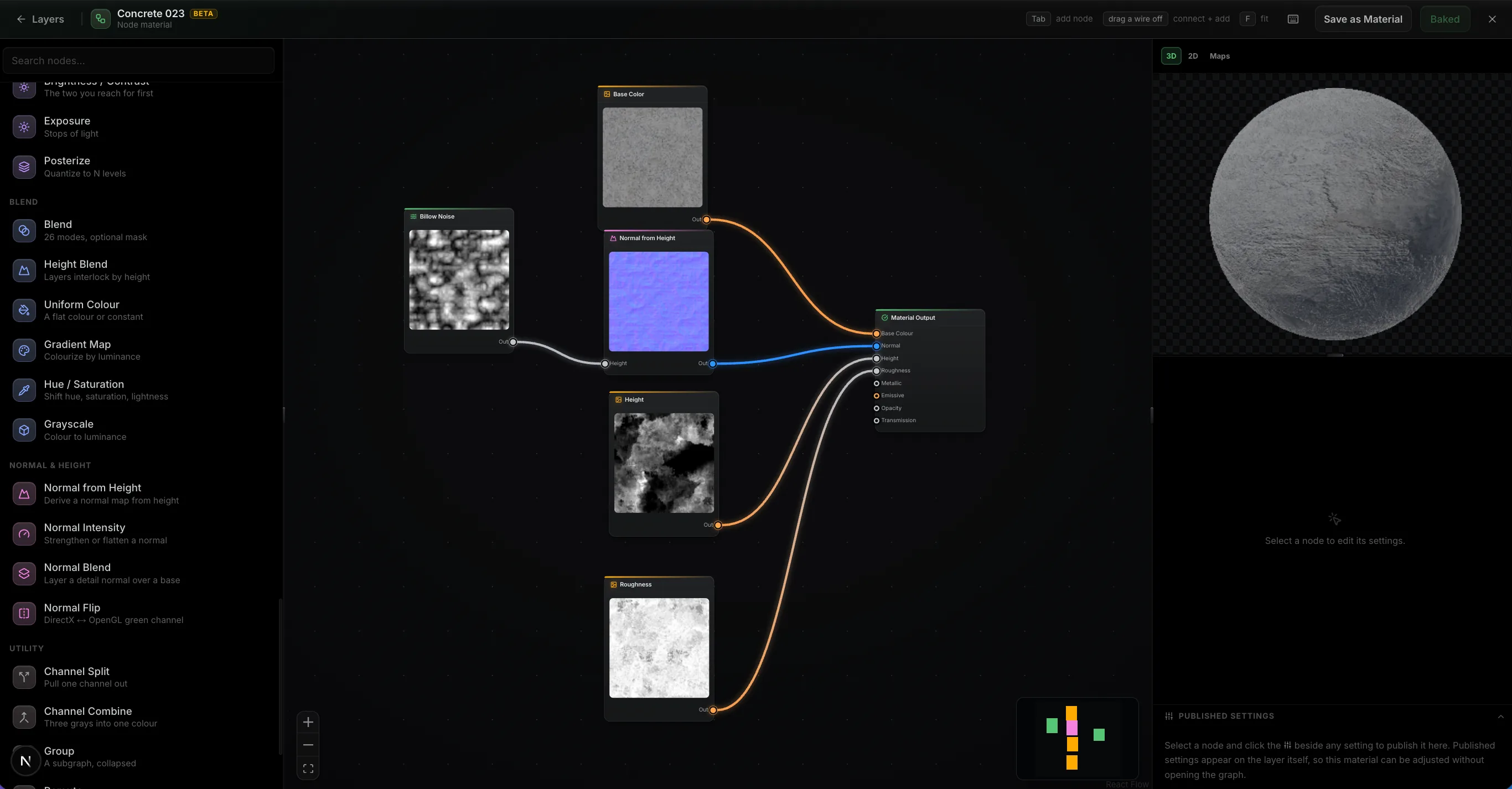
The node library covers the working set:
- Generate — fractal noise, cell patterns and gradients.
- Shape — blur, levels, curves and hue/saturation.
- Break up — directional and domain warps.
- Combine — mirrors, blends and height blend.
- Utility — normal-map tools, channel split and combine, and plain arithmetic.
Wire any output into any compatible input and the preview updates as you go — it refines while you drag a slider and settles to full resolution when you stop.
The mesh inputs make a material fit your model. Once the model is baked, the Mesh Map node reads its ambient occlusion, curvature, cavity, thickness, edges and edge wear. World Position and World Normal read where the surface is and which way it faces, and Slope / Gravity picks out up-facing surfaces.
So "dirt in the crevices" is a blend masked by occlusion, and "worn along the edges" is a blend masked by curvature — placed wherever those features fall on this particular mesh.
Published settings are the few knobs someone should be able to turn without opening the graph. Select a node, and each setting in the inspector gains a small slider glyph; click it to publish that setting.
Published settings collect in their own panel under the inspector. There you can rename them, group them, reorder them, and narrow each range — a tile count that stops at 8 rather than 64. None of this changes the material itself.
Back in the main editor, the layer's Properties show them under Material Settings, so a finished material reads as a handful of deliberate controls. Numbers, colours, toggles and dropdowns can be published; curve and ramp editors stay inside the graph.
Publish before you save
A material is worth reusing in proportion to how adjustable it is from outside. Publish scale, wear amount and a colour or two before saving to your library, and the next model gets a material you can retune in seconds instead of a graph you have to re-read.
What comes out is an ordinary layer: it takes masks and blend modes, joins height blend, and exports in the same map set. Save as Material, in the editor's header, saves it to your library with the graph attached, so it reopens editable on the next model.
In the layer's ⋯ menu, Edit Nodes reopens the graph, Bake Nodes to Maps freezes it into plain maps, and Detach Nodes keeps the maps but drops the graph.
Node editor
- Add a node
- Tab
- Rename the selected node
- F2
- Bypass / re-enable a node
- M
- Pin a node to the preview
- P
- Select everything connected
- L
- Fit the whole graph
- F
- Zoom to the selection
- .
- Find a node
- ⌘F
- Duplicate
- ⇧D
- Delete and reconnect the chain
- ⌘⌫
- Detach a node from its chain
- ⌥D
- Show every node-editor shortcut
- ?
Coming from Substance Designer
The graph model is the same one you know, and the node editor is free on every account. Mixos cannot open .sbs or .sbsar files, so an existing Designer graph has to be rebuilt — but its baked output imports as a normal map set like any other material.
Import your own maps
The Library's Import tab loads a PBR set from another tool or a marketplace — base color, normal, roughness, metallic and height — as a material layer.
- Texture Maps
- Takes one or several files at once; Mixos matches them to channels by name.
- Folder or library
- Takes a whole folder (not on phones). A folder holding several materials imports each one into your library.
Drop in the maps you already have — base color, normal, roughness and the rest — and Mixos matches them by name into one material layer.
- Map images can be PNG, JPG, WebP, EXR, TIFF, BMP, GIF or AVIF.
- A normal map with normaldx, dx or directx in its name is flipped to Mixos's convention, with a warning.
- Mixos asks for separate roughness and metallic files rather than a packed ORM or ARM map.
Once imported, a map set behaves like any other material layer: re-tint it, mask it, stack filters on it.
Painting
Tools & the tool rail
The tool rail down the left edge of the viewport holds every painting tool; hover a tile for its name and key. It shows the five everyday tools — Select, Pick, Brush, Eraser and Fill — and More, at its foot, adds Clone, Gradient, Shape, Dodge, Burn, Mask, Decal and Text.
Select (V) is the default: it orbits the camera and picks parts. Picking any other tool opens its options bar across the top of the viewport, holding just the settings that tool uses.
Each tool finds the right layer for itself:
- Brush and Fill paint into a Paint Layer — the selected one, or a new one.
- Clone works on its own Clone layer.
- Dodge and Burn adjust paint that already exists.
- Mask brushes the selected layer's mask.
- Gradient, Shape and Text each make a new layer of their own.
Pick colour and material
Pick (I) samples the model under the cursor — colour, roughness and metallic together — into the brush you're holding. Alt-click does the same from any brush. The colour swatch's own picker has an eyedropper for any colour on screen.
The brush & the eraser
Pick the Brush (B) and paint. Strokes wrap around the surface in real time; switch to 2D or Split to reach awkward spots. The options bar holds Size, Opacity, Flow and Hardness, the paint colour swatch and the stroke toggles.
What the Brush paints depends on the selected layer:
- A Paint Layer — it paints.
- A material, placed image or adjustment layer — it brushes that layer's mask instead (see Paint & procedural masks).
- Nothing it can paint into — it makes a Paint Layer for you.
The Eraser (E) removes paint from the active layer, revealing the layers underneath; on a material or image layer it hides part of the layer through its mask. X swaps between Brush and Eraser.
The dynamics menu, on the options bar, varies each stroke:
- Smoothing
- Steadies a shaky stroke.
- Spacing
- How densely the tip repeats along the stroke.
- Scatter
- Jitters the tip sideways for organic speckle.
- Angle jitter and Size jitter
- Randomise each stamp's rotation and scale.
- Radial symmetry
- Repeats every stroke around the centre, up to 12 times.
- Surface limit
- In the 3D view, confines a stroke to surfaces facing you, facing up or facing down.
- Paint resolution
- 1024, 2048 (the default) or 4096 — how detailed new paint is. It applies after a reload, and 4096 is heavy on graphics memory.
Three more toggles sit on the options bar:
- Pen pressure
- On a tablet, pressure drives brush size and opacity together.
- Lock transparency
- In the 2D view, confines strokes to what is already painted on the layer — shade a shape without spilling over its edges.
- Stencil
- In the 3D view on an imported model, projects a picture over the view; the brush deposits only through its bright parts. Load image…, then in Move mode drag to place it, scroll to scale and Shift+scroll to rotate. Its panel also sets Overlay opacity and Rotation, turns it On or Off, and offers Replace… and Remove.
Paint items
A paint layer holds its own list of paint items, so you can keep a base coat and a grime pass separate within one layer. Manage them on the Paint tab under Paint items in this layer: New, Duplicate, Clear and delete, plus drag to reorder, hide and lock. The same tab's Move paint section slides, scales and rotates what you've painted.
Paint channels & colour
A stroke can carry more than colour. Select a paint layer and open the Channels section of its Paint tab in Properties to choose what the brush writes: Base color, Roughness and Metallic, plus Emissive once a layer has switched that channel on.
Applies to new strokes.
Toggle the channels this brush paints, then set each one's amount. Amounts and glow colour apply to new strokes.
One pass can be just colour, just a roughness change, or several channels at once. Each enabled channel takes its value on its own row:
- Base color — the colour from the Color section, or the options bar's swatch.
- Roughness and Metallic — an amount slider. Metallic switches on at 100%, Roughness at 65%.
- Emissive — a glow colour picker.
Amounts apply to new strokes
The colour, amounts and glow colour are baked into each stroke when you lift the pen. Changing them afterwards never alters paint that is already down — set them first, then paint. To restyle existing paint, use the item's opacity and blend mode, or paint over it.
- 1Select a paint layer and the Brush — Select a paint layer (or add one with Add Layer → Paint Layer), then press B or click Brush on the tool rail.
- 2Choose the channels — On the Paint tab's Channels section, switch on the channels this pass should write and switch off the rest.
- 3Set the amounts — Set the colour, then drag each channel's slider — say Roughness low and Metallic high for polished metal.
- 4Paint — Stroke on the model. Check a single channel with the channel strip (keys 1–5) to see exactly what you wrote.
This stroke writes to Base Color.
One pass can be just colour, just a roughness change, or all of them at once — each with its own amount.
Fill item, at the top of the Channels section, floods the whole paint item with every enabled channel's value. The Fill tool (G), by contrast, floods one UV island or colour region.
Active paint item, at the top of the Paint tab, holds the selected paint item's name, blend mode and Item opacity, plus Visible and Lock switches. These restyle paint that is already down.
It also holds the Opaque switch. On, paint covers the surface and the material's bumps and grooves stop showing through. Off, paint tints only the colour and the relief from the layers below still reads.
Symmetry & brush keys
Mirror painting textures a symmetrical model in half the time. Press M to mirror strokes across the X axis, or Shift+M for the Y axis, and every dab is echoed on the opposite side. The same toggles sit on the options bar, and they work for colour and for masks.
For patterns that repeat around a centre, use Radial symmetry in the dynamics menu.
Most brush settings have a key, so you needn't leave the model:
- [ and ] resize the brush; Shift+[ and Shift+] make it softer or harder.
- - and = lower and raise the opacity; Shift+- and Shift+= the flow.
- , and . rotate a textured tip.
- Hold B (size) or O (opacity) and drag left or right in the viewport to scrub it live.
- B, E and X switch between the brush and the eraser; P also picks up the brush.
The full list
Every shortcut is collected in the Reference chapter, and you can pull up a cheatsheet inside the editor at any time by pressing ?.
Brush tips & texture brushes
Texture brushes and custom tips stamp grime, scratches, fibres, chips or any shape as you paint. Open the brush tip menu at the end of the options bar to choose one: the round brush and three dozen built-in tips — chalk, bristle, sponge, edge wear chips, fine scratches, fingerprints, rain streaks, pitted rust and more.
To add your own:
- The upload button beside the menu adds any image as a tip.
- The Library's Generate tab makes a new brush tip or texture brush from a prompt (see Generate).
Anything you add joins your library for every project. Hover one of your own tips to delete it, or save it as an alpha PNG for Blender or ZBrush.
Fill, gradients & shapes
Fill (G) lays colour down in one click. Its options bar chooses what the click fills, and the fill lands in a Paint Layer with the brush's opacity and colour:
- Island
- Floods the whole UV island under the cursor.
- Colour
- Floods the connected area of similar colour; Tolerance sets how similar.
Gradient (R) and Shape (H) work in the 2D and Split views, where you drag across the flat texture. Each drag makes a new layer of its own, so you can move, resize and retune it afterwards.
- Gradient
- Fades a colour across the surface — Linear, Mirror or Radial, with a Midpoint and a button to reverse it.
- Shape
- Draws a Line, Box, Oval or Poly (with 3 to 24 Sides), filled or as an outline.
Select a gradient or shape layer to edit it in Properties. A shape keeps its kind, Style (fill or outline), Colour, Sides, Thickness, Softness and Sharpness; a gradient keeps its Ramp, Colour, Midpoint and Sharpness, with a Reverse button.
Both are placed like decals: drag the box on the texture to move, scale or rotate them. The Place row switches them between sitting on the texture and projecting onto the model as a decal.
Clone, dodge & burn
The Clone tool (S) copies the surface from one place on the model to another as you paint — a clone stamp, wrapped around the mesh. It isn't offered in the touch layout, because it needs Alt-click.
- 1Pick Clone — Press S, or open More on the tool rail and click Clone.
- 2Set the source — Alt-click the model where you want to copy from. The stamp chip on the options bar shows that a source is set; click the chip to clear it.
- 3Paint — Paint where you want the copy. Every dab samples from the source, offset by the same distance as your stroke.
Clone copies the material, not just colour: the Channels section of the Clone layer's Paint tab chooses which channels the stamp carries. There is no colour or amount to set — only the usual brush controls.
Clone strokes land on their own Clone layer, created automatically, so the fixes stay separate and can be masked, reordered or thrown away.
What it's for
Erasing seams, logos and scan artifacts, evening out a photographed texture, or repeating detail across a surface without retiling. Re-anchor the source (Alt-click again) whenever you move to a new area.
Dodge (J) and Burn (U) retouch paint that is already there: Dodge lightens and Burn darkens, and on a roughness channel that reads as polishing and scuffing. They need an existing Paint Layer with paint on it, and take the brush's size, opacity, flow, hardness and dynamics.
Masks
How masks work
A mask decides where a layer shows: white reveals, black hides, grey blends partway. Masks live in the layer's Properties, on the Masks tab (the Mask tab on an adjustment layer).
A mask is a small stack of its own. Each entry combines with the ones below it, and the lowest visible entry is the Base the others build on:
- Multiply
- Keeps only where this entry and the ones below overlap.
- Add
- Adds this entry's coverage to the ones below.
- Subtract
- Cuts this entry's shape out of the ones below.
Result · 3 masks · top renders on top
Edge Wear
Worn edges
Dirt
From an image
Curvature
Edges from normals
Select an entry and the toolbar above the stack sets its Blend, flips it with Invert, or deletes it; paint masks add Fill and Clear. Each row has a grip to reorder, an eye to hide it and a chevron to open its settings. The preview above shows the combined result in black and white.
Drag to reveal the rust layer. The mask on the right — white shows, black hides — decides exactly where it appears.
- 1Select the layer — Click the material or adjustment layer you want to confine, and open its Masks tab in Properties.
- 2Add a mask — Click Add mask and pick a type — or, for a quick start, click one of the Quick masks at the top of the tab.
- 3Tune it — Open the entry's chevron and adjust its settings until the preview shows white where the layer should appear.
- 4Stack more if needed — Add another entry and set its Blend to Multiply, Add or Subtract to refine the shape.
One-click weathering
The top of the Masks tab offers ready-set masks before you build anything: Quick weathering's Worn edges and Recess dirt, and the Quick masks — Worn edges, Crevice dirt, Top dust and Exposed edges. Each bakes the model first when it needs to.
Adding masks
Click Add mask on the Masks tab and pick one of twelve types. Each menu item carries a one-line description of what it does.
Eight types work on any model, including the built-in shapes:
- Paint and Image — driven by hand, or by a picture you load.
- Noise, Gradient, Slope, Curvature and Cavity — generate a pattern from settings or from the material's own maps.
- Edge Wear — reads the baked maps when there are some, and the texture when there are not.
The other four — Flow, Mesh AO, Exposed Edges and Mesh Curvature — need the model's baked maps. On an imported model with UVs, adding one bakes the model for you. On a built-in shape, or a model without UVs, they stay greyed out and say why.
Most types share Brightness and Contrast plus a Levels panel (Black Point, White Point and Intensity), so a mask rarely needs repainting to fit your model. Flow adds a Blur, and Exposed Edges carries its own Blur and Intensity. Invert, on the toolbar, flips any mask.
- Slope
- Selects surfaces by how steeply they face, between a Min and a Max. Its Up Direction reads the baked model (Model) or the material's bumps (Material); until you bake, it reads the material.
- Flow
- Simulates liquid running down the surface — drips, streaks and seepage — for rust bleed, water stains and grime runs. It is seeded from the model's recesses.
Paint & procedural masks
To paint a mask by hand, pick the Mask tool (K) from the tool rail. It brushes the selected layer's mask, adding a paint mask if the layer has none.
Its options bar has a Paint / Erase switch — Paint reveals, Erase hides — and the brush's Size, Opacity, Flow and Hardness. A new paint mask starts fully revealed with Erase selected, so your first stroke carves the layer away.
Combine painted and procedural
Start from a noise or edge-wear mask, then add a paint mask above it to push the pattern in or out exactly where you want.
The procedural types generate resolution-independent patterns you can dial in:
- Noise — ten flavours (fBM, Billow, Ridged, Voronoi, Cells, Crackle, Turbulence, Domain Warp, Marble and Wood Rings), with Scale, Octaves and a Seed.
- Curvature and Cavity — pick out edges and recesses from the material's own normal and height maps, each with a Radius and an Intensity.
- Gradient — a directional ramp with an Angle and a multi-stop editor. Click the ramp to add a stop (up to eight), drag a pin down to remove it, and set each stop's position and value. Buttons reverse the ramp, space the stops evenly or invert their values.
Click the ramp to add a stop · drag a pin down to remove it
Edge wear & masks from baked maps
Once the model is baked, a mask can follow its real geometry — the same technique smart materials use, on any layer you like:
- Edge Wear and Exposed Edges — the model's edges, for chipped paint and wear.
- Mesh AO — its cavities and occluded areas, for dirt and grime.
- Mesh Curvature — its baked curvature, for finer edge and crease work.
Wear lands on the rim, where edges catch knocks.
Edge Wear is the richest of them. Added to an imported model, it bakes the model first and starts from the Chipped paint style. Its settings, top to bottom:
- Surface wear
- Polished, Chipped paint or Abraded sets the character of the wear, with a Chip Size, a Pattern Seed and, for Abraded, a Scratch Angle. More wear and Protect let you paint where wear should grow or stay clear, and a button applies a matching metal or polish finish to the layer.
- Wear Source
- Baked geometry follows the model's real edges; Texture works on any shape with no bake.
- Amount and Edge Size
- How much wear there is, and how far it spreads from each edge.
- Chipping, Softness and Crevice Protection
- Break the wear up, soften its edge, and keep it out of recesses.
These need a bake
Edge Wear falls back to reading the material's texture on an unbaked model, but the geometry masks need the bake. On an imported model with UVs, adding one bakes it for you; on a built-in shape, or a model without UVs, they stay unavailable (see Your model → Bake mesh maps).
Grunge & weathering masks
Open the Library and switch its source to Masks for twenty-five ready-made grunge and weathering masks — dirt, soot, rust bloom, scratches, fingerprints, moss and more. They are grouped as Dirt & Grime, Rust & Wear, Edges & Paint, Water & Stains and Organic.
Click one, or drag it onto the model, to confine the selected layer to that pattern; then tweak it like any other mask. Your own masks and masks from the Community sit above the groups.
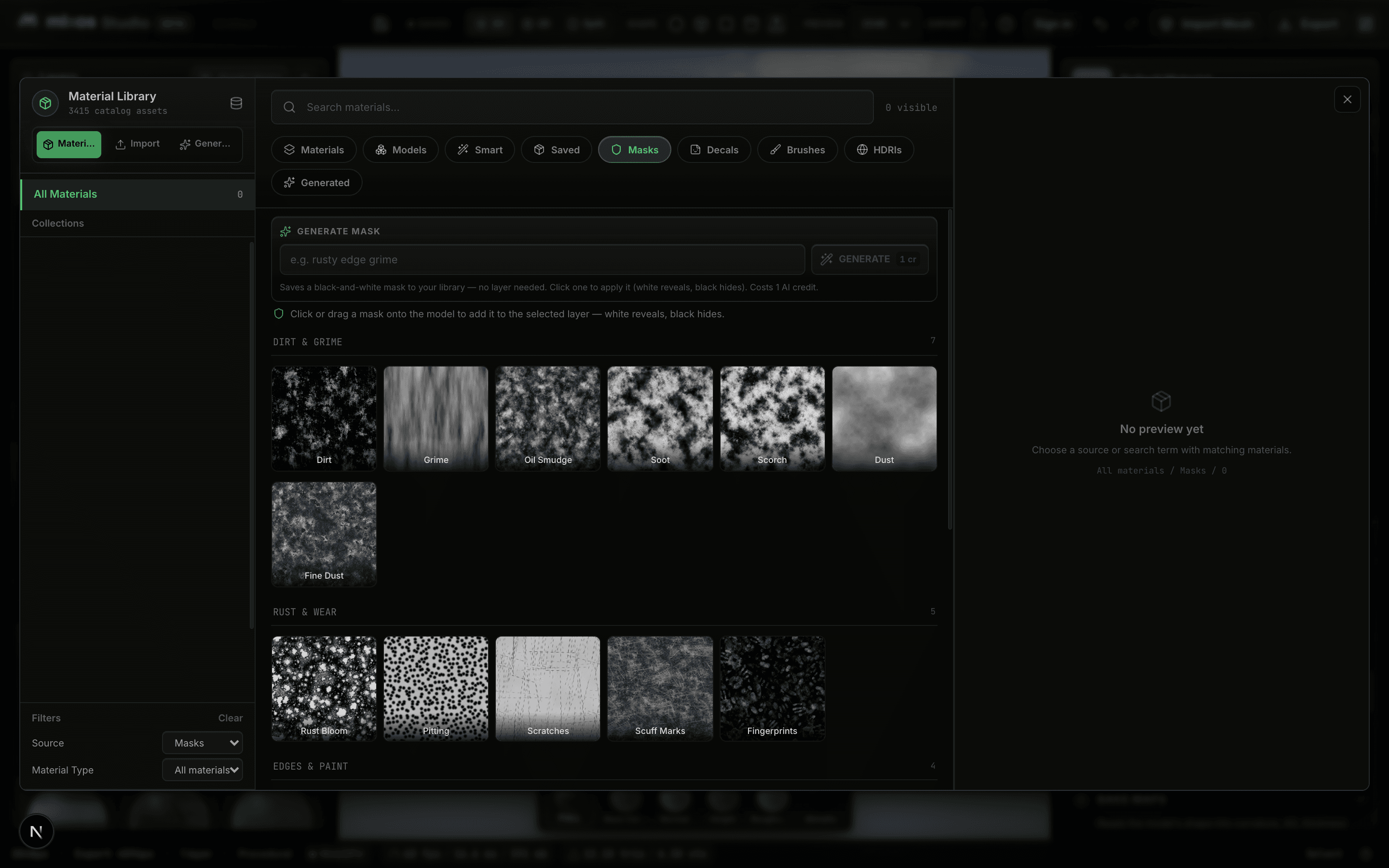
Generate a mask
To make a pattern the library doesn't have, describe it — a weathering pass, a splatter, a custom wear pattern — and generate a black-and-white mask. Use the Generate mask box at the top of the mask library, or the Library's Generate tab (Weathering mask).
The mask saves to Your masks and is applied to a maskable layer, ready to scale and refine. It costs one AI credit; on the free plan it is also shared to the public Community library (see AI tools).
Decals & text
Decals
Decals stamp an image — a logo, a sticker, a sign, a label — onto the surface as a layer of its own, without committing it to the texture.
- 1Choose Decal — From the add-layer menu or the tool rail, or press D. Pick your own image, or generate one from a prompt in the Library's Generate tab.
- 2Place it — In the 3D view, click the model where the decal should go.
- 3Fit it — Drag the on-mesh handles to move, rotate and scale it. Hold Shift while scaling to keep it uniform, or while rotating to snap to 15°.
A small toolbar rides with the handles. The ratio lock (on by default) keeps the image's proportions while you scale; click it to scale freely. Restore image ratio and Reset size, rotation, and ratio undo your changes, and the last button closes the decal controls.
A decal projects onto the surface from where you placed it, following the model and skipping surfaces that face away. Select its layer to edit it at any time. To rub out part of a decal, select it and use the Eraser; the Brush paints it back.
In the 2D view, the Image button places a picture flat on the texture instead, with a box to drag.
A decal can carry more than colour. In its Properties, Generate Maps derives normal, roughness, metallic and height from the decal's own image — locally, at no cost — so the sticker also embosses and glosses the surface. You can also replace any of those maps with your own; until a channel has a map, it does nothing.
Text
Add lettering — a label, a serial number, a slogan — with the Text tool (T). One press adds a text layer reading Text and selects it; with a text layer already selected, the tool edits that one instead.
Type in the Text panel, or double-click the text in the 2D view to edit it in place (⌘Enter finishes). Drag its box to place it, exactly like a decal. The text stays editable for as long as the layer exists.
The text layer's Properties hold the Text panel:
- Font — with Add font file… and Use installed fonts.
- Weight — Thin to Black, plus italic.
- Align, Tracking and Line height.
- Colour for the fill and the outline, and an Outline width.
- Sharpness.
Size it with the placement box or the layer's Width and Height. Like shapes and gradients, text can sit on the texture or project onto the model as a decal — switch it from the Place row.
AI tools
AI Auto-Texture
AI Auto-Texture paints the whole model from a plain-language description. Find it on the Mesh panel's Setup tab, in the Texture step; when you import an untextured model, Mixos opens it there for you.
- 1Describe the look — Type what you want — weathered bronze, mossy stone, worn leather. Optionally attach a reference image.
- 2Texture it — Click Texture this model. It unwraps the model first if needed and handles its own projection.
- 3Refine by hand — The result lands as one ordinary material layer, AI Texture. Mask it, paint over it, or stack smart materials on top.
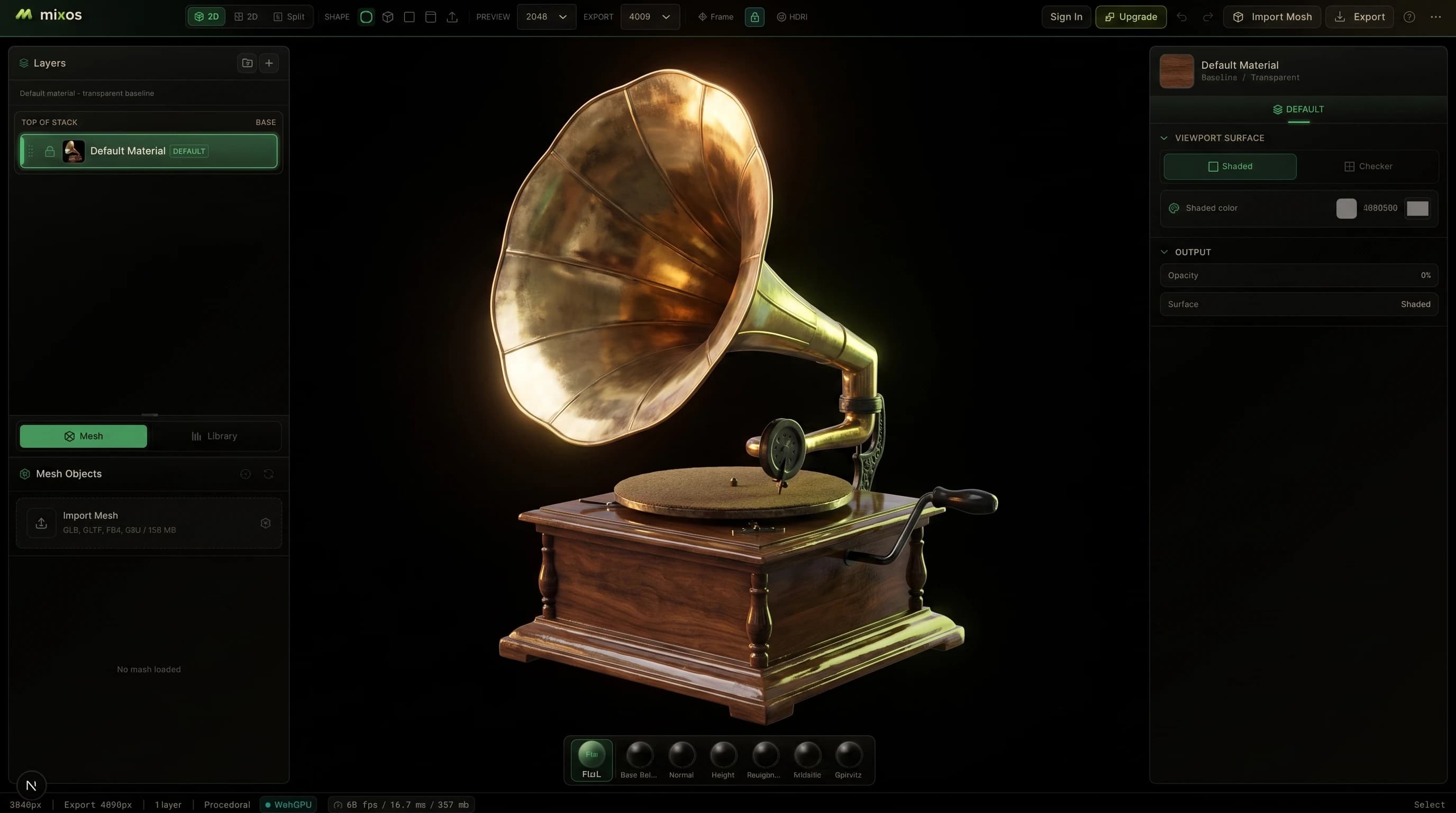
Describe a look and let AI Auto-Texture paint the whole model in one pass — then refine it by hand. (Try “rusted iron”, “oak”, “mossy stone”.)
A run costs 5 AI credits; a free account's 10 credits cover two runs.
Multi-part models are combined first
Auto-Texture paints the model as one surface, so a multi-part model is combined into a single mesh first. If you've already built layers on individual parts, that work is replaced and can't be brought back — Mixos asks first. Run Auto-Texture before refining by hand, or keep the parts separate and texture them yourself.
Generate materials, masks, brushes & models
The AI Generate box turns a prompt into new assets. It sits in the bottom-right corner of the viewport — open when you start a project, collapsing to a bar once you begin working — and the same form lives on the Library's Generate tab. Pick what to Make, type a prompt, and generate; the handle shows your remaining credits.
Surfaces
Material · Texture brush · Decal · Weathering mask · Brush tip
Geometry
3D model · 3D model from image
From a layer you have
Restyle a layer
The Make menu has three groups:
- Surfaces
- A Material (a full PBR material, added as a new layer), a Texture brush, a Decal, a Weathering mask or a Brush tip. Decals, masks and brush tips save to your library for every project.
- Geometry
- A 3D model from a prompt, or a 3D model from image. Either replaces the model in the viewport and saves to your Models.
- From a layer you have
- Restyle a layer makes a variation of the selected material layer.
Each generation costs credits; a free account starts with 10. Everything outside the AI tools — importing, baking, materials, painting, masking and decals — uses none.
- Material
- 3 credits at 1K, 6 at 2K. 2K materials come with the Pro and Max plans.
- Decal, weathering mask, brush tip
- 1 credit each.
- Texture brush, restyle
- 4 credits each.
- 3D model
- 4 to 16 credits, depending on the quality you choose.
Free and licence generations are shared publicly
On the free plan and the perpetual licence, the materials, texture brushes, decals, weathering masks and prompt-made 3D models you generate are added anonymously to the public Community library. You always keep your own copy. Pro and Max generations stay private.
Finish & share
Export
Open the export dialog with Export at the right end of the menu bar — or Export PBR maps… in the project menu, or the Export step on the Setup tab. Pick your production target and Mixos sets the normal-map convention and channel packing for you, then bundles everything into a ZIP with a short README for that target.
Production target
Renderers
DCC & Engines
Generic
Normal convention: OpenGL
Resolution
Format & Precision
More export options
Channels
- 1Choose a production target — Renderers (Arnold, V-Ray, Octane, Corona), DCC & engines (Cinema 4D / Redshift, Blender, Unity, Unreal Engine, Godot 4, Roblox), or Generic PBR for everything else. A Production check beneath the target confirms the material, model, maps and settings are ready.
- 2Set resolution & format — Choose 1024, 2048 or 4096 (4096 by default on desktop), then a Format & Precision: PNG, TGA, TIFF or PSD at 8 bits for everyday use, 16-bit PNG, or floating-point EXR (16-bit half or 32-bit float) when height and normal need real precision.
- 3Name the files — File Prefix sets the start of every file name — the preview beneath it shows the result, such as material_basecolor.png.
- 4Pick channels & options — Under More export options, tick the channels to include, include the 3D model (.glb + .usdz, on by default when a model is loaded) and optionally an .fbx, and override the normal convention if your engine expects the other one.
- 5Export — Click Export Textures ZIP. A progress bar shows each stage, with Cancel beside it.
What each target changes:
- Unreal Engine uses the DirectX normal convention; every other target uses OpenGL.
- Unreal Engine and Godot 4 add a packed ORM map — occlusion, roughness and metallic in one texture.
- Unity adds a Metallic + Smoothness map.
- Packed maps are written in the 8-bit formats.
Export is a paid feature
Authoring and saving are free; taking the files out is the paid part. Paid exports (Pro, Max, a Team seat or the perpetual licence) are up to 4K, watermark-free, in your format, with the 3D model included. On the free plan the dialog shows the plans in place of the export form. Download copy (.mxo), which saves the editable project itself, is free on every plan.
For a model made of several parts, a Multi-part layout choice appears. One set per part exports an independent texture set for each part; Combined atlas packs every part into one material, with the UVs remapped into a grid.
What the export bakes
Exported maps are written from the UV layout, so object-space projection modes aren't baked in yet, and the dialog also notes adjustment layers — the files can look different from the viewport. Painted layers, tiling and the UV transform do bake. The dialog lists exactly what differs before you export.
Review links & sharing
Instead of sending files, share a link. The export dialog's Client review section creates one; anyone who opens it sees your textured model in their browser — lit, spinning, with no account or install needed.
Client review
Browser snapshot · view count · revocable
Anyone with a view-only link opens your model in a browser — no account, no install. Revoke it any time.
- View only
- Copy client review link gives a read-only 3D viewer — the quickest way to get sign-off from a client.
- Can edit
- Copy editable handoff lets a signed-in teammate open the project in their own editor.
- Manage links
- Lists your links with their view counts. Revoke one and it stops opening for everyone.
Review links need a loaded model with a visible material, cloud storage and a paid plan.
To work on a project together over time, use Share… in the project menu. Add people by email with a role, set who else can open it under General access, and copy its link. Sharing needs a saved project that has finished syncing to the cloud.
Product shots
Turn a textured model into a finished marketing image. Click Product shot in the menu bar (or Product shot… in the project menu): the viewport switches to Ray and opens the Product shot tab of the Ray render panel. Ray renders your model without its backdrop, and AI builds the set you describe around it.
- 1Describe the set — Type something like "on a polished marble counter in soft morning window light", or start from one of the idea chips.
- 2Pick a picture shape — Square post 1:1, Portrait post 4:5, Story 9:16, Wide 16:9 or Landscape 3:2. Frame product fits the model to it.
- 3Set the room and fit — Choose how much room the product takes (Tight, Balanced or Roomy), and whether it stays Exactly as it is or may sit in naturally.
- 4Generate — Each shot costs 4 AI credits. The result opens full size, with a button to make another from the same brief.
Note
Product shots need an imported model — a preview sphere can't be staged. Downloading a shot is included in every paid plan.
Live Link to Blender, Cinema 4D & Unreal
Skip the export loop entirely. Live Link…, in the project menu, streams your material into Blender, Cinema 4D or Unreal Engine while you paint. With Auto Sync on, the base color, roughness, metallic, normal and height maps land on the linked object a moment after every change.
They arrive wired into a Principled BSDF in Blender, a Redshift material in Cinema 4D, and a ready-made material in Unreal. A dot beside the menu item shows whether the link is connected.
1 · Set up
Plugin connected — you're all set. Paint and it streams to Blender.
2 · Sync
- 1Pick the app's tab — Blender, Cinema 4D or Unreal, at the top of the Live Link panel.
- 2Install the plugin once — In the desktop app, click Install: Mixos finds Blender or Cinema 4D and places the plugin, and for Unreal you choose the project. In the browser, download the plugin and install it by hand — for Unreal, unzip it into your project's Plugins folder. Restart the app afterwards.
- 3Connect and paint — Click Connect, then leave Auto Sync on, or press Send Now whenever you want to push the maps.
Blender is two-way. Tick Receive meshes from Blender, then press Send to Mixos in Blender's sidebar (or Receive Now in the panel) to bring a model over for texturing. Synced maps land back on that same object.
Where it works
Live Link runs in the desktop app for Mac and Windows, and in Chromium browsers (Chrome, Edge, Brave). Safari and Firefox can't reach the plugin, so use the app there. The connection stays on your machine — nothing is uploaded. Sending and receiving need a paid plan. The full walkthrough is in the Blender Live Link guide.
Save, projects & your account
Click Save beside the project name (⌘S or Ctrl+S). The first save asks for a name; after that, Save updates the project, and a chip beside the menu reports Saved or Unsaved.
Projects save to your library and sync to the cloud, so they follow you between devices. A local draft also stays in this browser if the network drops.
You don't have to remember to save. Mixos keeps a draft of your work in the browser, updated shortly after you stop editing, and writes a named project through to your library about every minute and a half. If a tab closes unexpectedly, the next visit offers Restore unsaved changes? — restore the newer draft, or discard it.
Save a version… (⇧⌘S) in the project menu saves a separate checkpoint and leaves the original as it was — a cheap way to branch a look before a risky experiment.
Open project file… (⌘O) and Download copy (.mxo) move a project in and out as a single file on your own disk, even when cloud sync is unavailable.
Saved projects live in My projects, in the account menu. Each project's ⋯ menu can Rename, Duplicate or Delete it, Share… it, make it available offline, or open its sculpt in Mold.
Round trips to Mold and Studio
The project menu's Sculpt in Mold… hands your model to Mold for sculpting and brings it back with your texturing intact (it reads Continue in Mold once a sculpt exists), and Send material to Studio… carries the finished material into a Studio scene.
Reference
Tips for a great result
Bake first, always
The curvature and ambient-occlusion maps are what place wear, dirt and smart-material detail correctly. Bake before you texture.
Think in layers and masks
A base material, a masked layer of edge wear, and a pass of dirt is far easier to tweak and undo than one flattened texture.
Inspect channels
Use the viewport channel strip to check Base Color, Normal and Roughness on their own — it makes problems obvious before you export.
Retune on the layer, not above it
The Look controls (tiling, roughness, metallic, colour) always bake into the export, while the export dialog flags adjustment layers. For anything that must ship in the maps, prefer the layer's own controls.
Right-click for help
Right-click the tool rail, the options bar, the layer stack, the Properties panel, the Library, the Mesh panel, the view controls or the Save, Import and Export buttons for a Help item that opens this manual at the matching section.
Troubleshooting
The problems people hit most, with what causes them and the fix. Where the editor shows a message, it is quoted so you can match it.
Importing and preparing a model
- "File too large" or "Unsupported mesh file"
- Imports are limited to 150 MB, in GLB, GLTF, FBX, OBJ, PLY, STL, DAE or 3MF. Reduce or convert the file in your 3D app and import it again.
- The model came in untextured
- The model loaded but its own textures couldn't be read. Re-export it as a GLB with the textures embedded, or bring the maps in separately through the Library's Import tab.
- "Unwrap first to bake"
- The model has no UV layout yet. Paint unwraps a model with no usable UVs as it loads; if that failed, open the Unwrap UVs step on the Setup tab and run it again. See Unwrap & edit UVs.
- Smart materials or edge wear look flat
- The model isn't baked, so there are no edges or cavities to read. Run Bake All Maps on the Setup tab — see Bake mesh maps.
- Baked masks and Projection are greyed out
- They need an imported model with UVs and a bake. The built-in shapes can't be baked.
Painting
- Strokes land on the wrong part, or nowhere
- On a multi-part model, paint only reaches the active part. Click the part you mean in the Mesh panel's Parts tab, or pick it from the Part menu above the layers. A hidden part takes no visible edits.
- "This part can't be painted — it has no UV layout"
- That part has no UVs. Re-unwrap the model, or combine its parts, from the Setup and Parts tabs.
- Changing a channel's amount does nothing
- Amounts, colour and glow colour apply to strokes painted after you set them — existing paint keeps the values it was painted with. Set them first, then paint. See Paint channels & colour.
- "Paint something first — Dodge and Burn adjust existing paint"
- Dodge and Burn only retouch paint that's already there. Paint on a Paint Layer first, then retouch it.
- "Alt-click the model to set a clone source first"
- The Clone tool needs a source point. Alt-click where you want to copy from, then paint where you want it.
- The Mask tool won't paint
- It needs a layer that can carry a mask — a material, adjustment or placed decal layer above the base. Select one first.
- The texture looks soft in the viewport
- Raise Preview in the view controls to 2048. While a stroke is in progress the preview drops to 1024 and sharpens when you lift the pen. The export size is set separately, in the export dialog.
Viewport and browser
- The status bar reads WebGL viewport
- Your browser has no WebGPU, so the viewport fell back to WebGL2 and object-space projection drops out of the preview. Update your browser or switch to one listed under Requirements.
- The editor says it needs WebGPU
- No usable graphics were found. The message names the fix — a browser to switch to, a setting to change, or a graphics driver to install.
- Painting or orbiting feels slow
- Lower Render Scale and Antialiasing under Performance in the Viewport panel (the HDRI button), and keep Preview at 1024. See Lighting & environment.
Exporting and saving
- The export dialog shows plans instead of settings
- Exporting maps and models is part of the paid plans. Everything before export is free, and Download copy (.mxo) saves the editable project on any plan.
- The exported maps don't match the viewport
- Exports are written from the UV layout, so projection modes and adjustment layers aren't baked in yet. The export dialog lists what differs. Use the layer's own Look controls for corrections that must ship.
- Bumps look inverted in the target app
- Its normal-map convention differs. In the export dialog's More export options, switch Normal Map Convention between OpenGL and DirectX.
- "Couldn't save your project"
- The cloud save failed — usually a dropped connection. Your work is still open; save again once you're back online, or use Download copy (.mxo) to keep a file.
- "Storage is full — autosave paused"
- Remove old projects from My projects to free space, then save again.
- "Restore unsaved changes?" on opening
- A newer draft than your last save was found in this browser, usually after a tab closed unexpectedly. Restore it to pick up where you left off, or discard it.
AI tools
- "Sign in to generate"
- AI tools need you to be signed in. Sign in from the account menu and try again.
- "You're out of AI credits"
- Each AI run spends credits. A paid plan adds more; everything outside the AI tools uses none.
Keyboard shortcuts
Mixos is quick once the keys are in your hands. These work whenever the editor — not a text field — has focus. On Windows and Linux use Ctrl where ⌘ is shown. The node editor has its own set, listed under Node materials.
Camera
- Orbit the camera
- Left-drag
- Pan the camera (pivot unlocked)
- Middle-drag
- Zoom
- Scroll
- Pan the 2D / UV view
- Middle-dragSpace-drag
- Actual pixels in the 2D view
- ⌘1
View
- View a single channel
- 12345
- Emissive / Opacity / Transmission (when on)
- Shift123
- Full PBR view
- 0
- Toggle 3D / 2D
- Tab
- Frame the model
- F
- Focus canvas / show interface
- ⌘ShiftF
Tools
- Select
- V
- Pick colour + material
- I
- Brush (P also works)
- B
- Eraser
- E
- Swap brush & eraser
- X
- Fill
- G
- Gradient (2D)
- R
- Shape (2D)
- H
- Clone (Alt-click sets the source)
- S
- Dodge / Burn
- JU
- Mask brush
- K
- Decal
- D
- Text
- T
Brush
- Size
- []
- Softer / harder
- Shift[]
- Opacity
- -=
- Flow
- Shift-=
- Rotate a textured tip
- ,.
- Scrub size / opacity (hold + drag)
- BO
- Pick colour + material
- Altclick
- Mirror X / Y
- MShift M
Layers
- New layer
- ⌘N
- Duplicate layer
- ⌘D
- Delete layer
- DeleteBackspace
- Import photo as material
- ⌘ShiftI
- Paste an image as a layer (2D)
- ⌘V
Decals, text & shapes
- Move / scale / rotate
- Drag handles
- Scale uniformly (lock aspect)
- Shiftscale
- Snap rotation to 15°
- Shiftrotate
Project
- Undo
- ⌘Z
- Redo
- ⌘ShiftZ
- Save project
- ⌘S
- Save a version
- ⌘ShiftS
- Open a project file
- ⌘O
- Open the cheatsheet
- ?
Frequently asked questions
Do I need to install anything?+
No. Mixos runs entirely in your browser on WebGPU — nothing to download and no drivers to manage. If you want it, a free desktop app for Mac and Windows adds faster bakes, native ML inference and full offline support, but nothing requires it.
Which file formats can I import?+
GLB, GLTF, FBX, OBJ, PLY, STL, DAE and 3MF models up to 150 MB; PNG, JPG, WEBP, EXR, TIFF, BMP, GIF or AVIF for texture maps; and PNG, JPG, WEBP, BMP, GIF or AVIF for decals.
Which engines can I export to?+
PBR map sets tuned for Cinema 4D, Blender, Unity, Unreal, Godot 4 and Roblox, and renderers like Arnold, V-Ray, Octane and Corona — plus a Generic PBR preset for any other PBR tool — each with the right normal-map convention (and packed ORM or metallic-smoothness maps where the engine expects them).
Do I need to know how to UV unwrap?+
No. Mixos reuses clean UVs or generates non-overlapping islands with one click.
Can I paint by hand as well as use materials?+
Yes — add a paint layer and paint directly onto the model, control which channels each stroke writes to, and mask it, alongside or on top of library materials.
Can I bring in my own materials and textures?+
Yes. Import a full PBR map set (or a folder of maps), turn a single photo into a tiling material with Image to Material, or stamp your own images as decals.
Is Mixos free?+
Authoring is free with a free account, with no time limit and no watermark on your work. That account includes cloud saving and trial AI credits. Taking files out is the paid step: Pro and Max include 4K export, a larger monthly pool of AI credits, and more cloud storage.
Everything here is one tab away — import a model and take it all the way to render-ready maps.
Open Paint