Blender
Free and very deep, for Windows, macOS and Linux. The best choice on a capable computer you can install software on; it won't install on a school Chromebook.
Most students land on one of four free answers. Which one fits depends on the computer you have (a school Chromebook rules out the desktop ones) and how far you want to go.
Maps that drop into
Free and very deep, for Windows, macOS and Linux. The best choice on a capable computer you can install software on; it won't install on a school Chromebook.
Free in a browser, built from shapes and holes. Ideal for first projects and simple prints; limited for organic or textured work.
Free for primary and secondary schools signed up with Google or Microsoft education accounts, in a browser. Good for buildings and objects drawn from lines.
Modeling, sculpting, texturing and animation in a browser, on Chromebooks too. Building is free; export is paid, or included for a class with a grant.
Why Mixos
Blender is free in every sense, export included, and it is the deepest of the four. The cost is the computer: it is a desktop program for Windows, macOS and Linux, it wants a decent graphics card, and it won't install on a managed school Chromebook. On your own laptop, it is the obvious place to go once you're serious.
Tinkercad is free, export included, and runs in any browser. It builds by combining shapes and holes, which makes it the easiest start and a good fit for simple prints. SketchUp for Schools is free to primary and secondary schools enrolled with Google or Microsoft education accounts and also runs in a browser; it draws with lines and push-pull, which suits buildings and furniture.
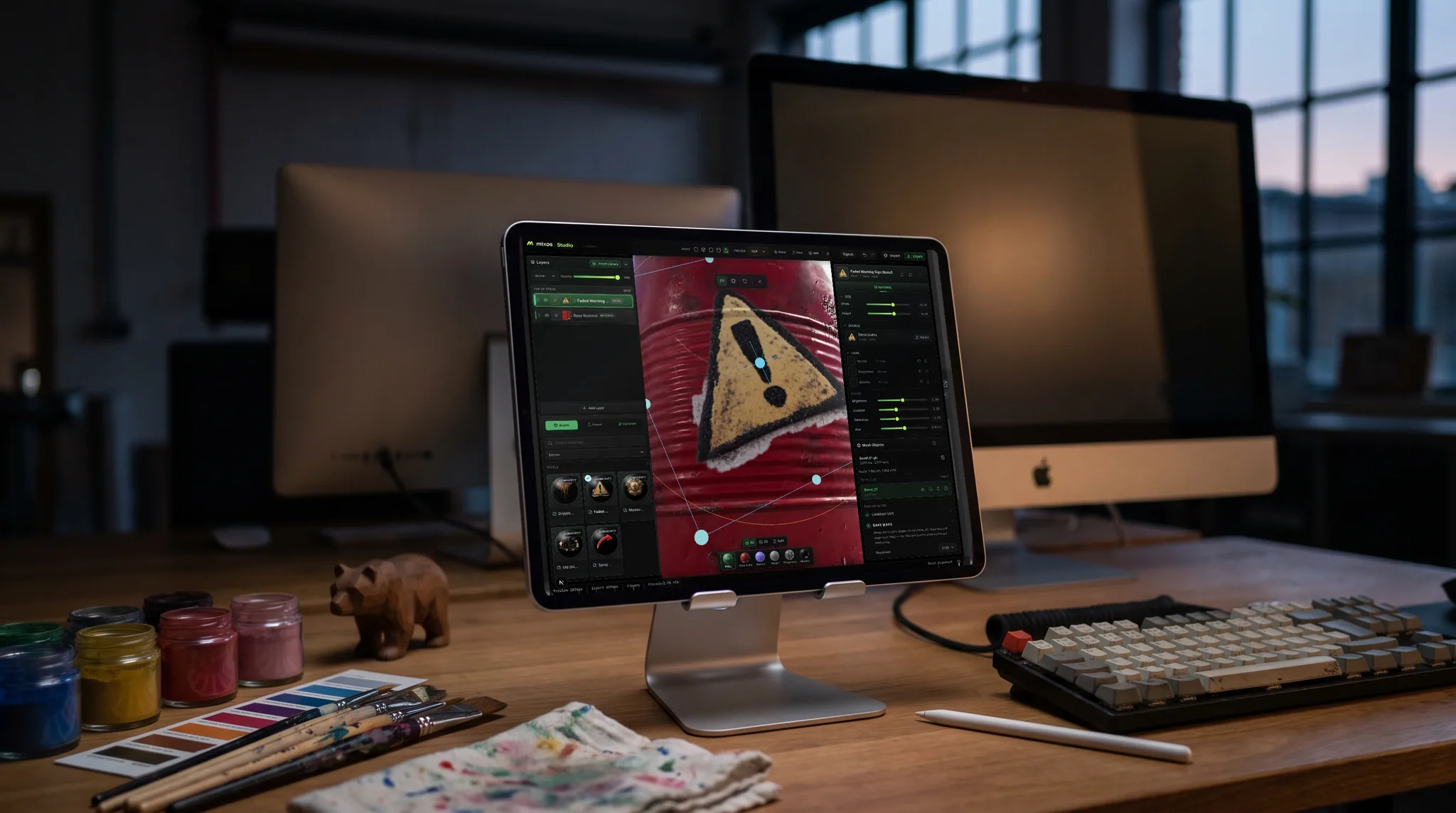
mixos runs in a browser too, on Chromebooks with WebGPU. Studio does polygon modeling, animation and rendering, Mold does sculpting and Paint does texturing. Building in every app is free; exporting a file is the paid step on a personal account. If your teacher has a classroom grant, export is included for the course.
Autodesk also offers free education licenses to eligible students for desktop programs such as Maya and Fusion. They are powerful and industry-standard, and like Blender they need a computer you can install software on.

On a capable computer you can install software on, Blender. On a school Chromebook, a browser tool: Tinkercad to start, SketchUp for Schools for architecture, and mixos for sculpting, texturing and animation.
Browser tools: Tinkercad, SketchUp for Schools and mixos all run in Chrome. Blender needs the ChromeOS Linux container, which school Chromebooks usually block.
Autodesk offers education licenses to eligible students and teachers for desktop software such as Maya and Fusion. They are desktop programs, so they don't run on a Chromebook.
Building in every app is free. Exporting a file is paid on a personal account; if your teacher has a classroom grant, export is included for the course.
Yes. Projects stay on your own account, and work made under a classroom grant remains yours after the course ends.
Read next
Vertices, edges and faces — the box-modelling fundamentals.
Which of the two approaches fits the thing you're making.
Which format keeps materials and which throws them away.
Why the same texture reads bigger on one model than another.
Keep exploring
More in For schools
Tinkercad alternative
Blender on Chromebook
3D for schools
3D on ChromeOS
Blender alternative
Online 3D modeling

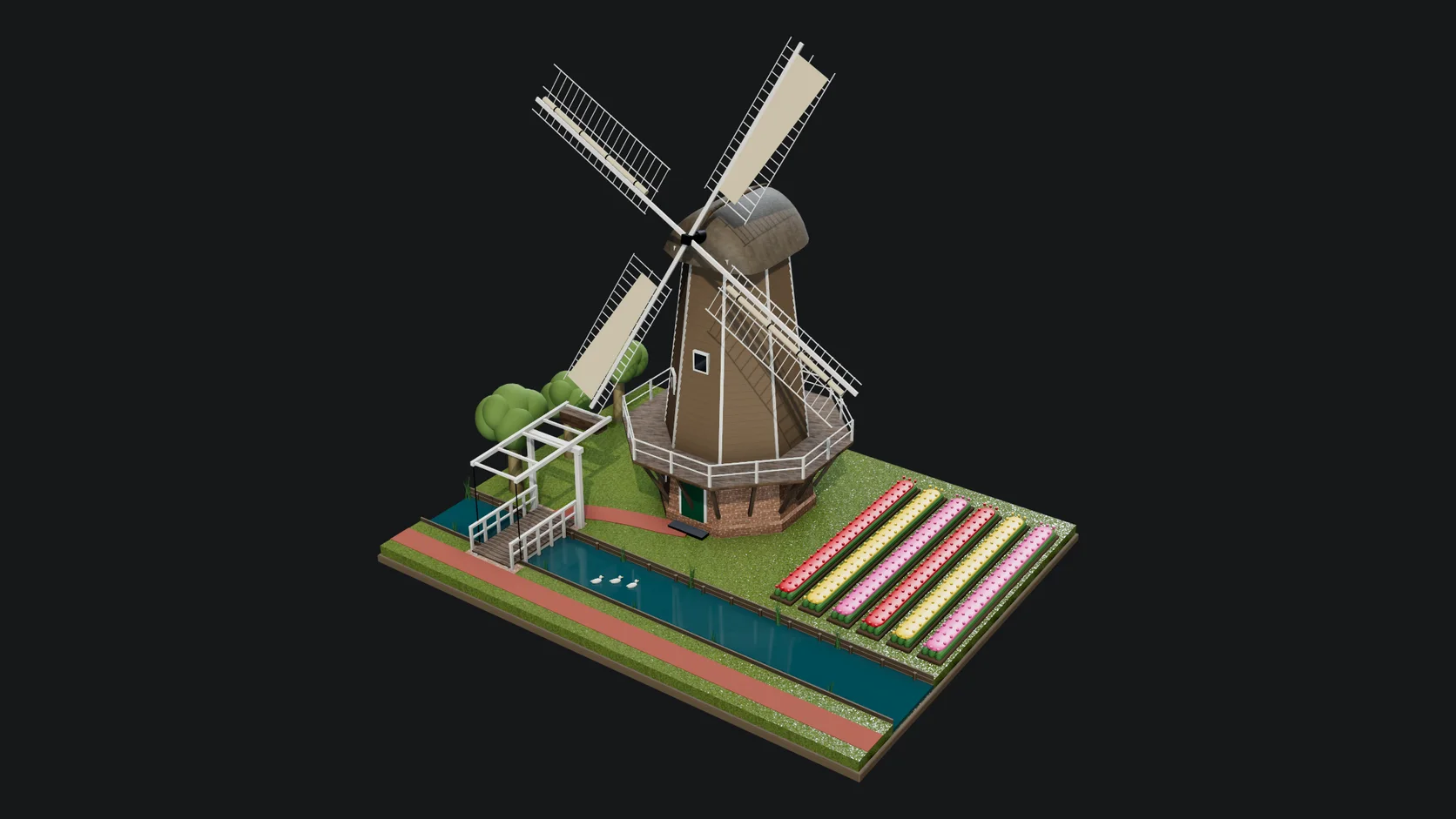
Open Studio, take apart the windmill and see whether this is the tool for you. Nothing to install.