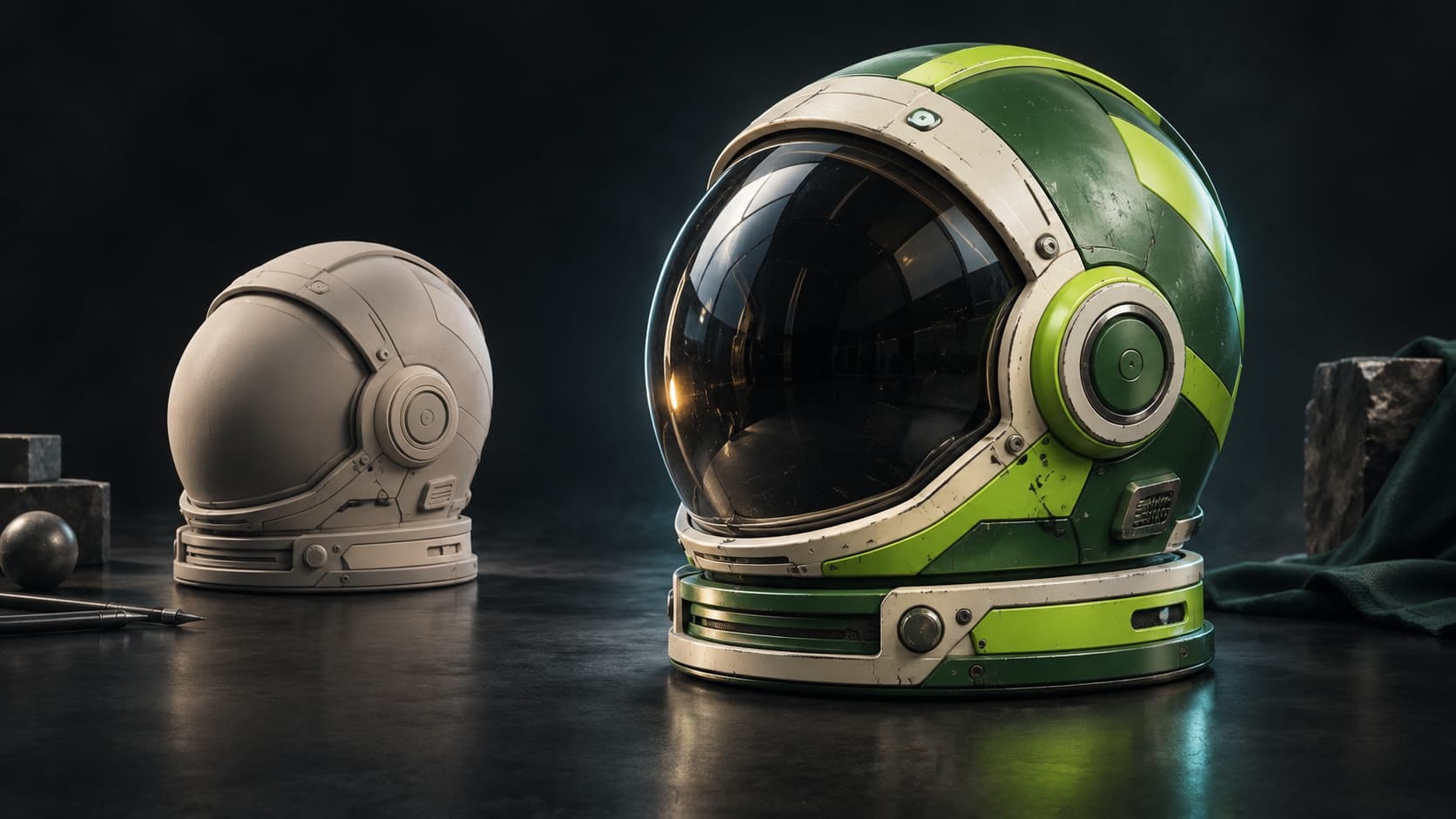
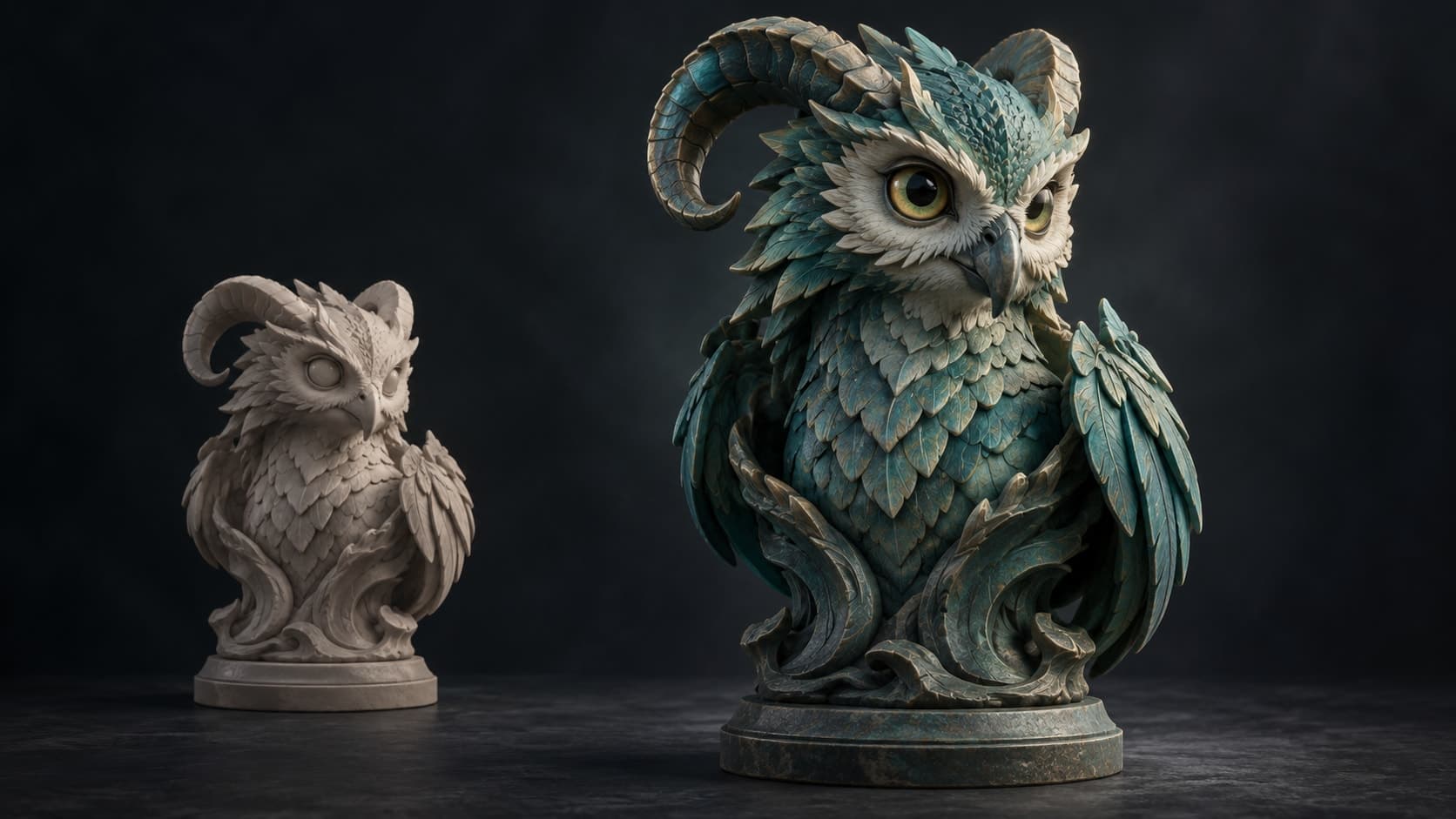
Concept across the whole avatar
Auto-Texture uses multiple rendered views to build one direction across clothing, skin and accessories, giving you a useful starting point on your own model.
VRChat avatar texturing
Import an avatar mesh you can edit, describe the look, and generate a coordinated texture direction across the character. Refine the maps, then test the material setup and performance in Unity and the VRChat SDK.
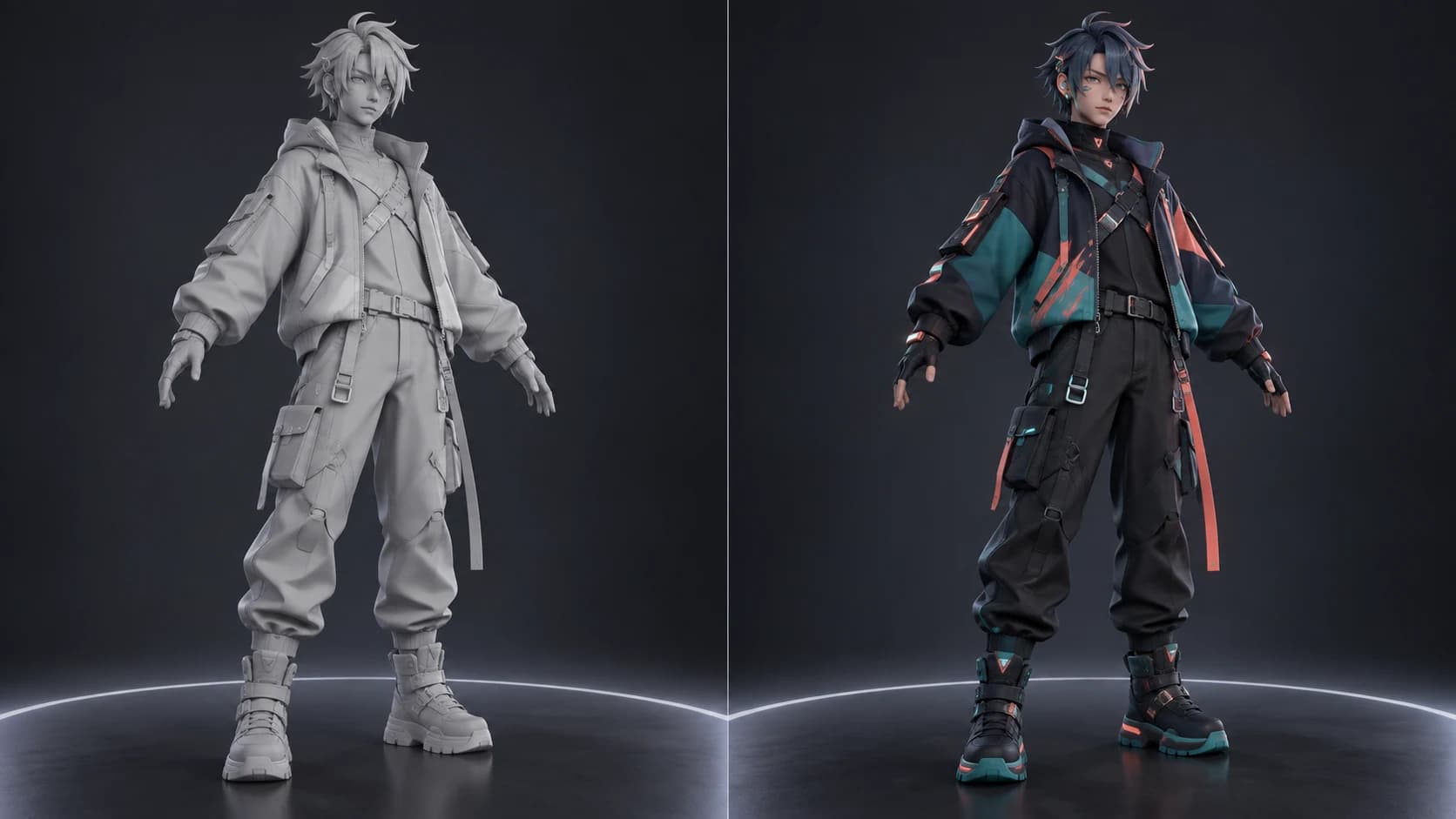
Auto-Texture uses multiple rendered views to build one direction across clothing, skin and accessories, giving you a useful starting point on your own model.
Generated pixels remain editable. Paint over seams, mask individual regions, add decals and tune the material channels before the avatar returns to Unity.
Export the maps you need, then choose resolutions and compression in Unity with the avatar's texture-memory budget in mind. VRChat counts that memory in its performance rank.
Mixos handles the surface pass. Keep bones, blend shapes, PhysBones, expressions, materials and upload validation in the avatar project built for them.
Why Mixos
A convincing avatar depends on more than its colors. The rig, visemes, eye look, expressions, PhysBones and SDK components all live in the Unity project. Mixos focuses on a narrower job: generate a coherent surface direction for a model you are allowed to edit, then give you the layer and material tools to make that direction usable.
Check the UV result before reconnecting the maps. Auto-Texture can generate a new atlas for missing, stacked or tiled UVs and can combine multipart geometry for projection. That may be useful for a redesign, but it does not preserve every avatar's original material layout. Keep the source project, and rebake or reassign the maps when the existing mesh, clothing and material slots must remain unchanged.
VRChat's performance ranking counts both texture memory and material slots. Export only the channels the avatar's shaders use, choose appropriate texture sizes and compression in Unity, and inspect the result through the current VRChat SDK. Mixos does not upload the avatar or certify a performance rank; it gives you an editable texture pass to take into that workflow.
No. It generates and edits textures for an existing model. Rigging, visemes, eye look, expressions, PhysBones, avatar descriptors and SDK upload remain in your avatar and Unity workflow.
Yes, if you have the editable model and the rights to modify it. Keep a copy of the source project, because the generated workflow can change UVs or combine geometry when projection requires it.
Texture work does not replace those systems, but a newly exported model is not a drop-in guarantee. The safest route is to bring the finished maps back to the original avatar project and reconnect them to its existing materials.
Use only the maps your shaders need, select appropriate resolution and compression in Unity, and check the VRChat SDK performance report. VRChat includes estimated texture memory and material slots in the avatar performance rank.
No. Mixos is an independent 3D texturing tool. VRChat, its SDK and its current avatar requirements are provided by VRChat Inc.
Read next
The whole pass, from import to exported maps.
The maps a modern material is made of, and what each one does.
Why the same texture reads bigger on one model than another.
Drop the files in and see the material lit, in the browser.