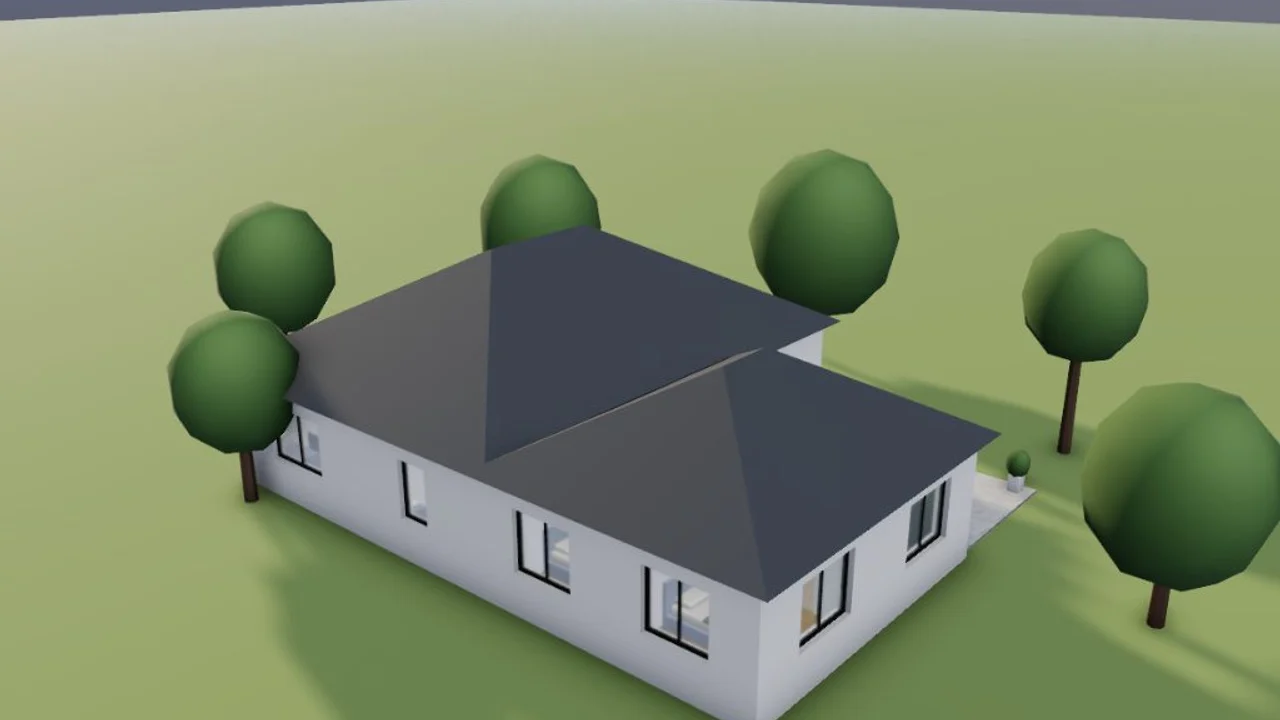
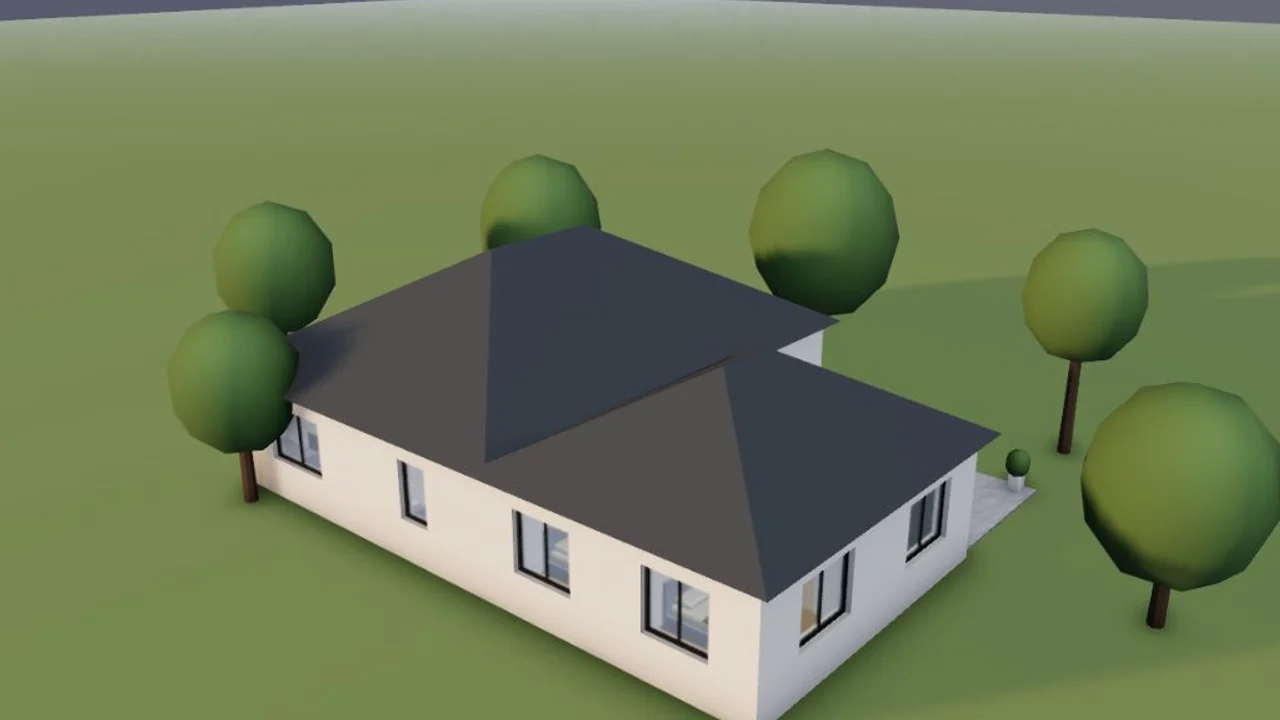
London, summer and winter
19:00 on 21 June against 14:30 on 21 December: the evening sun from the west, then a low winter sun from the south-west.
Get your house in 3D from a description, a floor plan or a sketch, then name the place, the date and the time. Mixos AI puts the sun where it really is, gives that day's sunrise and sunset, and shows the shadows on the house and the garden.
Mixos AI is available in this build. Conversational tools require paid access or purchased credits.
 MADE IN MIXOS
Check which side gets the evening sun, how low the winter sun sits and where the garden falls into shade before you buy, build or plant.
Describe it, attach a floor plan or attach a sketch. Mixos AI builds the house with its windows, roof and garden.
Say the town or the coordinates, the date and the local time. Mixos AI places the sun and reports its height, its direction and that day's sunrise and sunset.
Try a summer evening against a winter afternoon, from above or inside a room, and keep the views as shots.
Every result below is unedited Mixos output. Inputs are public-domain or openly licensed drawings, drawings made for these examples, or AI-generated example photos.
19:00 on 21 June against 14:30 on 21 December: the evening sun from the west, then a low winter sun from the south-west.
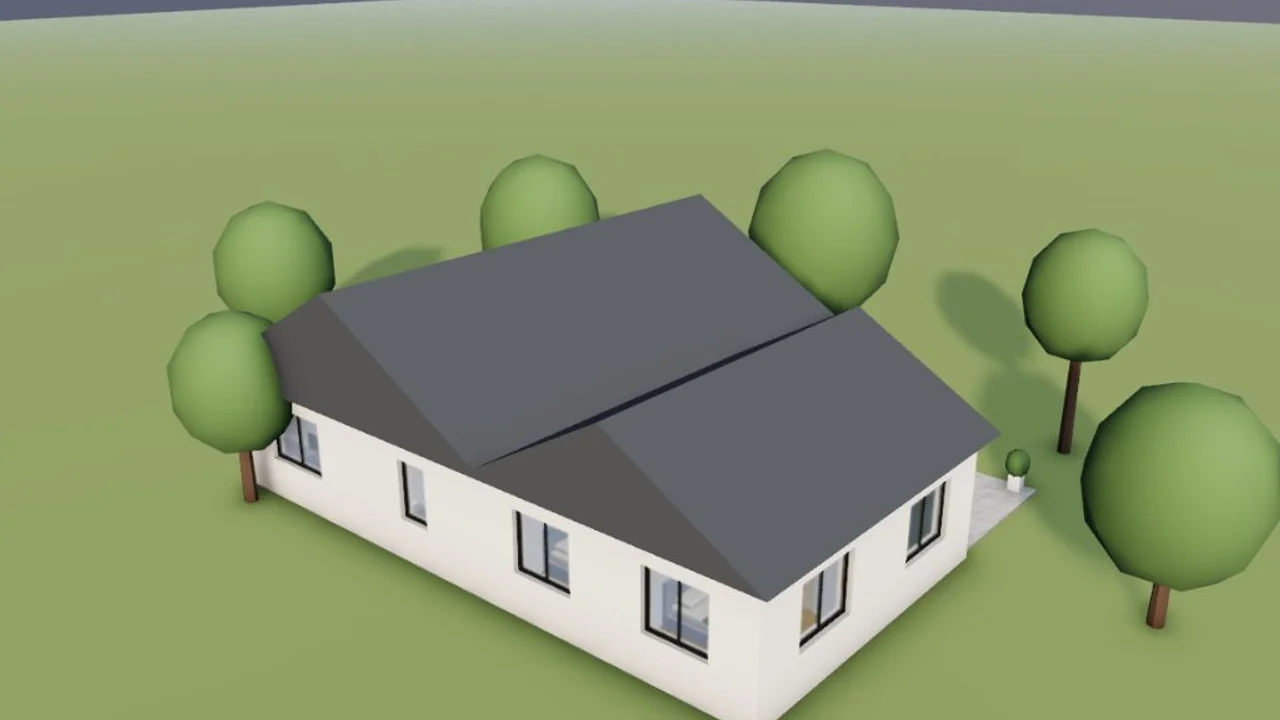
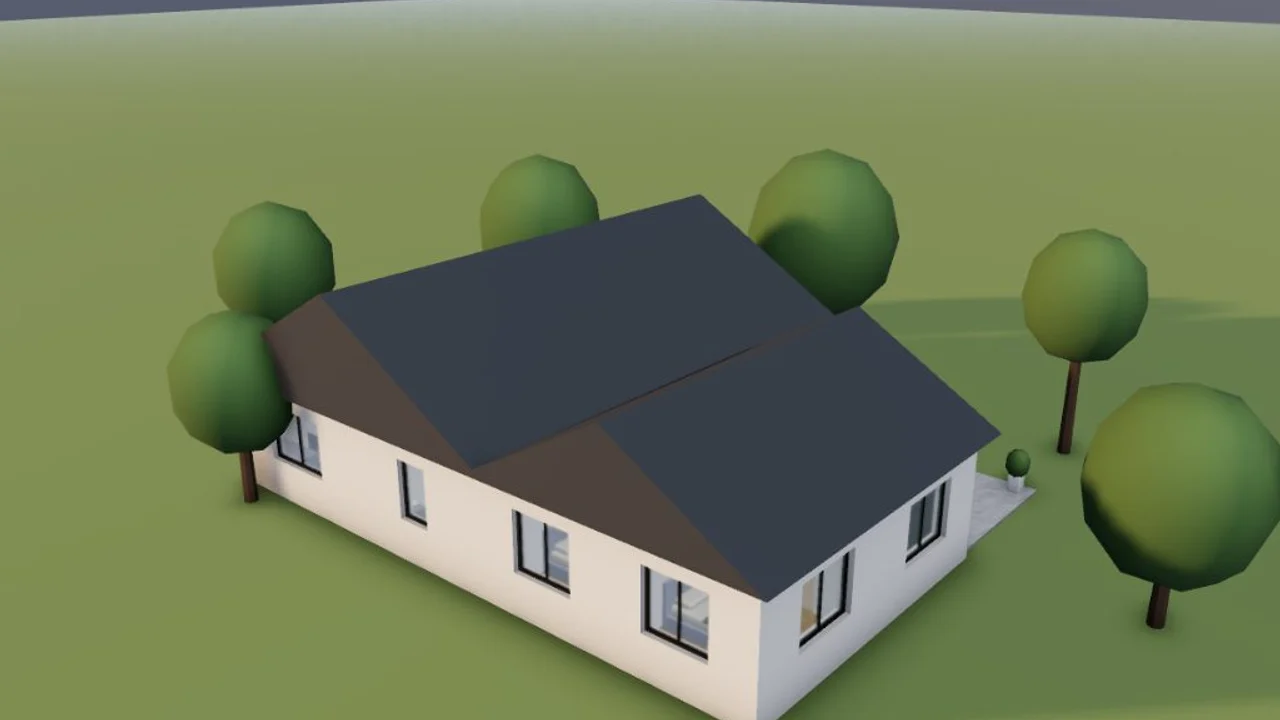
9:30 and 15:00 on the winter solstice: the sun moves from the south-east to the south-west.
The viewport makes the result visible. Inspect the shape, placement and materials before moving on to the next change.
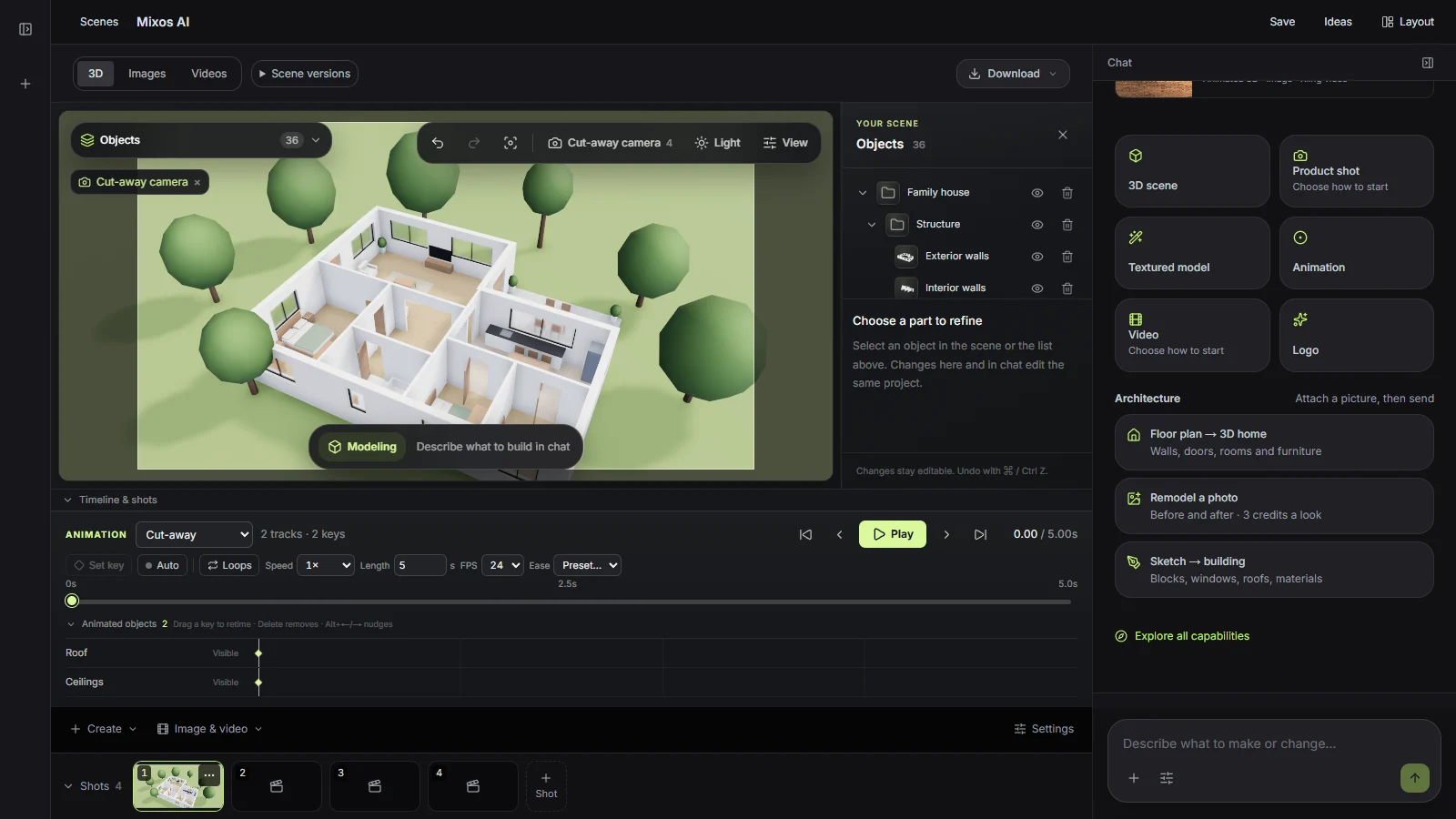
The sun is placed for the place, date and local time you give, with daylight saving if you say it. A time after dark is refused rather than faked.
See which rooms catch the morning or evening light, and add a warm room light to compare with the daylight.
Neighbouring buildings, trees and terrain appear only if you model them. It is a visual guide, not a certified daylight or planning shadow study.
“Show my house in Denver on 21 December at 9:30 and again at 15:00.”Open Mixos AI
“Where is the sun on the back garden at 6 pm on 21 June in London? North is up the plan.”Open Mixos AI
Example briefs to adapt to your project. Concept images show a creative direction; live results depend on your prompt and the tools used.
Build, finish and animate real 3D scenes. Choose an example, play the walkthrough or jump to any step.
“Create a sculptural perfume bottle on a warm stone set. Give it amber glass, brass details and dramatic studio lighting.”
The chat explains the change. The viewport shows the result. Play all steps, or use the numbered controls to explore.

Prepared walkthroughs with editable 3D, animation and illustrative AI images. Prompts and replies are scripted; playback uses no credits. AI video generation is a separate paid step, illustrated above.
Mixos AI is available in this build. Open the workspace with your Mixos account; conversational tools require paid access or unspent purchased credits. The expanded creation workspace is rolling out in preview builds.
It uses the standard solar position formula for the place, date and time, accurate to a fraction of a degree, and gives sunrise and sunset within a few minutes.
No. It knows the sun, not the neighbourhood. Model the neighbouring buildings or trees if their shadows matter.
No. Councils usually ask for shadow studies prepared by a licensed professional. Use this to understand the light, not to file.
Placing the sun happens in the Mixos AI chat and uses chat credits. Studio renders of the result are free.
Up the plan by default. If your plan's north arrow points another way, say so and the sun turns with it.
Editing in the released Mixos apps is free with a Mixos account. AI generation consumes credits. Production exports require a paid plan or licence; the free plan includes a 512px watermarked render preview. See Pricing for current allowances. Watching the demonstrations on this page does not spend AI credits.
See Pricing for current AI credits and export allowances. Studio is available now for manual 3D creation.