AI character animation

AI character animation.
Start with the right rig.

Bring a compatible character into the scene, inspect its skeleton and find a library motion that fits. Mixos AI helps you prepare and apply motion, then refine its timing and travel as editable keyframes.

  • Editable scene
  • Browser workspace
  • Manual editing in Studio

Mixos AI is available in this build. Conversational tools require paid access or purchased credits.

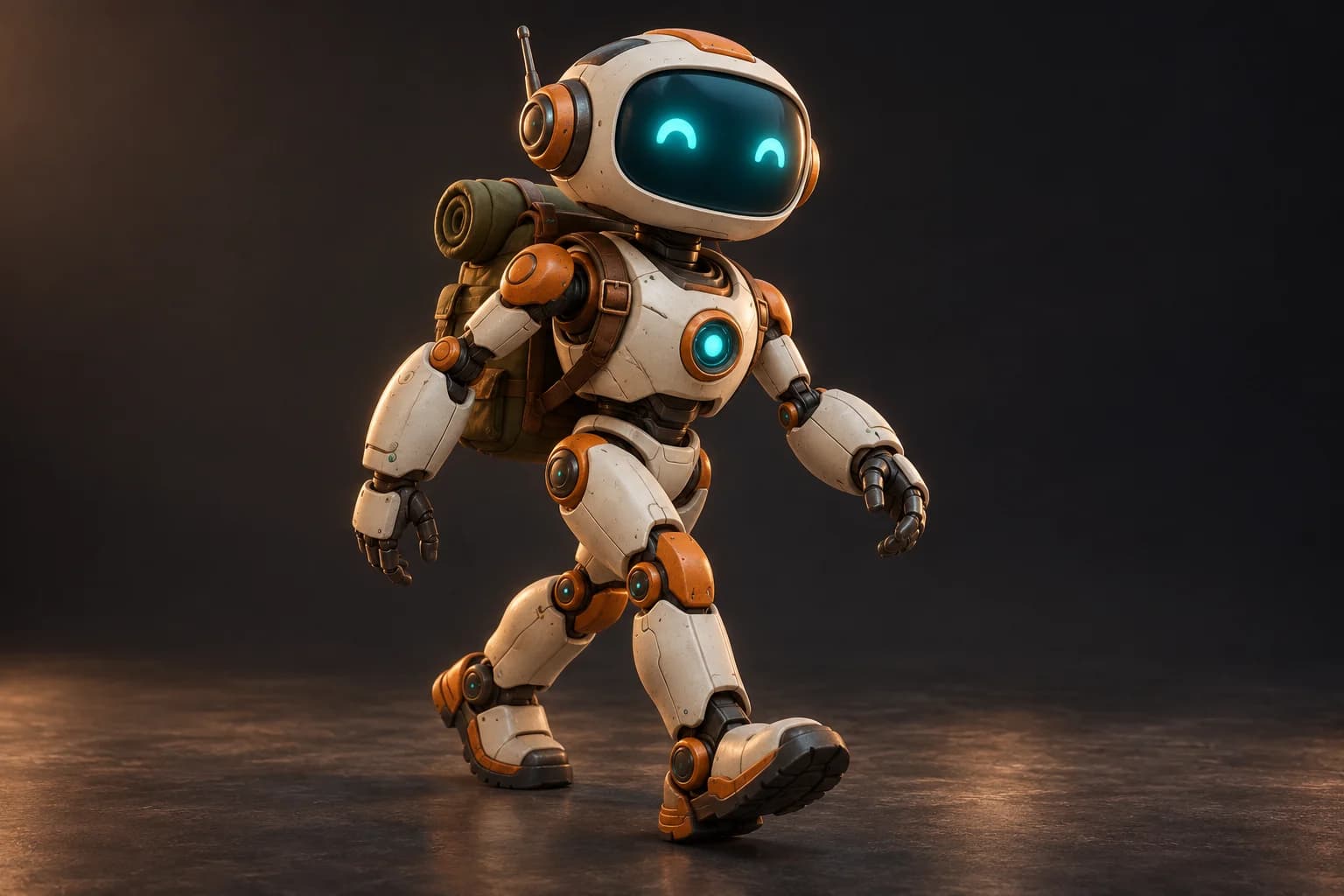
Ivory explorer robot with orange joints in a walking pose, with subtle markers showing its articulated limbs A CREATIVE STARTING POINT
A character ready for its next move.AI-generated concept illustration
01 / HOW IT WORKS

Prepare the character before the performance.

A motion that looks right on one skeleton may not fit another. Check the character and its pose first, choose an available compatible motion, and review the result from several angles.

  1. 01

    Inspect the skeleton

    Import a supported character and check its rig. Reuse a compatible skeleton, or auto-rig a supported T-posed humanoid. Poses and structures outside that workflow need preparation first.

  2. 02

    Choose a library motion

    Search available motion captures for the action you need. Apply a compatible capture and check the feet, hands and overall travel in the viewport.

  3. 03

    Refine timing and travel

    Adjust the clip timing and movement through the scene. Keep the animation editable and continue working in Studio when you need manual control.

02 / INSIDE MIXOS

See the scene as you work.

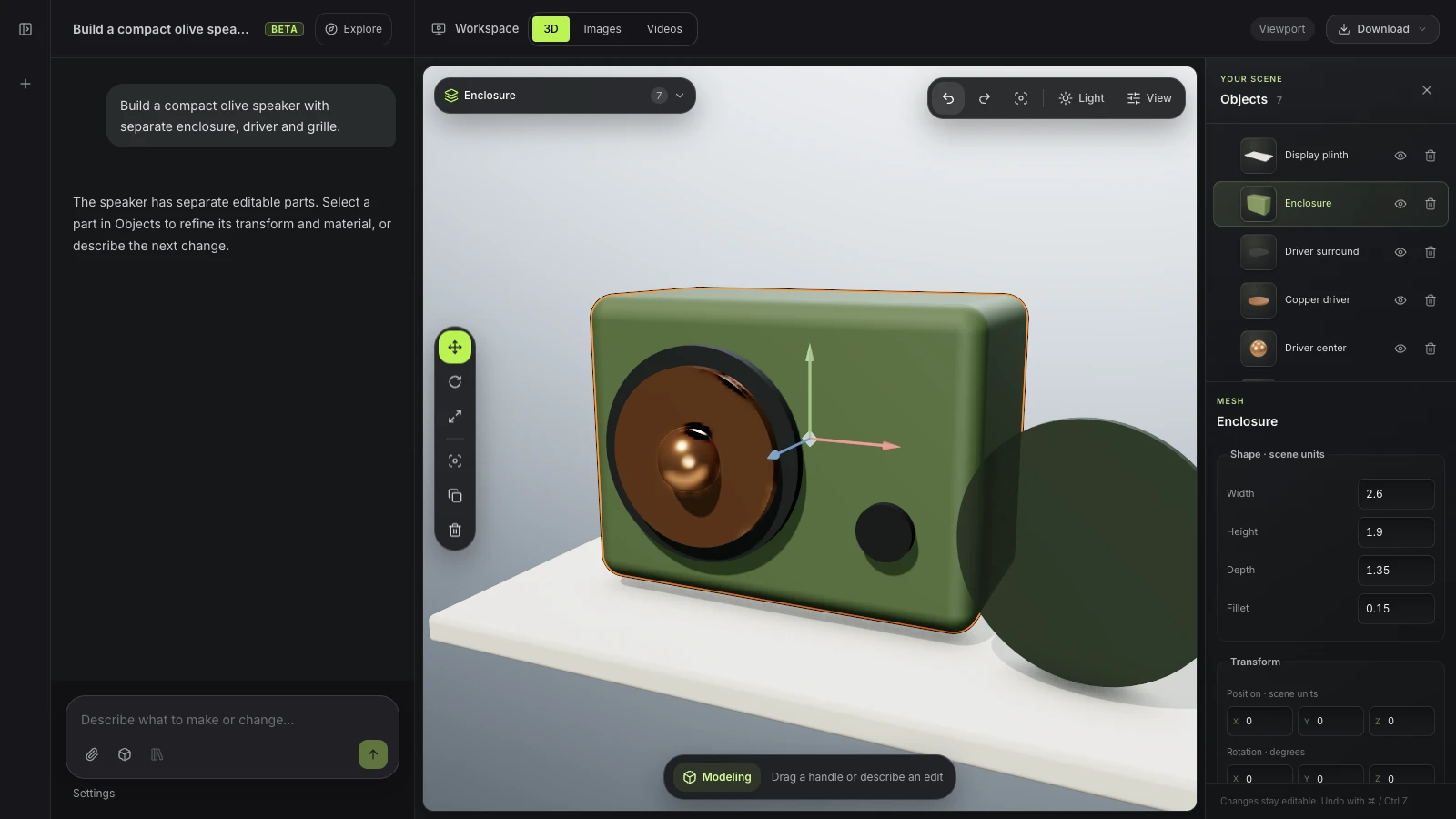
The viewport makes the result visible. Inspect the shape, placement and materials before moving on to the next change.

Actual Mixos AI preview workspace showing chat beside an editable product scene
Actual Mixos AI preview workspace with a scripted example speaker conversation. Character motion requires a compatible rigged humanoid; this capture illustrates the shared workspace.
03 / FIND YOUR STARTING POINT

A useful character workflow has three checks.

01

The mesh and pose

Check that the limbs are distinct and the character is prepared for the supported rigging workflow. A visually convincing generated model can still have fused geometry or unsuitable topology. Inspect it before expecting an automatic rig to deform cleanly.
02

The rig and the motion

A rig describes the skeleton; a motion clip describes how it moves over time. The assistant can inspect a rig and search available captures. This preview does not synthesize arbitrary new character motion from a sentence, and an unavailable library action needs another motion or manual animation.

03

The performance in context

A character needs room to move. Check travel, floor contact and framing within the scene, then refine the clip's timing. Save the editable source so you can return to the movement after changing a camera or rebuilding the set.

CHECK COMPATIBILITY
“Inspect this character's skeleton and pose. Tell me whether it is compatible with the available motion library before applying anything.”
Open Mixos AI
FIND A PERFORMANCE
“Find a compatible walking motion for this rig. Apply it, preview the feet and travel, then help me adjust the timing.”
Open Mixos AI

Example briefs to adapt to your project. Concept images show a creative direction; live results depend on your prompt and the tools used.

SEE THE WORKFLOW

Five examples. See what changes with each prompt.

Build, finish and animate real 3D scenes. Choose an example, play the walkthrough or jump to any step.

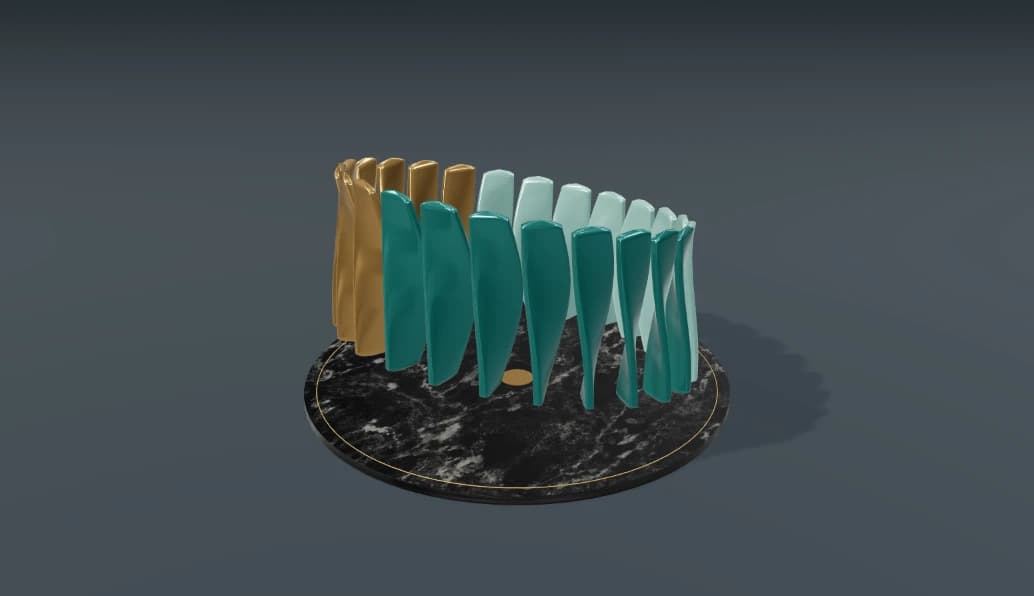
The living patternPrepared example · no credits used
THE BRIEF

“Start with a tall, gently twisted fin. Repeat it around a circle to make a sculptural installation, with a teal and brass palette.”

BUILD → FINISH → ANIMATE

One shape becomes a rhythm.

The chat explains the change. The viewport shows the result. Play all steps, or use the numbered controls to explore.

The living pattern — prepared 3D scene
PATTERNS & MOTIONCLICK TO FOLLOW THE STORY
The finished scene3D SCENE PREVIEW

Prepared walkthroughs with editable 3D, animation and illustrative AI images. Prompts and replies are scripted; playback uses no credits. AI video generation is a separate paid step, illustrated above.

04 / A FEW USEFUL ANSWERS

Questions about ai character animation

Is Mixos AI available now?

Mixos AI is available in this build. Open the workspace with your Mixos account; conversational tools require paid access or unspent purchased credits. The expanded creation workspace is rolling out in preview builds.

Does Mixos AI generate character motion from text?

A new text-to-motion generation service is not part of this preview. Mixos AI can inspect a rig, search a motion library, apply a compatible capture and adjust timing and travel. The action must exist in the available motion library or be animated separately.

Which characters can be automatically rigged?

Supported T-posed humanoids can be auto-rigged. Existing compatible rigs can be reused. Unsupported poses, creatures or skeleton structures need a compatible character, preparation or another rigging workflow; automatic rigging is not guaranteed for every model.

Can I change an animation after applying it?

Yes. Compatible motion is applied as editable animation. Review the clip, change its timing and travel, and continue working in Studio. Inspect deformation and contact points before using the result in a finished project.

Does the demo show live character generation?

No. The interactive examples are prepared 3D scene walkthroughs. The character illustration is a creative concept. They are not recordings of a prompt generating a character performance.

What is free, and what requires a paid plan?

Editing in the released Mixos apps is free with a Mixos account. AI generation consumes credits. Production exports require a paid plan or licence; the free plan includes a 512px watermarked render preview. See Pricing for current allowances. Watching the demonstrations on this page does not spend AI credits.

See Pricing for current AI credits and export allowances. Studio is available now for manual 3D creation.

YOUR NEXT PROJECT STARTS HERE

Describe the idea.
Keep creating.