AI product animation

AI product animation.
Show how it comes together.

A turn reveals the silhouette. An assembly sequence explains the parts. Mixos AI helps you build product motion around an editable model, with a scene you can revisit for the next angle or timing change.

  • Editable scene
  • Browser workspace
  • Manual editing in Studio

Mixos AI is available in this build. Conversational tools require paid access or purchased credits.

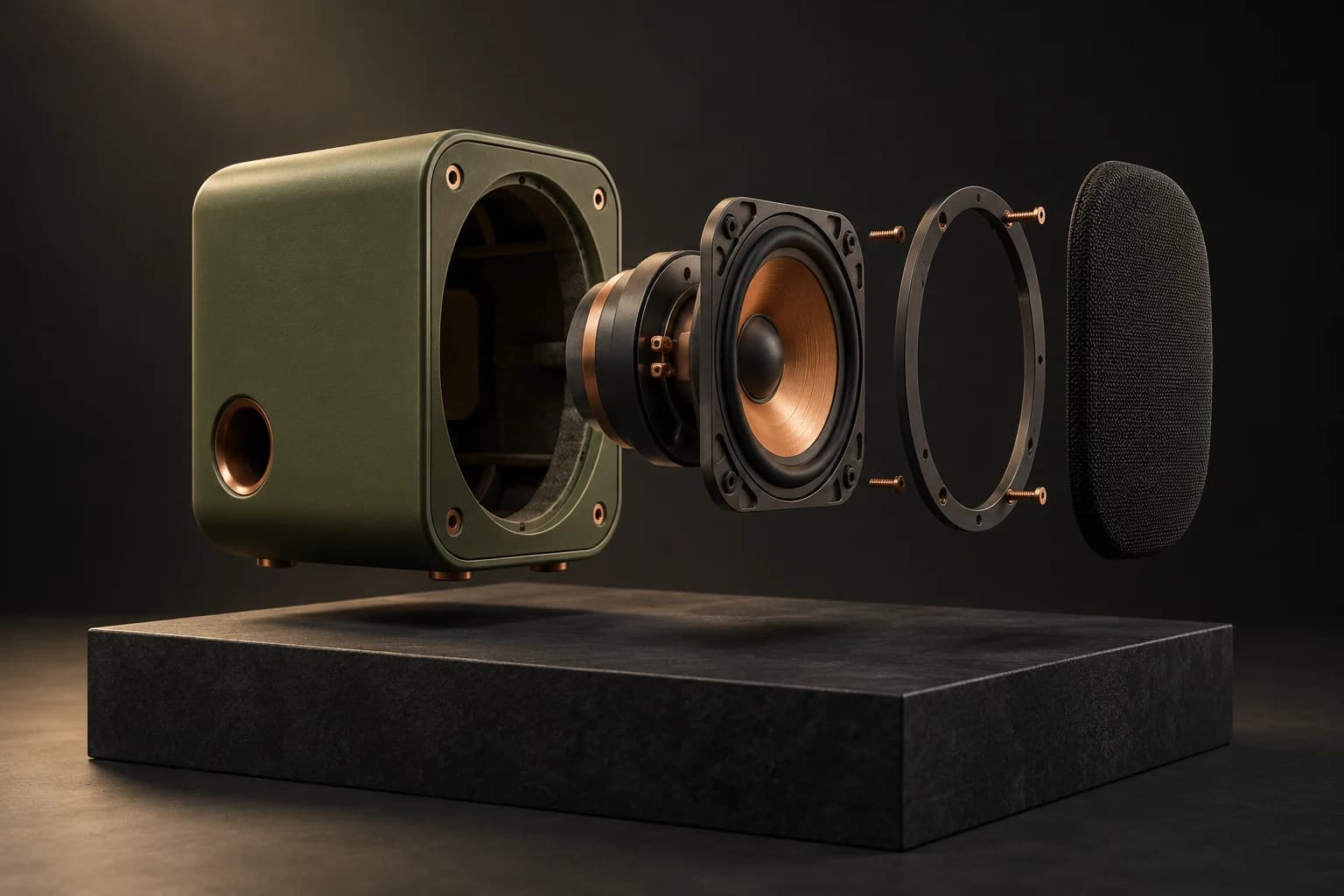
Exploded olive studio speaker with copper driver and dark grille floating separately above a charcoal plinth A CREATIVE STARTING POINT
Let each part tell its story.AI-generated concept illustration
01 / HOW IT WORKS

Make the components work for the shot.

Begin with the structure of the product, then choose what the animation needs to explain. Separate moving components and decide which parts of the scene should stay fixed.

  1. 01

    Keep the parts separate

    Build or import an editable product. Name the enclosure, driver, grille or other components so the assistant can work with the intended part.

  2. 02

    Plan one clear action

    Ask for a turntable, an assembly reveal or a component move. Specify the duration, the moving objects and the objects that should remain still.

  3. 03

    Preview and revise

    Watch the scene's motion, inspect intersections and refine timing. Keep the source animation or prepare matching inputs for a separately approved AI video generation.

02 / INSIDE MIXOS

See the scene as you work.

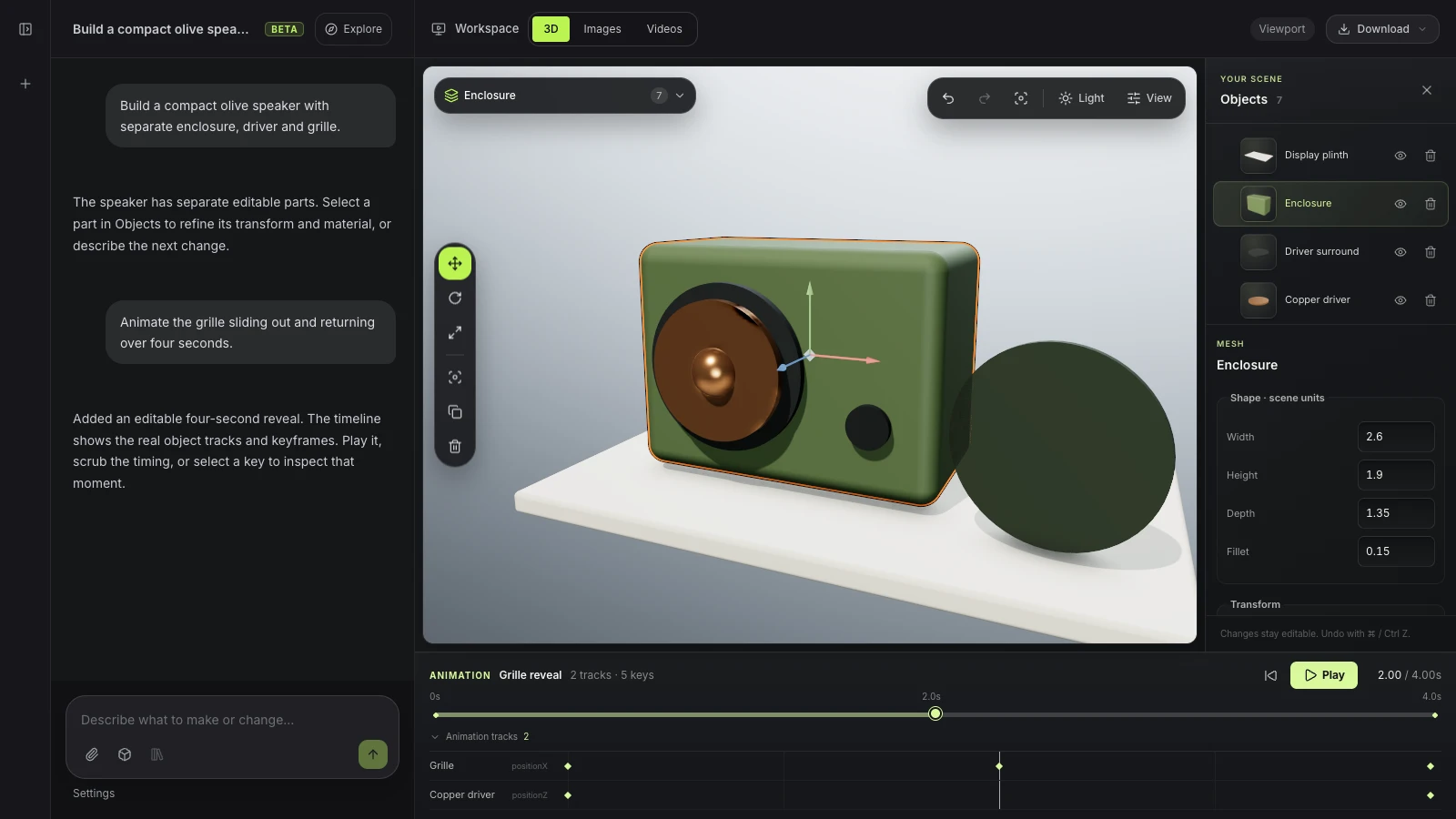
The viewport makes the result visible. Inspect the shape, placement and materials before moving on to the next change.

Actual Mixos AI interface showing a speaker product animation with editable tracks and keyframes
Actual Mixos AI preview interface with a prepared speaker animation and scripted conversation. Playback and keyframe seeking use the live scene.
03 / FIND YOUR STARTING POINT

Choose the movement that explains the product.

01

Turntable for form and finish

A controlled rotation lets the viewer read an object's shape and materials. Keep the camera, backdrop and display fixed if the purpose is inspection. Start with a simple loop before adding more moving elements or an elaborate camera path.
02

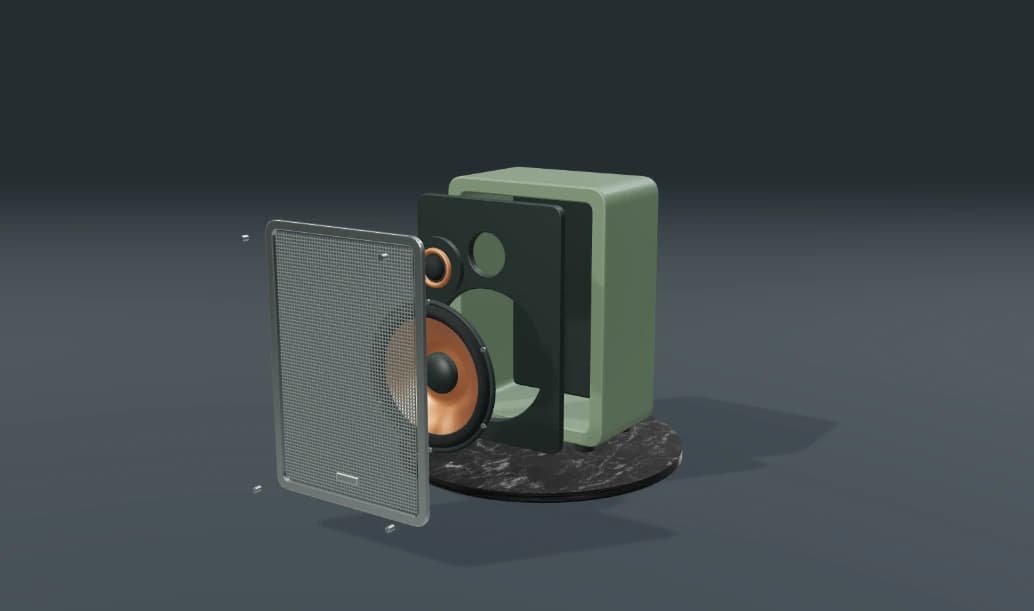
Exploded view for components

An assembly reveal needs separate objects. Move the components along clear paths, hold long enough to show their relationships, then return them to the original positions. A single fused mesh does not automatically provide editable internal components.

03

A scene for repeatable revisions

Save the product, materials, camera and animation together. A material change can reuse the same movement, while a timing change can keep the product setup. Generated video takes are separate outputs and need refreshed source inputs after the scene changes.

REVEAL THE PARTS
“Separate the speaker grille and driver along the front axis, hold the exploded view, then bring them back. Keep the enclosure and camera still.”
Open Mixos AI
SHOW THE FINISH
“Rotate the assembled speaker through one full turn over eight seconds. Keep the plinth still and use soft studio light.”
Open Mixos AI

Example briefs to adapt to your project. Concept images show a creative direction; live results depend on your prompt and the tools used.

SEE THE WORKFLOW

Five examples. See what changes with each prompt.

Build, finish and animate real 3D scenes. Choose an example, play the walkthrough or jump to any step.

Inside the speakerPrepared example · no credits used
THE BRIEF

“Build a compact studio speaker with an olive enclosure, a copper driver and a fine metal-mesh grille. Keep the components separate.”

BUILD → FINISH → ANIMATE

Pull it apart. Tell the story.

The chat explains the change. The viewport shows the result. Play all steps, or use the numbered controls to explore.

Inside the speaker — prepared 3D scene
ASSEMBLYCLICK TO FOLLOW THE STORY
The finished scene3D SCENE PREVIEW

Prepared walkthroughs with editable 3D, animation and illustrative AI images. Prompts and replies are scripted; playback uses no credits. AI video generation is a separate paid step, illustrated above.

04 / A FEW USEFUL ANSWERS

Questions about ai product animation

Is Mixos AI available now?

Mixos AI is available in this build. Open the workspace with your Mixos account; conversational tools require paid access or unspent purchased credits. The expanded creation workspace is rolling out in preview builds.

Can Mixos AI create a product turntable?

The preview supports editable object rotation. Describe the subject, axis and duration, then review it in the viewport. The prepared headphones example demonstrates a looping eight-second product turntable without spending AI credits.

Can I animate an exploded product view?

Yes, when the product has separate editable components. Build or import the relevant parts, then animate them along clear paths. A fused mesh may need manual separation or reconstruction before an assembly sequence can work.

Does product animation require character rigging?

Simple product rotations and component moves use object animation and do not require a humanoid skeleton. Character rigging is a different workflow. Prepare the objects and their relationships for the motion you need.

Is the result an editable animation or a video?

The scene animation stays editable. A finished AI video is a separate paid output, prepared from a matching still and motion capture. Keep the source scene to revise movement or materials after generating a clip.

What is free, and what requires a paid plan?

Editing in the released Mixos apps is free with a Mixos account. AI generation consumes credits. Production exports require a paid plan or licence; the free plan includes a 512px watermarked render preview. See Pricing for current allowances. Watching the demonstrations on this page does not spend AI credits.

See Pricing for current AI credits and export allowances. Studio is available now for manual 3D creation.

YOUR NEXT PROJECT STARTS HERE

Describe the idea.
Keep creating.