A defined classroom boundary
Generation is disabled on class seats, and an instructor cannot turn it on. Evaluate the classroom entitlement you will use for the course rather than an unrelated consumer account.
Classroom software evaluation
On Mixos classroom accounts, generative image, texture, and model creation is disabled for instructors and students. The brushes, layers, masks, material tools, and classroom workflow remain available. Mixos consumer plans include AI features, so the account context matters.
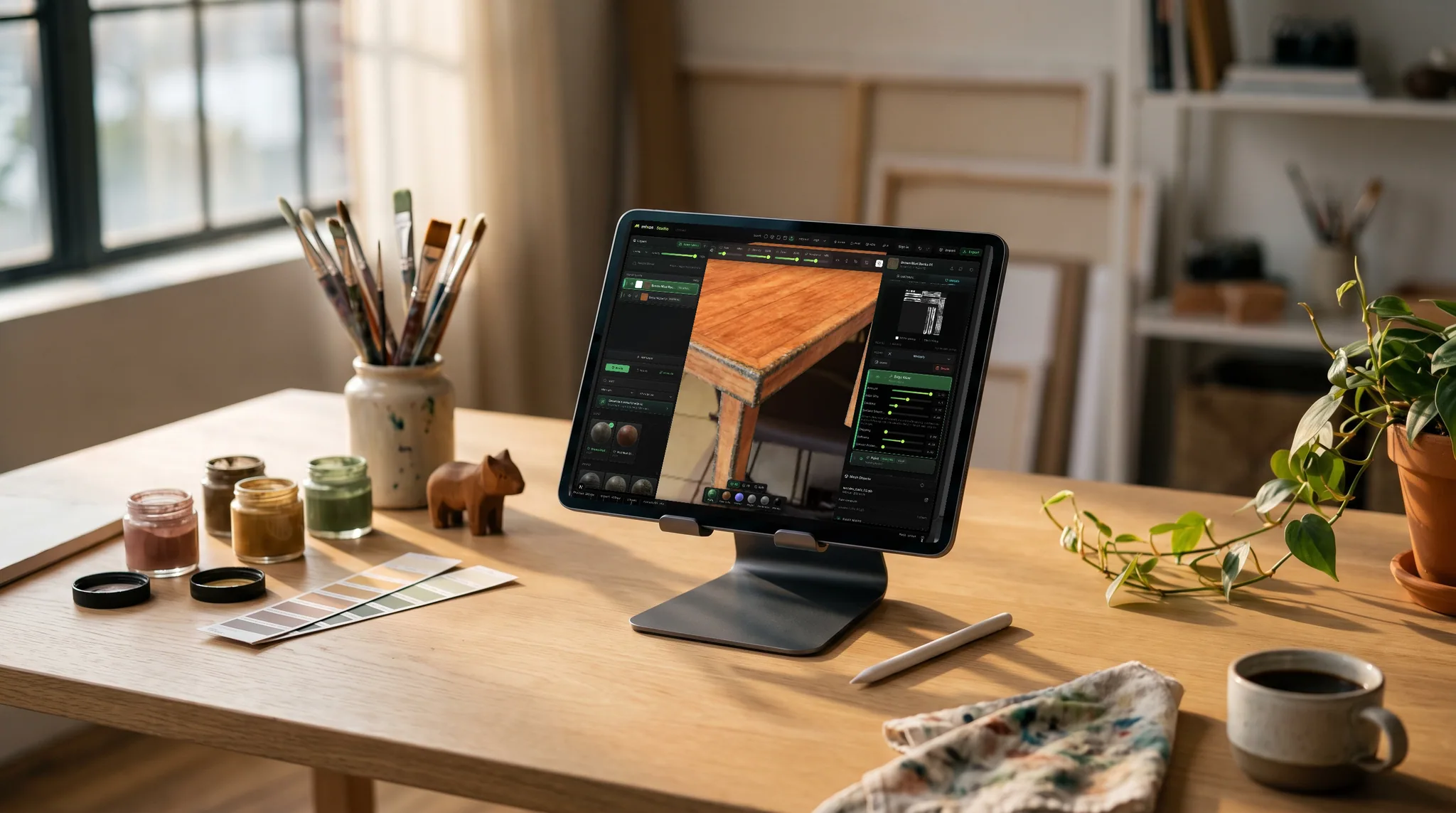
Generation is disabled on class seats, and an instructor cannot turn it on. Evaluate the classroom entitlement you will use for the course rather than an unrelated consumer account.
Teach through painting, material choices, layers, masks, and mesh-map baking. Disabling generation does not remove the surface-authoring workflow.
Use a provided model, inspect submitted 3D work, and return specific feedback. Ask students to explain how their materials respond to the brief.
Why Mixos
A course that asks students to practice texturing needs an account setup that matches that task. Mixos education grants disable generative AI for classroom seats, including the instructor's class account. This is a classroom product boundary, not a promise that every Mixos product is free of AI. Auto, whose job is AI texture generation, is outside the classroom offering.
Students can still make surfaces with brushes, layer stacks, masks, library materials, and mesh-map-driven effects. A useful first evaluation is to open a small supplied prop, author two contrasting materials, submit the work, and inspect it from the instructor's class page. That checks the creative and teaching workflow together.
Tool restrictions do not establish the origin of imported files or govern work made in other applications. State separately which reference images, meshes, external tools, and library materials are acceptable for the assignment. Ask for a contribution statement or process explanation where it serves the learning goal. Disabled generation alone does not prove that every submitted asset was made entirely by hand.
Use the school's normal vendor and device review process. Mixos needs a browser with WebGPU support; test actual managed devices and the starter asset before scheduling a unit. Review student invitations, submission visibility, the grant term, and what students should export before it ends. We do not claim that browser access automatically satisfies every school's account or network requirements.
Google Classroom is an optional integration currently limited to invited pilot classes. Those classes can publish Mixos assignment links and sync released numeric scores. Students submit in Mixos and turn in manually in Classroom. Mixos assignments, private review, written feedback, and CSV export can be used without connecting the pilot.
After grant activation, join the intended class and confirm that the classroom seat and term are correct. Check the available tools in that account context, where generative features are disabled.
Open the starter prop on a representative school device. Paint a region, edit a mask, inspect material response, and test the required export while the grant is active.
Invite a test participant through the normal class flow. Submit a small piece, inspect the frozen snapshot, save feedback privately, and return it. Agree on the gradebook handoff before using it with the roster.
Specify permitted source meshes, references, external tools, and library assets. Tell students what contribution or revision evidence they should provide and how it will be assessed.
This exercise assesses your own surface-authoring decisions in Mixos. Use the supplied mesh and the references or library materials approved for this unit. State any additional sources and explain your material choices. Submit the 3D work in Mixos and include revision evidence through our agreed course hand-in method.
No. Mixos offers AI features in its consumer products. Generative AI is disabled for classroom accounts under the education program. Evaluate that classroom context when choosing the tools for a course.
No. Generative image, texture, and model creation is disabled on classroom seats for both instructors and students. It is not an instructor-controlled toggle.
No. Imported assets may have been made outside Mixos. Your assignment policy should specify acceptable sources and external tools, with attribution and process evidence where needed.
Classroom users can use the non-generative creative workflow, including painting, layers, masks, material authoring, baking, and the coursework tools. Auto is not included because its purpose is AI texture generation.
Yes. Mixos assignments, submission review, written feedback, and CSV grade export work independently. The Google Classroom connection is currently restricted to invited pilot classes.
Read next
The whole pass, from import to exported maps.
The maps a modern material is made of, and what each one does.
Why the same texture reads bigger on one model than another.
Drop the files in and see the material lit, in the browser.
Keep exploring
Lesson resources for instructors
Assessment resources
Game art courses
Google Classroom integration · pilot