AI game asset generator

AI game asset generation.
From a prop idea to a starting mesh.

Describe a game prop, build editable components or explicitly generate a textured mesh. Mixos AI helps you move from the first idea to inspection and refinement before taking the model into your game pipeline.

  • Editable scene
  • Browser workspace
  • Manual editing in Studio

Mixos AI is available in this build. Conversational tools require paid access or purchased credits.

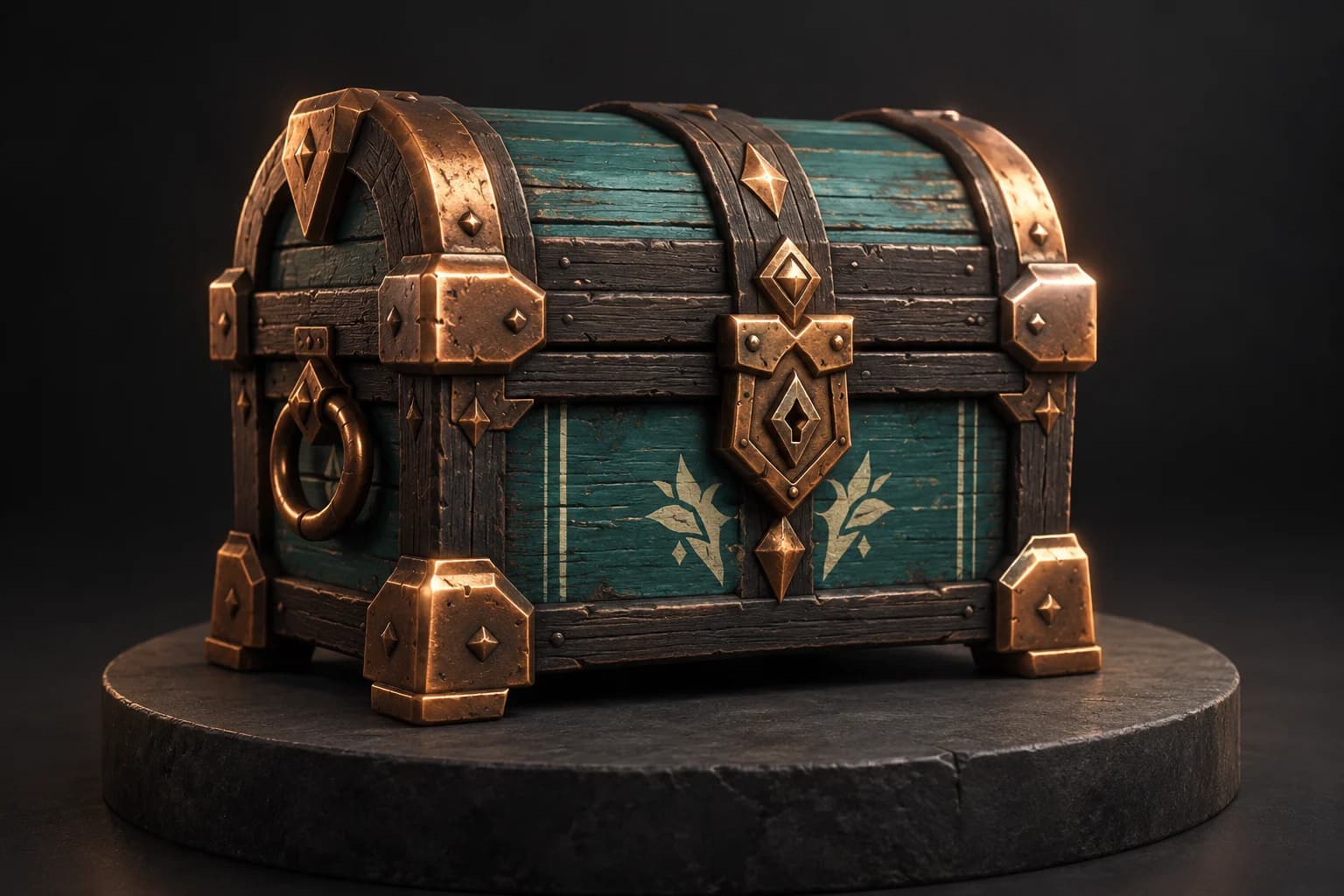
Stylized fantasy supply chest with dark timber, teal panels and copper corners on a dark pedestal A CREATIVE STARTING POINT
A clear silhouette is a useful start.AI-generated concept illustration
01 / HOW IT WORKS

Generate a starting point. Inspect what matters.

A promising prop still needs to suit its destination. Specify the intended style and use, then check the mesh, scale, UVs and materials before treating it as a finished game asset.

  1. 01

    Brief one asset

    Name the prop and its silhouette, materials and style. Decide whether you need editable modeled parts or a textured mesh from explicit automatic generation.

  2. 02

    Inspect the result

    Review the geometry, normals, UVs and proportions. Ask for an inspection before changes, and identify the cleanup needed for the intended use.

  3. 03

    Refine and prepare

    Adjust materials or paint the surface, then choose an appropriate model export. Test the exported asset in the destination engine and check its performance.

02 / INSIDE MIXOS

See the scene as you work.

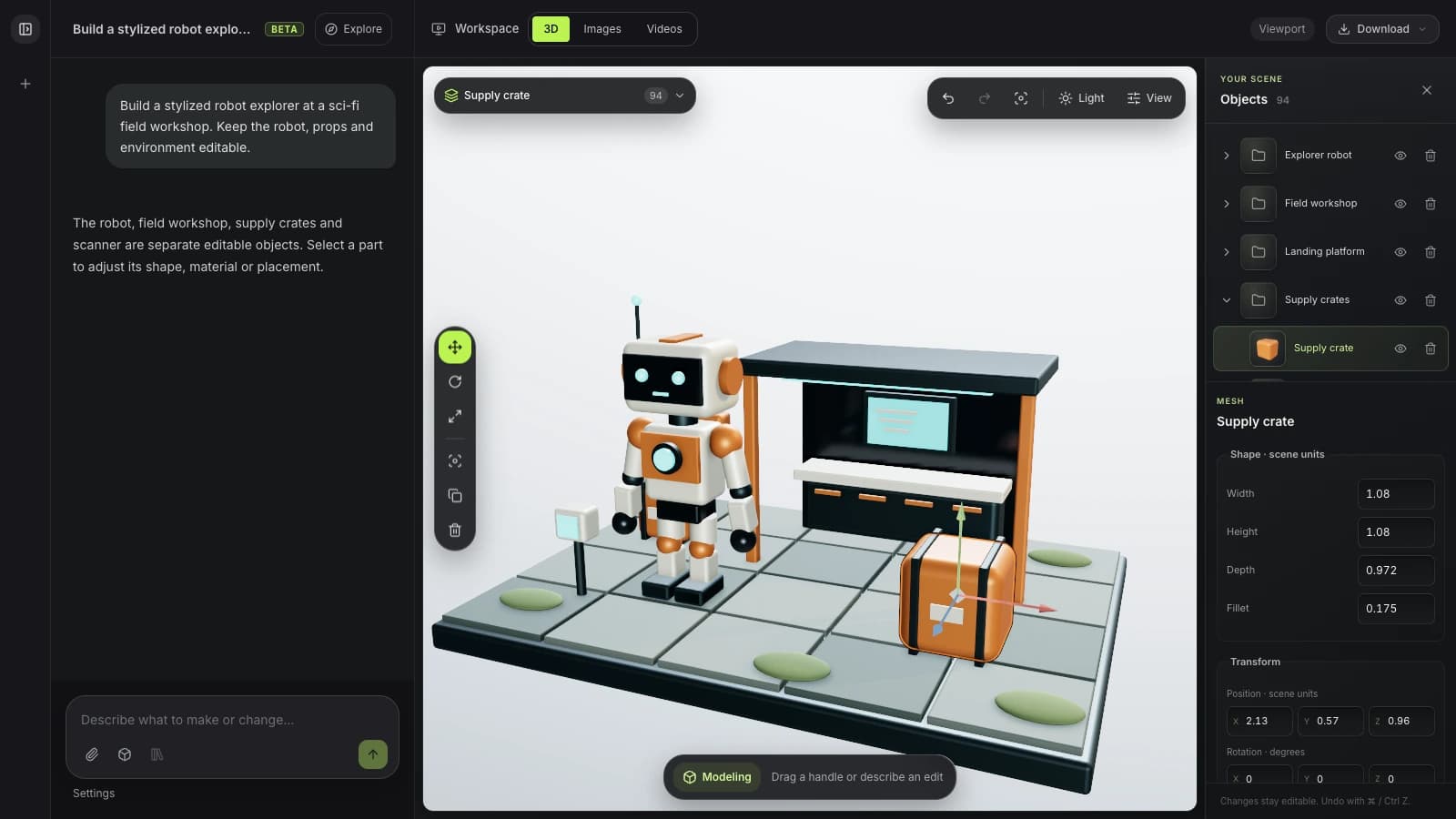
The viewport makes the result visible. Inspect the shape, placement and materials before moving on to the next change.

Current Mixos AI workspace with an orange supply crate selected beside an editable explorer robot and workshop
Actual Mixos AI interface with prepared game props and a scripted conversation. The selected supply crate exposes editable shape and transform controls.
FROM SCENE TO IMAGE

Build the scene.
Explore the finish.

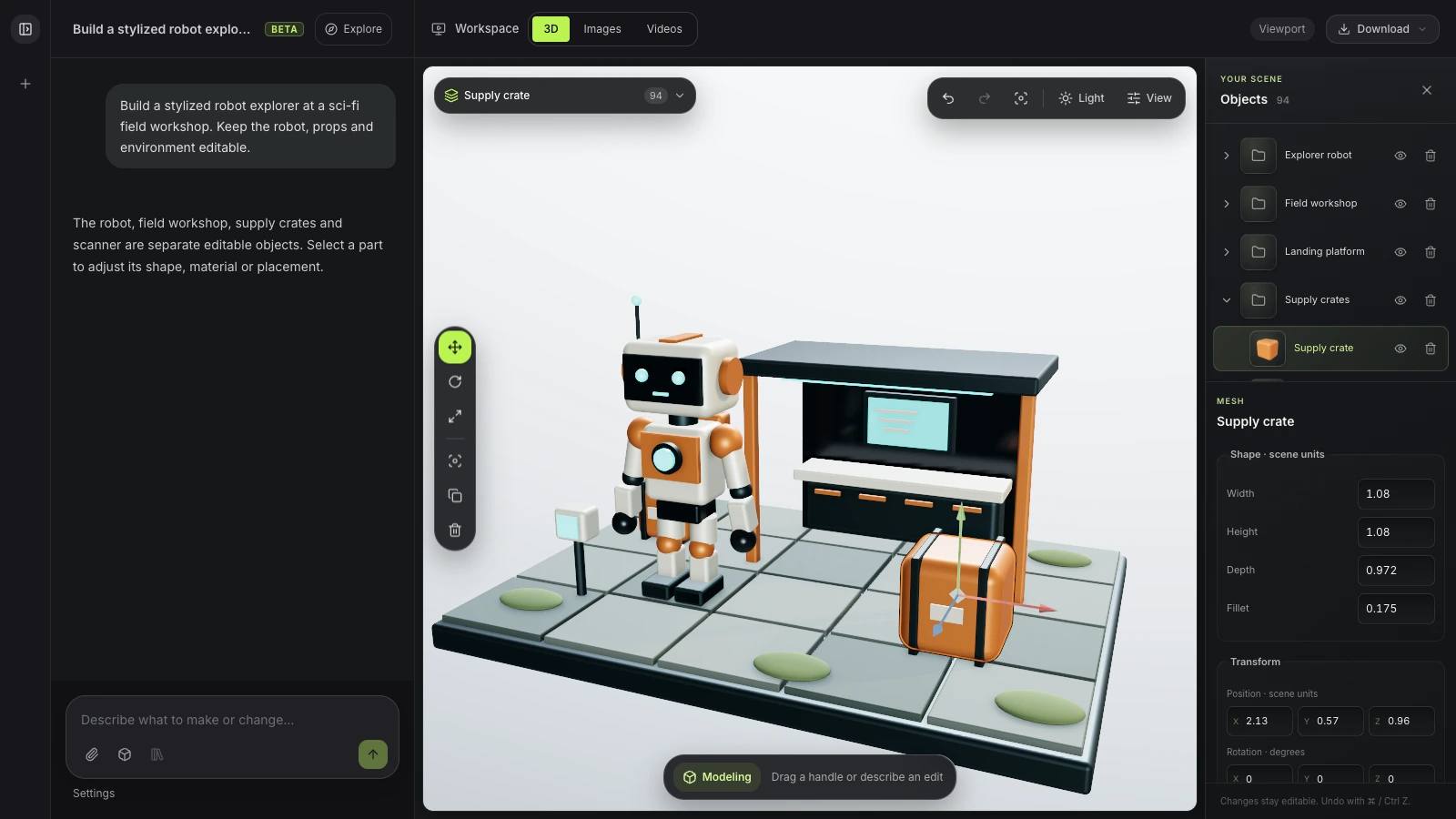
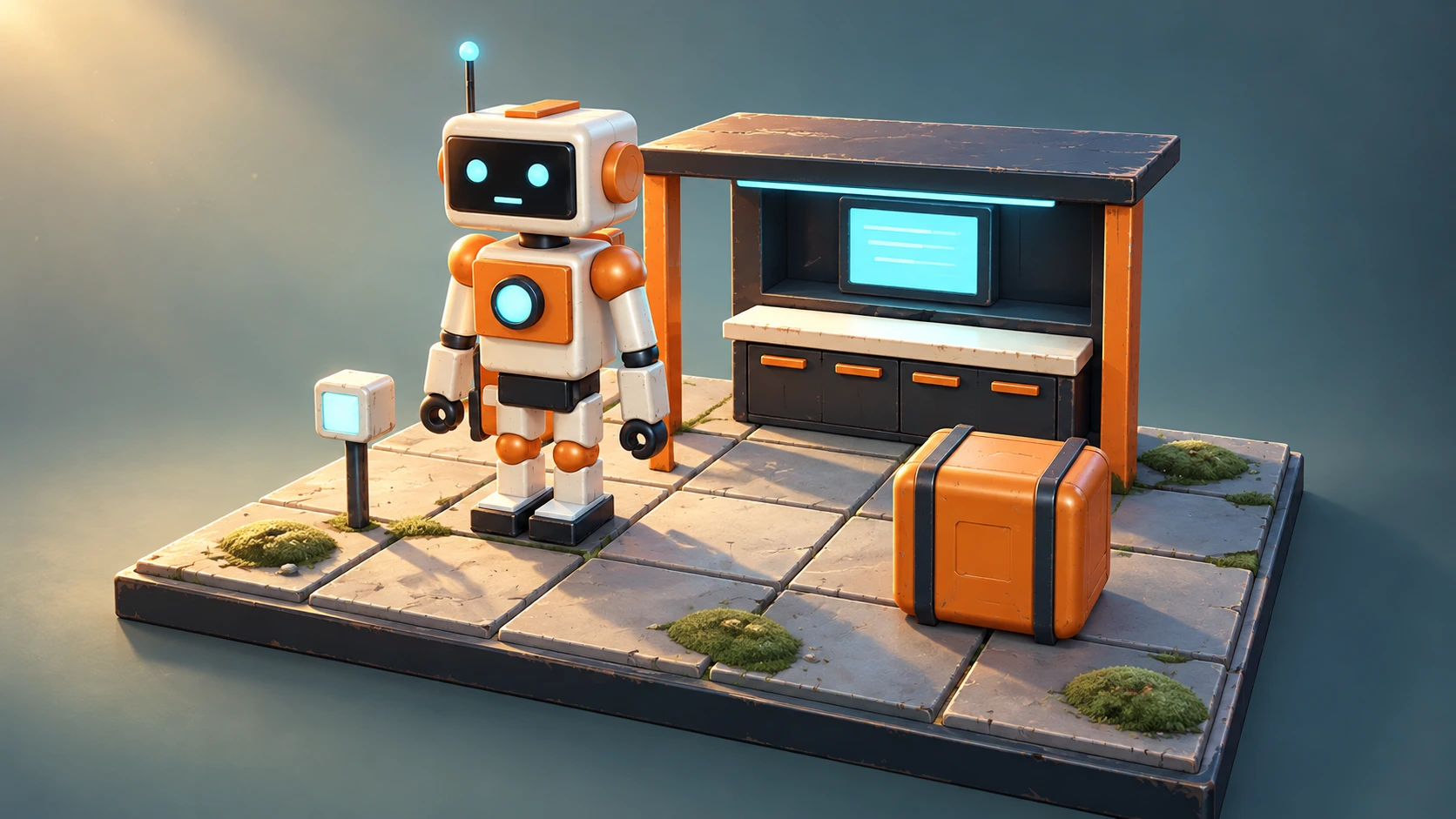
Keep the robot, workshop and props editable in 3D. Use that view as the starting point for an image with richer surfaces, lighting and atmosphere.

Mixos AI workspace with an ivory explorer robot, field workshop and orange supply crate built as separate editable objectsReal app screenshot
1 · The editable scene94 objects in the current workspace. Prepared scene and example conversation.
Illustrative AI finish of the same robot outpost arrangement with worn painted metal, moss-covered tiles and warm cinematic lightingIllustrative AI finish
2 · A finished art directionGenerated with ImageGen using the workspace capture as a reference.

This comparison illustrates the scene-to-image workflow. The finished image was created for this page with ImageGen; it is not a capture of an in-app generation. AI interpretation can change details.

03 / FIND YOUR STARTING POINT

Visual quality is only the first check.

01

Choose a creation route

Build components through conversational modeling when you want independent control over parts. Explicit automatic generation can supply a textured mesh from a prompt or reference. Neither route removes the need to inspect the asset for its intended runtime use.
02

Check the mesh and surface data

Review topology, normals, scale and UVs. Fine visual detail can hide a heavy mesh or an unsuitable unwrap. Ask the assistant to inspect the model before making cleanup changes, then review the actual geometry and materials in the viewport.

03

Validate in the destination engine

An exported model is a handoff, not a guarantee of game readiness. Test its scale, shading, material compatibility and performance in your engine. Keep the Mixos source so you can return to the geometry or surface treatment after that check.

BRIEF A PROP
“Create a stylized supply chest with teal panels, dark timber and copper corners. Keep the lid separate and give it a strong, simple silhouette.”
Open Mixos AI
INSPECT BEFORE EXPORT
“Inspect this prop's topology, normals, UVs and scale. Report the most useful fixes before changing anything or preparing an export.”
Open Mixos AI

Example briefs to adapt to your project. Concept images show a creative direction; live results depend on your prompt and the tools used.

SEE THE WORKFLOW

Five examples. See what changes with each prompt.

Build, finish and animate real 3D scenes. Choose an example, play the walkthrough or jump to any step.

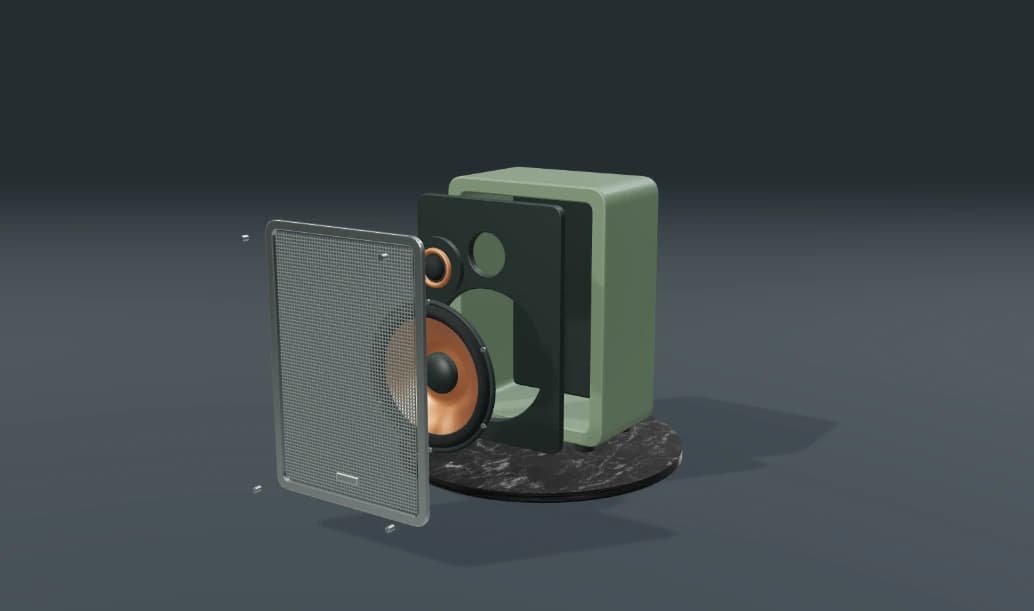
Inside the speakerPrepared example · no credits used
THE BRIEF

“Build a compact studio speaker with an olive enclosure, a copper driver and a fine metal-mesh grille. Keep the components separate.”

BUILD → FINISH → ANIMATE

Pull it apart. Tell the story.

The chat explains the change. The viewport shows the result. Play all steps, or use the numbered controls to explore.

Inside the speaker — prepared 3D scene
ASSEMBLYCLICK TO FOLLOW THE STORY
The finished scene3D SCENE PREVIEW

Prepared walkthroughs with editable 3D, animation and illustrative AI images. Prompts and replies are scripted; playback uses no credits. AI video generation is a separate paid step, illustrated above.

04 / A FEW USEFUL ANSWERS

Questions about ai game asset generator

Is Mixos AI available now?

Mixos AI is available in this build. Open the workspace with your Mixos account; conversational tools require paid access or unspent purchased credits. The expanded creation workspace is rolling out in preview builds.

Can Mixos AI generate 3D game assets?

The preview can build editable props and explicitly use paid automatic model generation for a textured mesh. Treat the result as a starting asset: inspect and test it for the destination engine before production use.

Are generated models automatically game-ready?

No. A generated mesh can need topology, UV, material or scale cleanup. Verify the asset against your project's runtime requirements and test the exported model in the intended engine.

Can I texture the model after generation?

Yes. Mixos includes Paint for editable PBR surfaces, masks and decals. Available edits depend on the model and its surface data. Inspect its UVs and geometry before starting detailed texturing.

Can I start from a reference image?

Explicit automatic model generation can use a text prompt or reference image through the paid model catalog. Generated geometry and hidden details may vary. Inspect the mesh and approve the current generation cost before running the action.

What is free, and what requires a paid plan?

Editing in the released Mixos apps is free with a Mixos account. AI generation consumes credits. Production exports require a paid plan or licence; the free plan includes a 512px watermarked render preview. See Pricing for current allowances. Watching the demonstrations on this page does not spend AI credits.

See Pricing for current AI credits and export allowances. Studio is available now for manual 3D creation.

YOUR NEXT PROJECT STARTS HERE

Describe the idea.
Keep creating.