Check the imported model first
FBX can carry more than a mesh. Inspect scale, orientation and visible parts before spending a generation on a surface that is not ready.
AI autotexture for FBX
Use an FBX model as the starting point for AI texturing. Generate a coherent surface pass, refine it in Paint and make a deliberate handoff back to your modeling or game pipeline.
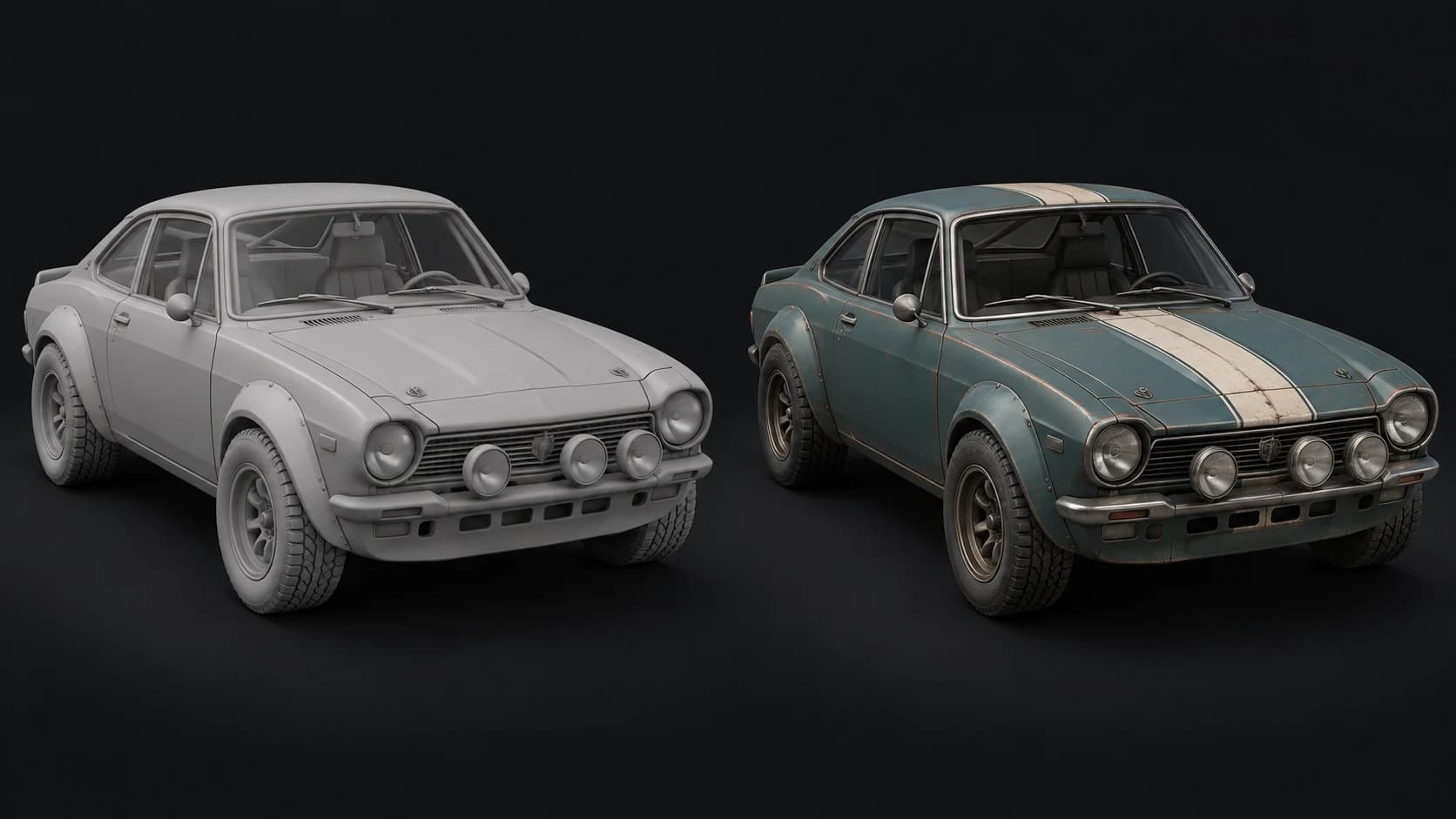
FBX can carry more than a mesh. Inspect scale, orientation and visible parts before spending a generation on a surface that is not ready.
Try paint, metal, rubber and glass as one coordinated brief. Reference images can help communicate color and finish without a long style description.
Use Paint for material channels and local corrections. Export maps and a matching textured GLB on a paid plan, then validate the result in your destination tool.
Why Mixos
FBX is used for static props as well as complex assets with hierarchies, rigs and animation. Auto accepts FBX input, but a texture pass should not be confused with a lossless round trip of everything stored in that file. Begin with the visible geometry you want to paint and keep the production source intact.
For a multipart object, decide whether it should share a generated look or be textured part by part. Preparation can combine geometry and change UV layouts to make projection usable. Large meshes may also be simplified. Those choices can help the texture pass while changing what the downstream asset needs.
Plan the return path before the final polish. If your original rig, skin weights or exact atlas must remain in place, use a static working copy and evaluate a rebake into the production asset. Review paint placement under neutral lighting before tuning roughness and metalness for the final renderer.
Keep the production FBX. Import a copy with the parts visible and the pose you want to use for texturing.
Describe surface materials and their placement. Inspect the front, sides and rear for inconsistent boundaries or misplaced detail.
Export on a paid plan, check UV compatibility and rebuild or rebake materials as required by the original scene.
Vintage rally coupe with desaturated teal painted body panels, an ivory hood stripe, black rubber tires and worn brushed metal trim. Restrained rust along seams, no logos or numbers.
Yes. Import the model and inspect the visible geometry before generating. A successful import does not establish that every rigging, animation or scene feature will be preserved through the texturing workflow.
Do not treat Auto as a lossless FBX converter. The supported Auto handoff is a textured GLB and maps on a paid plan. Keep the original FBX when its rig or scene structure matters.
Use a suitable static pose or working copy, then inspect the result carefully. Faces and occluded surfaces can need manual correction, and transferring the look back to a production rig may require rebaking.
No. They are a starting point. Check color space, normal orientation, roughness and metalness in the destination renderer and adjust for the actual material.
Read next
The whole pass, from import to exported maps.
The maps a modern material is made of, and what each one does.
Why the same texture reads bigger on one model than another.
Drop the files in and see the material lit, in the browser.
Keep exploring
AI autotexture for GLB
AI autotexture for OBJ
AI autotexture for generated meshes
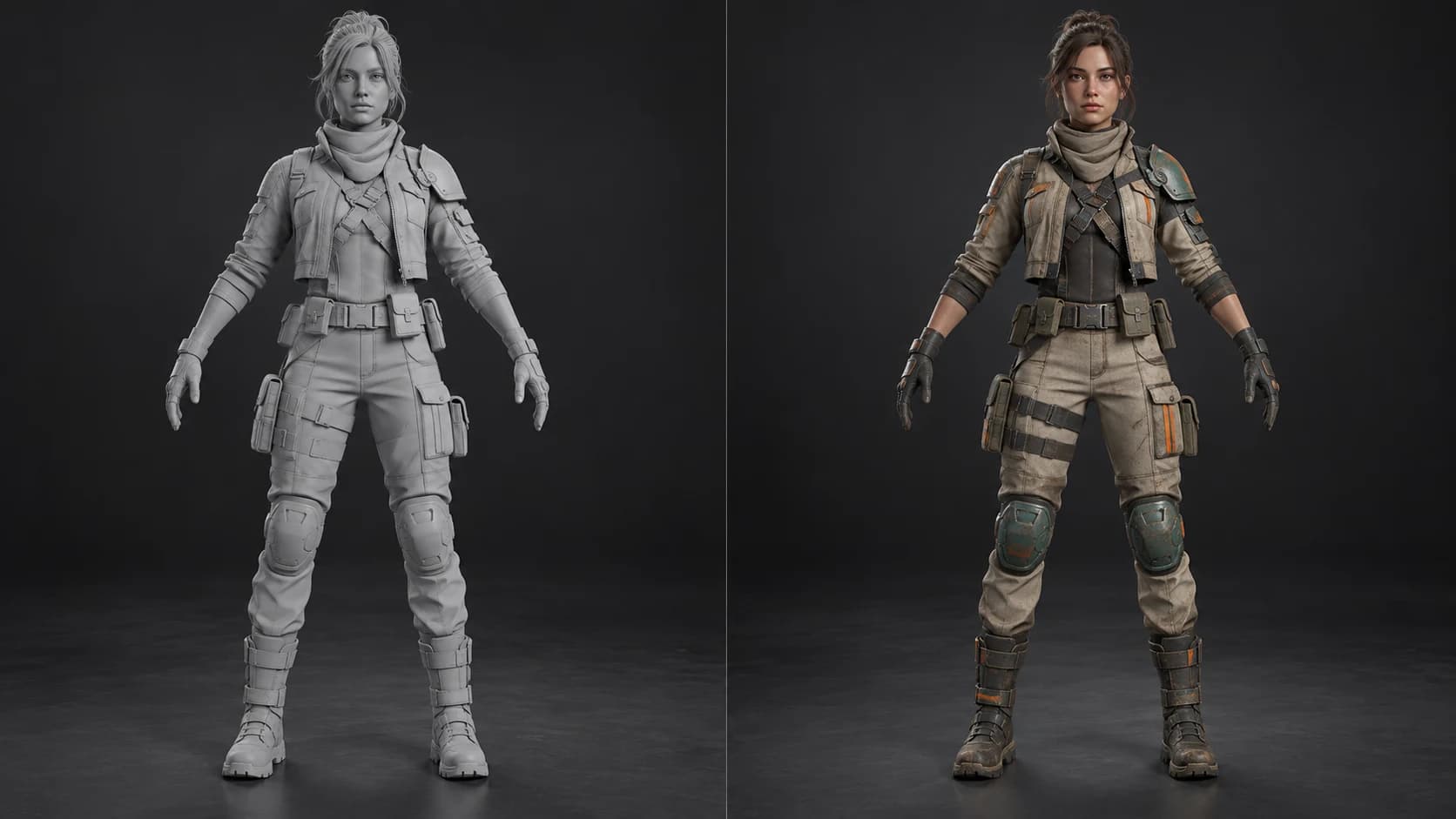
3D character texturing