Start from your own mesh
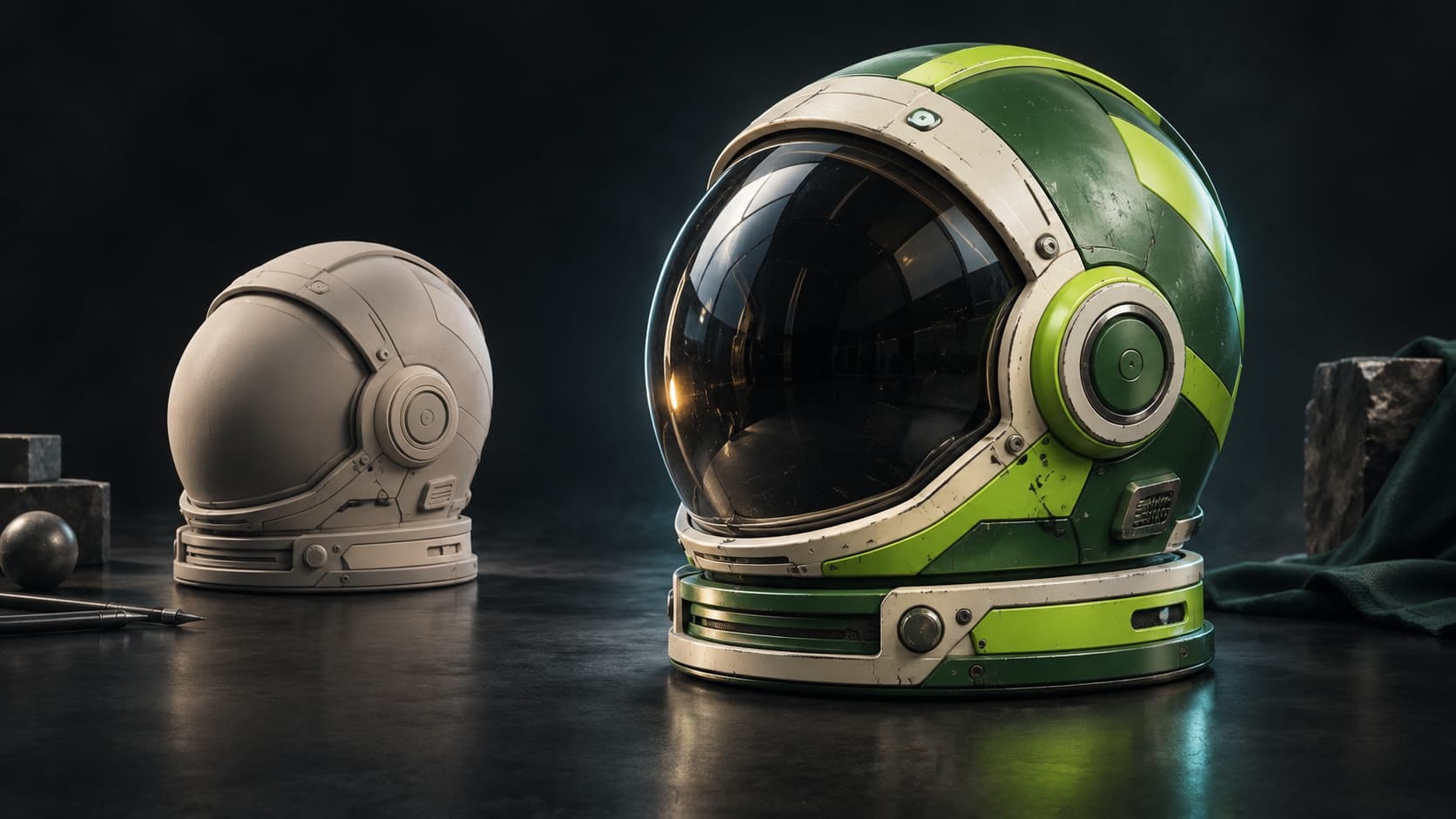
Bring in a model instead of painting a generic flat template. Auto-Texture renders multiple views, generates a coordinated look and projects the result back across the surface.
AI weapon texturing
Import a weapon mesh, describe the surface, and let Auto-Texture build a first pass across the model. Refine it with paint layers, masks and materials, then export the maps for the rest of your CS2 Workshop workflow.
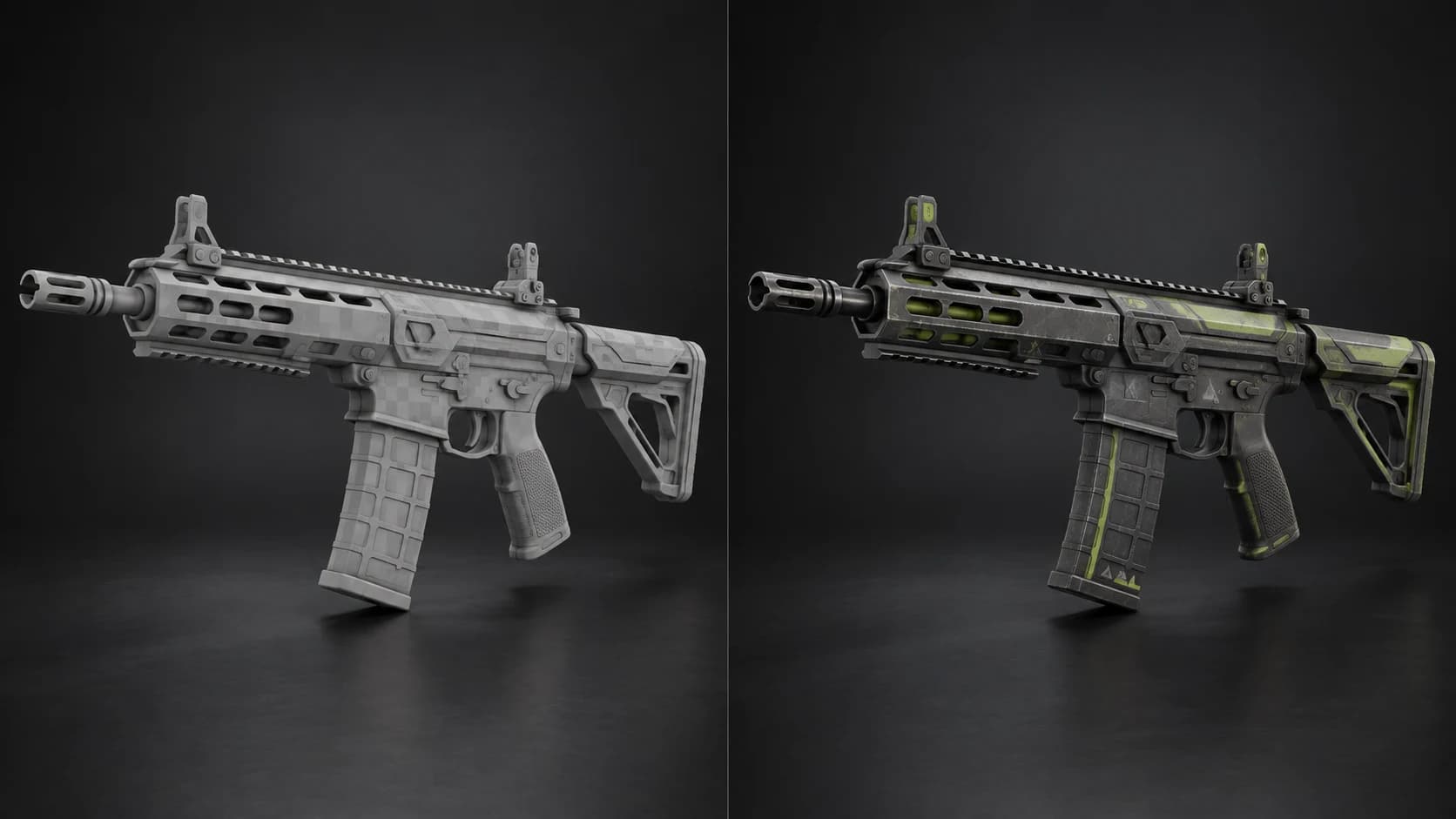
Bring in a model instead of painting a generic flat template. Auto-Texture renders multiple views, generates a coordinated look and projects the result back across the surface.
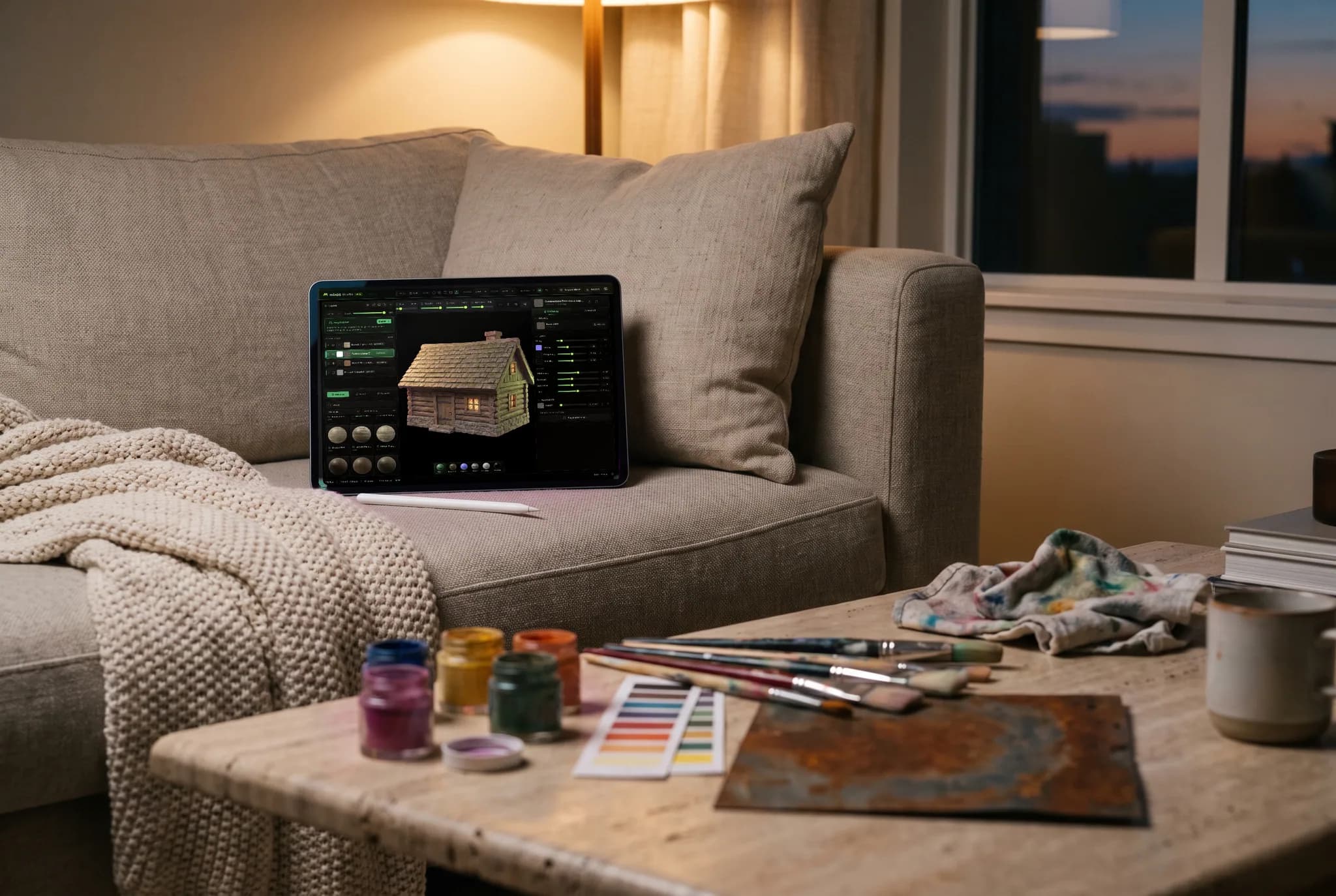
The generated look lands in a real texture-painting workspace. Add paint, decals, masks and material layers instead of accepting a locked image as the final answer.
Build color, roughness, metalness, normal and height detail together, then inspect how the finish responds under live 3D lighting before export.
Download PNG, TGA, TIFF or PSD texture sets. CS2 finish styles can require separate alpha and wear setup, so finish and verify the submission in Valve's current Workshop Tools.
Why Mixos
Weapon finishes are unusually sensitive to layout. A strong concept is only useful if it can be brought back onto the intended model, inspected at game distance and adjusted where seams, sights and moving parts demand precision. Mixos gives you the fast part — generating a coherent surface direction — and the ordinary layer stack needed to repair and refine it.
Auto-Texture may combine multipart models or replace stacked and tiled UVs with a new atlas so projection can work. That is useful for concepting and for assets that will use the new layout, but it does not guarantee that the exported maps still fit an unchanged Valve template. Check the UV result before spending time on a final pass, and keep your source model available for any rebake the target workflow requires.
Mixos exports 24-bit RGB TGA files. Some CS2 finish styles use alpha for wear, masking or roughness behavior, and the Workshop Item Editor applies additional finish parameters. Prepare that channel separately when your chosen style needs it, then inspect the result at several wear values in the current CS2 Workshop Tools. Mixos is a texture generator and editor in that process, not a replacement for Valve's preview and submission tools.
It can generate and edit the texture artwork, then export maps for the next step. You still use Valve's Workshop Item Editor to choose the finish style, configure wear and other parameters, preview the result and submit it.
No. The current TGA exporter writes 24-bit RGB. If your CS2 finish style uses alpha for wear, masking or roughness behavior, prepare and combine that channel in another tool before the Workshop step.
It uses usable UVs when it can, but may re-unwrap stacked or tiled layouts and may combine multipart meshes. Compare the resulting layout with the target template and plan a rebake when exact UV compatibility is required.
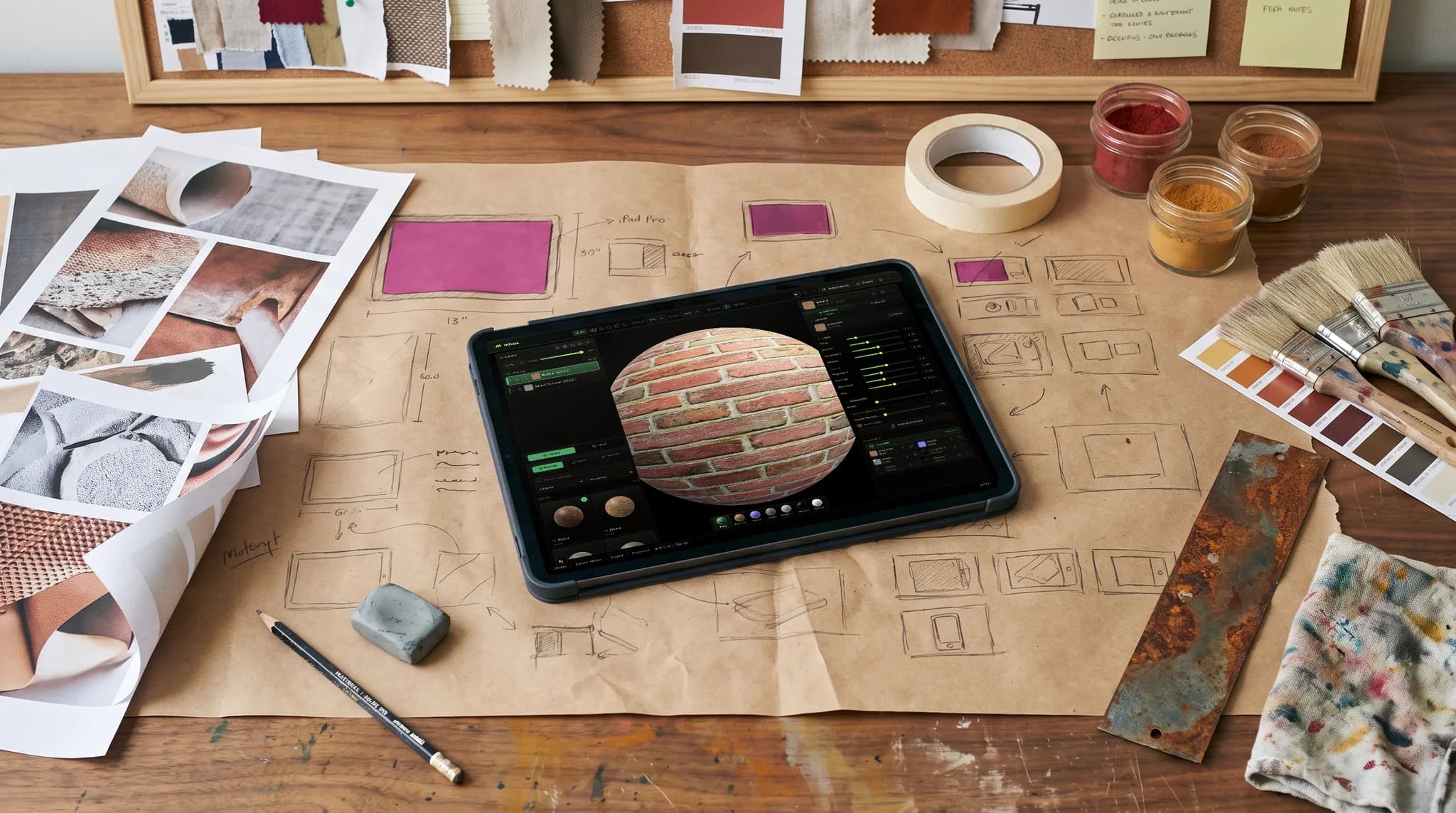
Yes. The result opens in the Mixos painting workspace, where you can add paint layers, materials, masks, decals and channel-specific adjustments before export.
No. Mixos is an independent 3D texturing tool. Counter-Strike and its Workshop tools belong to Valve, and their current documentation controls the submission requirements.
Read next
The whole pass, from import to exported maps.
The maps a modern material is made of, and what each one does.
Why the same texture reads bigger on one model than another.
Drop the files in and see the material lit, in the browser.
Keep exploring
Rust skin texturing
FiveM and GTA V liveries
AI texture generator
Online texture painter
PBR material editor