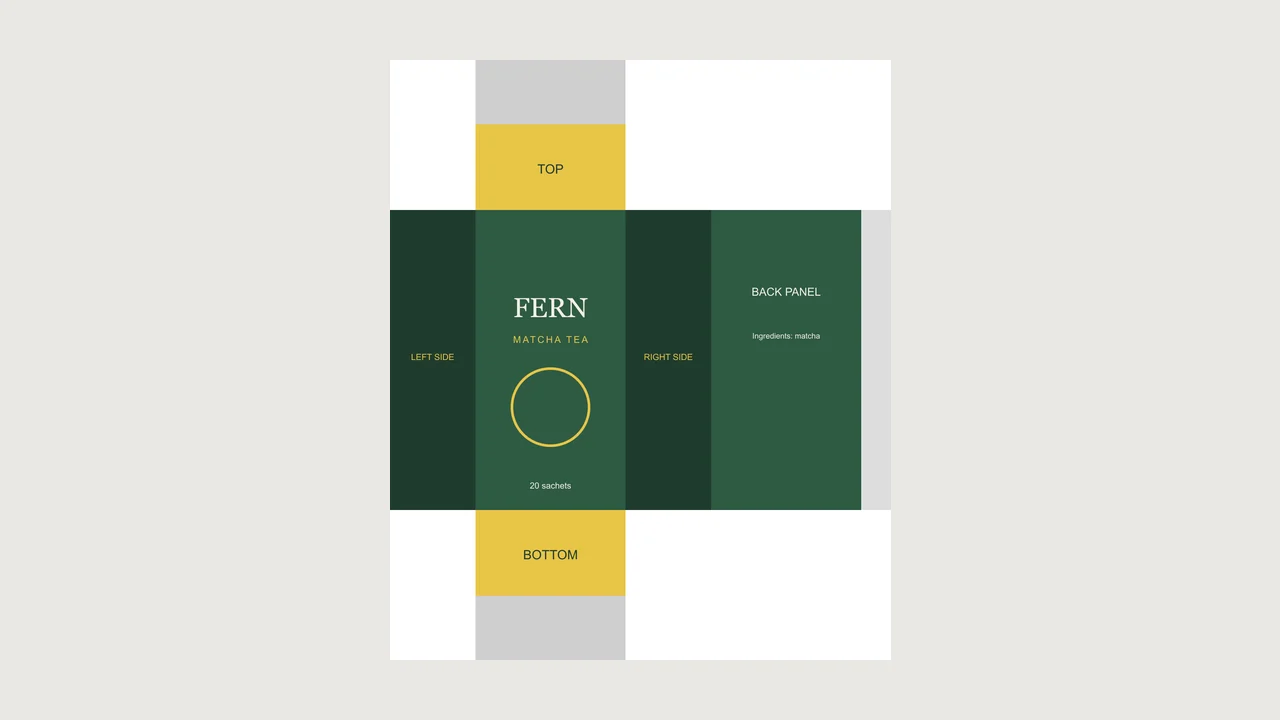
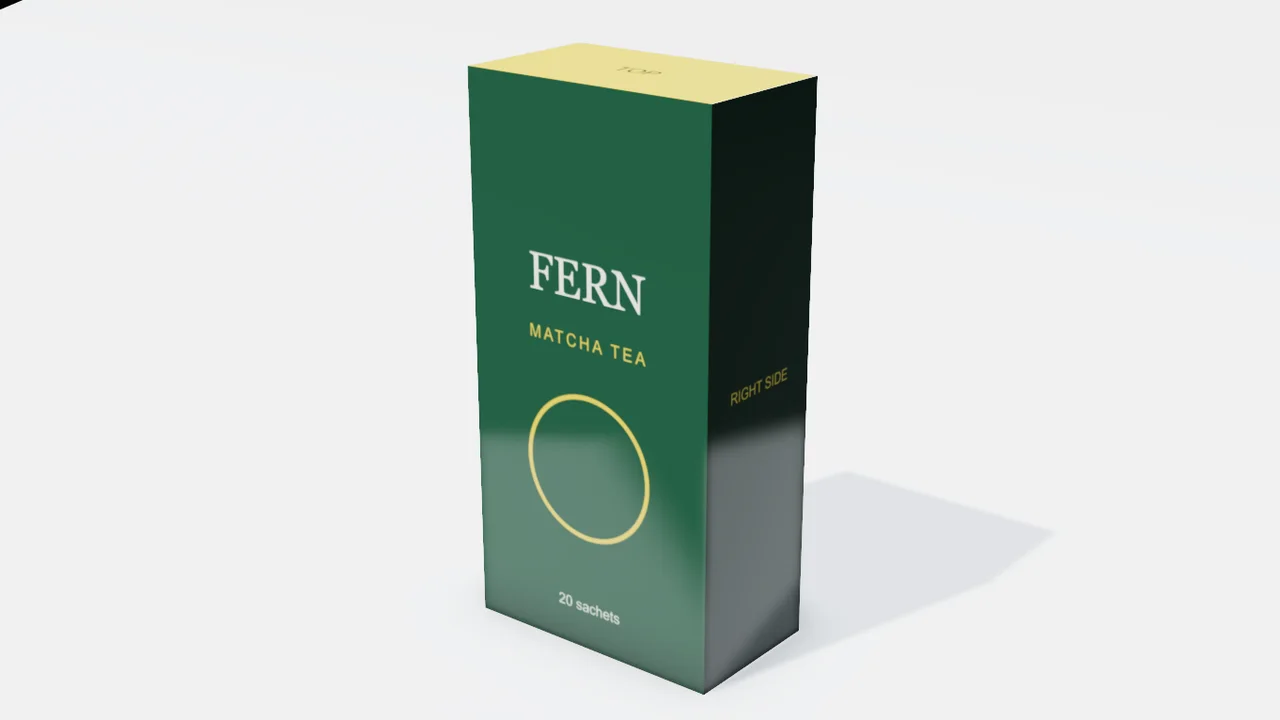
A dieline folded into a carton
Each panel of the flat file lands on its face: the front with the logo, the right side's text, the yellow top.
Attach the flat dieline and give the box size. Mixos AI builds the box, puts every panel of your artwork on its face and sets up the angles you need to check it before it goes to print.
Mixos AI is available in this build. Conversational tools require paid access or purchased credits.
 MADE IN MIXOS
The box is built to the size you give, its template is computed from that size, and your dieline is laid onto it panel by panel.
Width, height and depth in millimetres or inches, with the front as width by height. Tuck-end cartons, mailer boxes and shipping boxes are supported.
Lay your design out as the template: sides, front and back in a row, top above the front, bottom below it. Ask Mixos AI for the panel sizes or download the template as an SVG.
Turn it, look at the top and the sides, and ask for a turntable. Swap one panel's art and only that face changes.
Every result below is unedited Mixos output. Inputs are public-domain or openly licensed drawings, drawings made for these examples, or AI-generated example photos.
Each panel of the flat file lands on its face: the front with the logo, the right side's text, the yellow top.
The viewport makes the result visible. Inspect the shape, placement and materials before moving on to the next change.
The top panel reads from the front, the sides sit beside the front and the back follows the right side, as they do on a folded carton. A face that looks wrong in 3D is wrong on the flat file.
A dieline whose proportions do not match the box is fitted, not stretched, and Mixos AI says so, so you never approve a mockup that hid a sizing mistake.
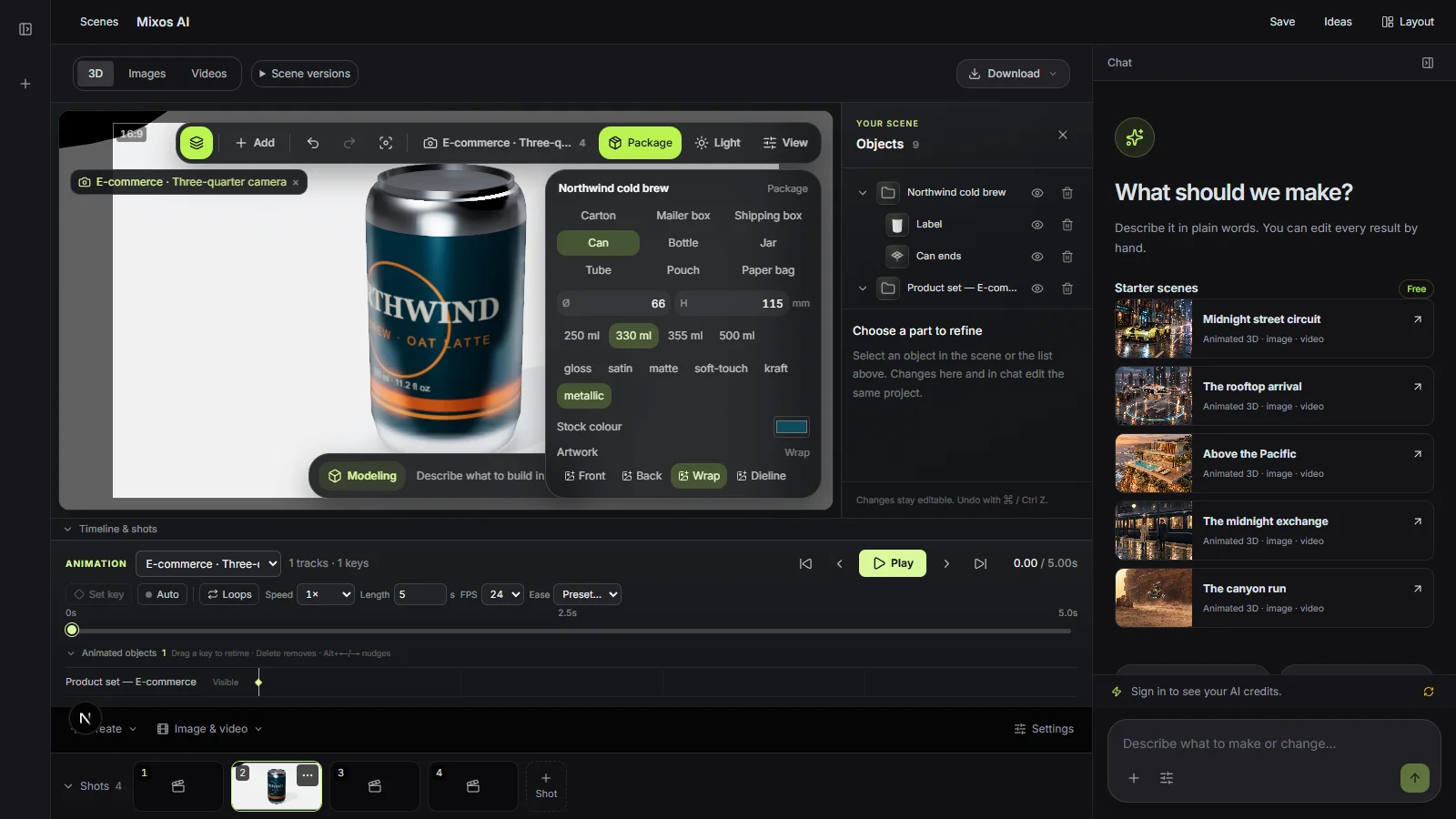
Soft-touch, matte, satin, gloss, metallic or kraft board, chosen in a word. The finish changes how the light falls on the box, not the artwork.
“Here's the dieline for our 70 × 140 × 40 mm tea box. Fold it into 3D and show me the front, the top and a turntable.”Open Mixos AI
“Make a 2.5 × 5.5 × 1.5 inch serum box with my front panel and a soft-touch finish, on a dark plinth.”Open Mixos AI
Example briefs to adapt to your project. Concept images show a creative direction; live results depend on your prompt and the tools used.
Build, finish and animate real 3D scenes. Choose an example, play the walkthrough or jump to any step.
“Create a pair of sculptural over-ear headphones. Use coral shells, soft ivory cushions and a polished metal headband.”
The chat explains the change. The viewport shows the result. Play all steps, or use the numbered controls to explore.
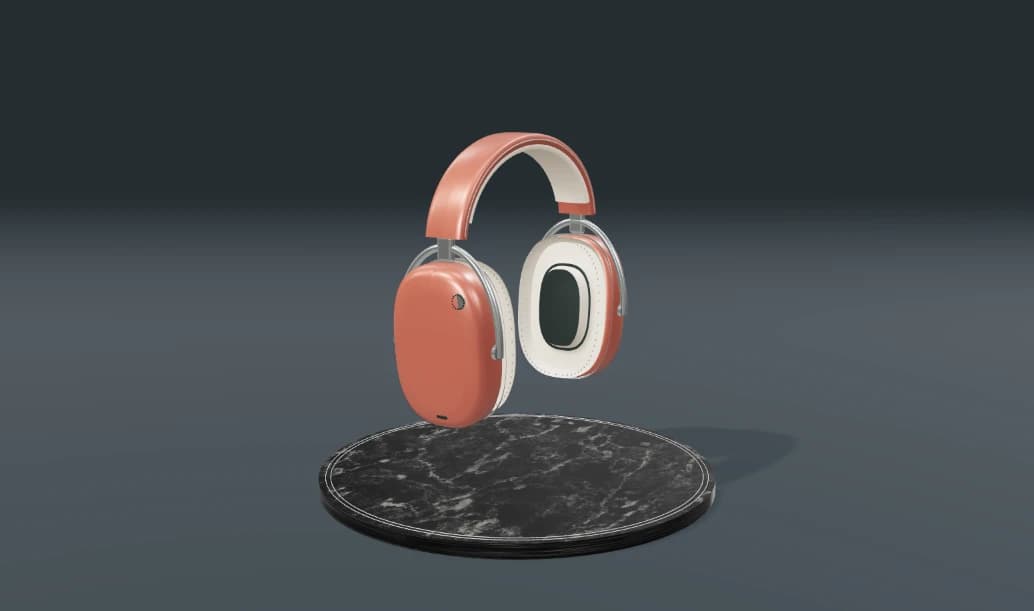
Prepared walkthroughs with editable 3D, animation and illustrative AI images. Prompts and replies are scripted; playback uses no credits. AI video generation is a separate paid step, illustrated above.
Mixos AI is available in this build. Open the workspace with your Mixos account; conversational tools require paid access or unspent purchased credits. The expanded creation workspace is rolling out in preview builds.
The standard cross: left side, front, right side and back in a row with the glue flap after the back, the top above the front and the bottom below it, with tuck flaps beyond. Ask Mixos AI for the exact panel sizes for your box.
No. The box is built from the size you give, and the dieline picture is placed on that template. Cut lines and bleeds are not traced.
Yes. Attach the front art alone and the other panels take the stock colour, which Mixos AI reads from the artwork's own background.
No. It is a visual mockup for checking design and making images. Approve print files with your printer's proof.
Editing in the released Mixos apps is free with a Mixos account. AI generation consumes credits. Production exports require a paid plan or licence; the free plan includes a 512px watermarked render preview. See Pricing for current allowances. Watching the demonstrations on this page does not spend AI credits.
See Pricing for current AI credits and export allowances. Studio is available now for manual 3D creation.