Watertight from the start
Make printable closes the model with a solid base and side walls, so the slicer gets closed, watertight parts instead of an open surface.
3D printed topographic map
Pick a place on the map, and Studio builds the real terrain — and the buildings, if you want them — on a solid, watertight base scaled to your print bed. Send it to your slicer as 3MF or STL. No GIS tools, no mesh repair.
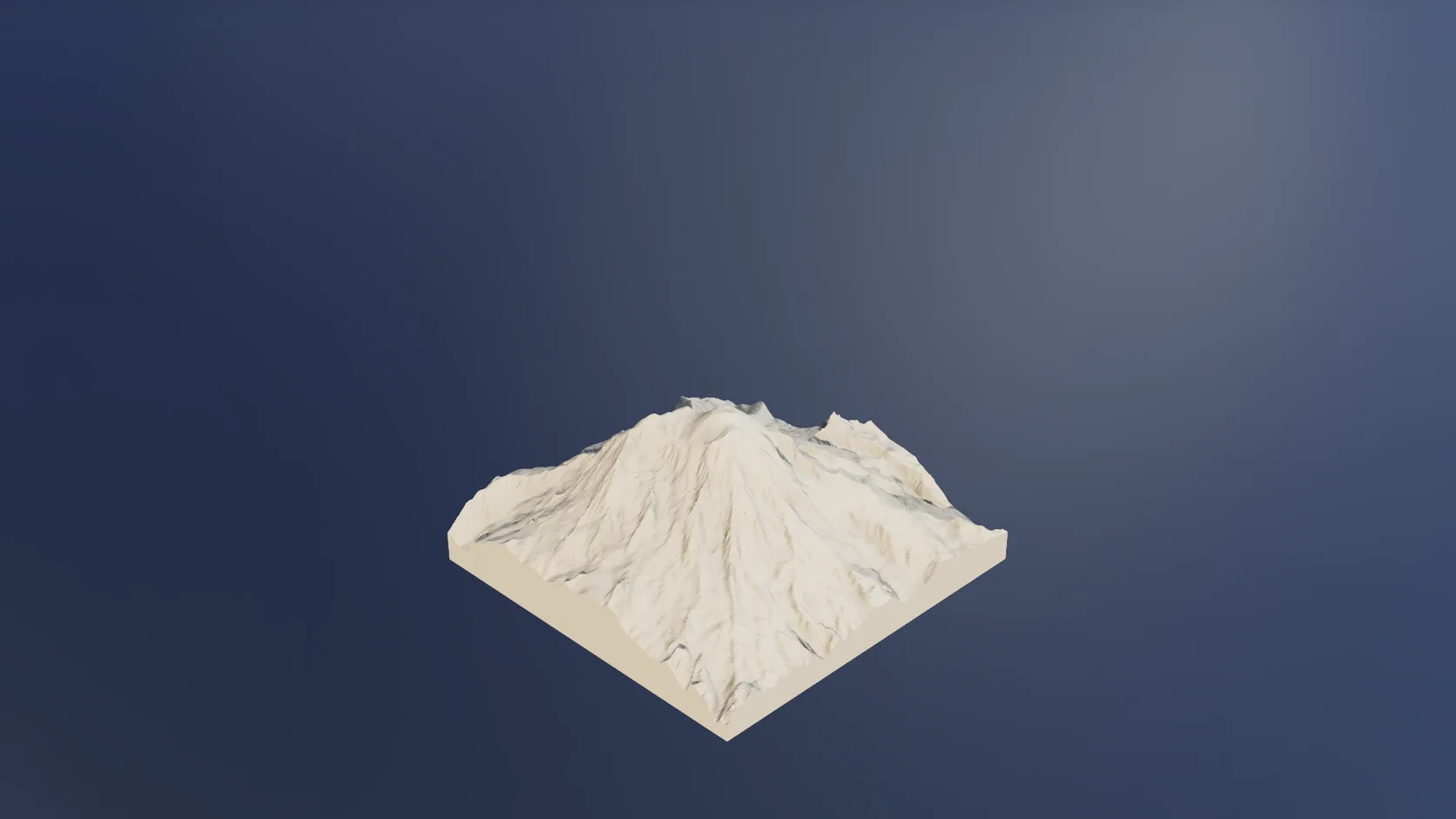
Make printable closes the model with a solid base and side walls, so the slicer gets closed, watertight parts instead of an open surface.
Set the print width in millimetres and the base thickness; the whole model scales to fit, with vertical exaggeration so gentle hills still read in plastic.
Print a mountain range up to 100 km across from elevation data, or a 1 km city block with every building extruded to its mapped height.
Export the finished model for Bambu Studio, PrusaSlicer, Cura or any slicer that reads 3MF or STL.
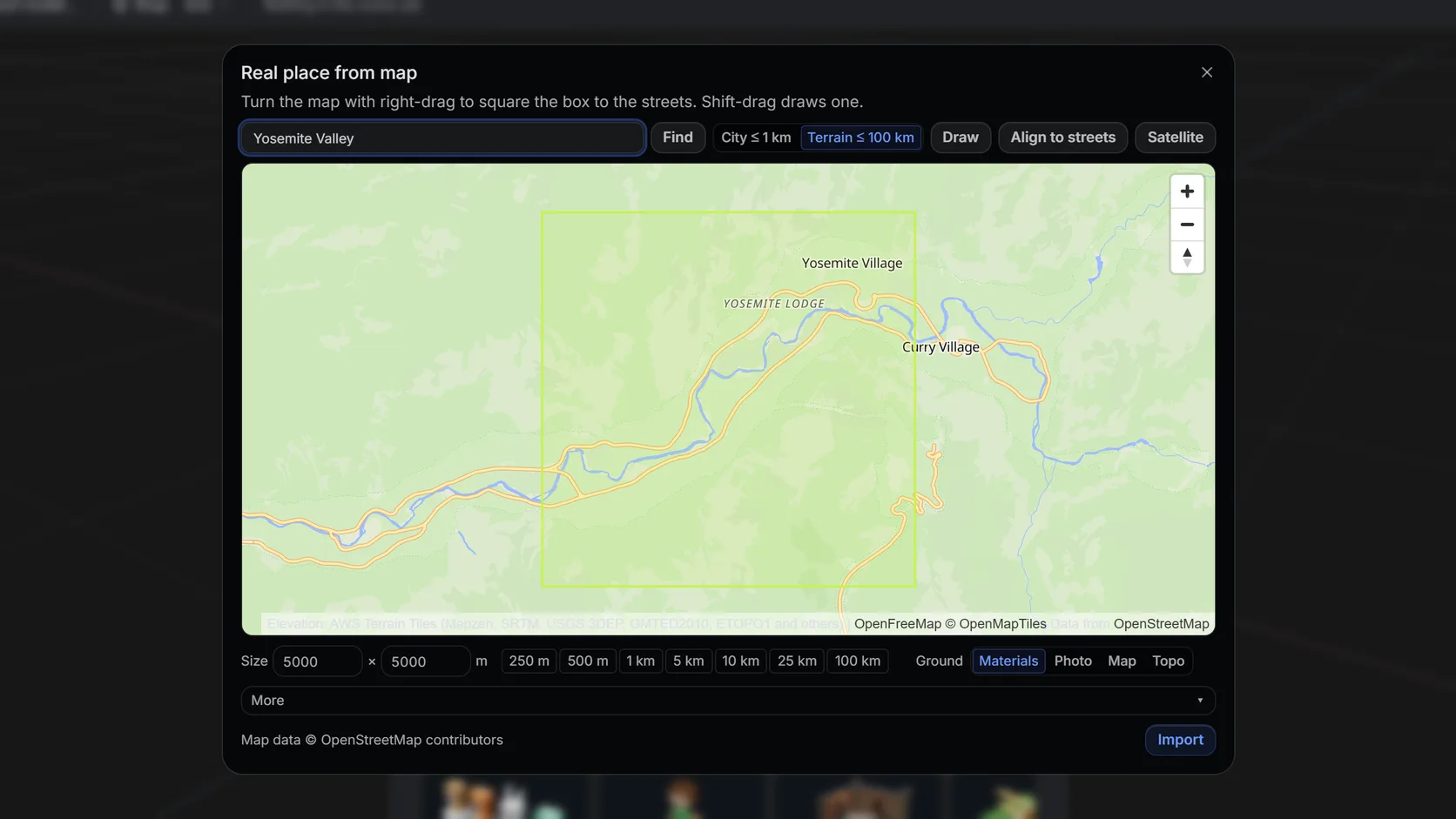
Search a name or an address, then drag a box. Terrain mode takes up to 100 km (25 km on a phone); city mode up to about 1 km with buildings, roads and water.
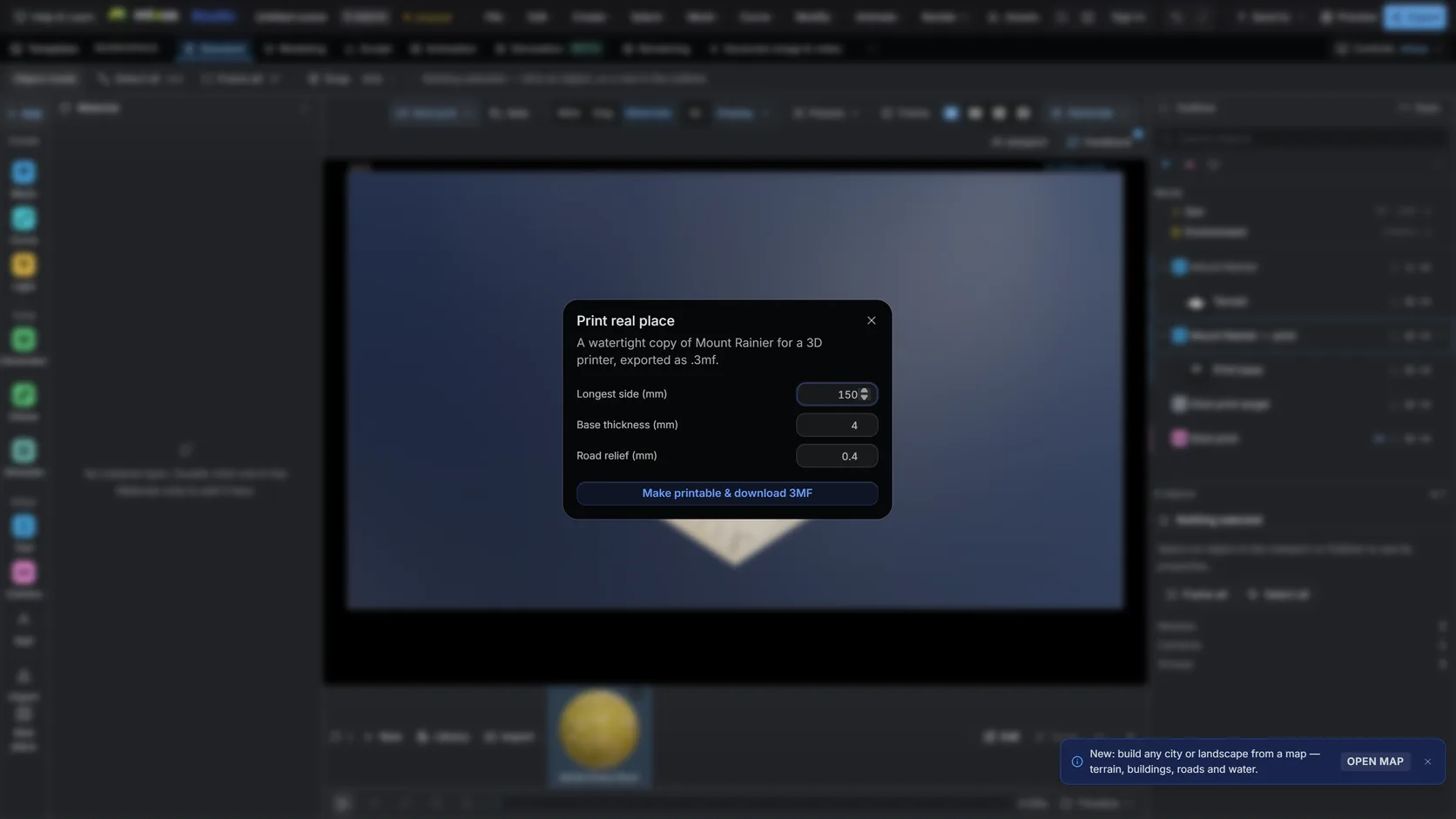
Set the print width, the base thickness and the exaggeration; Studio closes the model into watertight parts: a terrain slab with walls and a floor, plus buildings and raised roads.
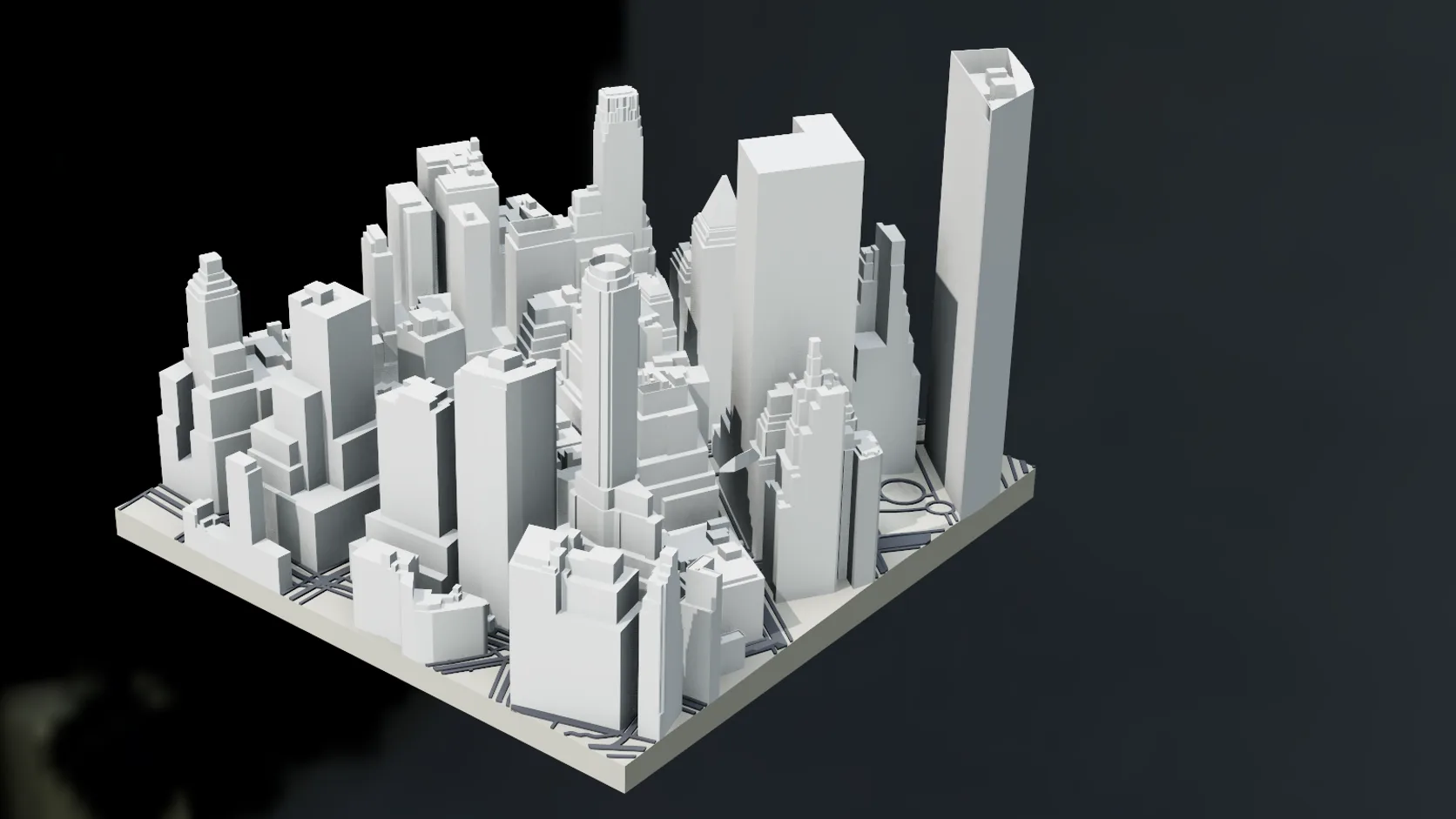
City mode prints buildings on the terrain, closed on the same solid base.
Why Mixos
Relief maps are one of the most satisfying things to 3D print: a hometown, a trail you hiked, the mountain you climbed, a gift for someone who moved away. The hard part has never been the printing. It is getting real terrain into a closed, correctly scaled solid that a slicer will accept.
Studio does those steps in one place. The Real place import builds the terrain from open elevation data — and in city mode, the buildings, roads and water from OpenStreetMap — and Make printable closes it into a solid: a flat base under the whole area, walls down every edge, the surface on top. You set the printed width and the base thickness; the model scales to match.
Exaggeration matters more on a print than on screen. At true scale, a 10 km area printed 150 mm wide flattens most hills to a fraction of a millimetre. Raise the vertical exaggeration until the relief reads — 2x to 4x is typical for rolling country, less for alpine terrain — and say so on the label if accuracy matters to the recipient.
Mind the smallest features. Buildings in a city print can become thin spikes at small scales; print larger, simplify, or switch to terrain only. And credit the data on the base or the packaging: the map is © OpenStreetMap contributors and the terrain comes from open public surveys.
Search the place in Studio's Real place picker and draw a box: terrain mode for a landscape, city mode for buildings.
Set the print width, the base thickness and the vertical exaggeration. Studio closes the model into watertight parts: a terrain slab with walls and a floor, plus buildings and raised roads.
Export as 3MF or STL (a paid plan) and open it in your slicer.
Print flat on the base. A 0.2 mm layer height is plenty for terrain; use finer layers for small city blocks.
Make a printable 150 mm wide relief model of Mount Rainier with a 4 mm base and 1.5x exaggeration.
In Studio, import the place from the Real place picker, use Make printable to add a solid base at your print size, and export 3MF or STL for your slicer. The import and preparation are free; export is the paid step.
Yes. Make printable builds watertight parts — a terrain slab with side walls and a floor, plus the buildings and slightly raised roads — so slicers accept them without repair.
Enough for the relief to be visible at the printed size. Mountains often look right at 1–1.5x; rolling country usually needs 2–4x. The setting is yours, and true scale is always 1.
Yes, for areas up to about 1 km across in city mode. At small print sizes very thin buildings may not print cleanly, so print larger or use terrain only.
The OpenStreetMap data allows commercial use with credit to © OpenStreetMap contributors, and the elevation data is open. Check the credit is on the product or its packaging.
Read next
Which format keeps materials and which throws them away.
Open the file in the browser — meshes, materials, triangle count.
Watertight remesh, thickened walls, and the checks that stop a bad print.
Key, retime and ease a move, step by step.
Keep exploring
3D terrain generator
3D city model generator
3D mountain model
TouchTerrain alternative
Sculpting for 3D printing
3D printed logo
Heightmap to 3D