Make your logo 3D

Your logo, with actual depth.

A flat logo is a picture. This turns it into an object: every flat colour becomes its own raised layer, so a two-colour badge ends up as a plate with the emblem standing off it. Thicken it, round the edges, light it, turn it a full 360°. Start from one of six ready-made marks or an SVG you already have — both free, no account.

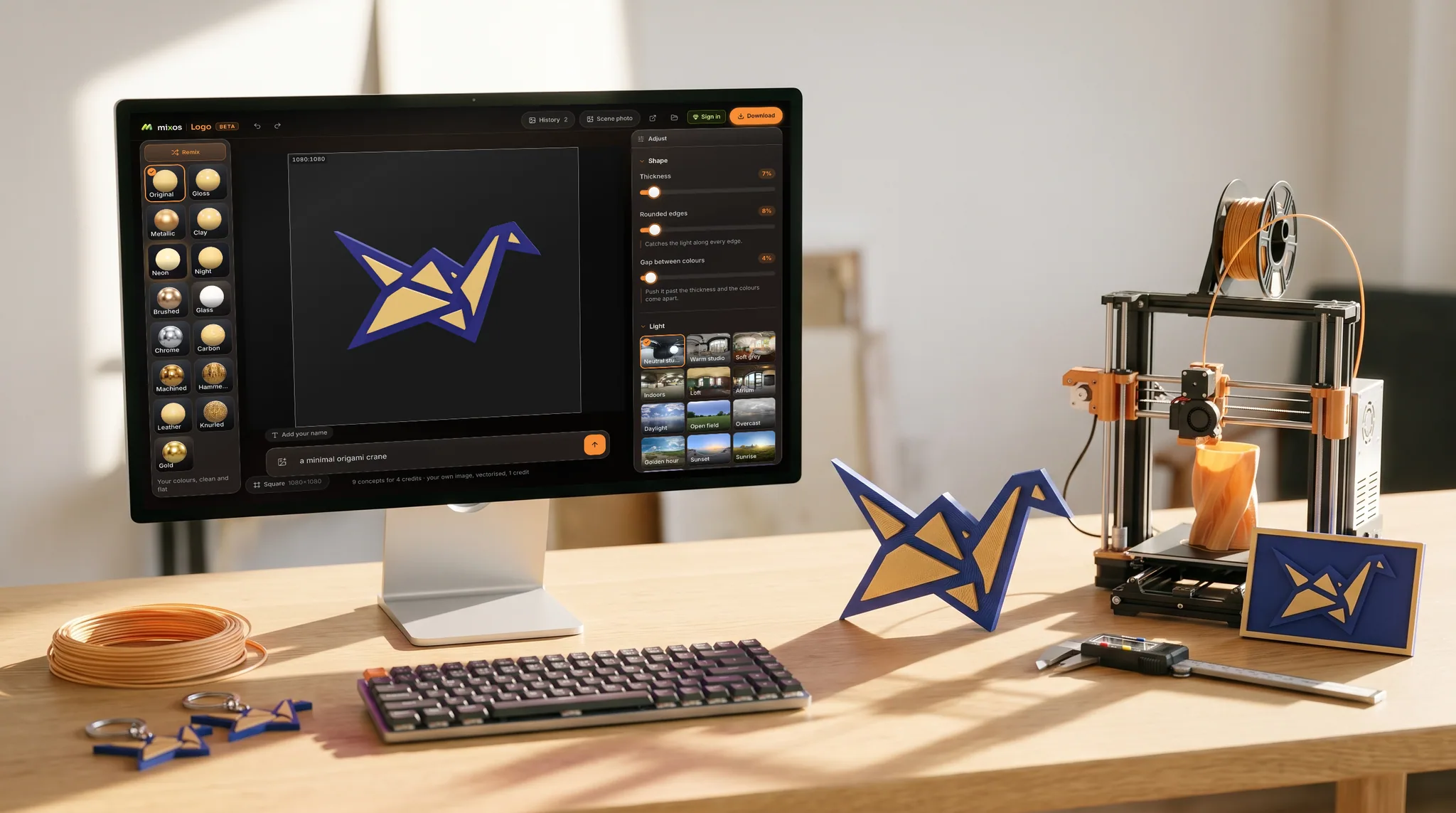
mixos Logo open on a desktop screen showing an origami crane mark in gold and indigo, extruded into layered 3D, on a white-oak desk in raking afternoon light, a 3D print of the same mark standing beside it.

Layers, not a flat shadow

Most tools that promise a 3D logo add a drop shadow or a bevel filter to a picture. This separates the artwork into flat colour regions and extrudes each one for real, so the depth survives being rotated, relit, or exported as a model. It is geometry, not an effect painted on top.
Three dials do most of the work

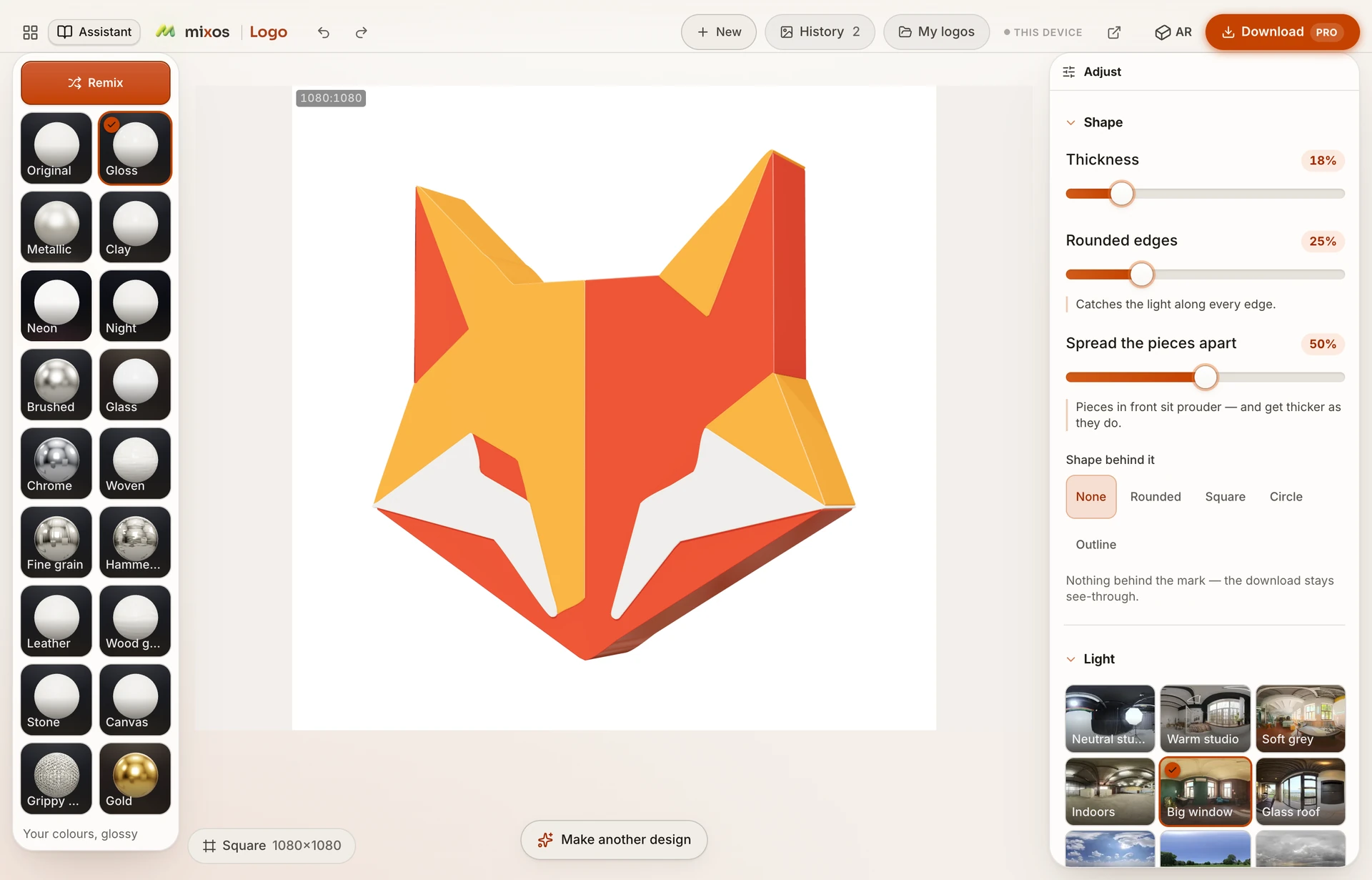
Thickness sets how far each layer stands proud. Rounded edges puts a real bevel on every rim so it catches the light. Gap between colours pushes the layers apart in depth. All three rebuild the mesh live as you drag them — there is nothing to re-render and nothing to wait for.

Fifteen finishes and fifteen lights

Gloss, clay, brushed metal, carbon, leather, knurled steel — most keep your own colours and change only how the surface behaves. Chrome and gold take over the colour, which is the point of them. Then pick the room it is lit in, from a neutral studio to golden hour, and turn the light to place the highlight.

Free to make, free to try

Six starter marks and any SVG under 4 MB open with no account and cost nothing — you can build the whole thing, restyle it and spin it around before deciding anything. Downloading the finished file is what needs a paid plan.

Why Mixos

How to make a logo 3D, without learning 3D

The usual advice is to open Illustrator and use the extrude effect, or to install Blender, import an SVG and learn what a bevel profile is. Both work. Both are a strange amount of software to install because you want your shop name to look like it was cut out of brass. This does the same job in a browser tab, and the part that normally takes the longest — turning flat artwork into separate, closed outlines that can be extruded — happens on its own.

The steps are short. Pick a starting point: one of six ready-made marks, an SVG from your brand kit, or a description if you have no logo yet and want AI to draw nine concepts to choose between. The artwork is separated into flat colour regions, and each region is extruded to a thickness you set. Then you are looking at a real 3D object you can drag to rotate.

From there it is three sliders and two pickers. Thickness and rounded edges decide how solid and how soft it reads; the gap between colours decides whether the layers sit flush or float apart. A finish decides whether it looks like painted plastic, brushed aluminium or polished chrome, and the lighting decides where the highlight falls. Nothing here is destructive — you can go back to flat at any point.

It works best on artwork that is already drawn as flat shapes with clean edges, which is what most logos are. A photograph or a heavy gradient is reduced to a small palette instead, so it comes back posterised into bands rather than keeping its shading. Usable, but a mark drawn as solid colours is what this is built for.

Frequently asked questions

Is it free?

Making one is free and needs no account — the six starter marks and any SVG under 4 MB open straight away, and every finish, light and slider is unlocked. Downloading the result needs a paid plan. If you want AI to draw a mark from a description instead, that needs an account and is a paid step.

Can I upload my own logo?

An SVG under 4 MB, yes — free and with no account. A PNG or JPEG runs on AI, so it needs an account and is a small paid step.

What if I don't have a logo yet?

Describe one and the AI logo maker draws nine concepts to pick from, then takes the one you choose through the same 3D pass. That path needs an account and is a paid step. If you would rather not, the six starter marks are free and are real artwork, not placeholders.

Do I need to know 3D software?

No. There is no modelling, no UV mapping and no render settings. You pick a mark, drag three sliders, choose a finish and a light, and turn it with the mouse.

What can I do with it afterwards?

Save it as a picture with a transparent background, as vector outlines, as a short video of it turning, as a model for other 3D apps, or as an STL to 3D print. All of those need a paid plan.

Will it keep my brand colours?

Yes — the colours come out of your artwork and each layer keeps its own, so you can adjust any of them individually. The two exceptions are the chrome and gold finishes, which replace the colour with a metal by definition.

Mixos

Open a tab. Start texturing.

No download, no setup, nothing to license. Auto-texture your first model and build real PBR materials in minutes.