Make a 3D logo with AI.
Describe one and AI draws nine concepts to pick from, or bring an SVG you already have. Every flat color becomes its own 3D piece — so you can restyle it, relight it, and turn it a full 360°.
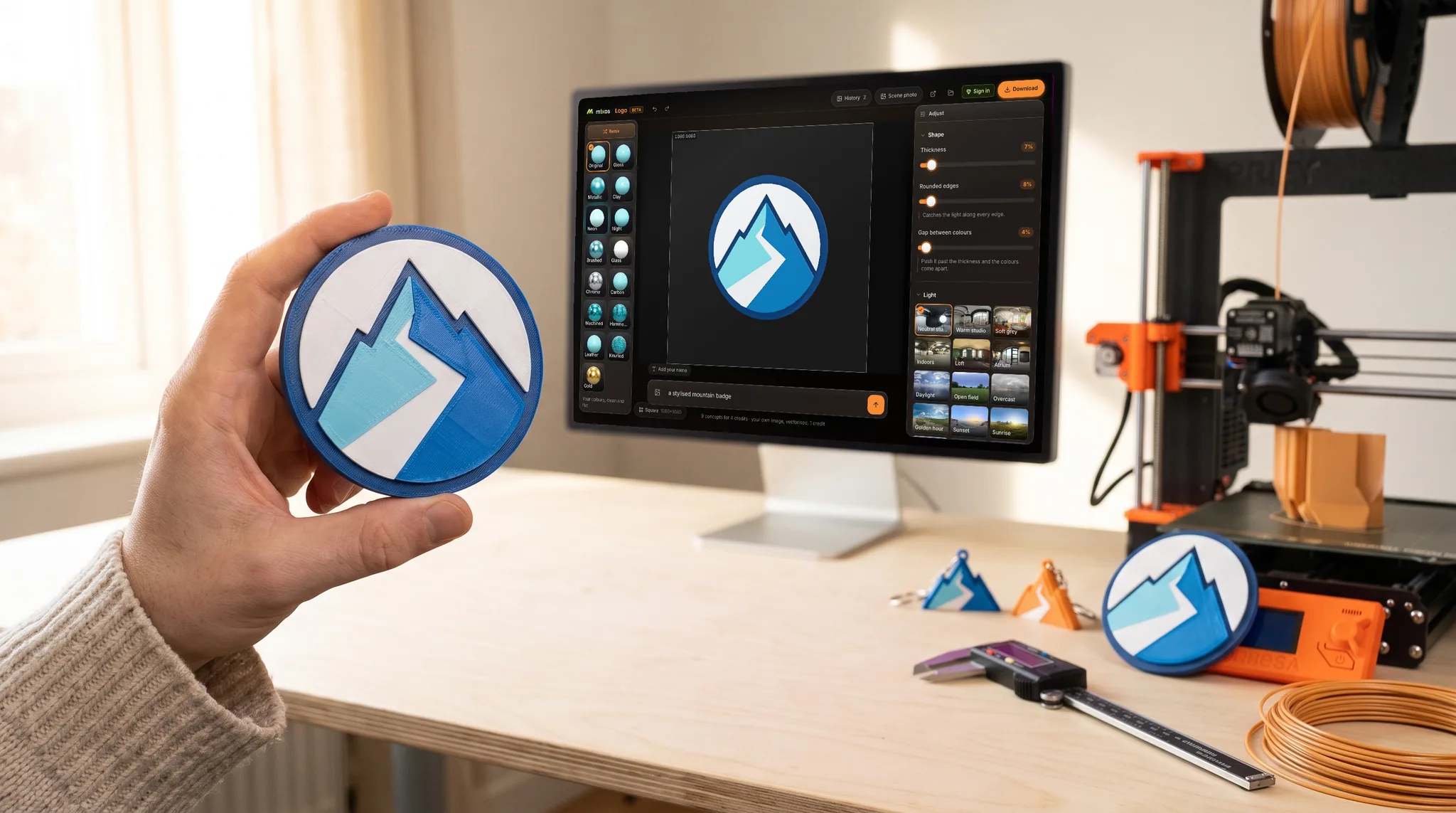
Flat artwork in. A real 3D logo out.
Made with it
Flat artwork in. A real 3D logo out.
Every one of these started as a flat picture. Nothing here is an illustration of the result — each is the app's own output at its default thickness and edge.
 The flat mark
 In 3D
In 3D The flat mark
 In 3D
In 3D The flat mark
 In 3D
In 3D The flat mark
 In 3D
In 3D The flat mark
 In 3D
In 3D The flat mark
 In 3D
In 3D
How it works
How to make a 3D logo in three steps.
- 01
Start with a mark
Describe one and AI gives you nine concepts to choose from, or bring a logo you already have. An SVG opens free with a free account; a PNG or JPEG runs on AI and is a small paid step.
- 02
Watch it separate
The artwork separates into flat color regions, and each one becomes its own raised piece, standing in front of the one behind it. That happens on your own device.
- 03
Style it and take it
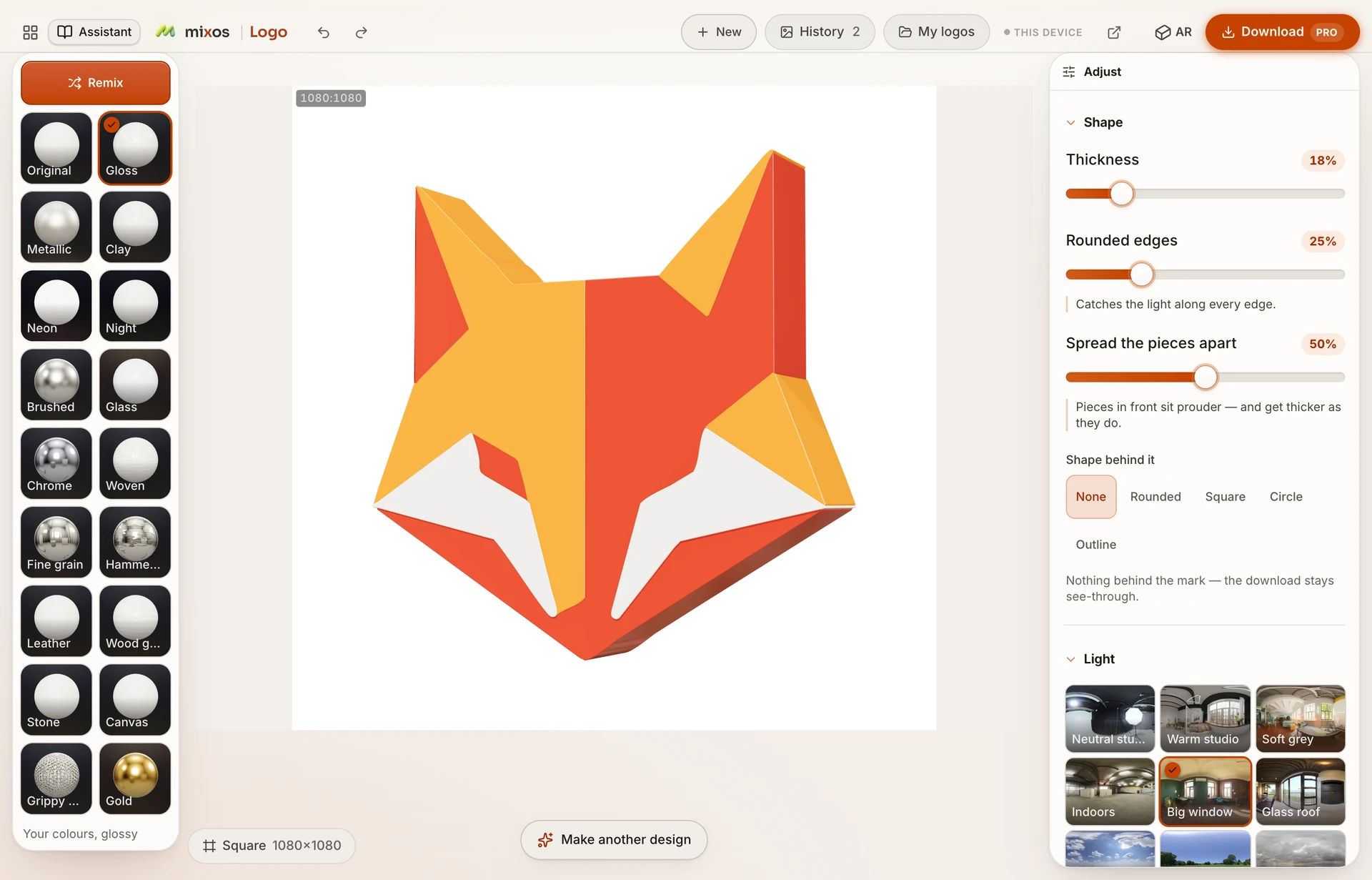
Pick a finish — gloss, metal, glass, woven, gold — set the thickness and the edge, then save a picture, flat artwork for a printer, or a 3D file.
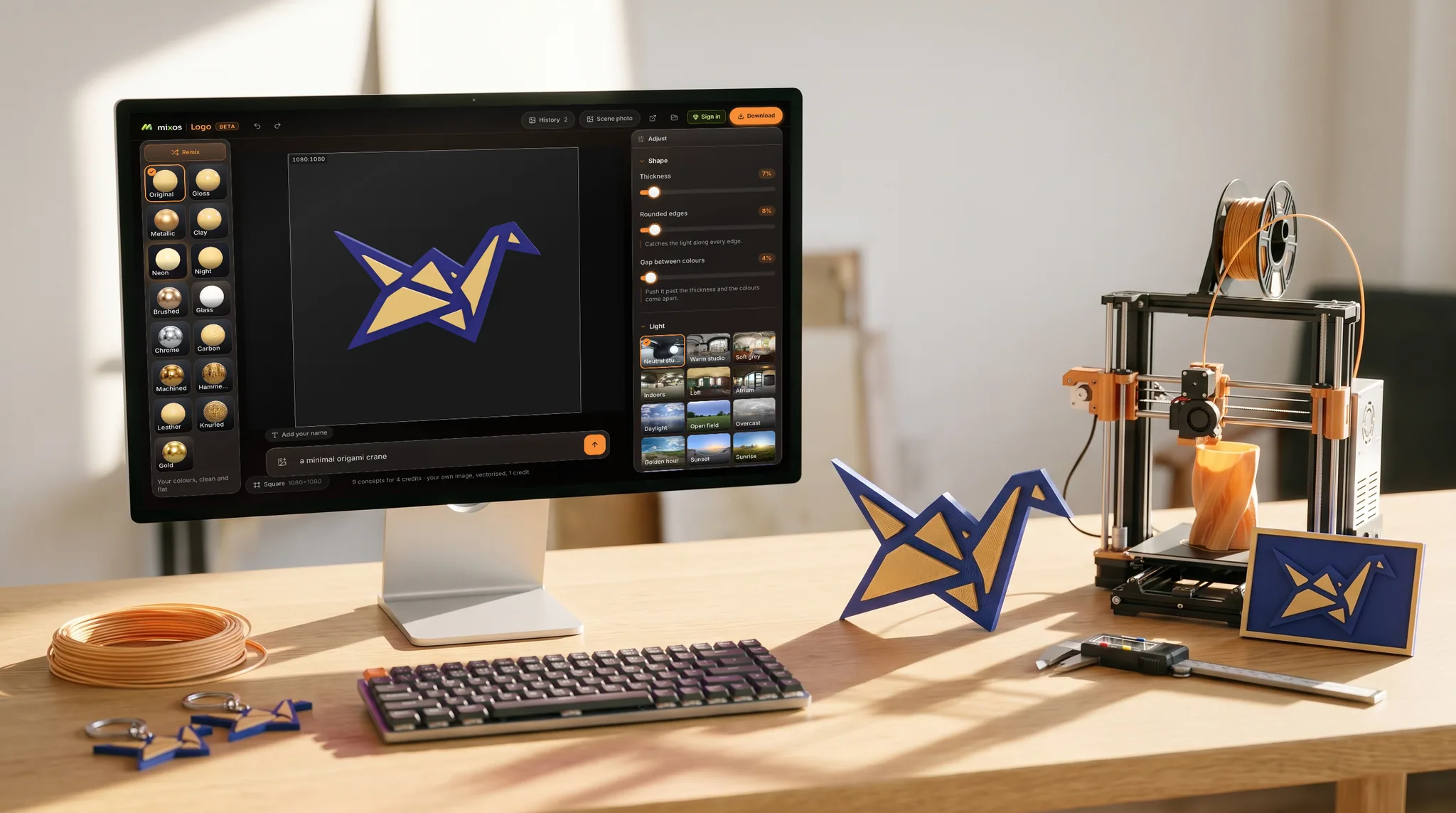
In a browser tab
Nothing to install, nothing to learn first.
It runs where you already are. There is no CAD package to buy, no seat to license and no project to set up — open a tab, pick a mark or describe one, and you are looking at a 3D object you can turn. The same file comes back out as a picture, a short clip, or something you can put on a printer.
- Works on whatever you have — a laptop, a Chromebook, a tablet.
- The mark on the screen and the one on the desk are the same file.
- Making it is free with a free account; taking the file out is the paid step.
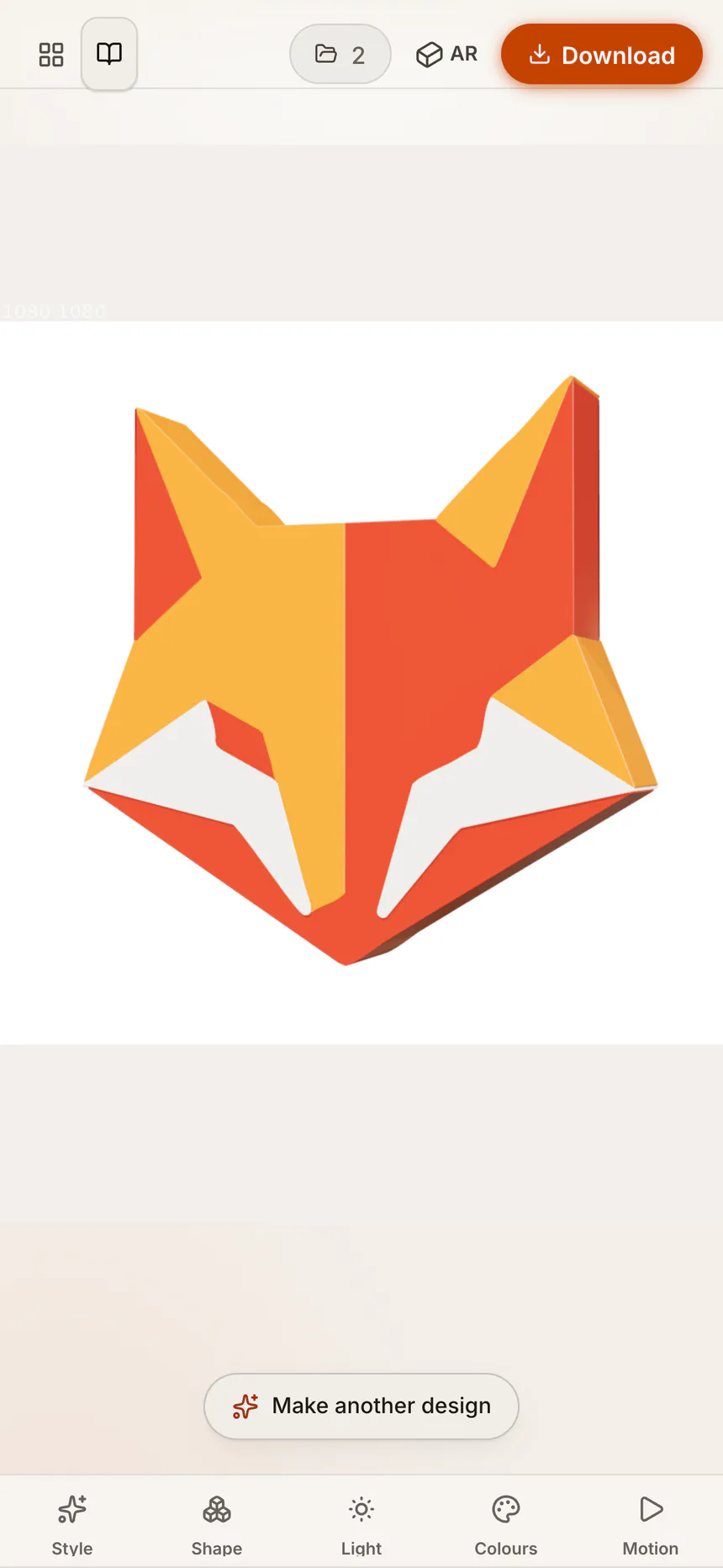
On iPhone and iPad, there's an app now.
Logo ships inside the free Mixos app, with a touch and Apple Pencil layout — and the browser still needs nothing installed. iOS 26 or later.
Finishes
18 ways for a 3D logo to catch the light.
A finish is one click. It dresses every piece at once and relights the scene to suit, so the mark reads the way that material actually reads — not a filter laid over a render.
- Original
- Gloss
- Metallic
- Clay
- Neon
- Night
- Brushed
- Glass
- Chrome
- Woven
- Fine grain
- Hammered
- Leather
- Wood grain
- Stone
- Canvas
- Grippy metal
- Gold
Most finishes keep your own colors and change only the surface, so your brand palette survives. Chrome and Gold are the two that replace it, because those are requests for a specific metal by name. Depth and edge are set separately, so the same mark can read as a shallow emboss or a deep, chunky slab.
For 3D printing
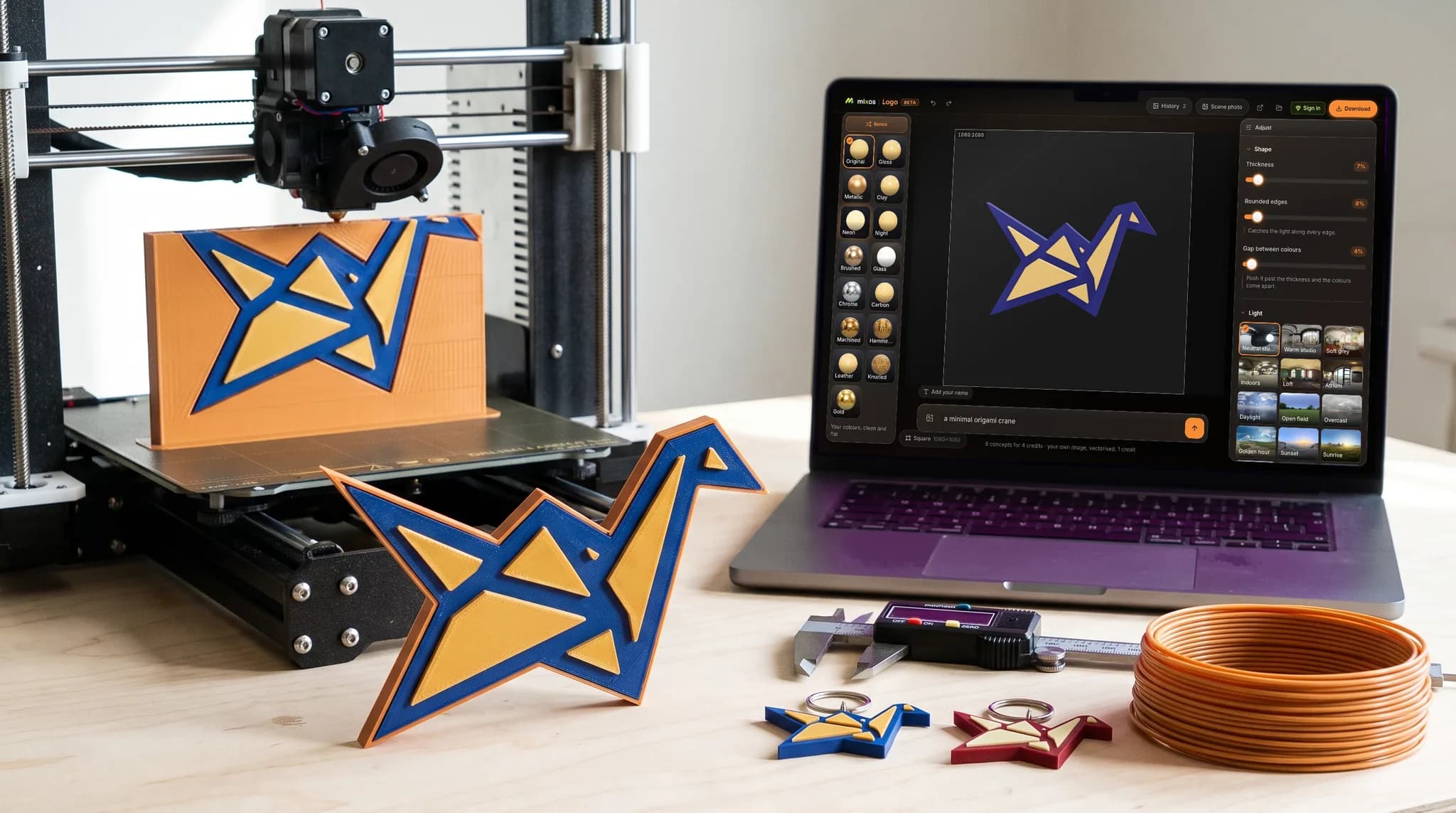
3D print your logo — an STL your slicer opens.
Choose “Have it 3D printed” and the mark comes out as an STL your slicer opens, merged into one solid. The pieces overlap by default so it prints as a single connected object; spread the pieces apart past the thickness and they come loose, which is the one setting that makes a print fall apart.
Sizing it
The model exports at the proportions you see. Scale it to the millimeters you want in your slicer, where you can also see it against the plate.
What you can take away
Take the 3D logo away as whatever the job needs.
Save picture
The lit 3D mark as an image, at square, story, wide, link-preview or favicon sizes, with a transparent background if you want one.
For your website
The mark on a transparent background for a page or an email signature, and a sharpest version that never goes blurry however large you show it. Or show it spinning on your site, as a small 3D file a web viewer opens.
For social media
Profile picture and post sizes, ready to upload. Or a video intro of the mark moving: one render writes two files, one on white to post and a see-through one to lay over your own footage.
For print & sign shops
Flat artwork for a printer, and a sharpest version for a sign maker, embroiderer or cutter — one filled shape per color, so it holds at any size.
See it for real
See it on your wall through your phone's camera, send it to an iPhone or iPad, or have it 3D printed — the mark arrives as one connected solid a slicer opens.
Advanced
GLB, glTF, FBX and OBJ for Blender, Unreal, Unity, Godot or three.js — each colored piece arrives as its own mesh with its own color.
Your artwork stays yours. Building your mark in 3D happens on your own device, and nothing you make here is published or used to train a model.
Questions
Before you make a 3D logo
- Is the 3D logo maker free, and do I need an account?
- Only a free one. The six starter marks, and any SVG you already have, open free once you are signed in — making it 3D, restyling and turning it around are all free too. Two things are not: bringing in a PNG or JPEG runs on AI and is a small paid step, and downloading a finished file needs a paid plan.
- Can I 3D print the result?
- Yes — choose “Have it 3D printed” and you get an STL, which is what slicers and CAD packages read. The colored pieces overlap by default, so the mark comes out as one connected solid rather than loose parts.
- What if my logo is a photo or a gradient?
- It comes back reduced to a small palette of flat colors, so a gradient posterizes into bands rather than staying a gradient. Artwork with a few solid colors and clean edges gives the cleanest separation.
- Will it keep my brand colors?
- Most finishes take their color from your artwork and only change the surface — woven, leather and the fine-grain metals all keep your palette. Chrome and Gold are the two that replace it, because those are requests for a specific material by name.
- Can I keep editing it afterwards?
- Yes. Open the same logo in Mixos Studio and every piece arrives live and still adjustable, with its shape intact — it is the same document, not a re-import, so nothing is baked on the way.
- Does it work on a phone?
- Yes. The mark fills the screen and the controls slide up from the bottom when you need them, so you can see what you are changing.
- Can I turn a PNG into a 3D model?
- Yes — a PNG, a JPEG or an SVG. The image separates into flat color regions and each one becomes its own raised piece, so what comes back is real geometry you can light and save out, not a picture with a drop shadow. Artwork with solid colors and clean edges separates most cleanly.
- Is this an AI logo maker?
- In part. Describe a mark and AI draws nine concepts to pick from — or skip that entirely and drop in a logo you already have. Nothing after the mark is AI: the 3D is built on your own device, and each color becomes a real 3D piece whose thickness and edge you set.
- Can I animate the logo?
- Yes, with no keyframes to set. Pick one of eleven motions — a full turn, a coin flip, a swing, a pop, or Assemble, where the flat mark comes apart into its pieces and settles — then a length, and it renders frame by frame. Because the mark is real geometry rather than a picture, the pieces move in depth against each other instead of sliding across one another.
Read next
3D print a logo
Turn the mark into a printable STL your slicer opens.
How to make an STL file
Watertight remesh, thickened walls, and the checks that stop a bad print.
AI 3D model generator
Describe an object, not a mark, and get a paintable model.
GLB, OBJ, FBX and STL compared
Which format keeps materials and which throws them away.