AI 3D sculpting

AI 3D sculpting.
Start with a silhouette.

Build a sculpt around its large forms, then refine the surfaces. Mixos AI can work with Mold's sculpting tools, including brushes, masks, symmetry and remeshing, while you keep a mesh you can inspect and edit.

  • Editable scene
  • Browser workspace
  • Manual editing in Studio

Mixos AI is available in this build. Conversational tools require paid access or purchased credits.

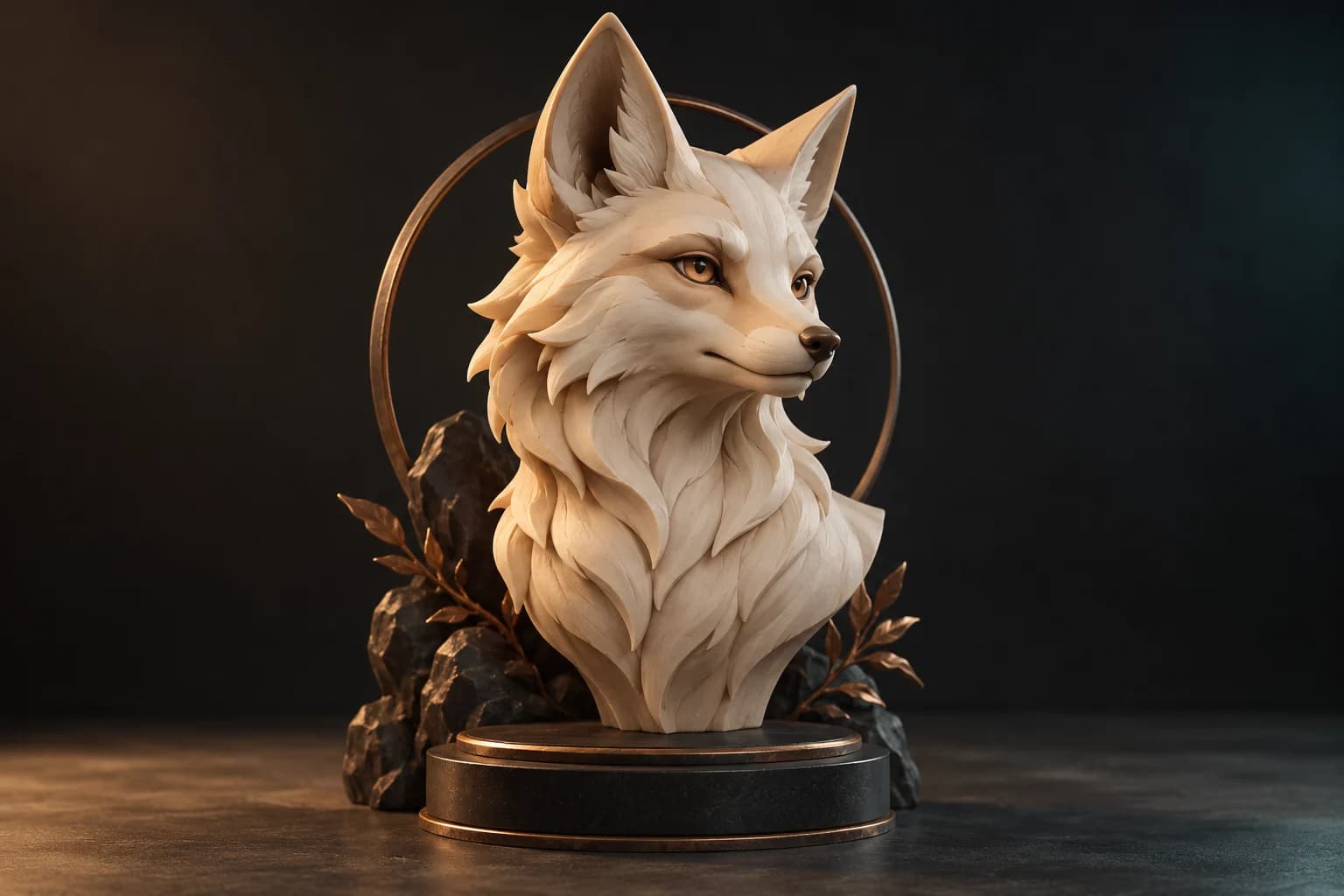
Expressive ivory clay fox bust with pointed ears and clean sculpted planes on a charcoal pedestal A CREATIVE STARTING POINT
Make the form read from every side.AI-generated concept illustration
01 / HOW IT WORKS

Work from the broad shape to the detail.

A sculpt reads through its proportions and silhouette before small surface detail. Establish the primary masses, inspect several views and save milestones as you refine the mesh.

  1. 01

    Block out the form

    Describe a simple bust or organic shape. Start with the head, neck and defining features, and check the silhouette from more than one angle.

  2. 02

    Refine with sculpt tools

    Work with brushes, masks and symmetry to shape the surfaces. Use remeshing when the form needs another stage of refinement and inspect the resulting mesh.

  3. 03

    Save and continue

    Save the sculpt and continue manually in Mold. Move useful work toward Paint for surfaces or Studio for scene staging when the form is ready.

02 / INSIDE MIXOS

See the scene as you work.

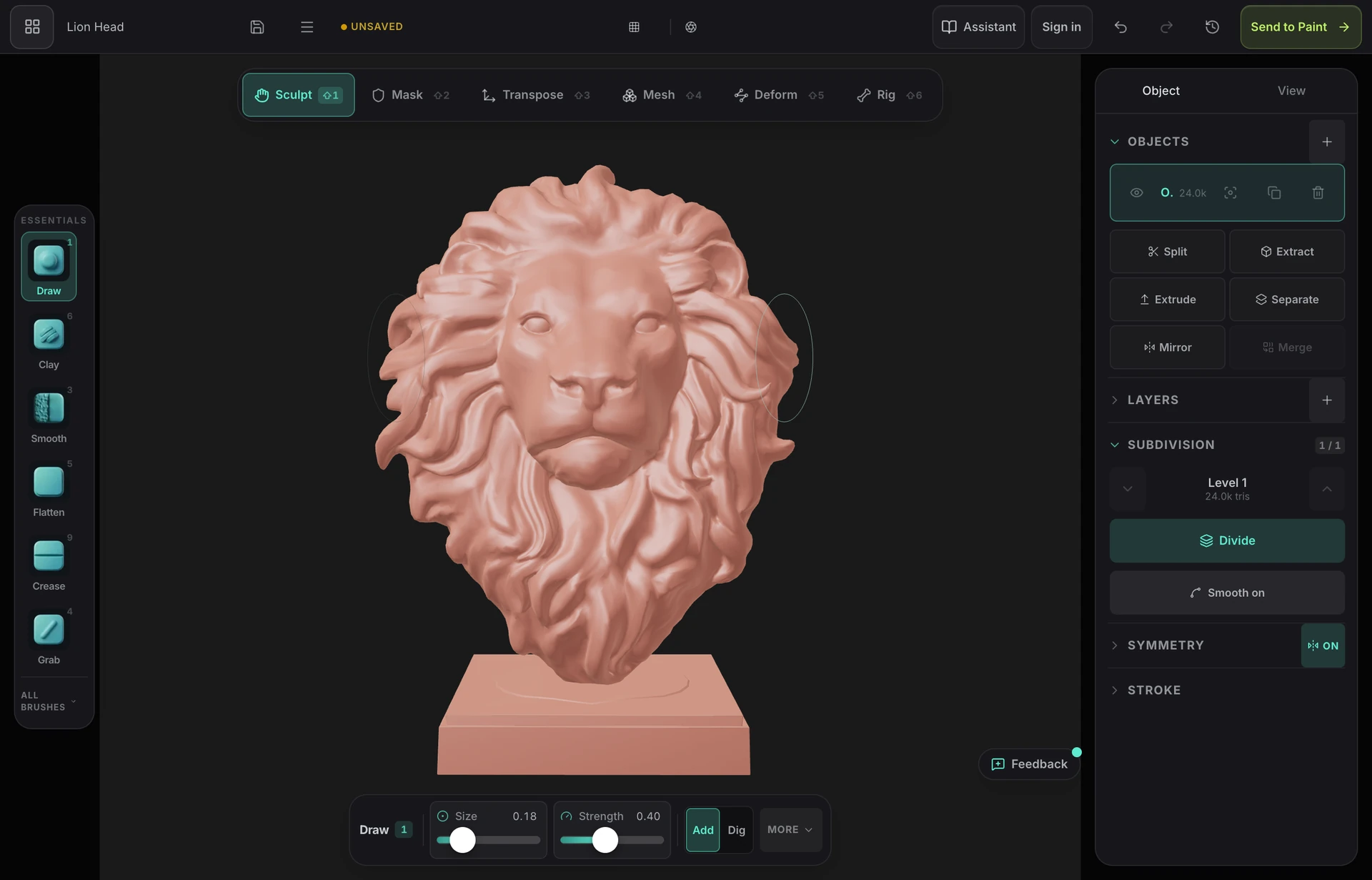
The viewport makes the result visible. Inspect the shape, placement and materials before moving on to the next change.

Actual Mold sculpting interface with a lion sculpt in the 3D viewport
Actual Mold workspace capture. Mold is released for manual sculpting; the fox illustration above is a creative concept.
03 / FIND YOUR STARTING POINT

Let each stage of the sculpt have a purpose.

01

Read the large forms first

Check the head, ears and chest before adding fine texture. A clear silhouette makes a sculpt easier to judge from different views. Ask for an inspection of proportions and visible defects before a broad automatic refinement pass.
02

Control where changes happen

Masks and symmetry help keep sculpt edits focused. Use them to preserve useful regions while reshaping another part of the mesh. Inspect the actual result after remeshing or a pose change rather than assuming the original detail survives unchanged.

03

Keep a useful next step

Save the sculpt before changing apps or starting another refinement. Mold supports manual work today. The conversational AI workflow remains governed by the preview release flag, while Paint and Studio provide the next surface and staging tools for a finished project.

BLOCK OUT A BUST
“Open Mold and build a simple fox bust with a clear silhouette and expressive ears. Inspect the sculpt from several angles and save it.”
Open Mixos AI
REFINE THE FORM
“Inspect this sculpt's proportions. Refine the ears and muzzle while keeping symmetry, then show the result from the front and side.”
Open Mixos AI

Example briefs to adapt to your project. Concept images show a creative direction; live results depend on your prompt and the tools used.

SEE THE WORKFLOW

Five examples. See what changes with each prompt.

Build, finish and animate real 3D scenes. Choose an example, play the walkthrough or jump to any step.

The product campaignPrepared example · no credits used
THE BRIEF

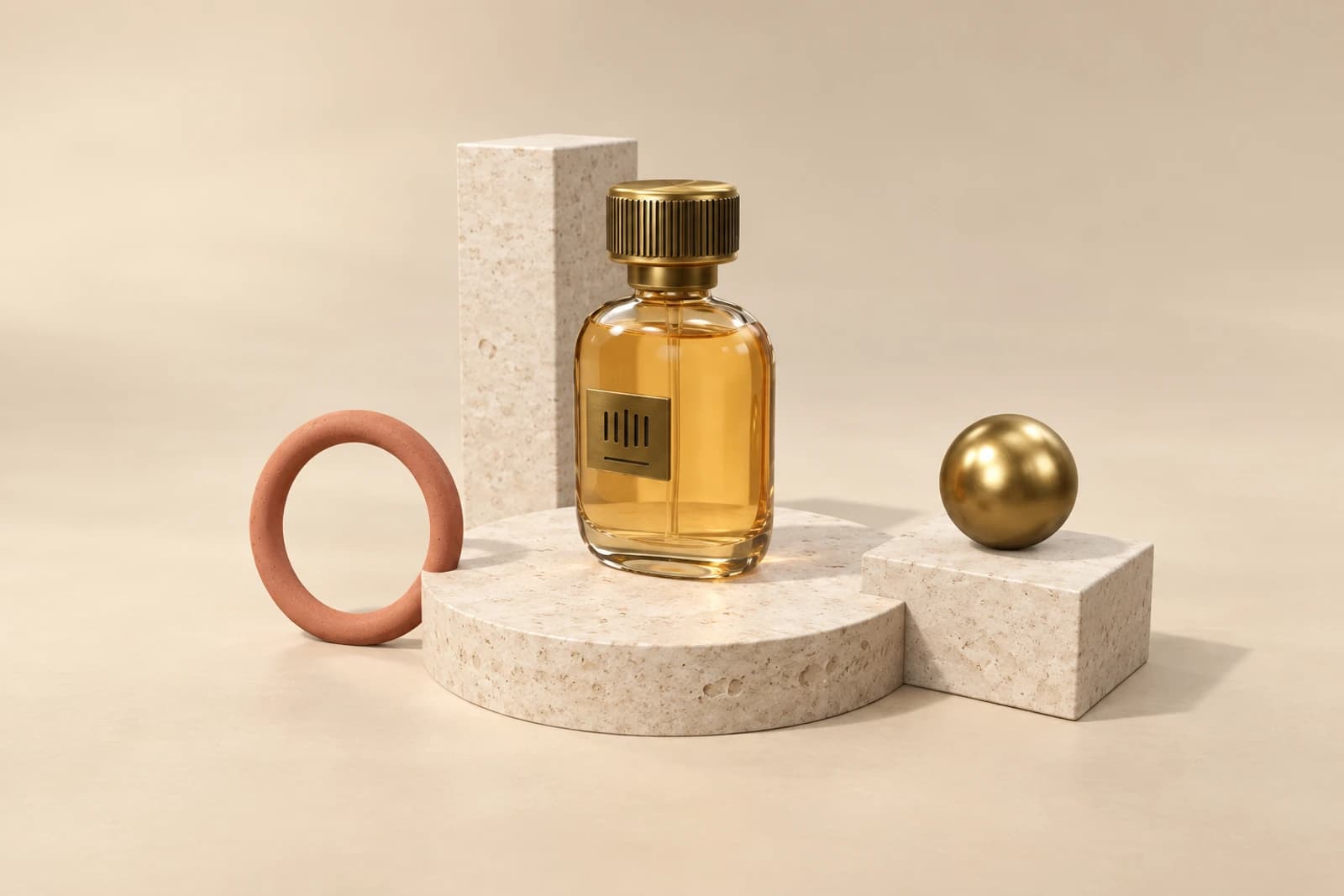
“Create a sculptural perfume bottle on a warm stone set. Give it amber glass, brass details and dramatic studio lighting.”

BUILD → FINISH → IMAGE

A bottle. A mood. A whole campaign.

The chat explains the change. The viewport shows the result. Play all steps, or use the numbered controls to explore.

Illustrative AI image based on the The product campaign viewport
PRODUCT SHOTSCLICK TO FOLLOW THE STORY
The finished imageILLUSTRATIVE AI IMAGE

Prepared walkthroughs with editable 3D, animation and illustrative AI images. Prompts and replies are scripted; playback uses no credits. AI video generation is a separate paid step, illustrated above.

04 / A FEW USEFUL ANSWERS

Questions about ai 3d sculpting

Is Mixos AI available now?

Mixos AI is available in this build. Open the workspace with your Mixos account; conversational tools require paid access or unspent purchased credits. The expanded creation workspace is rolling out in preview builds.

Can Mixos AI help sculpt a 3D model?

The preview includes access to Mold sculpting tools such as brushes, masks, symmetry and remeshing. Use a specific brief, inspect the mesh and continue refining manually when needed. The generated fox illustration is a creative direction, not a guaranteed sculpt result.

Is Mold available without the AI preview?

Yes. The released Mold app is available for manual sculpting with a Mixos account. Conversational AI access is governed separately by the Mixos AI release flag and paid-access requirements.

How is sculpting different from generating a 3D model?

Sculpting changes an existing mesh through shape tools and brushes. Automatic model generation creates an asset from a prompt or image through a paid model engine. A generated mesh may become a starting point for further sculpting after inspection.

Can I paint the sculpt after shaping it?

Yes. Save the sculpt and move it into a surface workflow such as Paint. Inspect the geometry and UV requirements for the intended texture work before adding detailed materials or preparing an export.

What is free, and what requires a paid plan?

Editing in the released Mixos apps is free with a Mixos account. AI generation consumes credits. Production exports require a paid plan or licence; the free plan includes a 512px watermarked render preview. See Pricing for current allowances. Watching the demonstrations on this page does not spend AI credits.

See Pricing for current AI credits and export allowances. Studio is available now for manual 3D creation.

YOUR NEXT PROJECT STARTS HERE

Describe the idea.
Keep creating.