AI 3D scene generator

An AI 3D scene generator.
Make space for the idea.

A scene is more than a single model. Describe the space, its objects and the light you want. Mixos AI builds a scene you can inspect from another angle, rearrange object by object and continue refining in Studio.

  • Editable scene
  • Browser workspace
  • Manual editing in Studio

Mixos AI is available in this build. Conversational tools require paid access or purchased credits.

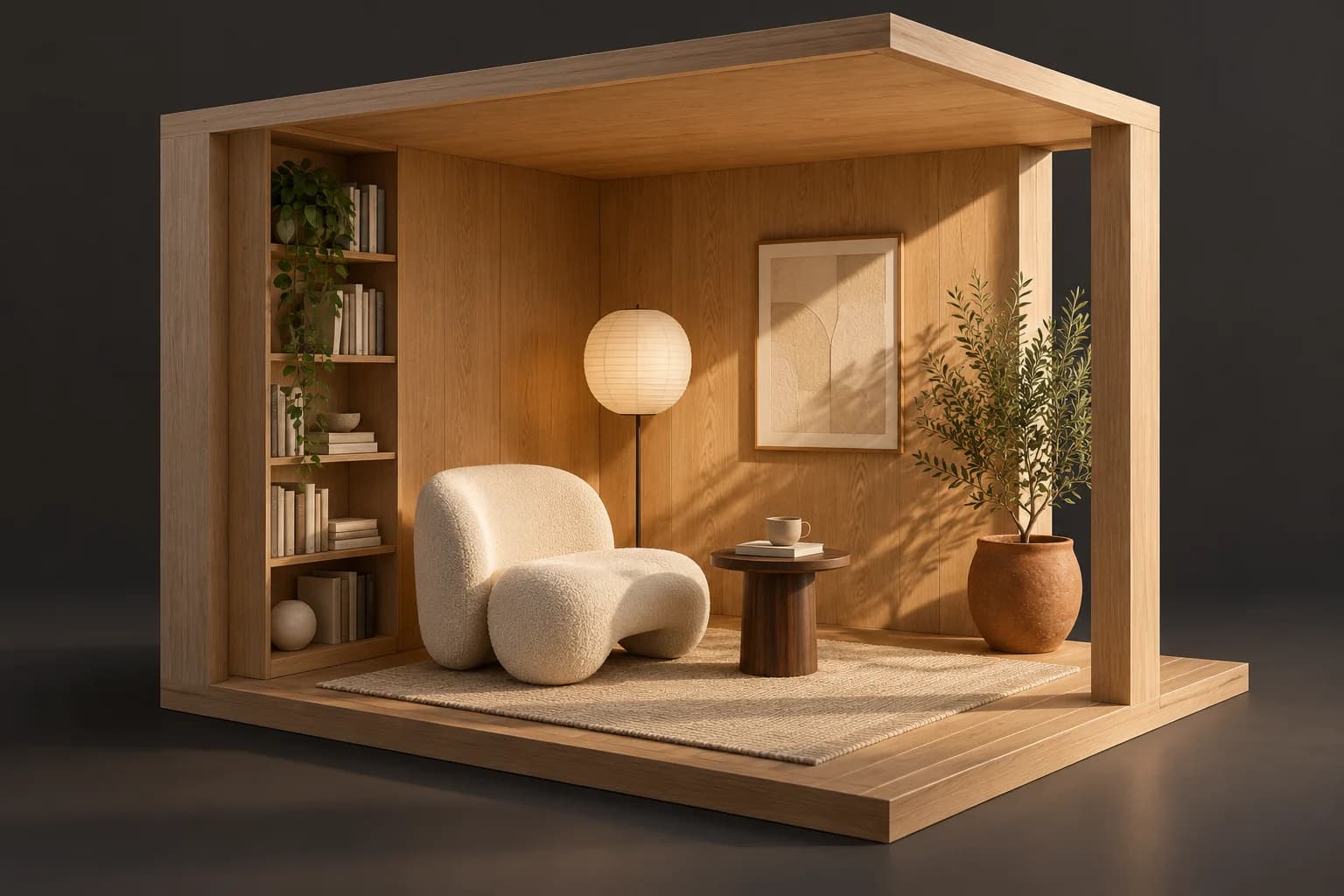
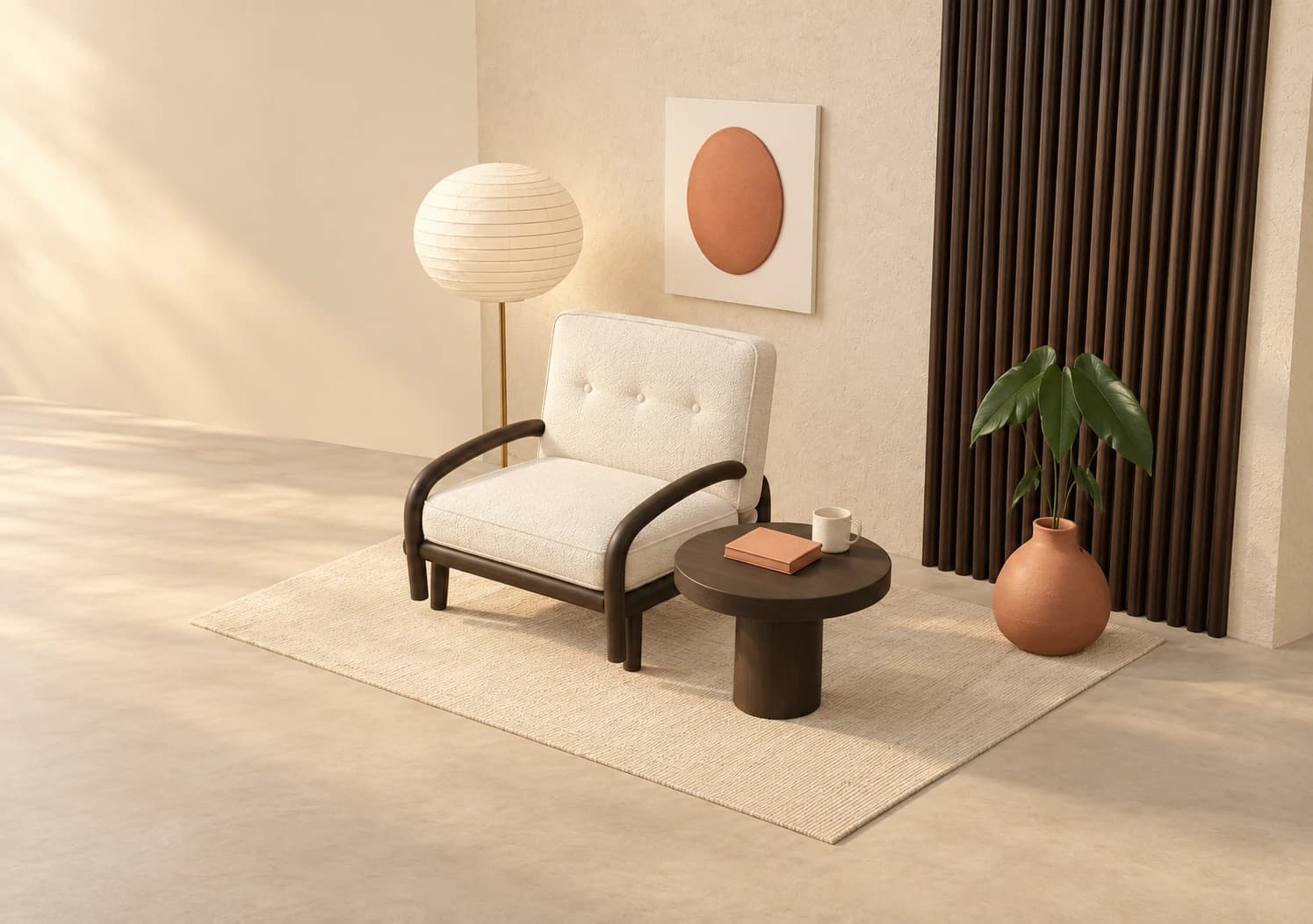
Open-sided 3D reading room with oak walls, an ivory chair, walnut table, paper lamp and terracotta planter A CREATIVE STARTING POINT
A room with room to change.AI-generated concept illustration
01 / HOW IT WORKS

Start with a place. Then make it yours.

Name a room or set, choose a few objects and explain the mood. Follow with concrete changes to layout, materials or lighting. Each object stays part of the spatial scene rather than being baked into a flat image.

  1. 01

    Describe the space

    Start with a reading corner, a product set or a simple environment blockout. Include the main objects, a palette and the feeling of the light so the assistant has a coherent brief.

  2. 02

    Arrange and refine

    Move the chair, shrink the table or change the wall finish. Inspect the placement in the viewport, adjust the camera and check that the scene still works from the angle you want.

  3. 03

    Compose the output

    Save the editable scene, render a still or use AI image finishing. Keep the source project for the next angle, another arrangement or a camera animation.

02 / INSIDE MIXOS

See the scene as you work.

The viewport makes the result visible. Inspect the shape, placement and materials before moving on to the next change.

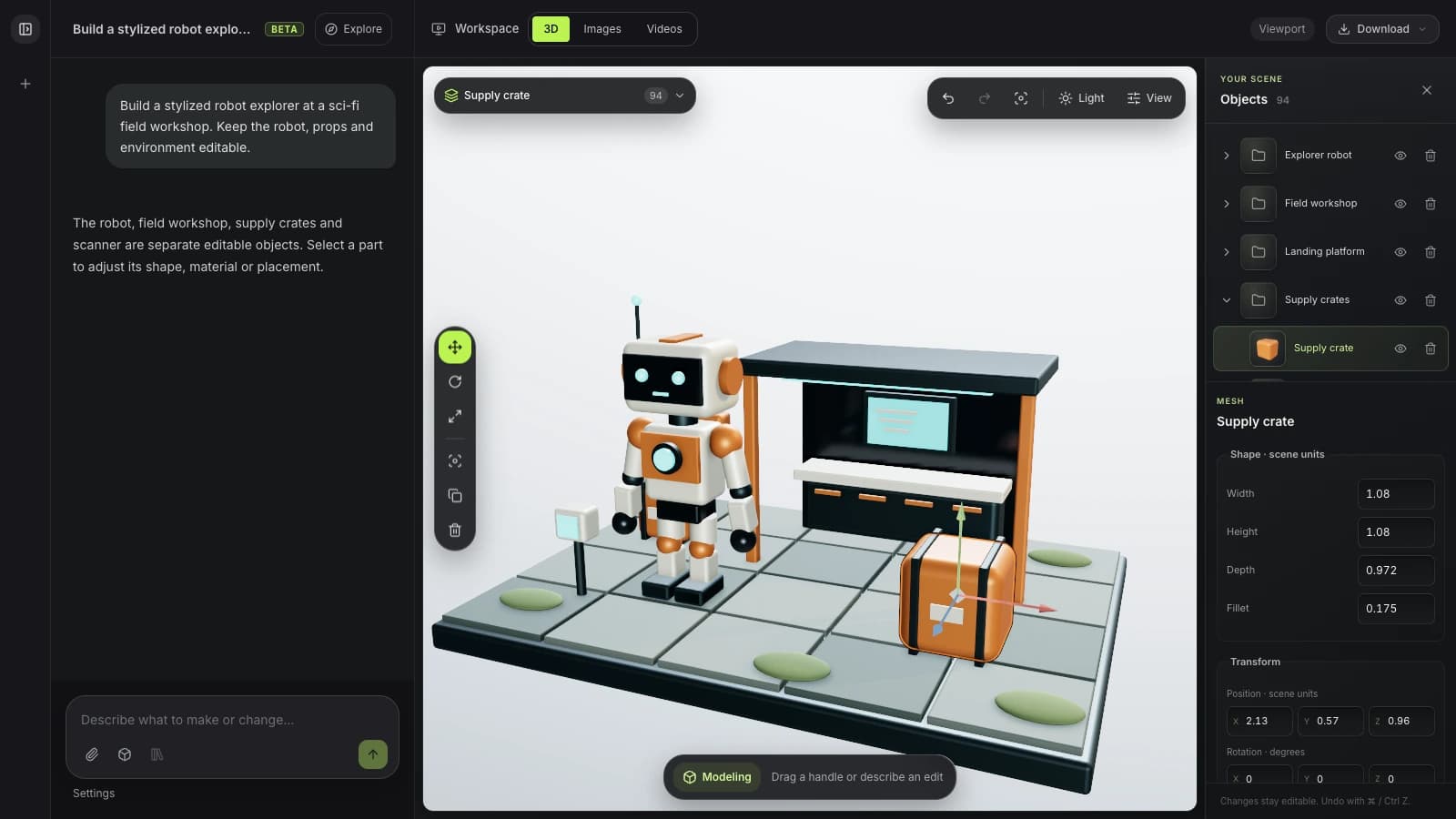
Current Mixos AI workspace with a robot, workshop, supply crate and tiled platform arranged as an editable scene
Actual Mixos AI interface with a prepared outpost scene and scripted example conversation. The robot, architecture and props remain separate editable objects.
FROM SCENE TO IMAGE

Build the scene.
Explore the finish.

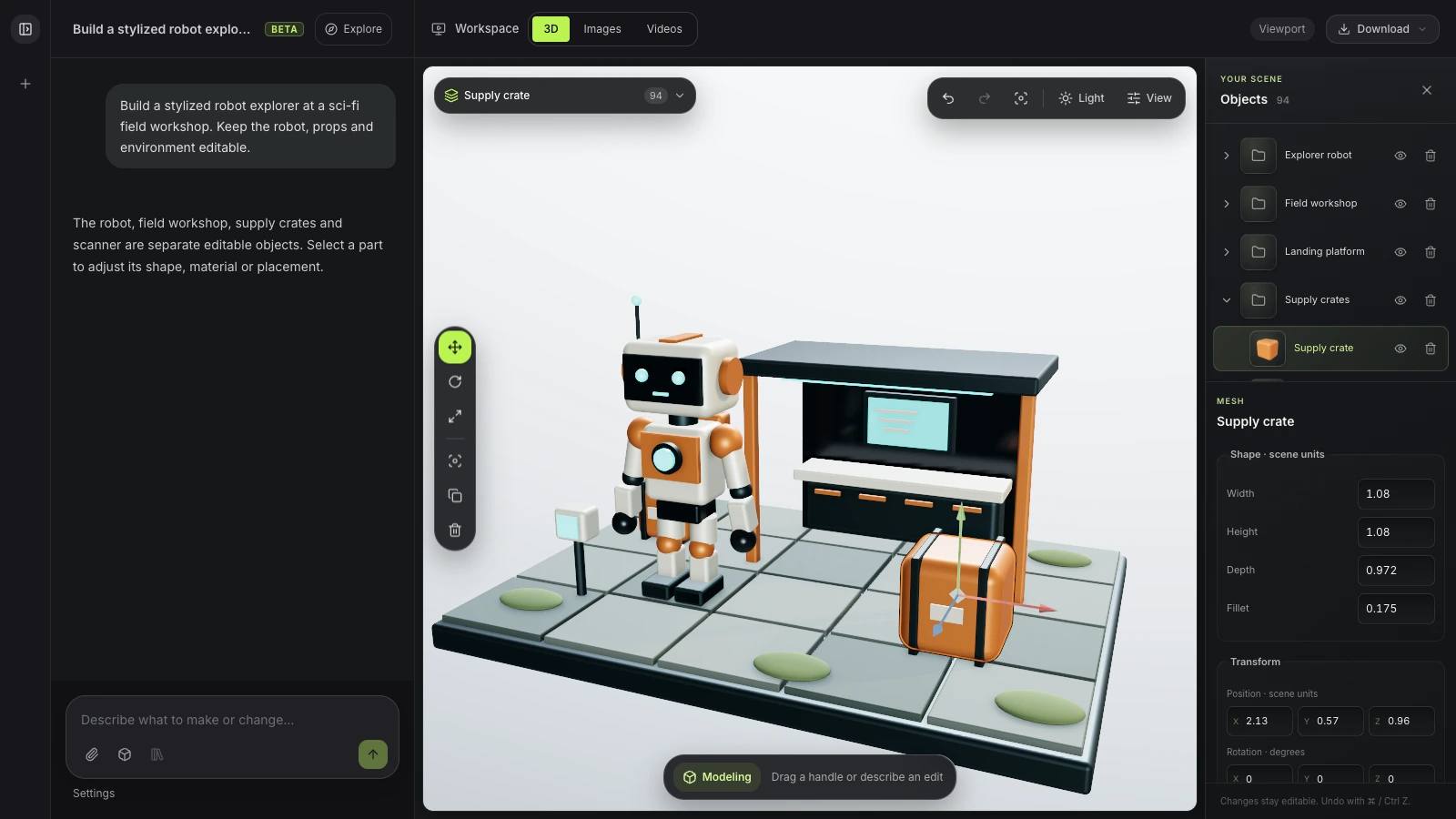
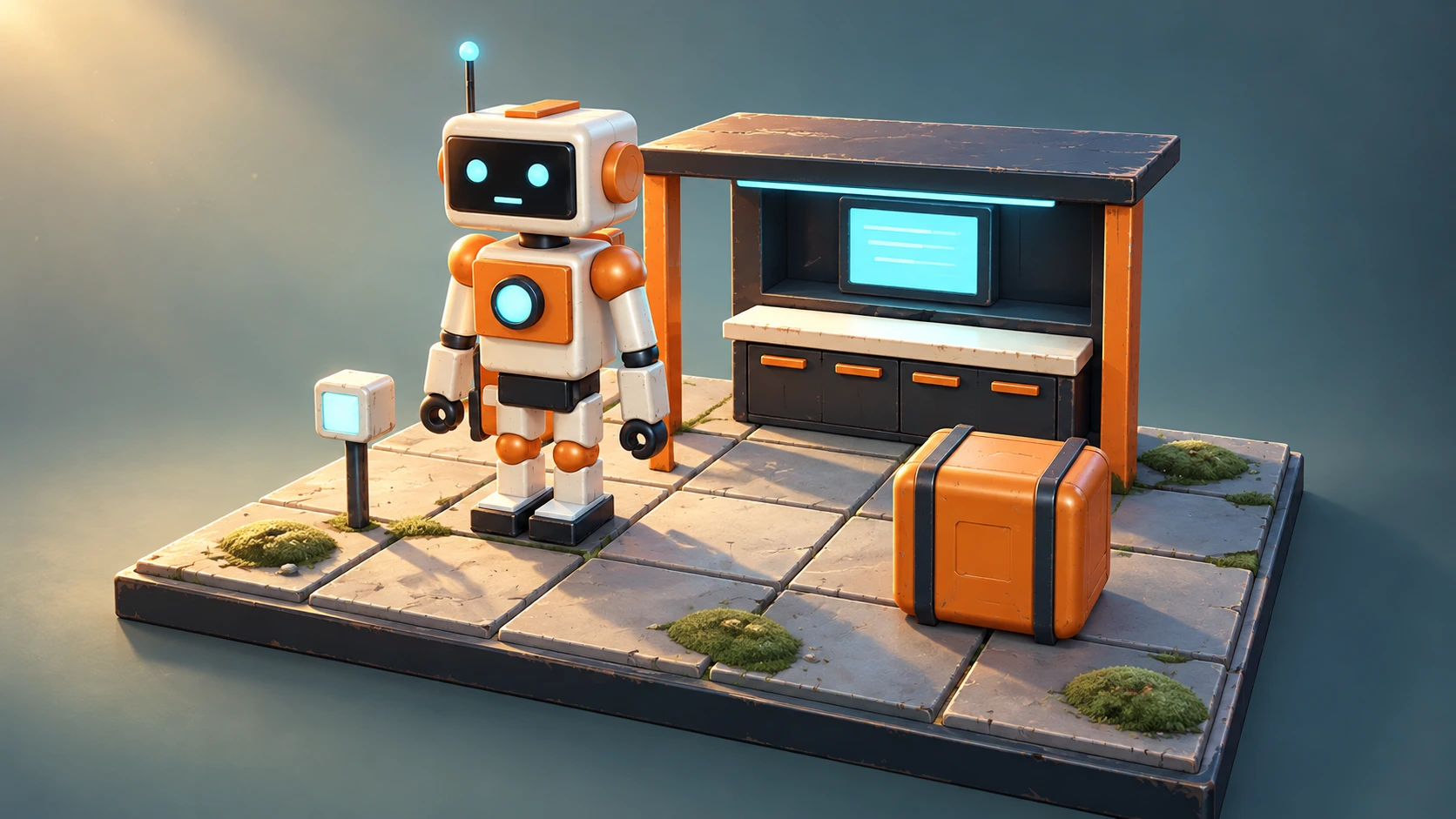
Keep the robot, workshop and props editable in 3D. Use that view as the starting point for an image with richer surfaces, lighting and atmosphere.

Mixos AI workspace with an ivory explorer robot, field workshop and orange supply crate built as separate editable objectsReal app screenshot
1 · The editable scene94 objects in the current workspace. Prepared scene and example conversation.
Illustrative AI finish of the same robot outpost arrangement with worn painted metal, moss-covered tiles and warm cinematic lightingIllustrative AI finish
2 · A finished art directionGenerated with ImageGen using the workspace capture as a reference.

This comparison illustrates the scene-to-image workflow. The finished image was created for this page with ImageGen; it is not a capture of an in-app generation. AI interpretation can change details.

03 / FIND YOUR STARTING POINT

Build a scene you can return to.

01

Objects with their own place

Separate furniture, props and architectural forms let you revise a layout without regenerating a whole picture. Start with a small scene and make its relationships clear: the lamp beside the chair, the table within reach and the product centered on its stand.
02

Materials and light with a purpose

A coordinated scene needs more than an object list. Ask for a timber wall, soft upholstery or a warm directional light, then inspect the result. Change the surface or lighting independently as you work toward the mood of the shot.

03

One scene, several views

A different camera can reveal a new composition while the underlying objects stay in place. Use the scene for stills, camera moves or a product sequence. AI image finishing can interpret a view, but the finished image is a separate output from the editable 3D project.

BUILD A ROOM
“Create a quiet reading corner with an ivory lounge chair, low walnut table, paper floor lamp and terracotta planter. Use warm oak walls and afternoon light.”
Open Mixos AI
CHANGE THE VIEW
“Move the lamp behind the chair, make the table smaller and choose a lower camera angle. Keep the warm materials and the existing furniture.”
Open Mixos AI

Example briefs to adapt to your project. Concept images show a creative direction; live results depend on your prompt and the tools used.

SEE THE WORKFLOW

Five examples. See what changes with each prompt.

Build, finish and animate real 3D scenes. Choose an example, play the walkthrough or jump to any step.

The quiet cornerPrepared example · no credits used
THE BRIEF

“Design a quiet reading corner with a sculptural lounge chair, a low table and a paper lamp. Use warm timber, soft ivory and afternoon light.”

BUILD → FINISH → IMAGE

From an empty space to a place to stay.

The chat explains the change. The viewport shows the result. Play all steps, or use the numbered controls to explore.

Illustrative AI image based on the The quiet corner viewport
3D SCENESCLICK TO FOLLOW THE STORY
The finished imageILLUSTRATIVE AI IMAGE

Prepared walkthroughs with editable 3D, animation and illustrative AI images. Prompts and replies are scripted; playback uses no credits. AI video generation is a separate paid step, illustrated above.

04 / A FEW USEFUL ANSWERS

Questions about ai 3d scene generator

Is Mixos AI available now?

Mixos AI is available in this build. Open the workspace with your Mixos account; conversational tools require paid access or unspent purchased credits. The expanded creation workspace is rolling out in preview builds.

What does an AI 3D scene generator create?

An editable 3D scene contains objects placed in space, with materials, lighting and cameras. Mixos AI works with that scene through conversation. This differs from a scene image generator, which produces a flat picture without independently editable 3D objects.

Can I create a 3D scene from a text prompt?

That is the preview workflow: describe the space, objects and visual direction, then inspect and refine the scene through follow-up requests. Start with a small, specific layout. The demos are prepared examples, and a live result depends on the prompt and tools used.

Can I rearrange the scene after it is built?

Yes. Move, resize or change individual scene objects, adjust materials and lights, or set a different camera. You can continue through chat or open the project in Studio for manual editing.

Is this a floor-plan reconstruction or architectural CAD tool?

This page describes creative scene building and visualization. It does not promise automatic measured floor-plan reconstruction, engineering accuracy or CAD output. Inspect dimensions and geometry separately when a project needs precise real-world measurements.

Can the same scene become an image or video?

Yes. Compose a camera view and render it or use AI image finishing. For video, prepare scene animation plus a matching finished still and motion capture. Refresh those inputs when the scene changes. Paid generation actions show their cost before approval.

What is free, and what requires a paid plan?

Editing in the released Mixos apps is free with a Mixos account. AI generation consumes credits. Production exports require a paid plan or licence; the free plan includes a 512px watermarked render preview. See Pricing for current allowances. Watching the demonstrations on this page does not spend AI credits.

See Pricing for current AI credits and export allowances. Studio is available now for manual 3D creation.

YOUR NEXT PROJECT STARTS HERE

Describe the idea.
Keep creating.