
AI camera animation

AI camera animation.
Find the movement in the frame.

Move the camera around a scene you can control. Mixos AI helps frame the subject and create editable camera motion, so you can refine the view before committing to a finished image or video.

  • Editable scene
  • Browser workspace
  • Manual editing in Studio

Mixos AI is available in this build. Conversational tools require paid access or purchased credits.

Amber perfume bottle with a brass cap on travertine, surrounded by a subtle arc suggesting a camera orbit A CREATIVE STARTING POINT
The scene stays. The view changes.AI-generated concept illustration
01 / HOW IT WORKS

Choose the framing before the path.

A camera move is easiest to judge when the subject, starting composition and desired duration are clear. Begin with a simple orbit or a short path and check the whole movement.

  1. 01

    Frame the subject

    Place the subject and lights, then choose the starting camera view. Name what should stay in frame and which details the move needs to reveal.

  2. 02

    Describe the path

    Ask for a slow orbit or a camera path around the object. Specify the duration and target, then review the movement in the viewport.

  3. 03

    Preview the complete shot

    Check the framing from start to finish with a motion preview. Save the editable scene and prepare updated captures before requesting a paid video take.

02 / INSIDE MIXOS

See the scene as you work.

The viewport makes the result visible. Inspect the shape, placement and materials before moving on to the next change.

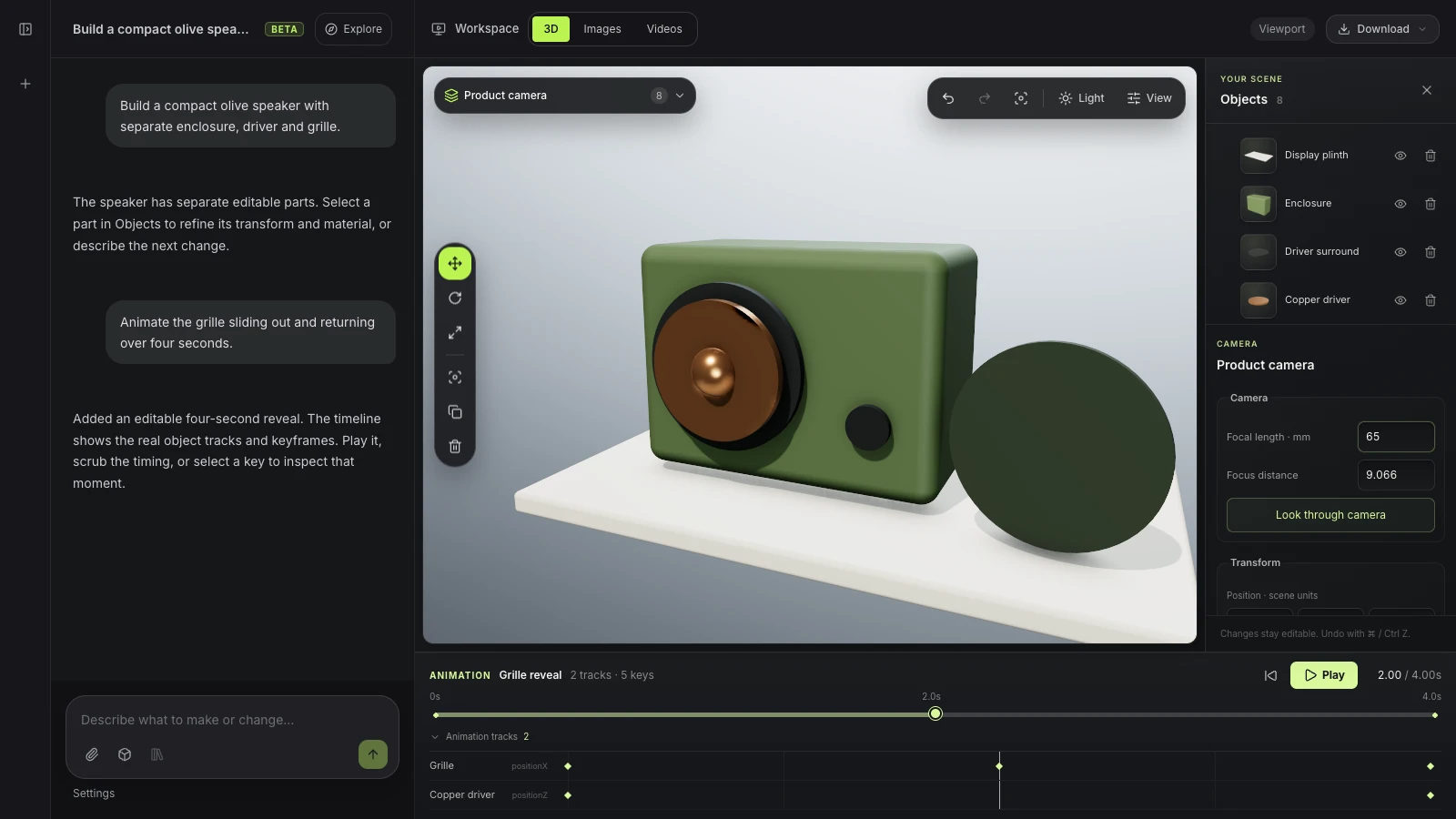
Actual Mixos AI interface with a camera inspector beside an editable speaker scene
Actual Mixos AI preview workspace with a prepared product conversation and camera controls. Camera moves use the scene’s editable camera and animation tools.
03 / FIND YOUR STARTING POINT

A camera move has a different job from object motion.

01

Keep the subject stable

Moving the camera can reveal depth without moving the subject. Use this when you want the background and perspective to change around a fixed product or set. For an inspection turntable with a fixed view, animate the object instead.

02

Check the path through the scene

A move that starts well can still cross a wall, lose the subject or reveal an unfinished part of the set. Preview the entire path and adjust the camera or the scene before generating a finished clip. Keep enough space around the subject for the intended view.

03

Reuse the composition for another take

Save the camera and animation with the scene. If you change the model, lighting or path, refresh the matching still and motion capture used for AI video finishing. A new generated take should use the latest source composition.

CREATE AN ORBIT
“Create a slow camera orbit around the bottle. Keep the bottle centered, preview the movement and save the editable scene.”
Open Mixos AI
REVIEW THE PATH
“Inspect this camera move from start to finish. Check that the subject stays in frame and that the path does not cross the set.”
Open Mixos AI

Example briefs to adapt to your project. Concept images show a creative direction; live results depend on your prompt and the tools used.

SEE THE WORKFLOW

Five examples. See what changes with each prompt.

Build, finish and animate real 3D scenes. Choose an example, play the walkthrough or jump to any step.

The product campaignPrepared example · no credits used
THE BRIEF

“Create a sculptural perfume bottle on a warm stone set. Give it amber glass, brass details and dramatic studio lighting.”

BUILD → FINISH → IMAGE

A bottle. A mood. A whole campaign.

The chat explains the change. The viewport shows the result. Play all steps, or use the numbered controls to explore.

Illustrative AI image based on the The product campaign viewport
PRODUCT SHOTSCLICK TO FOLLOW THE STORY
The finished imageILLUSTRATIVE AI IMAGE

Prepared walkthroughs with editable 3D, animation and illustrative AI images. Prompts and replies are scripted; playback uses no credits. AI video generation is a separate paid step, illustrated above.

04 / A FEW USEFUL ANSWERS

Questions about ai camera animation

Is Mixos AI available now?

Mixos AI is available in this build. Open the workspace with your Mixos account; conversational tools require paid access or unspent purchased credits. The expanded creation workspace is rolling out in preview builds.

Can Mixos AI animate a camera in 3D?

The preview supports scene cameras and editable camera motion. Ask for a camera orbit or path, inspect the composition and preview the motion. The camera remains part of the scene for further editing.

How is a camera orbit different from a product turntable?

An orbit moves the camera around a subject. A turntable rotates the subject while the camera can stay still. They change the relationship between the subject, background and light differently, so choose the one that fits the shot.

Is this the same as generating a camera move in an AI video?

No. An editable 3D camera path contains scene motion you can inspect and revise. An AI video is a generated sequence of frames. Mixos uses prepared scene inputs for the separate video-finishing step.

Can I reuse the camera after changing the scene?

Yes. Keep the camera and animation in the saved source project. Review the framing after changes and refresh scene-derived inputs before another AI video generation.

What is free, and what requires a paid plan?

Editing in the released Mixos apps is free with a Mixos account. AI generation consumes credits. Production exports require a paid plan or licence; the free plan includes a 512px watermarked render preview. See Pricing for current allowances. Watching the demonstrations on this page does not spend AI credits.

See Pricing for current AI credits and export allowances. Studio is available now for manual 3D creation.

YOUR NEXT PROJECT STARTS HERE

Describe the idea.
Keep creating.