Layers instead of one flat image
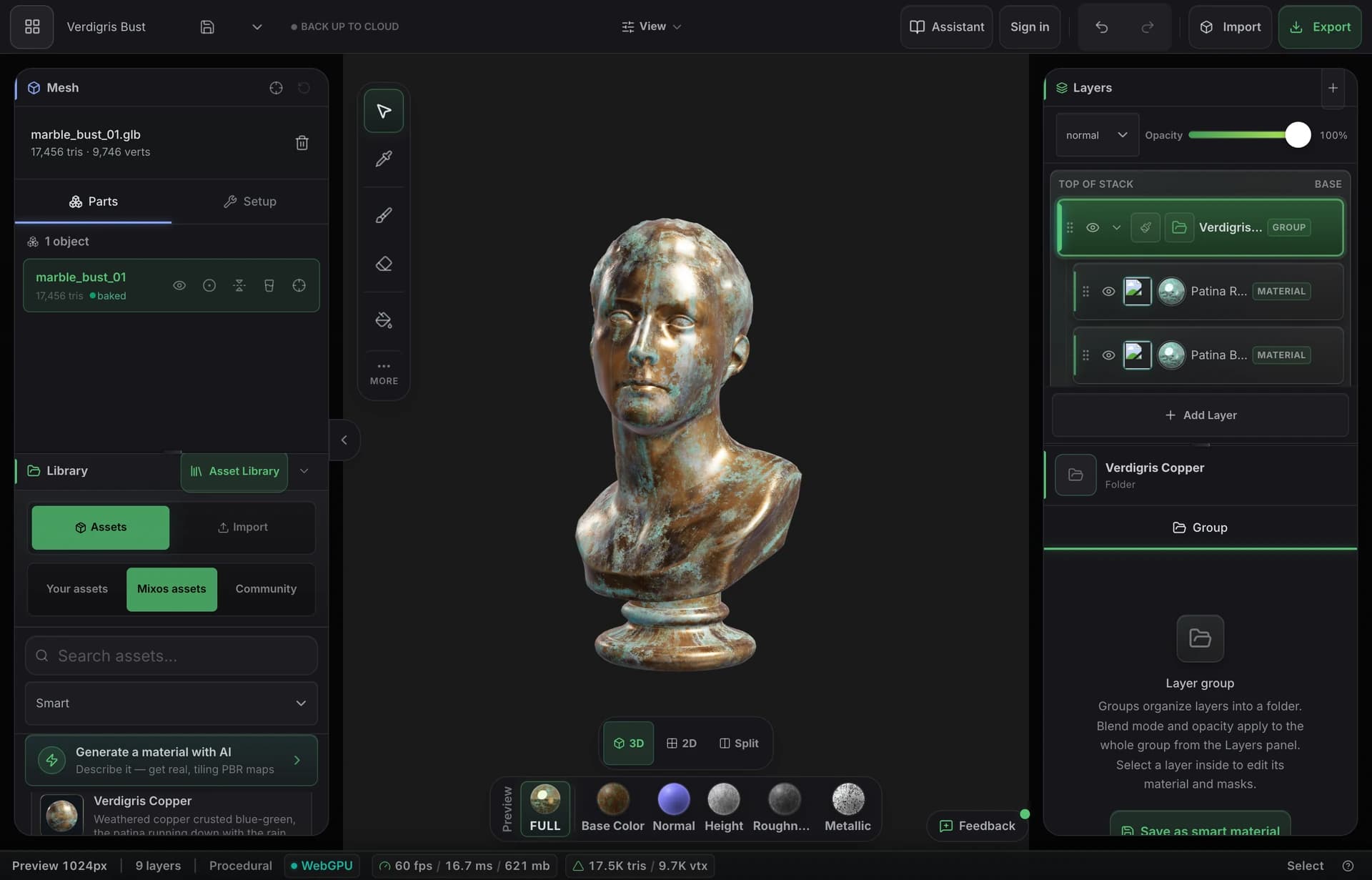
Keep scratches, decals, paint and grime on separate layers with masks, so changing your mind about the base color does not mean repainting the wear.
Rust skin texturing
Rust's in-game Workshop editor previews and publishes skins, but it does not paint them. Build the texture in mixos with layers, masks and materials, generate a first pass if you want one, then load the files into the game's editor to check them on the item.
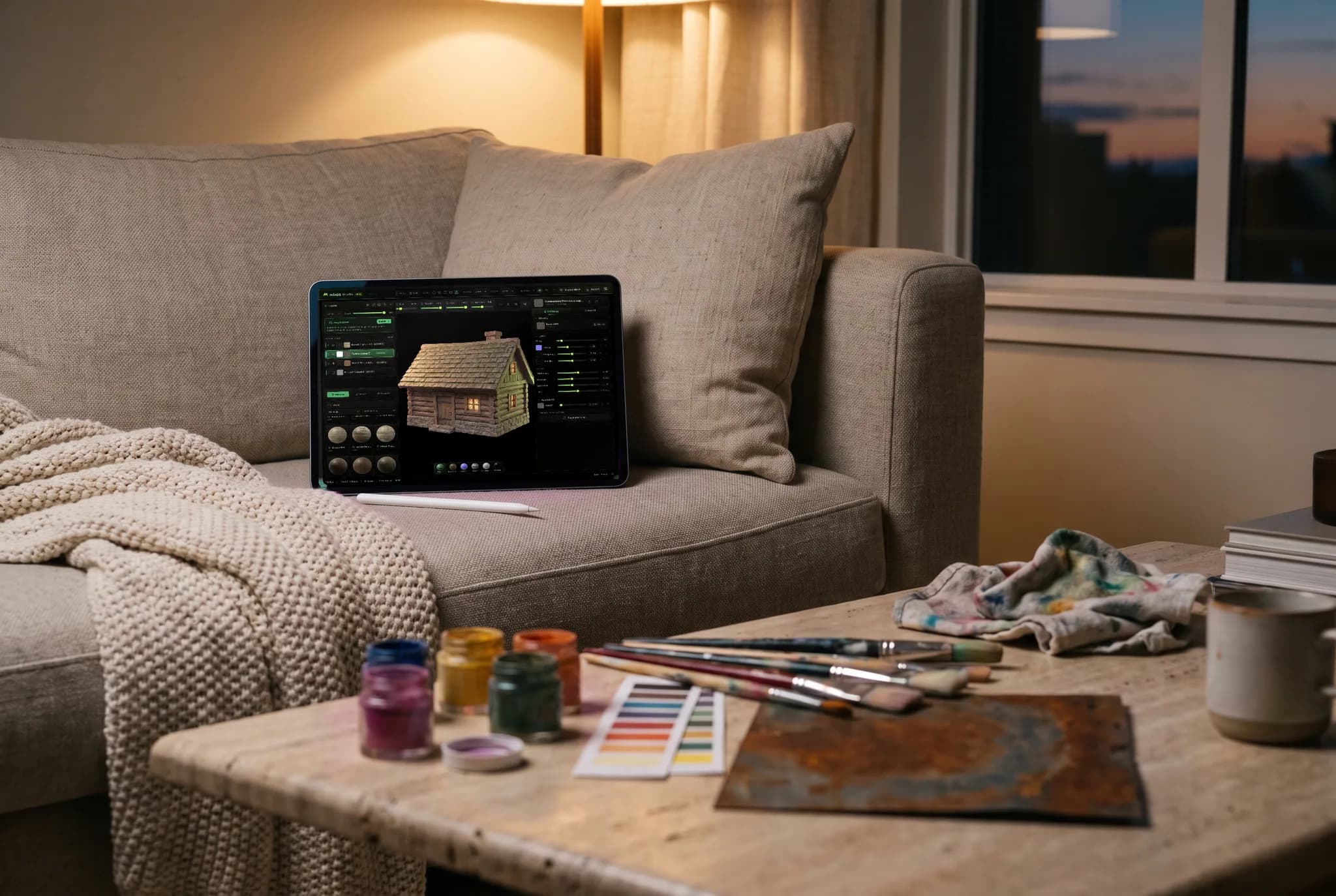
Keep scratches, decals, paint and grime on separate layers with masks, so changing your mind about the base color does not mean repainting the wear.
Describe a surface and let AI build a material or a first pass across a model, then edit the result by hand. Generation uses credits; painting does not.
Work on color, roughness, metalness and normal detail together and inspect them under live lighting. You only need to replace the maps you actually changed.
Download PNG, TGA, TIFF or PSD. Keep power-of-two sizes, as Facepunch advises, and match the original texture's size when in doubt.
Why Mixos
Facepunch's workflow is simple. Open the game's Workshop, create a new item and choose what to skin, then use the editor to download the original texture, replace it with a file from disk, preview the result and publish. The game is always the last check, because that preview shows how the skin really looks on the item.
mixos paints on a 3D mesh, and that is the important limit. Painting directly on the model only lines up when your mesh has the same UV layout as the Rust item. Facepunch's guide covers textures, not mesh downloads, so without a matching mesh, use mixos to build materials and tiling surfaces, export them, and place them over the original texture in an image editor before loading the result into Rust.
Auto-Texture can also re-unwrap or combine parts of a model so projection works, which gives you a new layout rather than Rust's. It is useful for concept work, but check the UVs before spending time on a final pass.
No. It creates and edits the textures. You preview and publish from the Workshop editor inside Rust, as Facepunch documents.
To paint directly on it with the right fit, yes, with the same UVs as the item. Without one, you can still make materials and surfaces in mixos and combine them with the original texture in an image editor.
Facepunch advises power-of-two sizes such as 512×512 or 1024×1024, and keeping the original texture's size if you are unsure.
Painting and previewing are free. Exporting finished maps needs a paid plan or a perpetual licence, and AI generation uses credits.
No. mixos is an independent 3D texturing tool. Rust and its Workshop tools belong to Facepunch, and their documentation controls the requirements.
Read next
The whole pass, from import to exported maps.
The maps a modern material is made of, and what each one does.
Why the same texture reads bigger on one model than another.
Drop the files in and see the material lit, in the browser.
Keep exploring
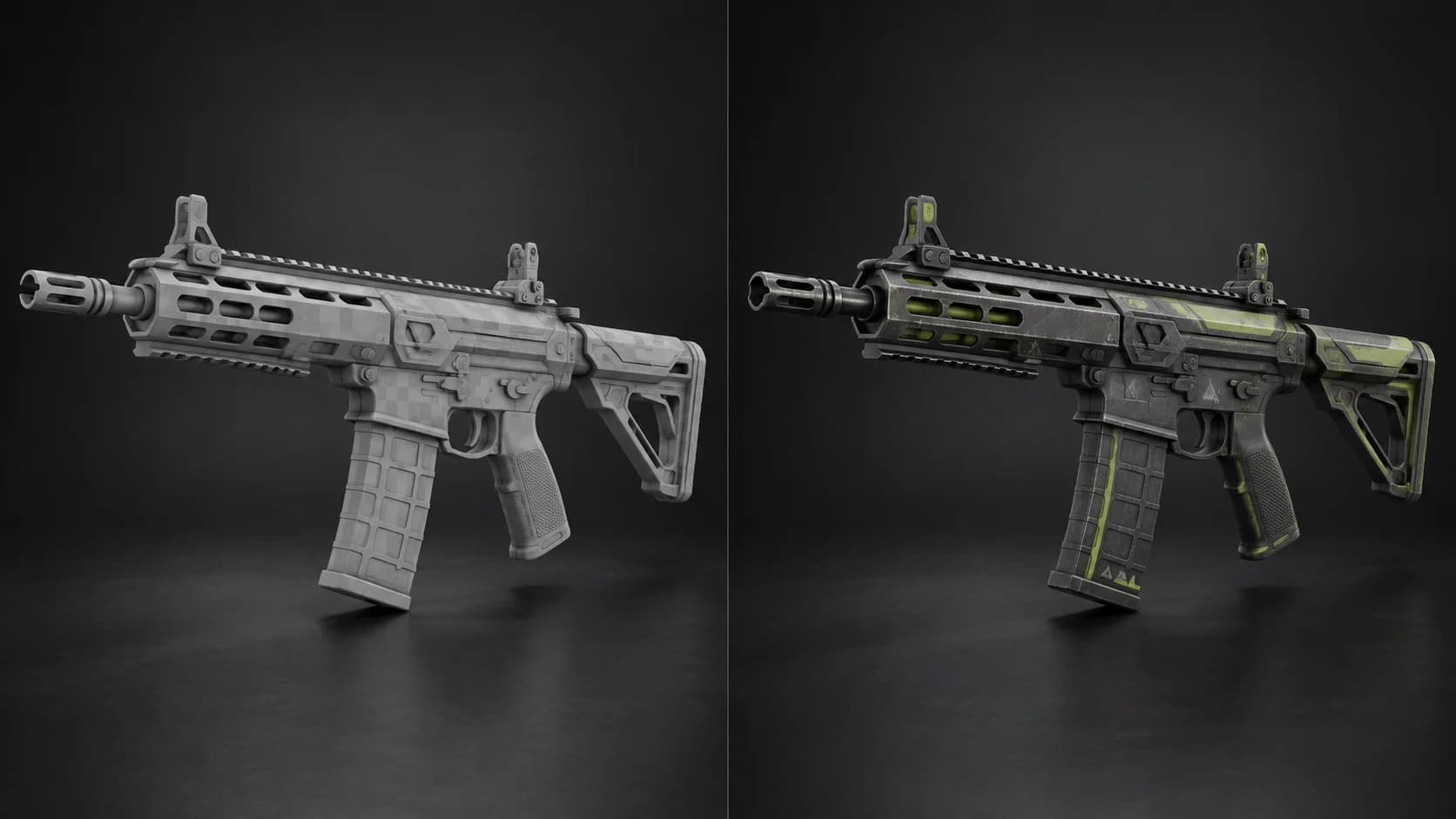
AI weapon texturing
FiveM and GTA V liveries
AI texture generator
Online texture painter