
Paint directly in 3D
Work on the model’s surface and see your strokes in context. Switch to the UV view when you need to inspect the texture layout.
Mixos Paint · iPhone & iPad
Turn a plain model into weathered copper, glazed ceramic or something entirely your own. Paint puts a real PBR material workflow under your fingertips, right on iPhone.
Download on the App StoreFree download · In-app purchases · iOS 26 or later
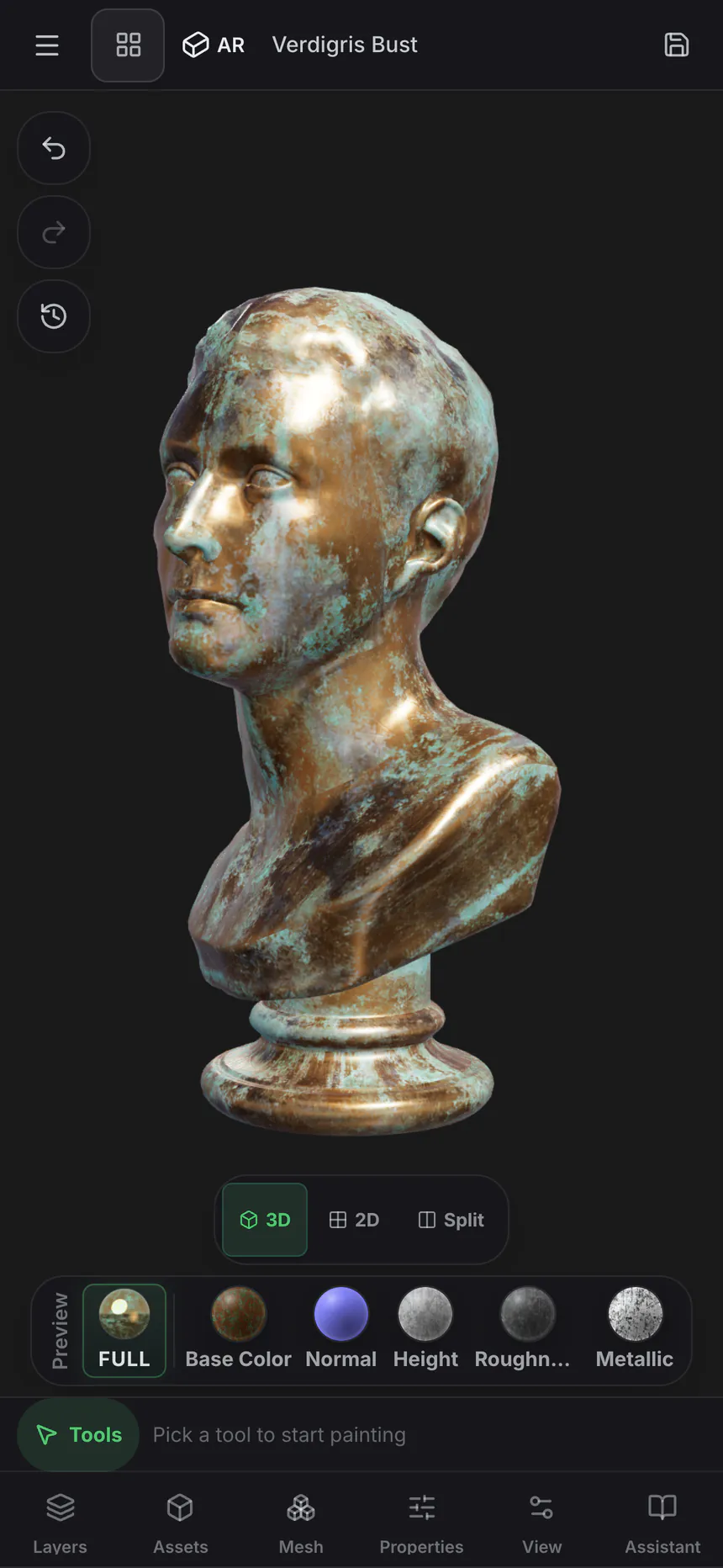
A real workflow, on your phone
Work on the model’s surface and see your strokes in context. Switch to the UV view when you need to inspect the texture layout.
Combine materials using layers, masks, blend modes and opacity. Keep choices editable while you explore different surface treatments.
Preview base color, roughness, metallic, normal and height. A material’s appearance comes from how those channels work together under the lighting.
From the first idea to the final detail
Import a model, choose a material and start painting on its 3D surface or UV map. Build the finish in layers, use masks to place detail and check the PBR channels as you work. Keep color, surface relief and reflections working together.
Meet the whole iPhone & iPad suite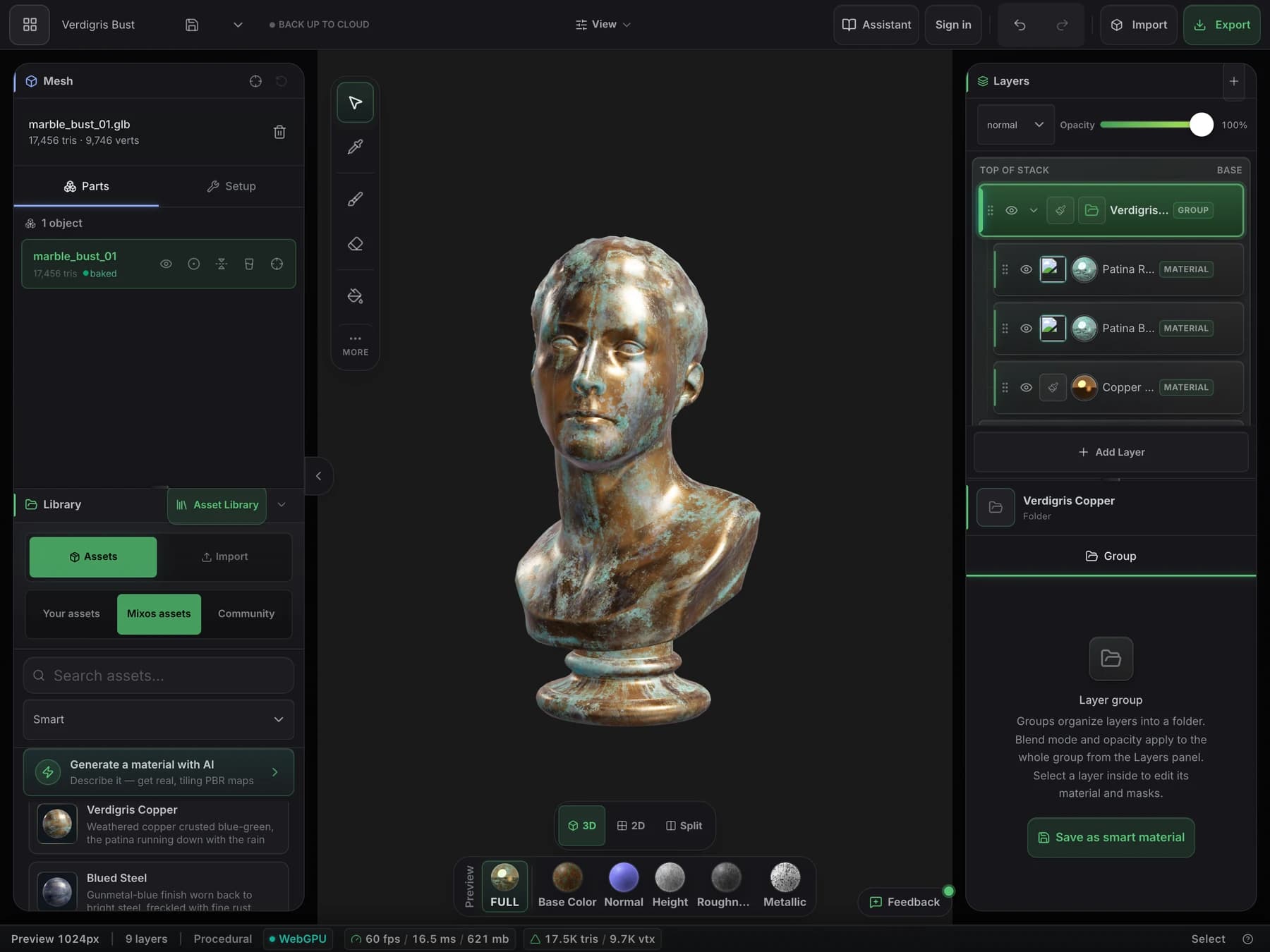
Before you begin
Yes. Mixos Paint lets you paint directly onto a model using the iPhone touch layout. You can also inspect the UV map and preview individual PBR material channels.
Yes. Paint includes a material layer stack with masks, blend modes and per-layer opacity, so you can build a surface in editable stages.
Pro and Max allow exporting finished textures, materials and models. Native exports have a maximum edge of 2048 pixels. Review the export options for your project and plan before choosing a target workflow.
Yes. Save your project to your Mixos account, then sign in on the other device. Mixos requires iOS 26 or iPadOS 26 or later and offers in-app purchases; see the App Store for current device compatibility.
Included in Mixos for iPhone & iPad
Free download. In-app purchases available.
