Rigs and clips come across
A rigged FBX, such as a Mixamo character, opens with its skeleton as ordinary bones and each animation as a clip. The GLB export writes the bones, skin weights and clips back out.
FBX to GLB
FBX is what animation tools hand you; GLB is what the web and most engines want. Open the FBX in Studio, play its clips to confirm they came through, and export a single GLB with the skeleton, skin weights and animation inside.
A rigged FBX, such as a Mixamo character, opens with its skeleton as ordinary bones and each animation as a clip. The GLB export writes the bones, skin weights and clips back out.
Scrub the timeline and watch the character move in the viewport. A broken bind or a missing clip shows up here rather than later in your engine.
FBX files often arrive with grey or missing materials. Reassign textures or apply library materials in the scene, and the GLB carries them as real PBR materials.
Choose texture quality and geometry compression on export. Quantized geometry opens in any glTF reader; meshopt is far smaller for readers that support it, such as three.js.
Why Mixos
FBX to GLB is the conversion people get stuck on, because the two formats disagree about units, axes and materials, and a batch converter cannot ask what you meant. The usual failures are a character lying on its back, a model a hundred times too large, an animation that did not come through, or a mesh that arrives plain grey.
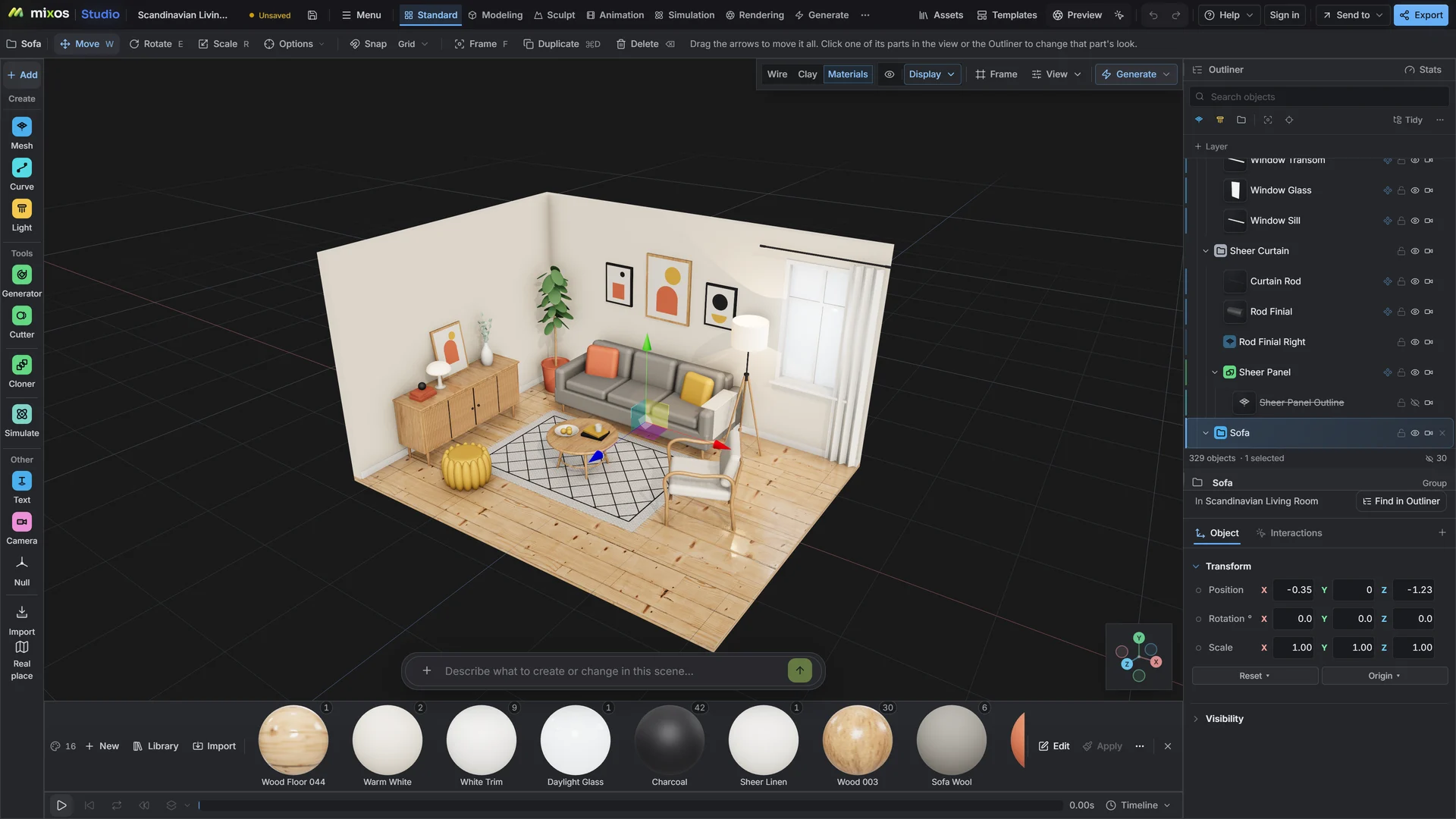
Opening the file in a scene first makes each of those visible. The importer reads the file's units and up-axis, so the model stands at its real size. The clips are in the timeline to play. If materials are missing, you can see that and fix it before the GLB is written, instead of finding out in the engine.
GLB is the better container at the other end: one binary file with geometry, hierarchy, PBR materials, textures and animation, read by three.js, Babylon.js, Unity, Unreal, Godot and Blender. The reverse direction works too. Export FBX from a GLB when a tool insists on it, bearing in mind that FBX written here keeps the rig and clips but stores materials as plain colours.
Opening a file and checking how it will convert is free with a free account. Saving the converted file is part of Pro at $8.99 a month or the one-time $99 license.
Yes. The skeleton, skin weights and animation clips are written into the GLB. Play the clips in the timeline first to confirm they imported as you expect.
Yes. A Mixamo character opens with its skeleton and clip. Export GLB and the character animates in three.js, Babylon.js or a game engine. Check Mixamo's terms for how you may use its characters and animations.
Yes. FBX often references textures it does not contain. Reassign the image maps or apply materials from the library in the scene, and the exported GLB will embed them.
Yes. FBX export keeps hierarchy, pivots, bones, skin weights and clips. Materials are written as colours only, since FBX here carries no texture maps.
Opening the FBX and playing its animation is free with a free account. Saving the GLB file needs a paid plan.
A browser with WebGPU: current Chrome or Edge on Windows, macOS, Linux or ChromeOS, or Safari on iPadOS 26 and later. You need a free account to open Studio. A single model file can be up to 150 MB.
Read next
Vertices, edges and faces — the box-modelling fundamentals.
Which of the two approaches fits the thing you're making.
Which format keeps materials and which throws them away.
Why the same texture reads bigger on one model than another.
Keep exploring
More in Import & convert