Opens nearly everything
GLB, glTF, FBX, OBJ, STL, PLY, 3MF, DAE, USD and USDZ meshes, CAD as STEP, IGES, BREP and Rhino 3DM, IFC building models, and older formats such as 3DS and DXF.
3D file conversion
Open a model in almost any format and save it in the one you need. Because the file opens in a real 3D scene first, you can check its scale, parts and materials, fix what the conversion would otherwise carry over, and only then export.
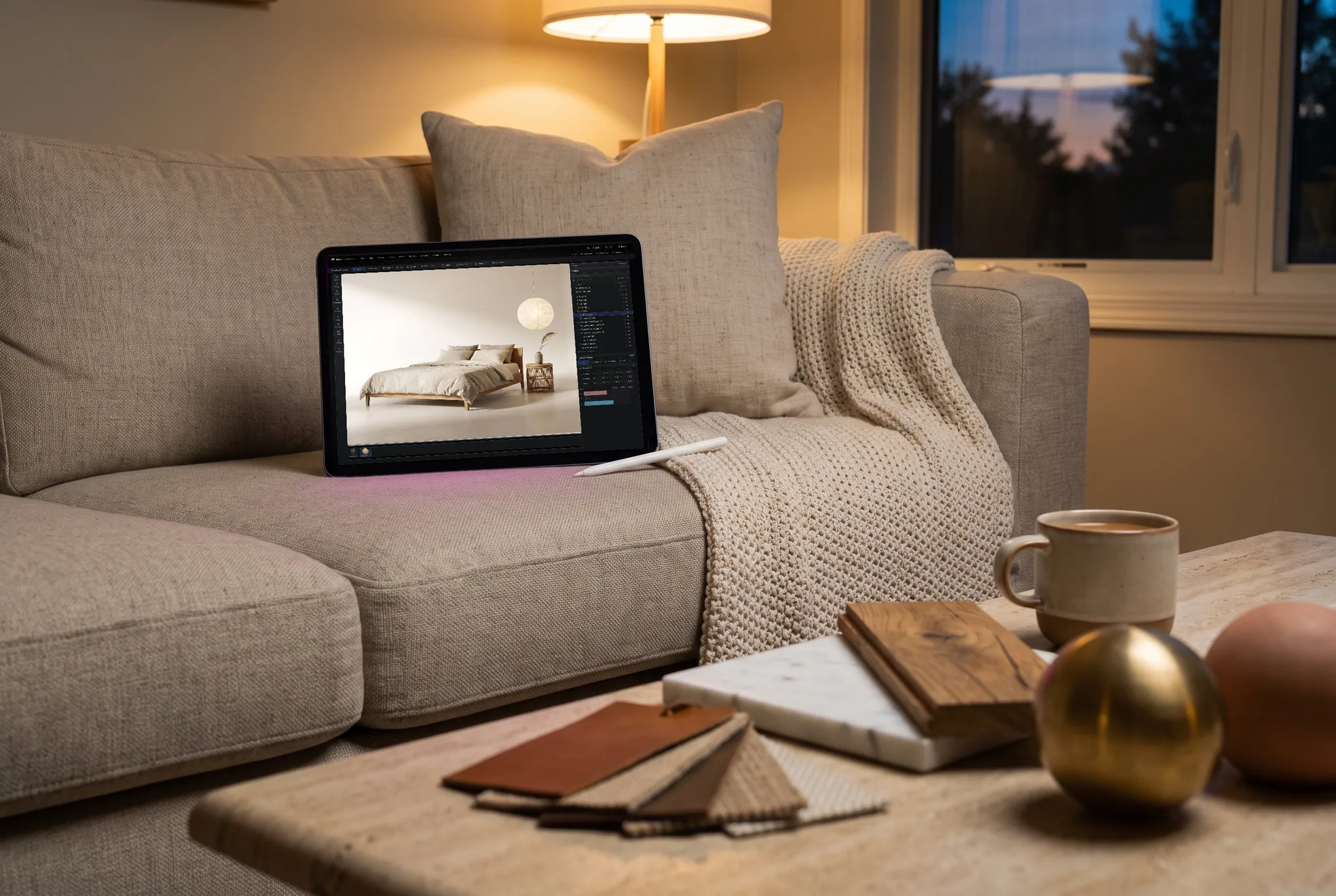
GLB, glTF, FBX, OBJ, STL, PLY, 3MF, DAE, USD and USDZ meshes, CAD as STEP, IGES, BREP and Rhino 3DM, IFC building models, and older formats such as 3DS and DXF.
GLB and glTF for the web and game engines, FBX for Maya, 3ds Max and Blender, OBJ, STL and 3MF for slicers, PLY, DXF for CAD, and USDZ for Apple AR.
A blind converter hands back a file and hopes. Here you see the model first: orbit it, read its size, hide parts you do not want in the output and fix a flipped face before it is written.
For GLB and glTF, choose texture quality, cap the texture size and turn on geometry compression, so the converted file is as small as the destination needs.
Why Mixos
3D formats do not all hold the same things, so a conversion is only as good as the target format allows. GLB and glTF carry the most: geometry, hierarchy, real materials with their texture maps, and animation. That is why GLB is the default answer when the destination does not demand something else.
FBX keeps the hierarchy, pivots, bones, skin weights and animation clips, but its materials are written as plain colours without texture maps. OBJ carries geometry, UVs and a material file with images, and no animation. STL and PLY are one merged mesh with no materials at all, which is what a slicer wants. 3MF keeps named parts and colours in millimetres. USDZ carries geometry, materials and textures for Apple AR, without animation.
Only visible objects are exported, so hiding something is how you leave it out of the converted file. CAD formats such as STEP are turned into meshes when they open, which means you can convert a STEP file to GLB or STL, but not a mesh back into STEP.
Opening a file and checking how it will convert is free with a free account. Saving the converted file is part of Pro at $8.99 a month or the one-time $99 license.
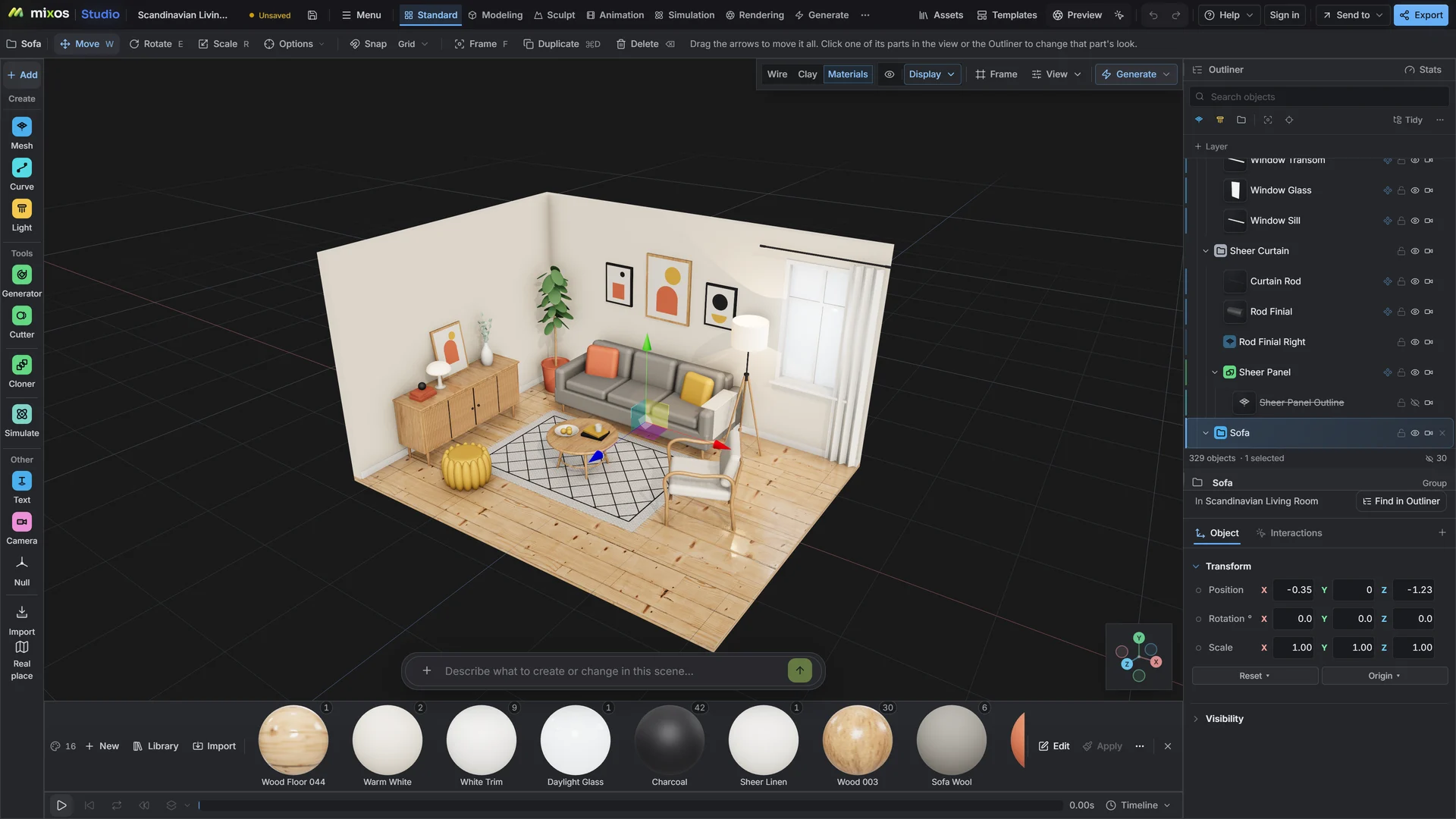
Open GLB, glTF, FBX, OBJ, STL, PLY, 3MF, DAE, USD, USDZ, STEP, IGES, BREP, 3DM, IFC, DXF and more. Save as GLB, glTF, FBX, OBJ, STL, 3MF, PLY, DXF or USDZ.
Opening the file and checking it is free with a free account. Saving the converted model file needs a paid plan.
It depends on the target. GLB and glTF keep materials, textures and animation. FBX keeps animation and rigs but writes colour-only materials. OBJ and USDZ keep textures but not animation. STL and PLY keep geometry only.
Conversion itself runs in your browser tab. Studio is a cloud editor, though, so a scene you keep working in is saved to your account.
A browser with WebGPU: current Chrome or Edge on Windows, macOS, Linux or ChromeOS, or Safari on iPadOS 26 and later. You need a free account to open Studio. A single model file can be up to 150 MB.
Read next
Vertices, edges and faces — the box-modelling fundamentals.
Which of the two approaches fits the thing you're making.
Which format keeps materials and which throws them away.
Why the same texture reads bigger on one model than another.
Keep exploring
More in Import & convert