CAD formats open directly
STEP and STP, IGES and IGS, BREP and Rhino 3DM are converted to meshes as they load. There is no CAD licence and no separate converter in the middle.
CAD to mesh
Someone sent you a STEP file and you need a mesh: an STL to print, a GLB for a web page, an OBJ for a renderer. Open the STEP, IGES, BREP or Rhino 3DM file in Studio, where it is turned into meshes on import, check the part and save the format you need.

STEP and STP, IGES and IGS, BREP and Rhino 3DM are converted to meshes as they load. There is no CAD licence and no separate converter in the middle.
Parts arrive as separate named objects. Hide the fasteners, export a single component, or give each part its own material before saving.
The model is read at its real-world size, which you can confirm in the scene. STL and 3MF then go to the slicer at the scale the engineer intended.
Once the part is open, apply a metal or a plastic, set it on a lit stage and path-trace a product image from the same CAD data.
Why Mixos
A STEP file describes exact surfaces: this face is a cylinder, that edge is an arc. Printers, game engines, web viewers and most renderers do not read that. They read triangles. Converting a STEP file means approximating its surfaces with a mesh, and that is the step people are usually missing software for.
Studio does that conversion when the file opens, and then shows you the result as an ordinary 3D scene. That matters more for CAD than for other formats, because an assembly is rarely wanted whole. You might need one bracket as an STL, or the housing without its internals as a GLB for a product page.
The conversion runs in one direction. A mesh cannot be turned back into exact CAD surfaces, so this page converts STEP, IGES, BREP and 3DM into mesh formats, not the other way round. Keep the original CAD file as the source of truth for manufacturing.
Opening a file and checking how it will convert is free with a free account. Saving the converted file is part of Pro at $8.99 a month or the one-time $99 license.
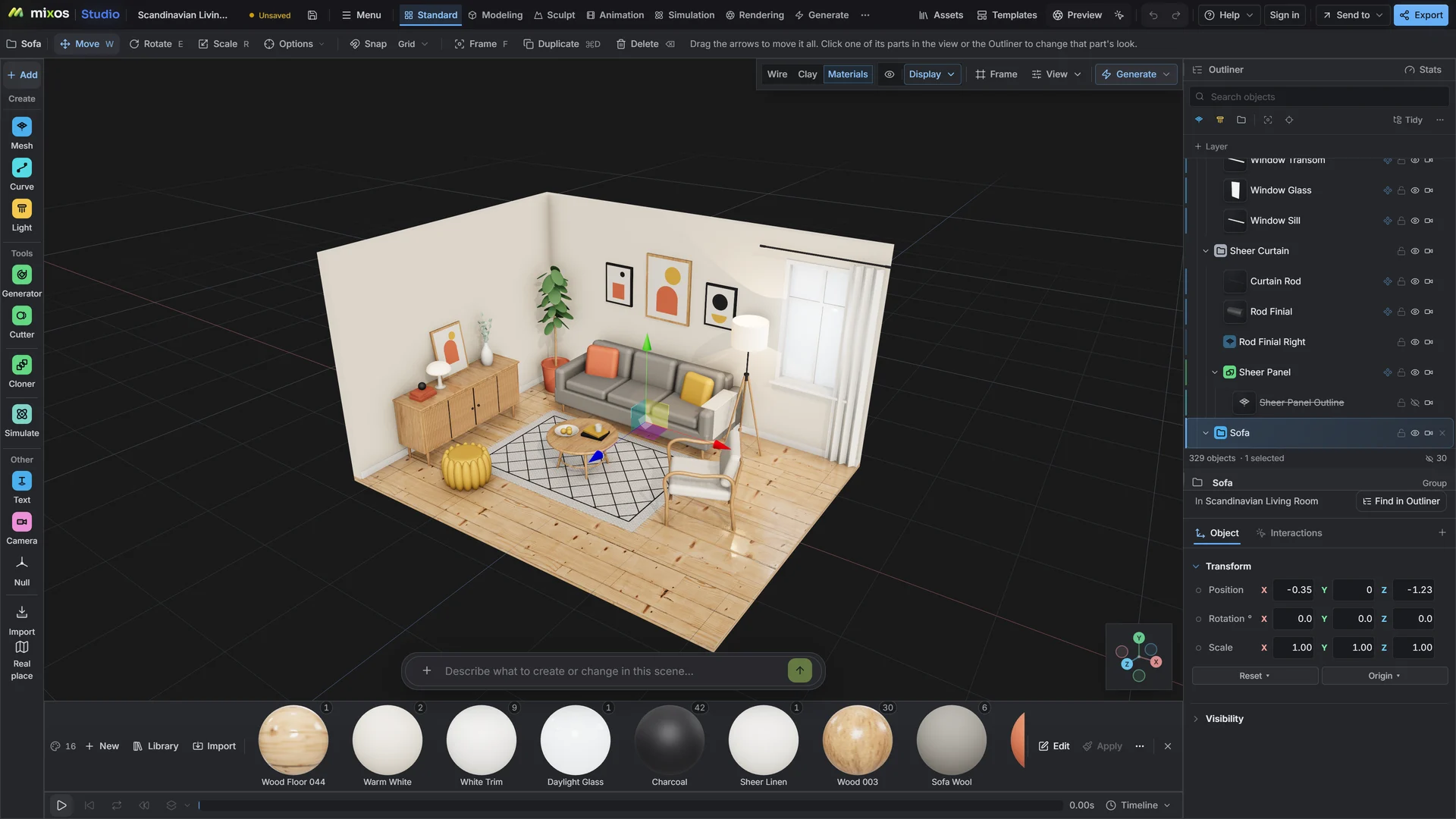
STEP (.step, .stp), IGES (.iges, .igs), BREP and Rhino 3DM, plus IFC building models and DXF. They are converted to meshes when they open.
GLB and glTF for the web and game engines, OBJ, STL and 3MF for printing and other tools, FBX, PLY, DXF, and USDZ for Apple AR.
No. A mesh has lost the exact surfaces a STEP file describes, so Studio does not write STEP. The conversion is from CAD to mesh only.
Yes. Only visible objects are exported, so hide the parts you do not want, or select the ones you do and export the selection.
Opening the STEP file and inspecting it is free with a free account. Saving the converted model file needs a paid plan.
A browser with WebGPU: current Chrome or Edge on Windows, macOS, Linux or ChromeOS, or Safari on iPadOS 26 and later. You need a free account to open Studio. A single model file can be up to 150 MB.
Read next
Vertices, edges and faces — the box-modelling fundamentals.
Which of the two approaches fits the thing you're making.
Which format keeps materials and which throws them away.
Why the same texture reads bigger on one model than another.
Keep exploring
More in Import & convert