Cut, trim and arrange
Split at the playhead or at every shot change, ripple-trim, close gaps, and drop transitions between shots.
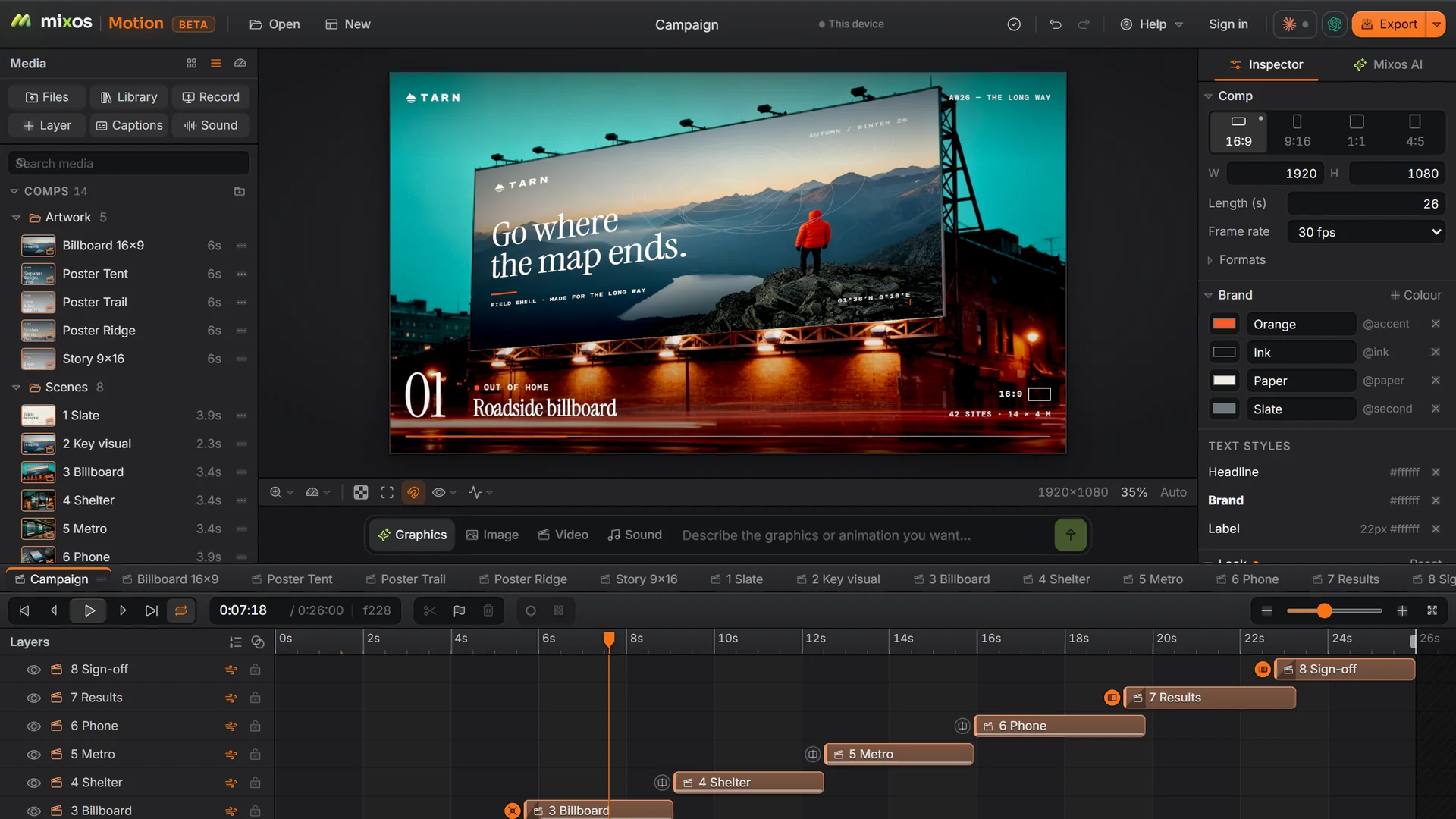
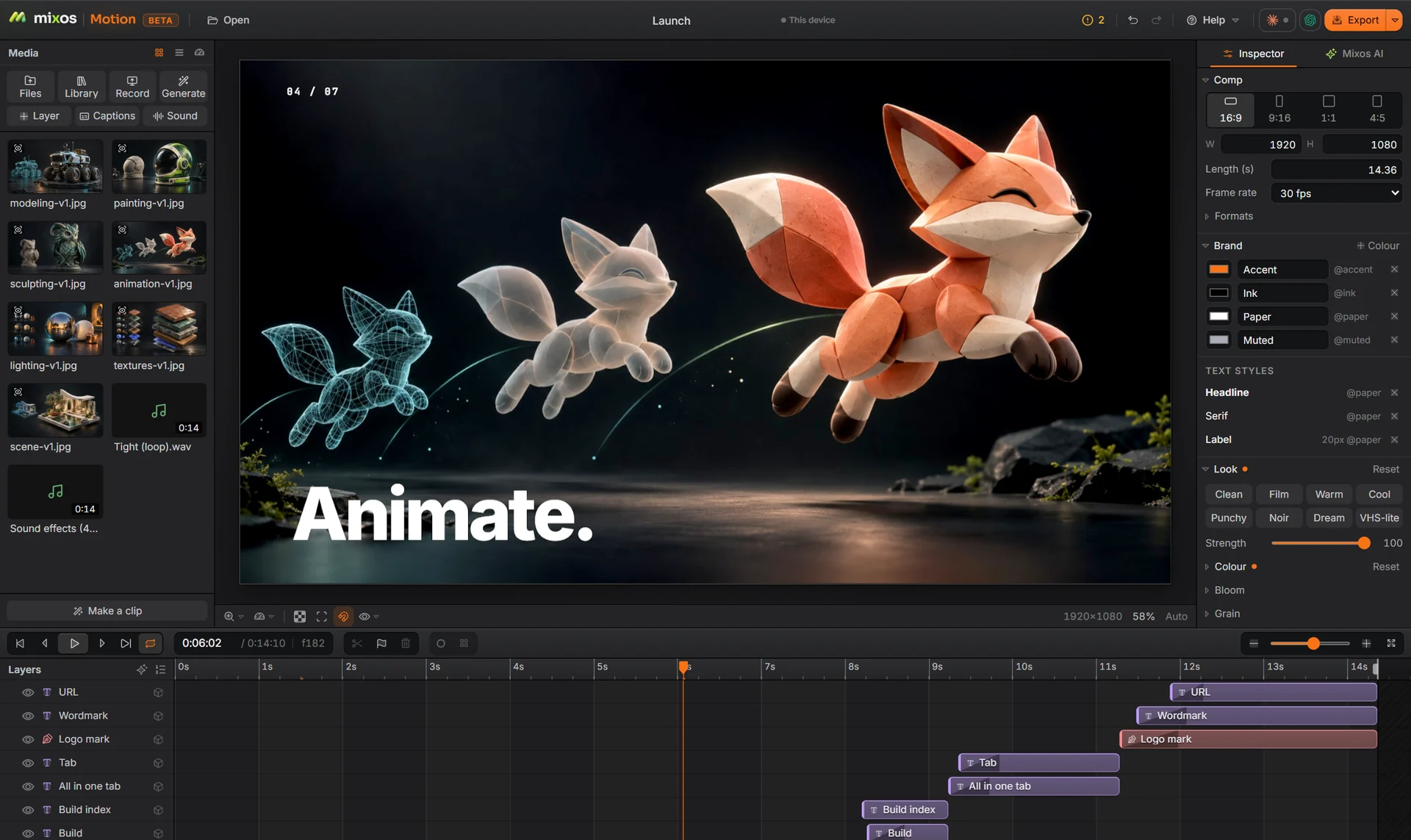
On a Chromebook, video editing usually means a phone app or a basic trimmer. Motion is a full editor in a Chrome tab: put clips on a timeline, cut them, add titles, captions and music, and export for any screen.
Maps that drop into
Split at the playhead or at every shot change, ripple-trim, close gaps, and drop transitions between shots.
Captions are heard from the sound track and timed to the words, on the device. Type a script and a voice-over is read for you, also on the device.
Record a screen, window or tab, with your voice from the mic, straight into the project. Handy for a lesson or a walkthrough.
16:9, 9:16, 1:1 and 4:5 from the same layers, with text anchored to the frame so it stays where you put it.
Every clip here is a template Motion rendered itself. Pick one in the start window and swap the words, the pictures and the brand colours.

A showreel from video: a word cut from footage, beat cuts, a speed ramp, a freeze frame.
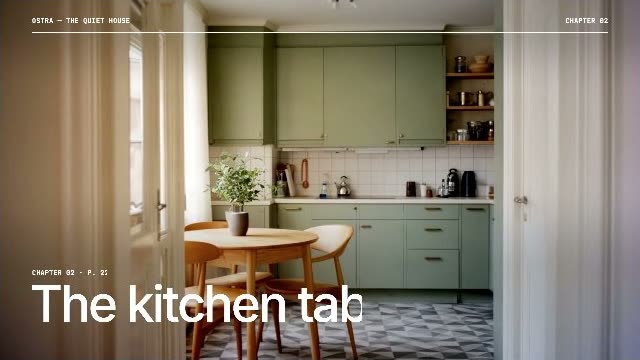
A report opener built as its own contents page: a running header, five numbered chapters, and a photo window beside each that grows into the full frame.
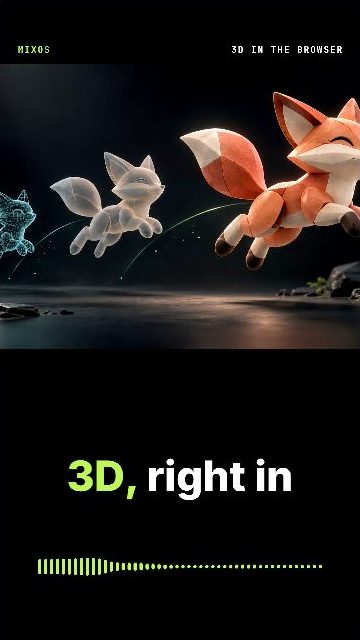
Narrated on this device, captions timed to every word, a waveform that moves with the voice.
Mixos AI
Type the ask under the viewer. Mixos AI works in your comp with the same tools as the buttons, so what it makes is normal layers you can move, retime or delete, and each request is one undo step.
Open MotionCut the pauses out of my talk, caption it, and put quiet music under it that ducks when I speak.
Why Mixos
The usual options on ChromeOS are the quick editor in Google Photos, Android apps from the Play Store, and web editors. Android apps run, but they were built for phones, and on a managed school Chromebook the Play Store is often switched off. Motion is a web app built for a keyboard and a bigger screen, with the timeline, the inspector and the preview side by side.
Beyond cuts, it does the jobs that usually need a second tool: captions from the speech, pauses cut from a talk, music from a library with beat markers that ducks under the voice, titles that animate by word or letter, green screen keying, and a check that flags text cut off by the frame or too fast to read.
Integrated graphics handle short edits well. Long, high-resolution footage asks more of the machine: Motion makes lighter editing copies of big clips, and exports take longer on slower Chromebooks.
Building and previewing in Motion are free with a free account. Exporting the video is the paid step: Pro at $10.00 a month or the one-time $129 license. A classroom grant includes it for a course.
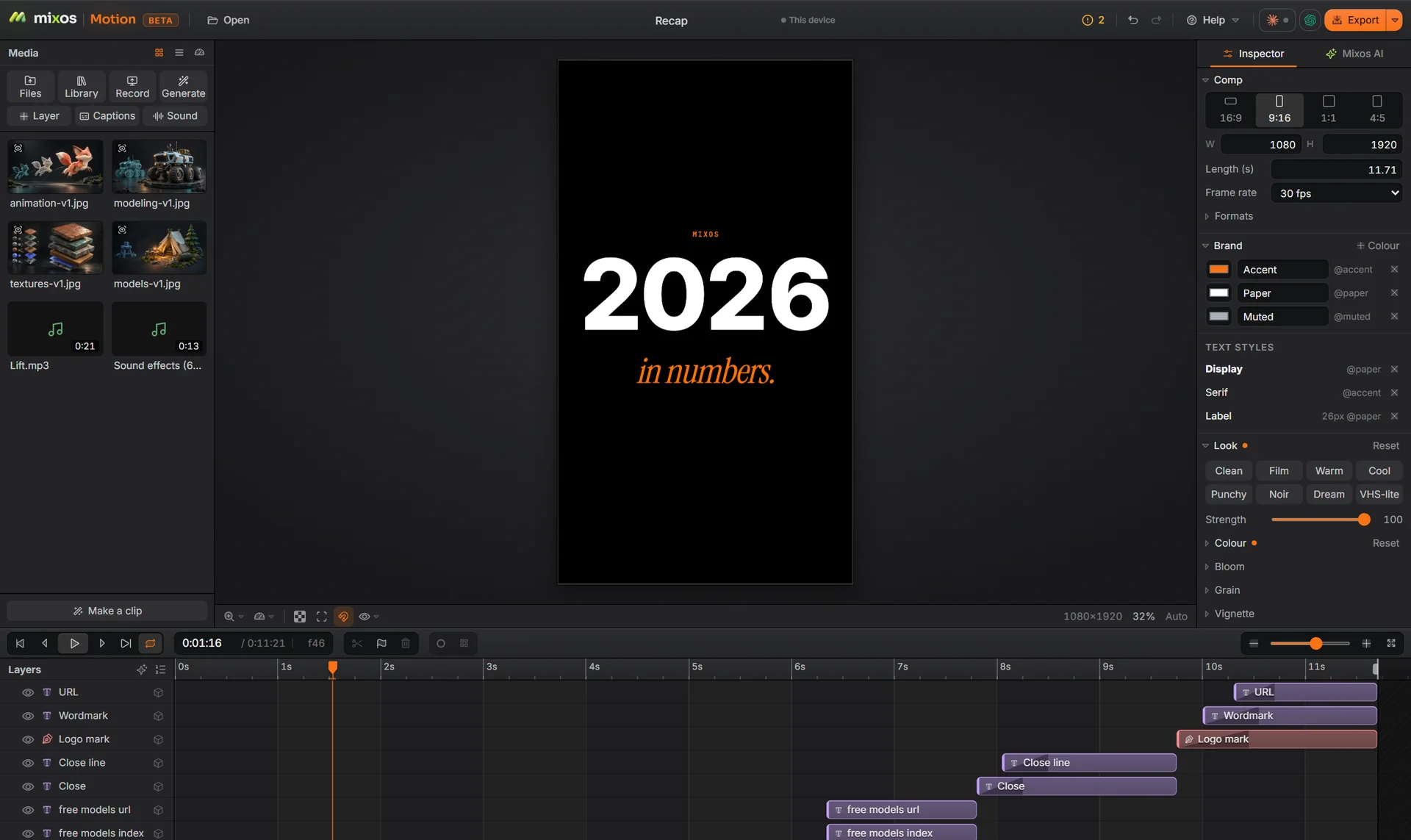
Yes, though most are Android apps or simple trimmers. Motion runs in Chrome on ChromeOS with a full timeline, captions, music, transitions and screen recording, and needs no install.
It is a website, so it works wherever Chrome can open it and the school's filter allows mixos.io. Nothing installs, so the software itself needs no administrator approval.
Yes: MP4 or WebM in 16:9, 9:16, 1:1 or 4:5, plus GIF and PNG sequences. Exporting needs Pro, the one-time license or a classroom grant.
The project saves to your account. The imported clips themselves stay in the browser where you added them unless your own plan is paid, which keeps them in account storage too. On a shared Chromebook that clears its data when you sign out, finish and export on the same machine.
A reasonably recent Chromebook with current Chrome. Motion draws on the graphics chip, so a very old or low-cost device may struggle with long HD footage. A free account is needed to open it, and nothing installs.
Read next
Key, retime and ease a move, step by step.
Keys, in-betweens, and the interpolation that joins them.
Bones, skin weights, IK, and why auto-riggers want a T-pose.
What carries over to an engine, and what to bake first.
Keep exploring
More in Animation & renderingVideo for schools
WeVideo alternative
Green screen on ChromeOS
After Effects on Chromebook
CapCut alternative
Captions

Add your clips, cut them on the timeline and caption the talking. Nothing to install.