Work on the asset you built
Import GLB, glTF, OBJ or FBX geometry. Auto-Texture renders several views, generates one art direction and projects it back onto the model instead of producing a disconnected reference image.
AI game asset texturing
Import a prop, describe the surface, and generate a coordinated texture pass across the model. Repair seams, tune materials and export the PBR maps or textured GLB for a real engine check.
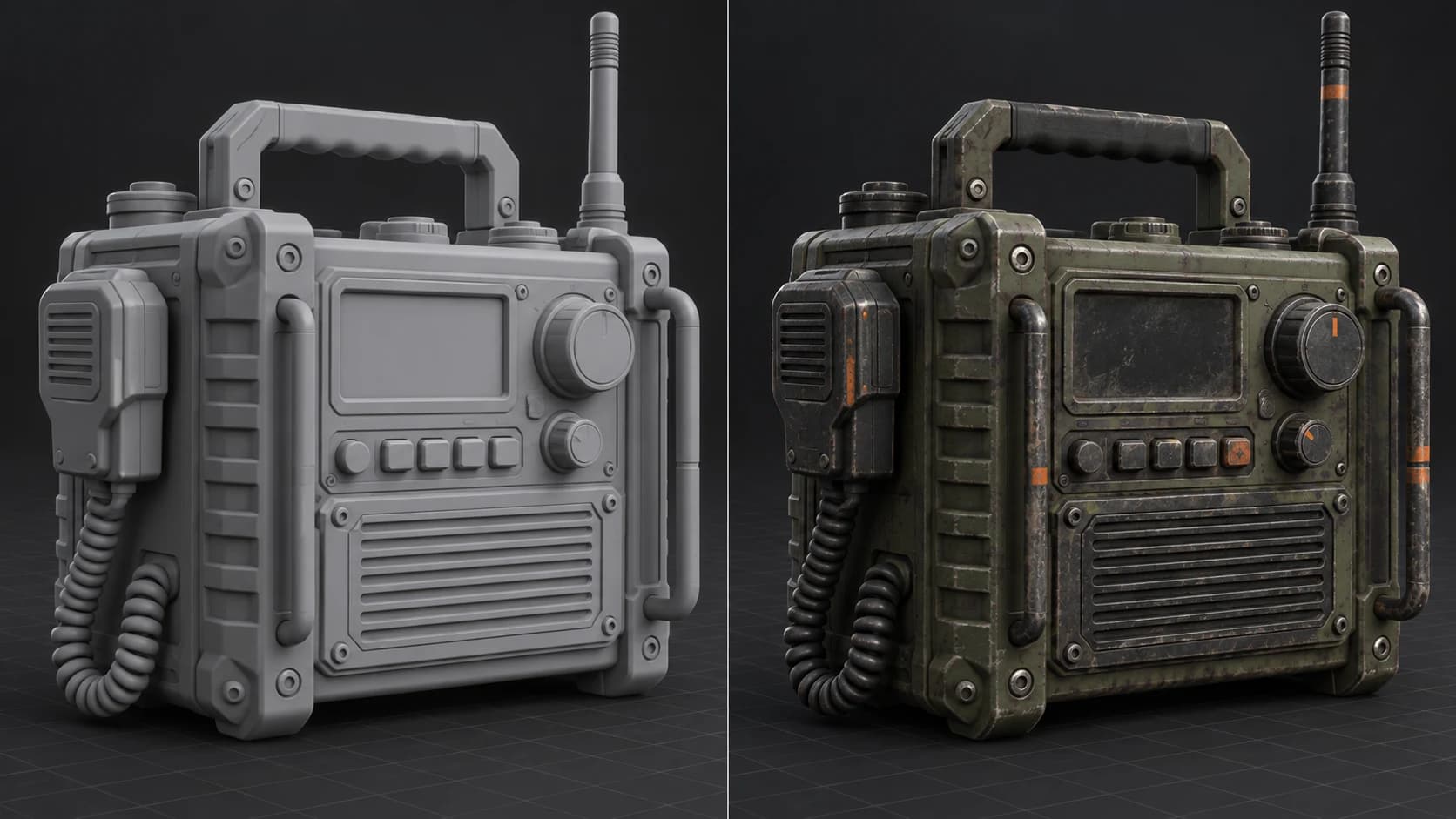
Import GLB, glTF, OBJ or FBX geometry. Auto-Texture renders several views, generates one art direction and projects it back onto the model instead of producing a disconnected reference image.
Keep painting after generation. Layers, masks, decals and material controls let you fix projection artifacts and place the details that gameplay and camera distance actually expose.
Review base color, roughness, metalness, normal and height response under live lighting, then adjust the channels together before the engine handoff.
Download common texture formats and target presets for Unity, Unreal or Godot, or export a GLB with its textures. Validate the shader setup in the target project before shipping.
Why Mixos
A concept image can suggest a material, but it cannot reveal a seam on the back of a prop or show whether the roughness still reads at gameplay distance. Auto-Texture starts from your 3D asset and returns the generated direction to an editable painting workspace, so the quick pass is something you can inspect, repair and keep developing.
Projection still depends on geometry and UVs. Auto-Texture can combine multipart models and can replace missing, stacked or tiled UVs with a new atlas. That helps create a continuous result, but it can change how the asset fits an existing pipeline. Keep the production source, review the resulting UV layout and rebake when your engine project must retain the original material slots or coordinates.
The export preset handles useful file names and normal-map orientation; it does not configure the final shader for you. Import the maps into the target engine, confirm color-space and channel settings, inspect compression, and test the asset under the lighting and scale it will actually use. That final check is where a generated concept becomes a production material.
Yes. Import GLB, glTF, OBJ or FBX geometry, generate a first pass from a prompt and refine it in the painting workspace. The quality of projection depends on the model and UV layout.
It creates and exports the surface work. You still need to validate UVs, material slots, map import settings, shader setup, scale and performance in the target engine.
Do not assume that for every model. Auto-Texture can re-unwrap stacked, tiled or missing UVs and can combine multipart geometry. Inspect the result and rebake to the production layout when exact compatibility matters.
The painting workflow covers base color, roughness, metalness, normal and height. Export presets adapt names and normal orientation for common targets, while the final shader setup stays in your engine.
Yes. A textured GLB can carry the material and textures for a compact handoff. You can also export individual maps when your engine or studio pipeline expects separate files.
Read next
The whole pass, from import to exported maps.
The maps a modern material is made of, and what each one does.
Why the same texture reads bigger on one model than another.
Drop the files in and see the material lit, in the browser.
Keep exploring

Bring your own asset, find the material direction and keep editing until it survives the engine test.