モデルとシーン
編集可能なオブジェクト、テキスト、カーブ、完全なシーンを作成します。パーツの配置、整列、複製、散布もできます。
Mixos AIは、説明した内容を、オブジェクト、マテリアル、ライト、カメラを備えた本物の3Dシーンとして構築します。ショットのアニメーションも一緒に作り、フレーミングとモーションを保ったまま、フォトリアルな画像や動画に仕上げます。
線をドラッグして、3Dシーンと完成フレームを見比べられます。用意されたスターターの例です。3Dシーンとアニメーションはスターターライブラリ用に作成し、画像と動画はそれぞれのビューポートから生成しました。 どれも、ワークスペースで、編集可能な自分用のコピーとして無料で開けます。
上の例はどれも、歩き回れるシーンから始まります。画像と動画は最後に、すでに気に入っているフレームから作ります。
車のパネル、ローター、コートのボタンのひとつひとつが、独自のマテリアルを持つ独立した3Dオブジェクトです。動かし、色を変え、あるいはシーン全体をStudioで開いて手作業で編集できます。
モーションは、タイムライン上のキーフレームとして存在します。低いアングルやゆっくりしたドリーを依頼するか、自分でキーをドラッグすれば、有料の生成の前に、すぐプレビューで確認できます。
フレームが決まったら、mixos AIがビューポートをフォトリアルな画像に、アニメーションを動画にします。設定したレイアウト、カメラ、タイミングは保たれます。
どのターンでも、何が変わり、いくらかかったかを表示し、横に元に戻すボタンが付きます。有料の操作は、あなたが了承するまで実行されません。
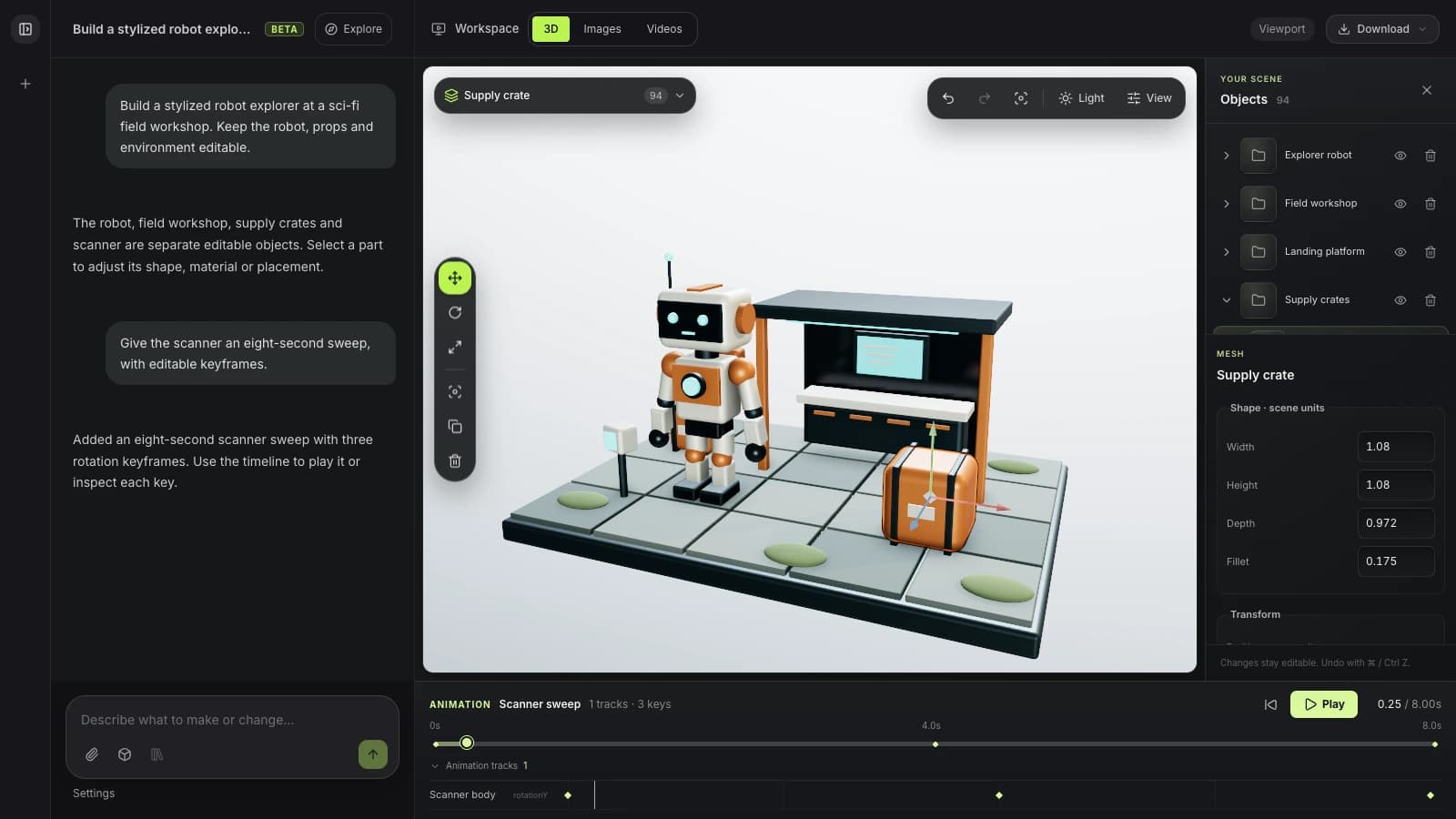
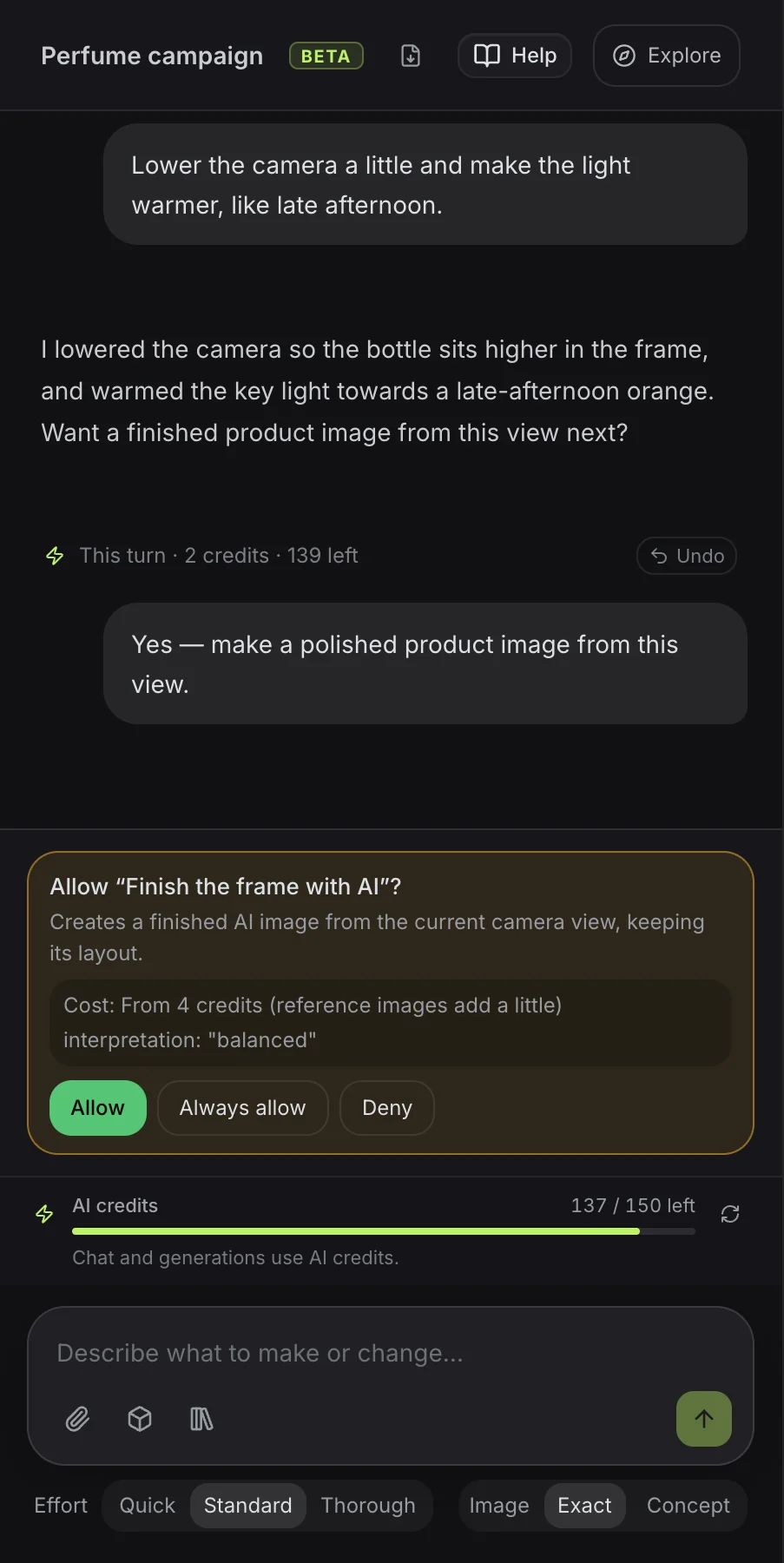
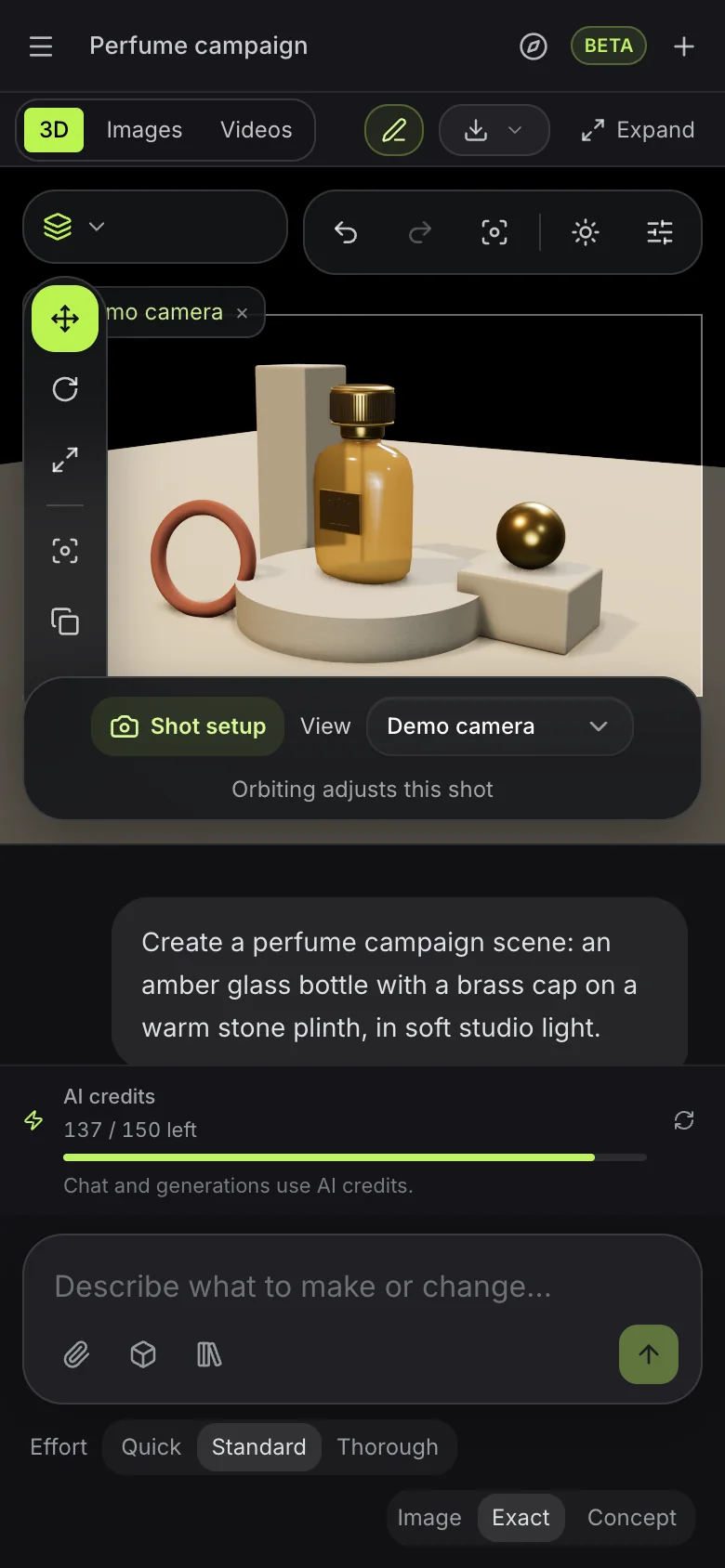
説明から始め、アイデアが形になるにつれて具体的な変更を依頼します。
編集可能なオブジェクト、テキスト、カーブ、完全なシーンを作成します。パーツの配置、整列、複製、散布もできます。
メッシュの押し出し、ベベル、カット、結合ができます。モディファイアスタックで、変更をライブに保てます。
ライブラリのPBRマテリアルを使い、マテリアルのノードグラフを作成し、サーフェスを生成して、仕上げを調整します。
環境、ライト、カメラの構図を設定します。雰囲気とレンダー設定を磨き上げます。
リグを確認し、編集可能なモーションキャプチャを適用し、カメラをアニメーションさせて、モーションをプレビューします。独立したショットによる任意のストーリーボードも計画できます。
演出したシーンを、画像や短い動画にします。必要なときは、自動の3D生成を選べます。
“彫刻的なラウンジチェア、低いテーブル、和紙のランプを置いた、静かな読書コーナーをデザインしてください。温かみのある木材、柔らかなアイボリー、午後の光を使ってください。”
このプロンプトを試す“温かみのある石のセットに、彫刻的な香水瓶を作ってください。琥珀色のガラス、真鍮のディテール、ドラマチックなスタジオライティングにします。その後、このビューから完成したプロダクト画像を作ってください。”
このプロンプトを試す“大きく表情豊かな耳を持つ小さなキツネの胸像。酸化した銅で仕上げ、くぼみには緑の緑青を入れて、丸いチャコール色の台座に載せてください。”
このプロンプトを試す“ゆるやかにねじれた背の高いフィンから始め、ティールと真鍮で、円形の大理石の台座の周りに24枚複製してください。フィンが円周を伝わる波のように上下するようにして、8秒でループさせてください。”
このプロンプトを試す“コーラルのシェルとアイボリーのクッションを備えた、彫刻的なオーバーイヤーヘッドホンを、黒大理石の台座に置いて作ってください。ゆっくり1回転するアニメーションを付け、そこから短いプロダクト動画を作ってください。”
このプロンプトを試す“Emberというコーヒーショップの3Dロゴ。ヘアラインの銅で、炎へと立ち上るコーヒー豆にしてください。”
このプロンプトを試すMixos AIはAIクレジットで動きます。チャットは、メッセージの作業量に応じてクレジットを使い、画像、動画、生成モデルは、承認する前に価格が表示されます。
このページの例はすべて見られ、mixosアプリで作品を編集できます。mixos AIとのチャットには有料プランが必要です。
毎月50AIクレジットに加えて、シーン、モデル、画像、動画をフル解像度でダウンロードできます。
毎月150AIクレジットで、より多く使う方向けです。さらに必要ですか? 有料プランでは、25クレジットからのクレジットパックを追加できます。
Follow a project from idea to finished result, or search everything Mixos AI can do. Every prompt is yours to edit before sending.
15 areas to explore
Build designs in Frame with editable text, shapes, fonts and brand colours. Review layout variations, make matching sets and prepare AI artwork edits.
Open Frame and create a summer campaign from a template. Keep its text and shapes editable, preview the design and let me apply it before making a matching story.
Try this promptBuild editable objects, text, curves and complete scenes. Arrange, align, repeat and scatter parts.
Build a cosy reading nook with a custom armchair, floor lamp and side table. Keep the objects editable, inspect the scene and save it.
Try this promptExtrude, bevel, cut and combine meshes. Keep changes live with a modifier stack.
Inspect the selected object and suggest three useful geometry improvements. Tell me what you would change before editing it.
Try this promptCreate geometry node networks, adjustable generators, cloners and reusable patterns.
Build a procedural shelving unit with adjustable height, width and shelf count. Keep its controls live, inspect it and save the scene.
Try this promptShape meshes with brushes, masks, symmetry, remeshing and pose tools in Mold.
Open Mold and build a simple fox bust with a clear silhouette and expressive ears. Inspect the sculpt from several angles and save it.
Try this promptLayer PBR surfaces in Paint, control wear with masks and place decals on your model.
Inspect the current Paint model. Add a worn copper material layer and masked grime, keeping the layers editable, then save the project.
Try this promptUse library PBR materials, create material node graphs, generate surfaces and tune their finish.
Give the selected object a realistic brushed-copper finish using a library PBR material or a validated material graph. Inspect the surface and save the scene.
Try this promptSet environments, lights and camera composition. Refine the atmosphere and render settings.
Light and frame the current scene for a warm studio product shot. Inspect the composition and save it before generating any paid media.
Try this promptInspect rigs, apply editable motion capture, animate cameras and preview motion. Plan optional storyboards with independent shots.
Create a slow camera orbit around the selected object, preview it as a playblast and save the scene. Keep the animation editable.
Try this promptTurn a staged scene into an image or short video. Choose automatic 3D generation when you need it.
Explain the options and current credit costs for making an image, video or automatically generated 3D model from this scene. Let me choose before running generation.
Try this promptExplore concepts, choose a mark and build an editable 3D Logo project with depth and materials.
Open Logo and design a coffee-bean and flame emblem for Ember. Show me concepts to choose from, then build the chosen mark in brushed copper and save the Logo project.
Try this promptCheck topology, normals, proportions, intersections and performance. Unwrap and pack UVs.
Inspect the current model's topology, normals and UVs. Report the three most useful fixes before changing anything.
Try this promptFind saved work, import assets, save milestones and move work between apps. Prepare files for export.
Show me the saved scenes and models in my library that I could bring into this scene. Let me choose an asset before importing it.
Try this promptAuthor custom geometry, batch repeated work, save presets and use scene variables and constraints.
Inspect this scene and suggest a reusable preset or script for a repeated task. Describe the result before making changes.
Try this promptExplore cloth draping, rigid bodies, particles, fracture, volumes and hair. Available in development builds.
Create a cloth draped over a small table, advance the simulation to inspect the drape and save the scene.
Try this promptMixos AI can guide you to Auto, Scan, libraries and browser utilities. Use those apps' own controls for work there.
Mixos AIはこのビルドで利用できます。Mixosアカウントでワークスペースを開いてください。会話型ツールには、有料プランまたは未使用の購入クレジットが必要です。拡張版の制作ワークスペースは、プレビュービルドで順次展開中です。
はい。アシスタントは、開いているシーン内のオブジェクト、ジオメトリ、マテリアル、ライティング、カメラ、アニメーションを扱います。節目ごとに保存し、プロジェクトを開き直すか、Studioで編集を続けられます。イメージ用の画像は制作の方向性を示すもので、プロンプトがその通りの結果になることを保証するものではありません。
通常のモデリング依頼では、編集可能なジオメトリを作ります。明示的な自動生成では、既存の有料モデルカタログを使って、テキストや参照画像からテクスチャ付きメッシュを作成します。対応するモデルをインポートしてシーンに挿入し、ライブラリから再利用することもできます。ネイティブの.mxsシーンは新しいプロジェクトとして開きます。
シーンをレンダリングするか、ビューポートをAIで仕上げます。解釈は精密、バランス、クリエイティブから選べます。動画では、編集可能なアニメーション、仕上げた静止画、対応するモーションキャプチャを用意し、対応する動画エンジンを選びます。元のシーンを変更したら、次のクリップを生成する前に静止画とキャプチャを更新してください。結果はプレビュー、再利用ができ、既存のエクスポート権限でダウンロードできます。
まずスケルトンを確認し、互換性のあるリグを再利用します。対応するTポーズのヒューマノイドは自動でリギングできます。モーションライブラリを検索して適切なキャプチャを適用し、タイミングと移動量を編集可能なキーフレームとして調整します。非対応のポーズやリグ、ライブラリにないモーションには、互換性のあるキャラクターか別のライブラリモーションが必要です。テキストから新規にモーションを生成するサービスは、このプレビューには含まれません。
いいえ。作りたいもの、変えたいものをひとつのプロンプトで説明すれば、アシスタントが自動で対応します。設定では、リクエストの焦点を任意で指定できます。複数のショットが必要な場合は、1つから始めるか3つを計画でき、ストーリーボードには最大12ショットを置けます。各ショットには独自のカメラ、アニメーションクリップ、ブリーフ、生成設定があり、シーンのオブジェクト、ライティング、マテリアルは共有されます。生成したテイクは、元のショットに紐づいたまま残ります。
いいえ。Mixos AIは独自のライブビューポートを備えた単体のワークスペースです。カメラプリセットと編集可能なパスはシーン内で動作します。共通のコマンドはMCP呼び出しにも対応していますが、ここで制作するのに外部ソフトウェアやMCPの設定は必要ありません。
リリース済みのMixosアプリでの編集は、Mixosアカウントがあれば無料です。AI生成にはクレジットを消費します。本番用のエクスポートには有料プランまたはライセンスが必要で、無料プランには512pxの透かし入りレンダリングプレビューが含まれます。現在の利用枠は料金ページをご覧ください。このページのデモを見るだけなら、AIクレジットは消費しません。