Build a product turntable from an editable scene
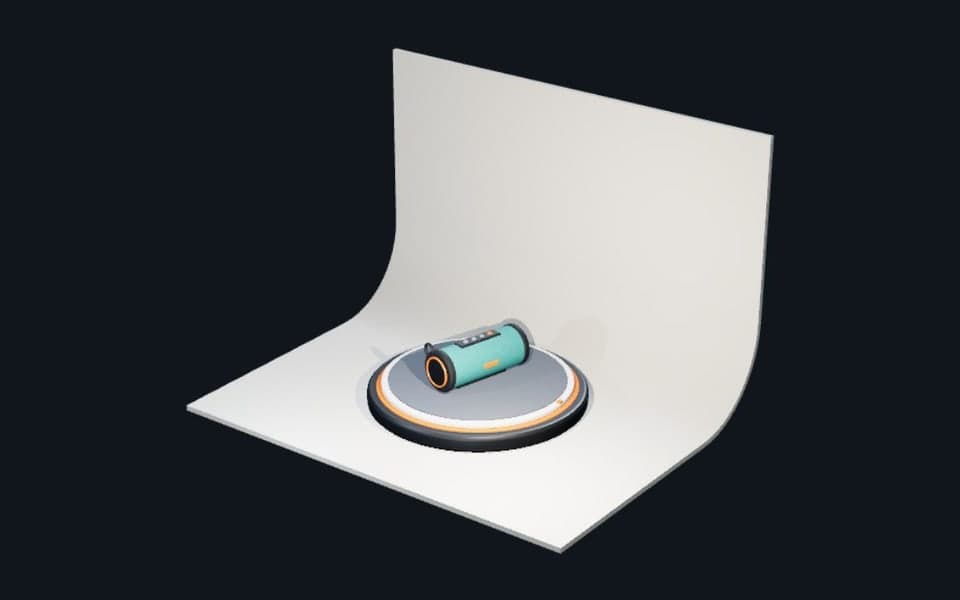
Start with a speaker on a turntable, a backdrop, two lights and two cameras. The downloadable Studio scene includes the finished layout and animation, so you can inspect each choice and replace the product with your own.
By Mixos
The short answer
The Turntable clip makes one full rotation over eight seconds at 30 fps. Open the template, play that clip, then adjust the product, materials and lighting. The native .mxs file retains the editable scene and animation.
Step by step
- 1
Open the shipped scene
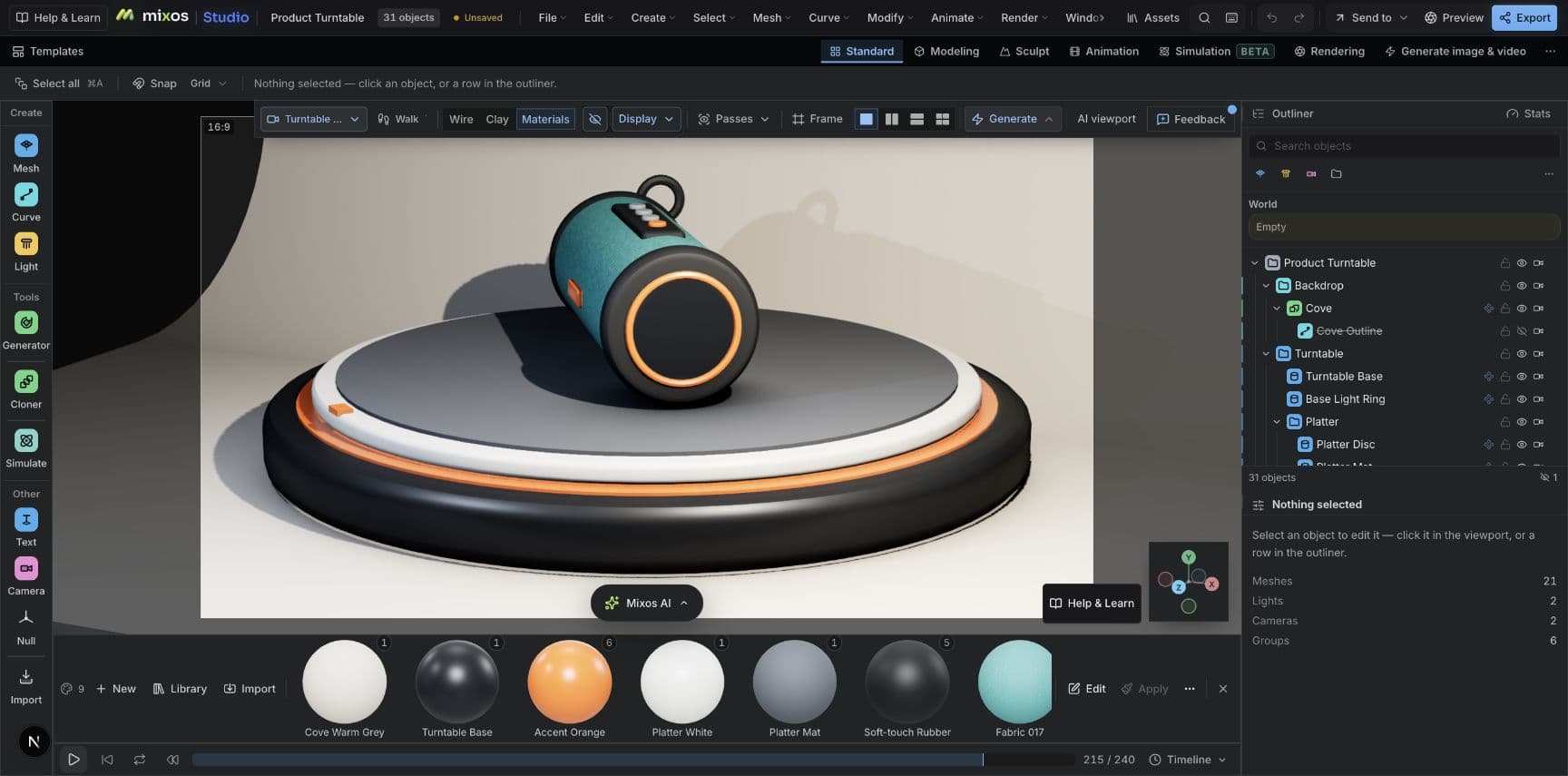
Open Studio and choose the Product Turntable template, or import the downloaded .mxs file. This project has 31 scene objects and 5,304 mesh faces. Inspect the outliner before changing the speaker or its parent group.
- 2
Play the Turntable clip
Select Turntable in the animation controls and play it. Its eight-second clip rotates around the Y axis from zero to one full revolution. Use Turntable Camera for this view; the separate Product Reveal clip uses its own camera.
- 3
Make one controlled change
Change a product material or one light, then replay the same clip from the same camera. Compare the silhouette and reflections before changing the framing. Save a new .mxs copy to preserve your editable version.
- 4
Review output settings
The template stores a 1,280-pixel render size, PNG image sequence and 30 fps. Review these settings and the chosen camera before exporting. Editing and playback are free; production export requires an eligible paid plan.
What makes this example reproducible
The scene contains nine materials, two lights and two cameras. Its Turntable clip is eight seconds; Product Reveal is a separate five-second shot. These figures were checked against the shipped project on October 9, 2026. Mesh faces are reported as faces, not an assumed triangulated count.
Keep the backdrop and camera while replacing the product. A larger object may need different framing and lighting. This project demonstrates scene organization and a rotation loop; it does not promise a fixed render time on every device.
Frequently asked questions
Can I edit the downloaded scene?
Yes. The .mxs file is a native Studio project with scene objects, materials, cameras and animation clips. Open it in Studio and save a separate copy after editing.
Why are there two clips?
Turntable is the eight-second rotation with Turntable Camera. Product Reveal is a separate five-second presentation with Product Reveal Camera. Select the intended clip and camera together.