Export a painted model from Mixos to Blender
Follow a real handoff using the blue metal sphere. The supplied files are the actual Paint export and the Blender scene used to check it. You can inspect the result before repeating the export with your own project.
By Mixos
The short answer
Export with the Blender preset, OpenGL normals and Include textured model (GLB). Unzip the result and import material.glb through Blender’s glTF importer. The tested file imports its UVs, base color, roughness/metallic and connected normal map automatically.
Step by step
- 1
Prepare the Paint project
Open the editable sphere project from the material study, or import your own model with UVs and apply a material. Inspect the material channels before export. Production export requires an eligible paid plan; the example downloads on this page are available directly.
- 2
Export the map set and GLB
Open Export, select Blender, 1,024 resolution and PNG with 8-bit depth. Keep Base Color, Normal, Height, Roughness and Metallic selected, use OpenGL normals, and enable the textured GLB. This example also included USDZ. Export and unzip the downloaded archive.
- 3
Import the textured model
In Blender choose File, Import, glTF 2.0 and select material.glb from the extracted folder. The embedded textures are assigned by the importer. This example was imported and rendered in Blender 5.1.2 on October 9, 2026.
- 4
Check the material nodes
In the Shader Editor inspect the imported material. Base Color uses sRGB; normal and packed roughness/metallic use Non-Color. The normal texture feeds a Normal Map node connected to the Principled BSDF. The verified scene has one UV layer and 12,096 triangles.
- 5
Handle separate maps deliberately
If wiring the PNGs manually, use sRGB for base color and Non-Color for data maps. Connect the normal through a tangent-space Normal Map node. Roughness and Metallic PNGs can feed their respective Principled inputs directly. Height needs a separate bump or displacement setup; importing the GLB does not connect the height PNG.
What was verified
The ZIP contains material_basecolor.png, material_normal.png, material_height.png, material_roughness.png, material_metallic.png, material.glb, material.usdz and material_README.txt. The five PNG maps are 1,024 × 1,024. Blender imported three embedded images with the expected color spaces and a connected normal node.
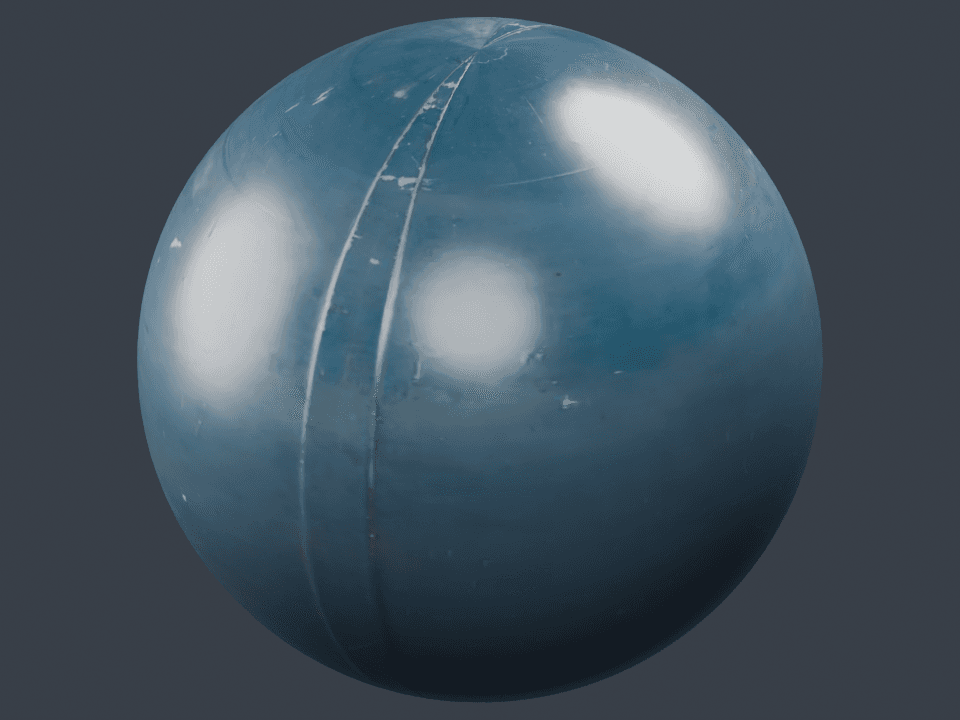
The downloadable .blend includes the imported sphere, camera and three area lights used for the shown render. Verification covers this UV sphere and metallic/roughness PBR handoff. It does not establish rig, animation, displacement or every custom shader’s compatibility.
Sources and further reading
Frequently asked questions
Why does Blender look different from Paint?
The example uses an outdoor environment in Paint and three area lights with AgX in Blender. Exposure, lighting and color management change appearance even when the same textures are connected correctly.
Do I need to assign all five PNGs after importing GLB?
No. The GLB embeds the core PBR textures and the importer connects them. The separate PNGs are useful for manual setup, inspection or another application. Height is separate and requires an explicit bump or displacement setup.