免費 3D 貼圖 軟體,線上使用。
匯入你的模型,套用材質,為 Blender、Unreal 或 Unity 匯出貼圖。在瀏覽器中繪製並調整結果,不用安裝任何東西。
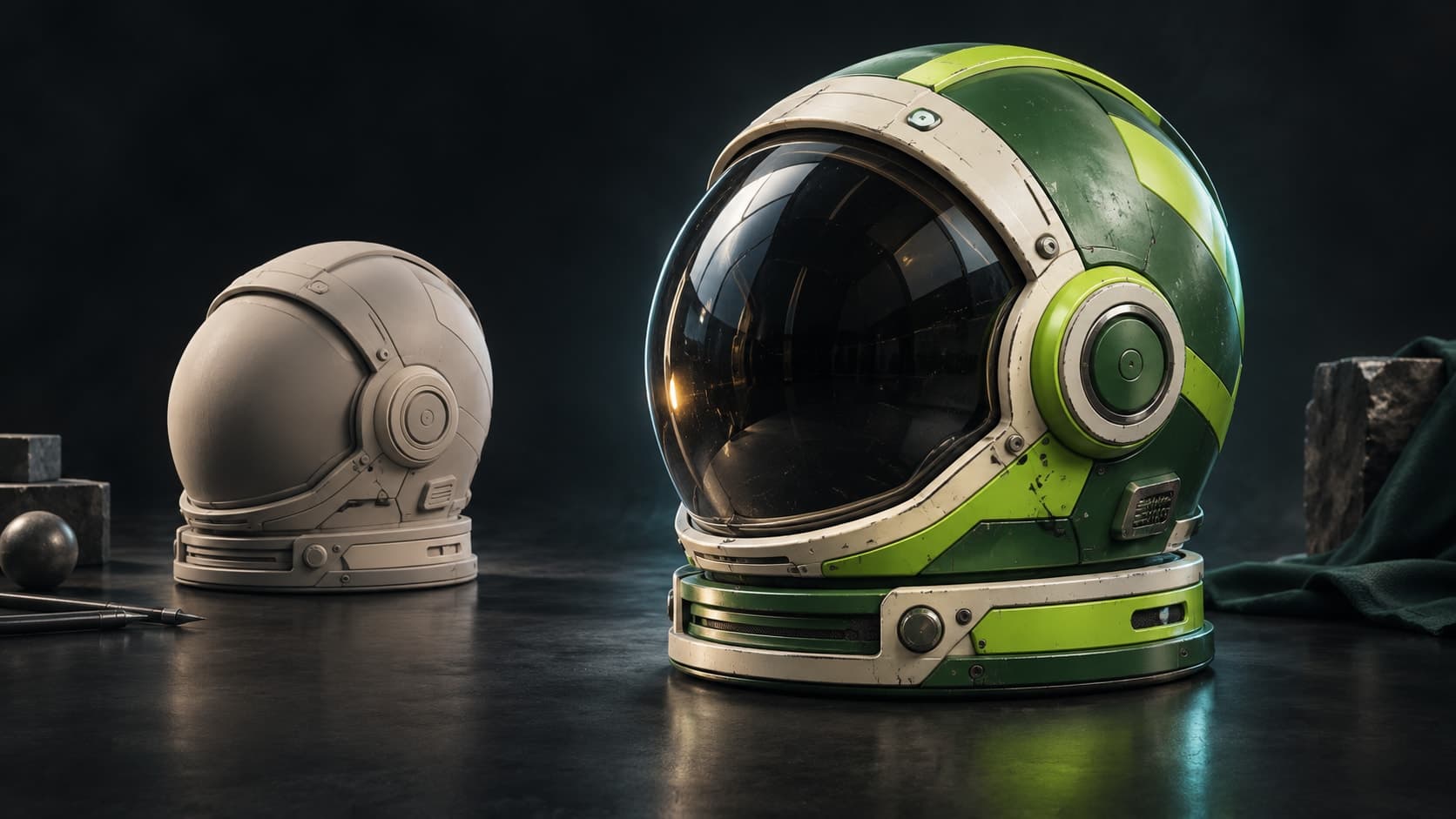
概念示意圖。
試試看:在有 UV 的球體上繪製材質
使用提供的 GLB 練習圖層與遮罩,不必準備自己的模型。這顆球體已經有 UV 座標。
匯入練習網格
下載下方的球體 GLB。開啟 Paint,然後將檔案匯入工作區。
套用資料庫材質
從資料庫把一個木頭材質拖到球體上。調整其縮放,直到木紋貼合表面。
繪製遮罩並檢查貼圖
加入第二個材質圖層,並繪製其遮罩,讓它顯現在球體的一部分上。分別預覽基礎色與粗糙度,檢查結果。
你應該會在同一個網格上看到兩種材質,由繪製的遮罩控制它們的交界。圖層堆疊仍可編輯;匯出貼圖需要付費方案。
免費使用——想貼多少圖就貼多少。匯出貼圖需要付費方案。
工具組
繪製、分層與遮罩——你貼圖的方式。
不是濾鏡堆疊,也不是預覽——而是完成的貼圖真正需要的工具,每一項都是非破壞性的。
直接在模型上繪製
直接在網格上用筆刷繪製細節——筆刷模式、alpha 印章,以及可跨越 UV 接縫的投影繪製,同時適用於貼圖與決定貼圖位置的遮罩。
堆疊可混合的圖層
非破壞性圖層,具混合模式、不透明度與逐通道開關。獨立繪製顏色、高度、粗糙度與金屬度,並可隨時重新排序或關閉任何圖層。
智慧遮罩
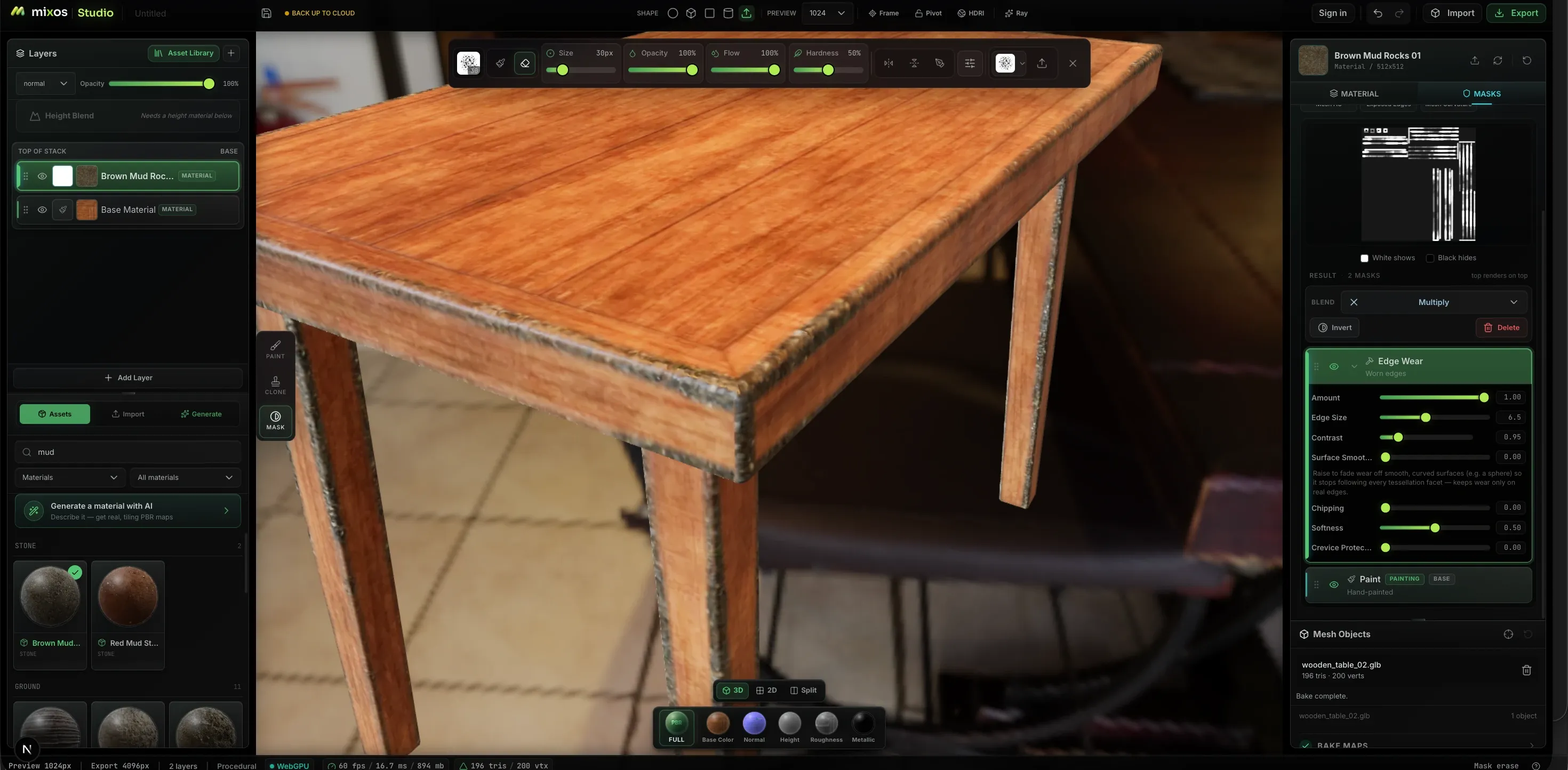
程序式生成器把磨損放在磨損該出現的地方——由幾何驅動的邊緣磨損、曲率、髒汙與凹槽遮罩,數量、邊緣大小、對比與剝落都是滑桿,而不是筆刷工夫。
2600+ 種 PBR 材質
把現成材質拖到堆疊上——金屬、木材、石材、織物、皮革——再調整平鋪與粗糙度。匯入你自己的材質也是同樣方式:放入一個資料夾或整個資料庫,貼圖會依檔名整理。
貼花與模板
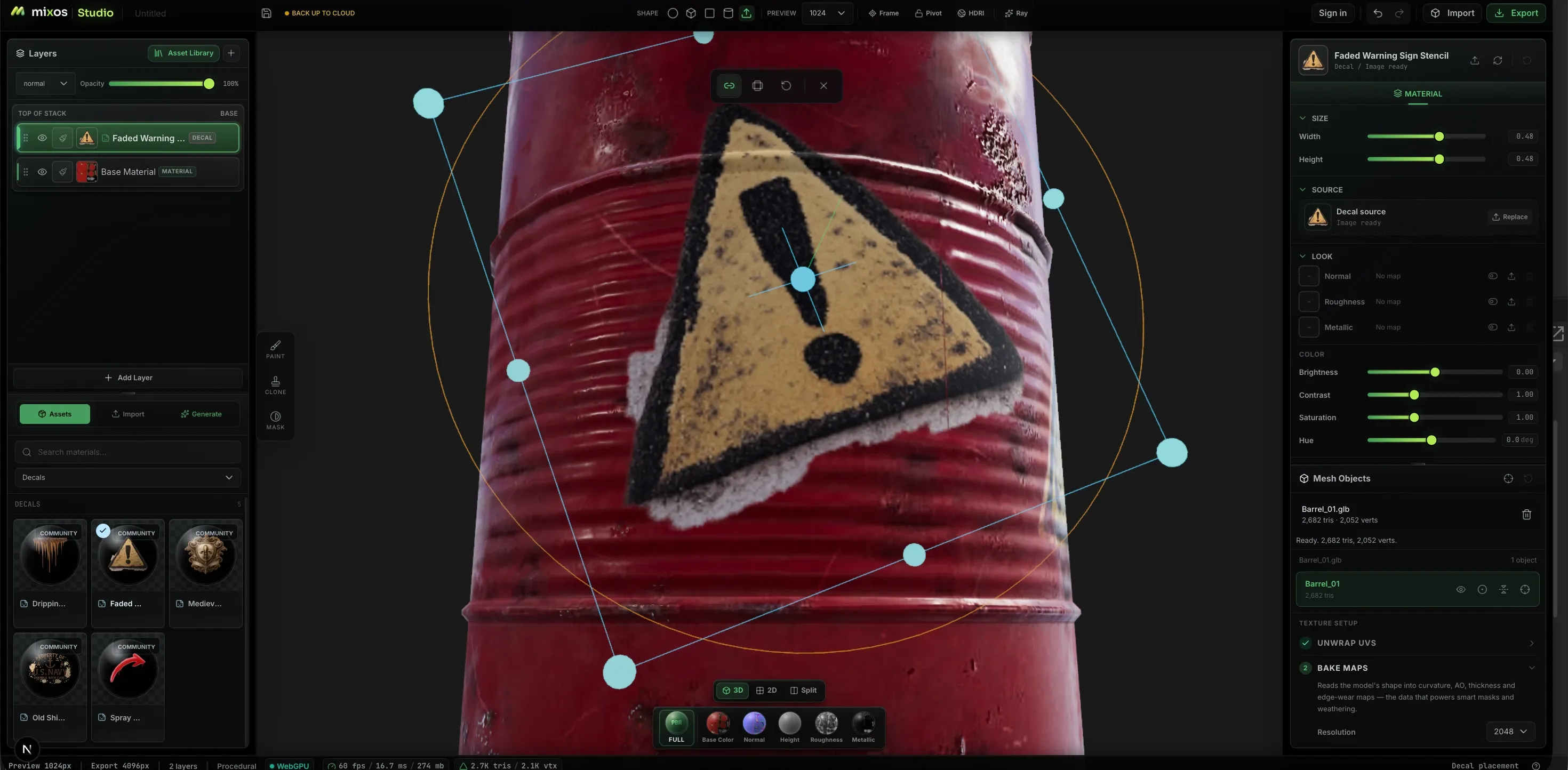
把標誌、警告標誌與模板放到表面上,並以網格上的操作軸放置——針對幾何移動、縮放與旋轉,而不是針對平面的 UV 圖。
同時在 2D 與 3D 中繪製
分割檢視,在模型旁邊處理平面的貼圖。相同的筆刷、圖層與遮罩在兩個窗格中都適用,而且兩者同步更新——於是接縫、平鋪,以及在平面上更容易處理的任何事,都不再靠猜。
生成你需要的東西
用提示生成完整的平鋪 PBR 材質、無縫貼圖、風化遮罩、筆刷筆尖、貼花——或是附真實 UV、可供繪製的完整 3D 模型。每個通道都以可編輯的真實貼圖送回,而不是烘焙進顏色裡的平面圖片。
真實感從何而來
順著幾何的磨損。
平面的材質和用過的物件之間的差別,在於邊緣哪裡磨過、髒汙哪裡沉積。Paint 從你的網格烘焙曲率與環境光遮蔽,並用它們驅動遮罩,讓磨損出現在形狀所指示的位置。
工作流程
從空白網格到匯出貼圖
帶入模型
匯入 GLB、glTF、FBX 或 OBJ,從免費的 CC0 模型資料庫挑選一個,或從 Mold 送來已帶有全新 UV 的雕刻。
鋪上基底
把材質拖到堆疊上,立即得到分層的基底,或依提示為整個網格自動貼圖,再在結果之上繼續調整。
繪製與遮罩
用筆刷繪製讓它屬於你的細節,然後隔離它——以顏色 ID 選取部件,以程序式生成器處理磨損,其餘一切則用手繪遮罩。
匯出貼圖
整理好的 PBR 貼圖組最高 4K,外加一個 .glb,並依你要使用的引擎命名。繪製免費;匯出完成的貼圖屬於付費方案。
看起來真實的表面
繪製磨損,而不只是顏色
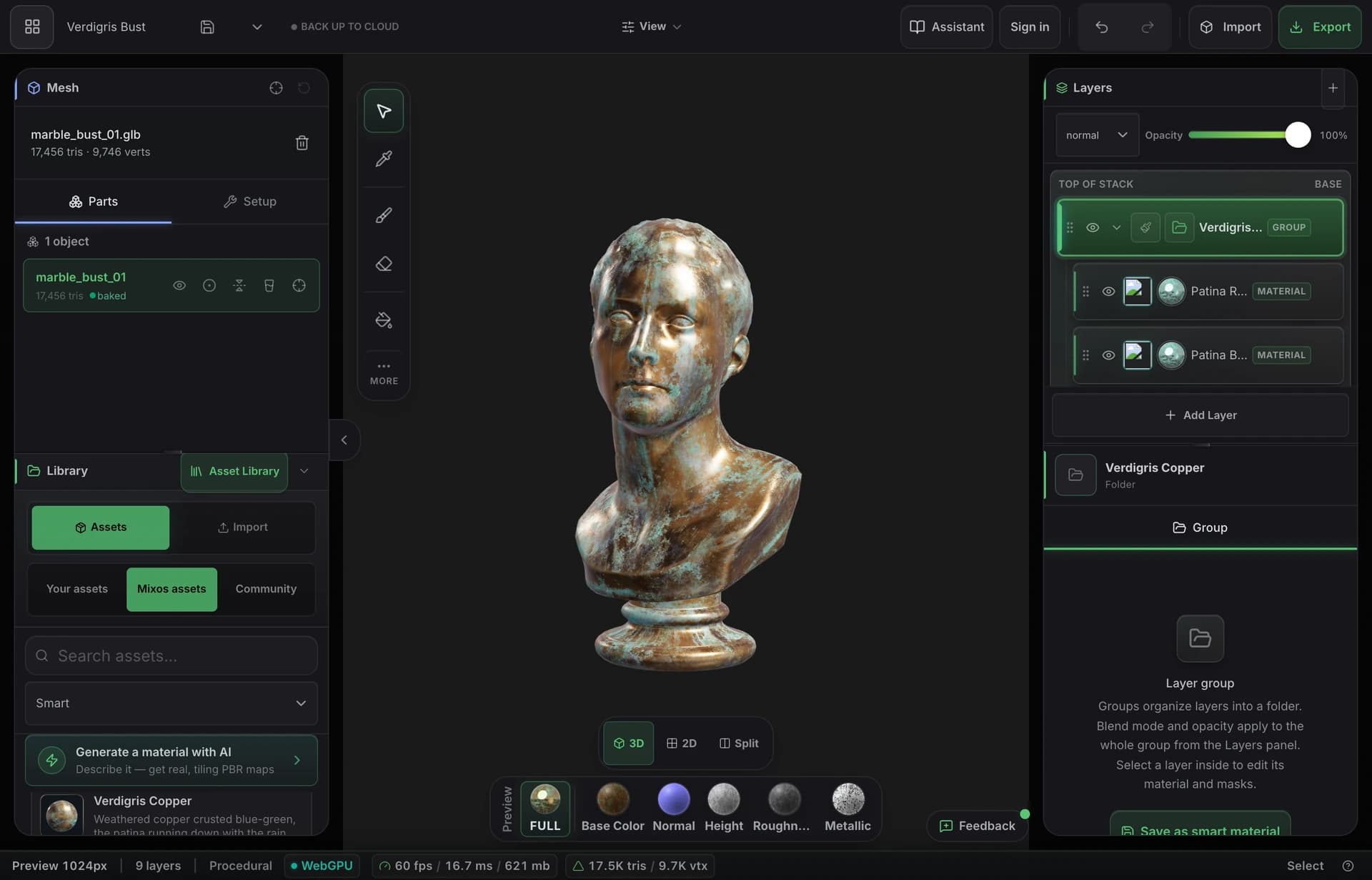
烘焙模型自身的曲率、厚度與環境光遮蔽,再讓智慧材質把鏽蝕沉入凹坑,並像日常使用那樣把邊緣的漆磨掉。結果看起來用過,因為它是由形狀本身老化而成。
- 從你的網格烘焙曲率、AO 與厚度
- 能自行找出邊緣與縫隙的智慧材質
- 匯出最高 4K 的完整 PBR 貼圖組
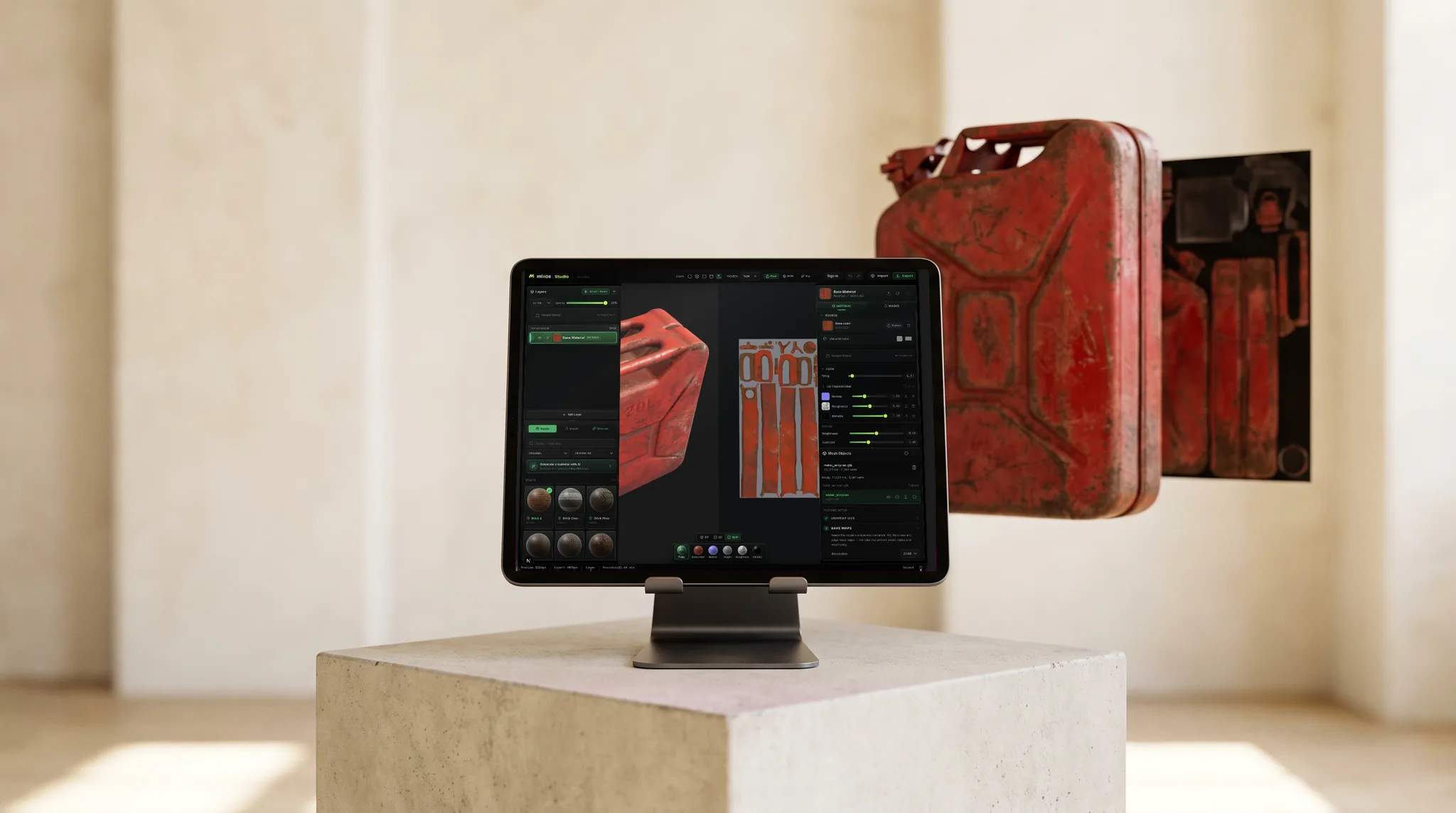
進入你的製作流程
標準貼圖,依你的引擎期望的方式命名。
基礎色、法線、粗糙度、金屬度、高度與不透明度,加上烘焙的環境光遮蔽與曲率,以 PNG 匯出至最高 4K——並提供預設組合,依 Blender、Unreal 與 Unity 期望的方式命名並封裝通道。
每個通道都能單獨在模型上預覽,讓你在貼圖離開前看清楚每張貼圖的作用。
免費桌面版應用程式提供 Live Link,在你繪製時把貼圖串流到 Blender、Cinema 4D 或 Unreal,讓你在自己的算圖器中看到變化,而不必匯出來檢查。
材質資料庫
從 2,669 種現成的 PBR 材質開始。
磚、混凝土、金屬、木材、石材、織物、皮革等——每一個都是完整的 PBR 材質組。拖到表面上並在上面繪製,或從生成的材質開始。
這個資料庫也會自行持續擴充: 社群 AI 材質 ——在 Mixos 中生成、由創作者分享的無縫 PBR 材質組——每週都會加入同一個資料庫,並以各自的篩選標籤區分。你可以用它們繪製,但只有 CC0 的材質組可以下載。
- Wood376
- Stone244
- Metal229
- Tiles228
- Ground220
- Paving205
- Bricks202
- Fabric167
- Concrete132
- Asphalt90
- Leather54
- 另有 8 項
AI generation
Describe it. Get something you can actually edit.
Every generator hands back a working asset, not a picture of one — and everything below is a real, unretouched generation.
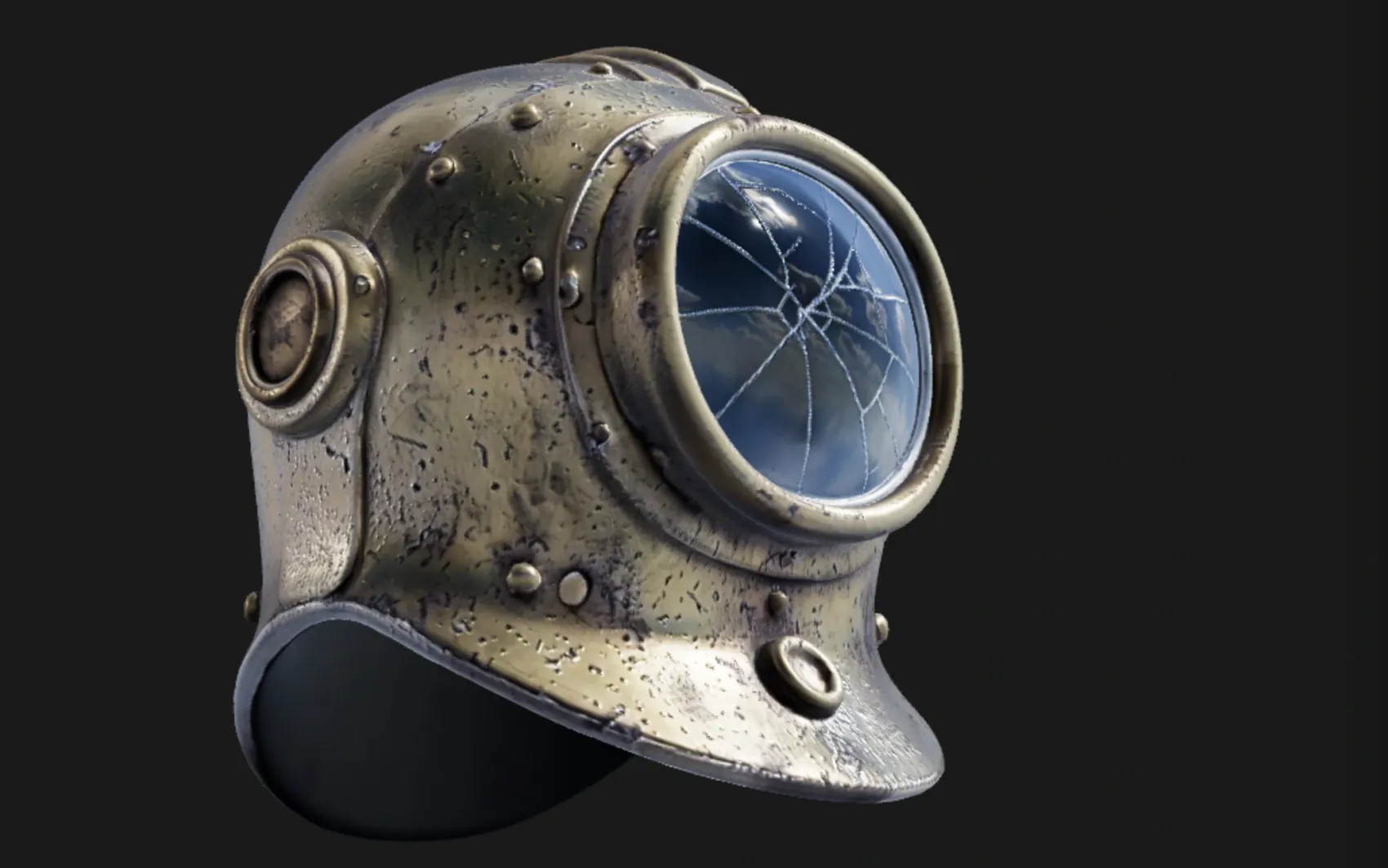
a weathered brass diving helmet with rivets and a cracked glass porthole
A textured, UV-unwrapped .glb — paintable the moment it lands, its generated maps already broken out as editable layers. No re-unwrap, no blank canvas.
“High detail” tier (Pro) · 180s
oxidised copper roof panel with green verdigris and rain streaks
One prompt, five real maps — not one image with the other four guessed from it. It exports as a standard map set for Blender, Unreal, Unity and C4D, and lands in the node editor as five wired nodes, so the roughness can go through a Levels or the albedo blend with grunge.
Five 1024² channels · 150s
 Base color
 Normal
 Roughness
 Metallic
 Height
Textures tile on all four edges, masks drive where a layer shows through, and brush alphas and decals stamp straight onto the mesh — each from one prompt, each landing as something you keep editing rather than a flat picture.
 Texture
 Mask
Mask Brush alpha
 Decal
DecalOnly generation spends credits — painting, layering, masking, baking and live preview never touch them. Every plan can generate, and a free account starts with a trial pool; Pro and Max add 2K materials and the two highest-fidelity 3D engines.
Mold ↔ Paint
Change the sculpt after you've textured it.
Texture a model in Paint, send it back to Mold, reshape the base — and the texture comes back exactly where you left it. Mixos carries the UV mapping across instead of re-projecting the paint onto the new surface, so your layers are never resampled and never drift. The tenth trip costs what the first one did.
- Layers return byte-identical
- Nothing is reprojected
- Full density comes home
- Multi-part models too
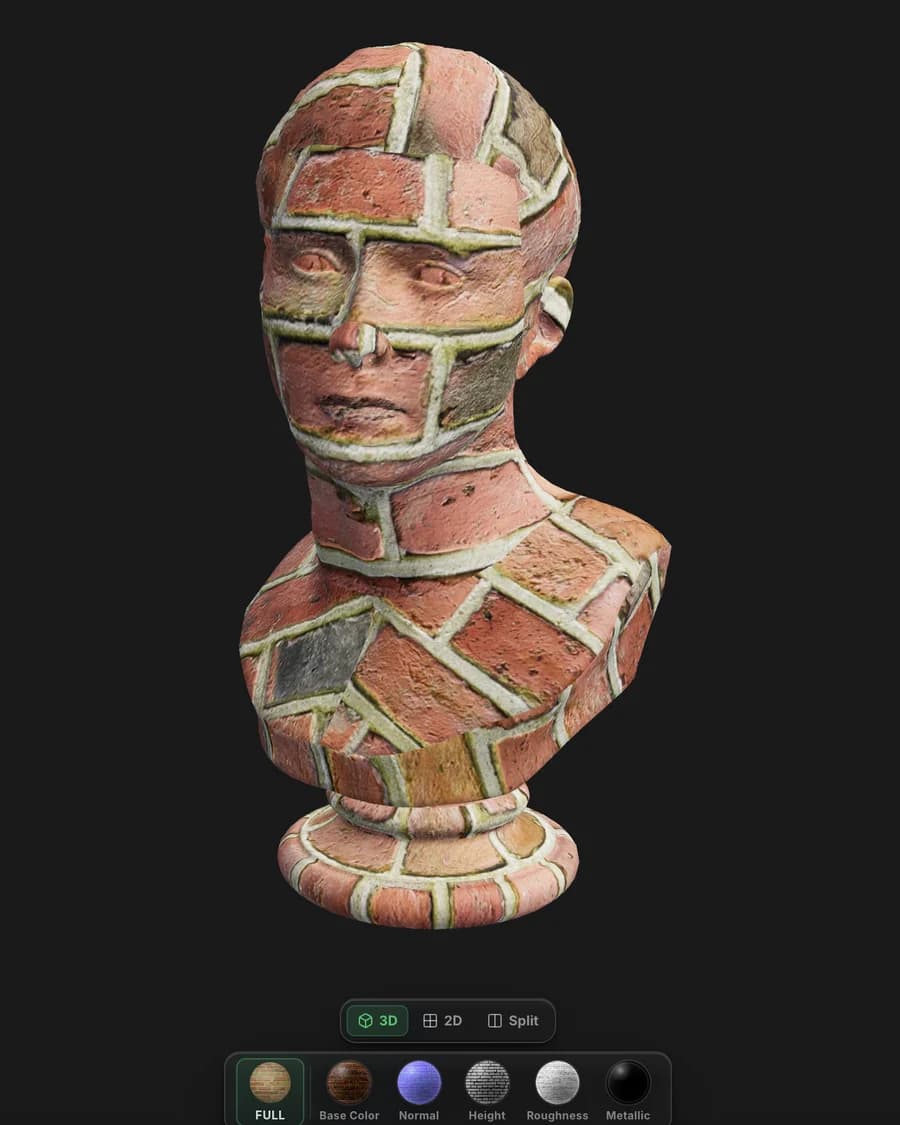
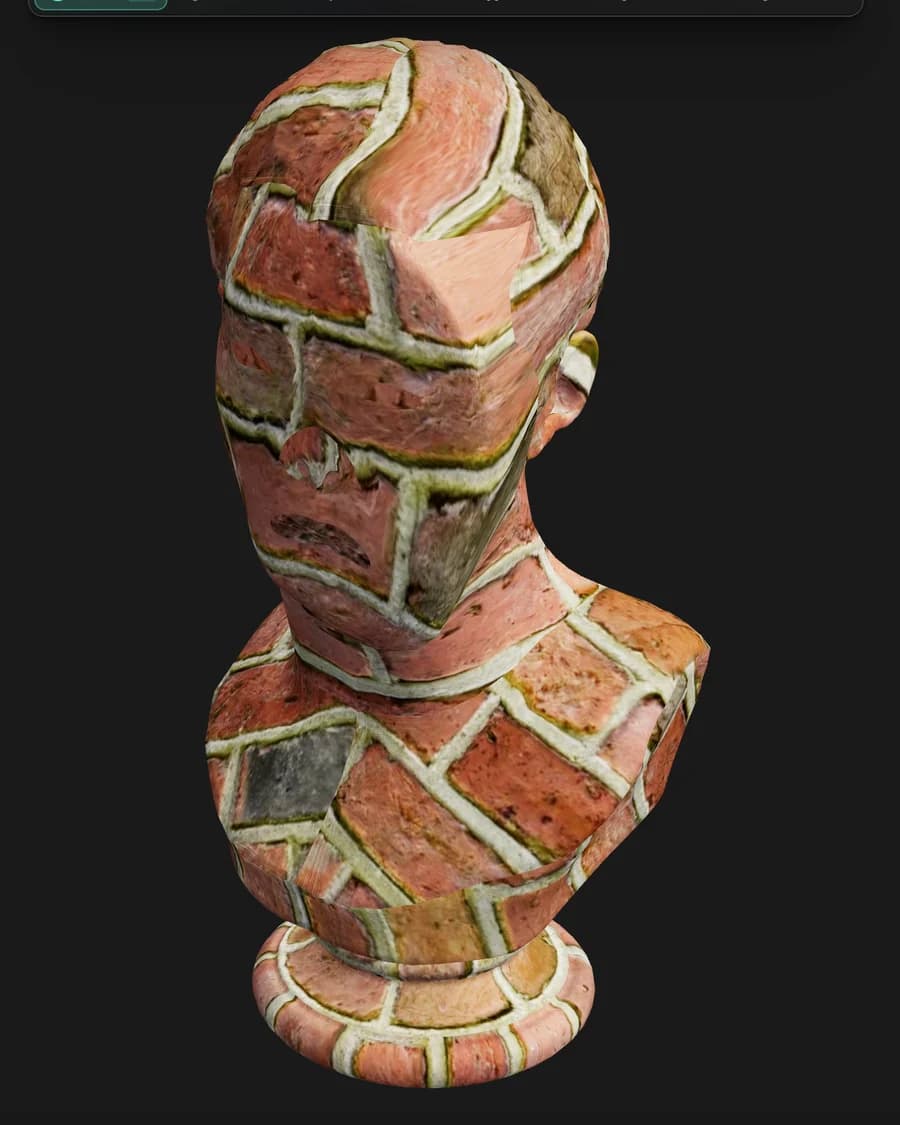
Node materials
Build a material out of nodes.
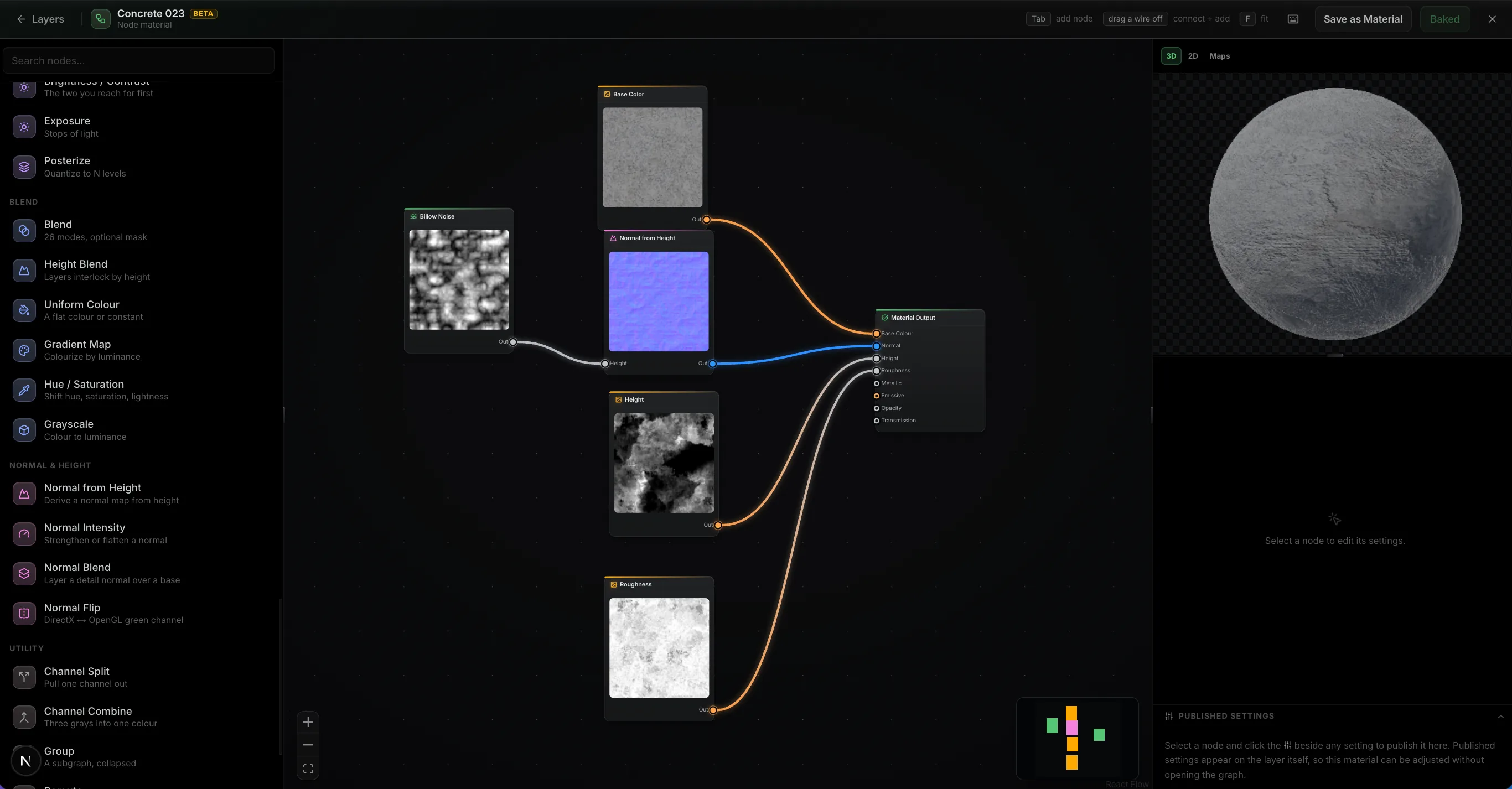
Wire noise, warps, levels and blends into a graph and it authors every PBR channel at once, evaluated on your GPU as you drag a slider. Feed in your mesh's baked maps and the wear lands where the geometry says it should. Then publish the handful of parameters that matter as variables on the layer, so the finished material stays adjustable without reopening the graph.
- ~30 nodes
- Mesh maps as inputs
- Published settings
- It's just a layer
Path-traced preview
Path-traced preview.
The Ray toggle switches the viewport to a progressive path-traced render of the frame you're editing — bounced light, soft shadows, and glossy reflections across your whole layer stack. It refines in place while you tune quality, exposure and depth of field.
- Progressive — refines in place
- Fast / Balanced / High quality
- Physical depth of field
 Ray · path-traced
Live Link · desktop app only
Live Link to Blender, C4D and Unreal.
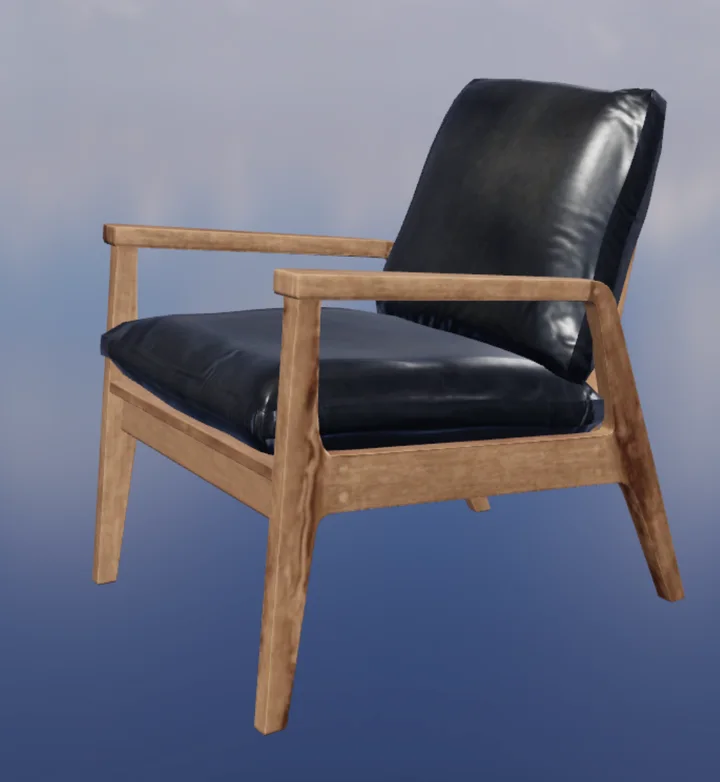
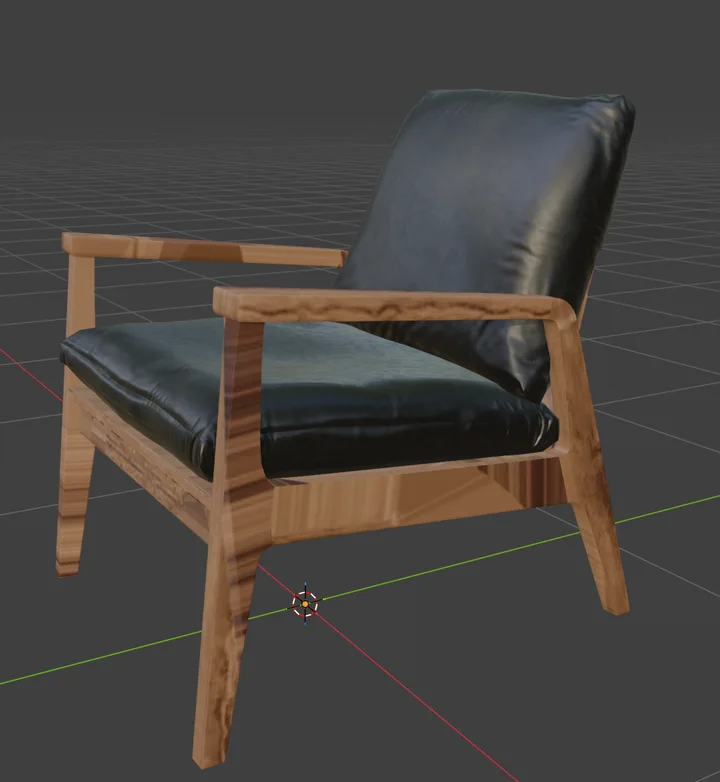
In the free desktop app, Live Link sends your maps to Blender, Cinema 4D, or Unreal each time they change — no export, no upload. With Blender it's two-way: send a model over, texture it, and the maps come back to the same object.
- Desktop app only
- One-click plugin install
- Auto Sync on every change
- Two-way with Blender
完整流程
套件的其餘部分都在同一個模型上工作。
從 Mold 送來的雕刻在這裡帶著全新 UV 抵達。在 Studio 組裝的場景會貼好圖後回來。Auto 則依提示為整個網格貼圖。
交接只是一個按鈕,而不是匯出的繁瑣流程——模型連同圖層完整地過去,改完後再回來。
無論你在哪裡工作
不需要工作站的貼圖
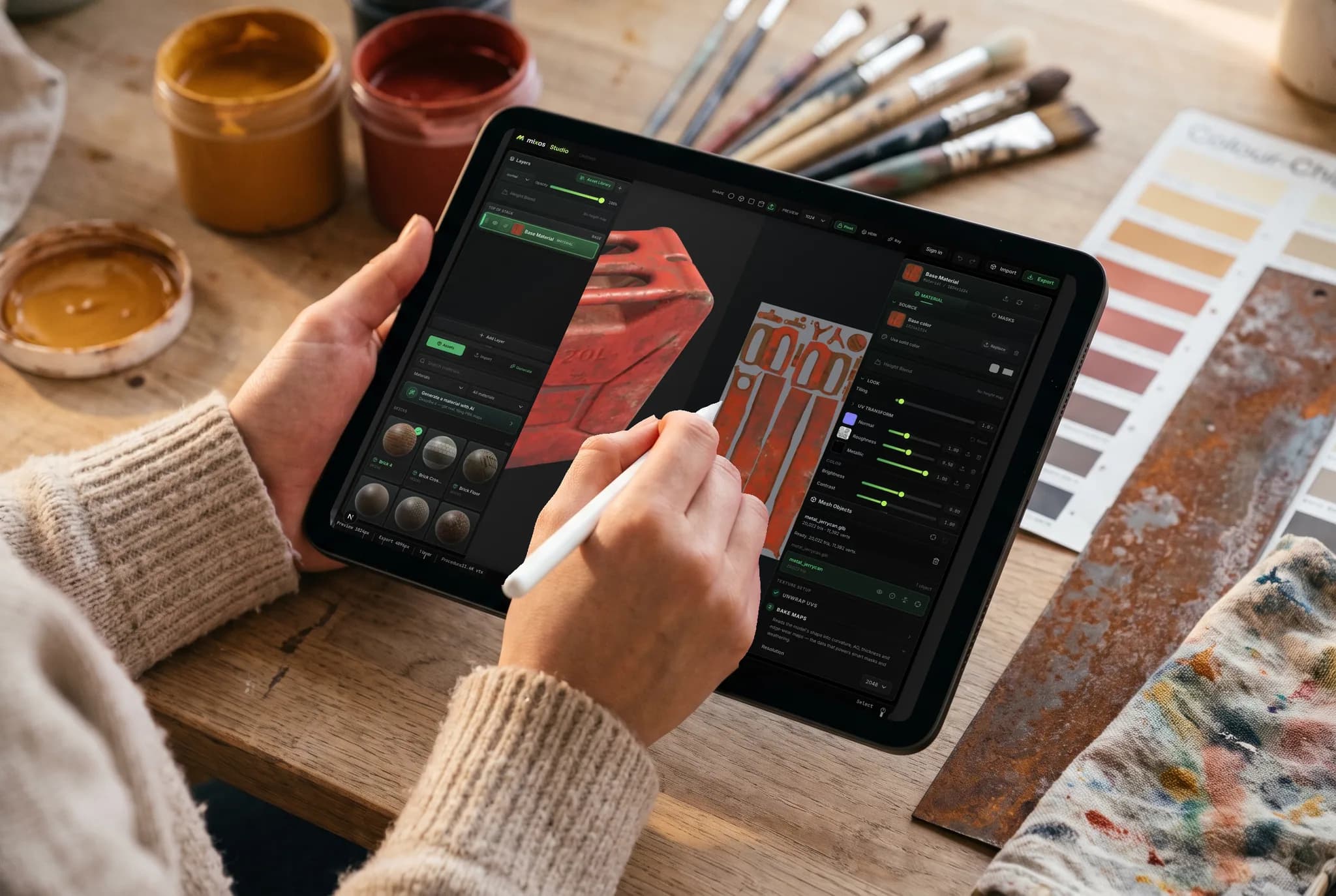
Paint 在瀏覽器分頁中,使用你已有的 GPU 執行。在沙發上用 iPad 拿起一個模型,稍後在筆記型電腦上繼續,並在其中任一台匯出貼圖——不用轉移座位,也不用先安裝任何東西。
- 不用下載,不用安裝,沒有授權要轉移
- 模型與圖層跟著你的帳號走
- 以 Apple Pencil 處理遮罩與手繪細節
任何裝置
在你已有的機器上貼圖。
Paint 的引擎就是瀏覽器本身,所以不用挑版本,不用執行安裝程式,除了提供 WebGPU 的瀏覽器之外也沒有最低規格要求。
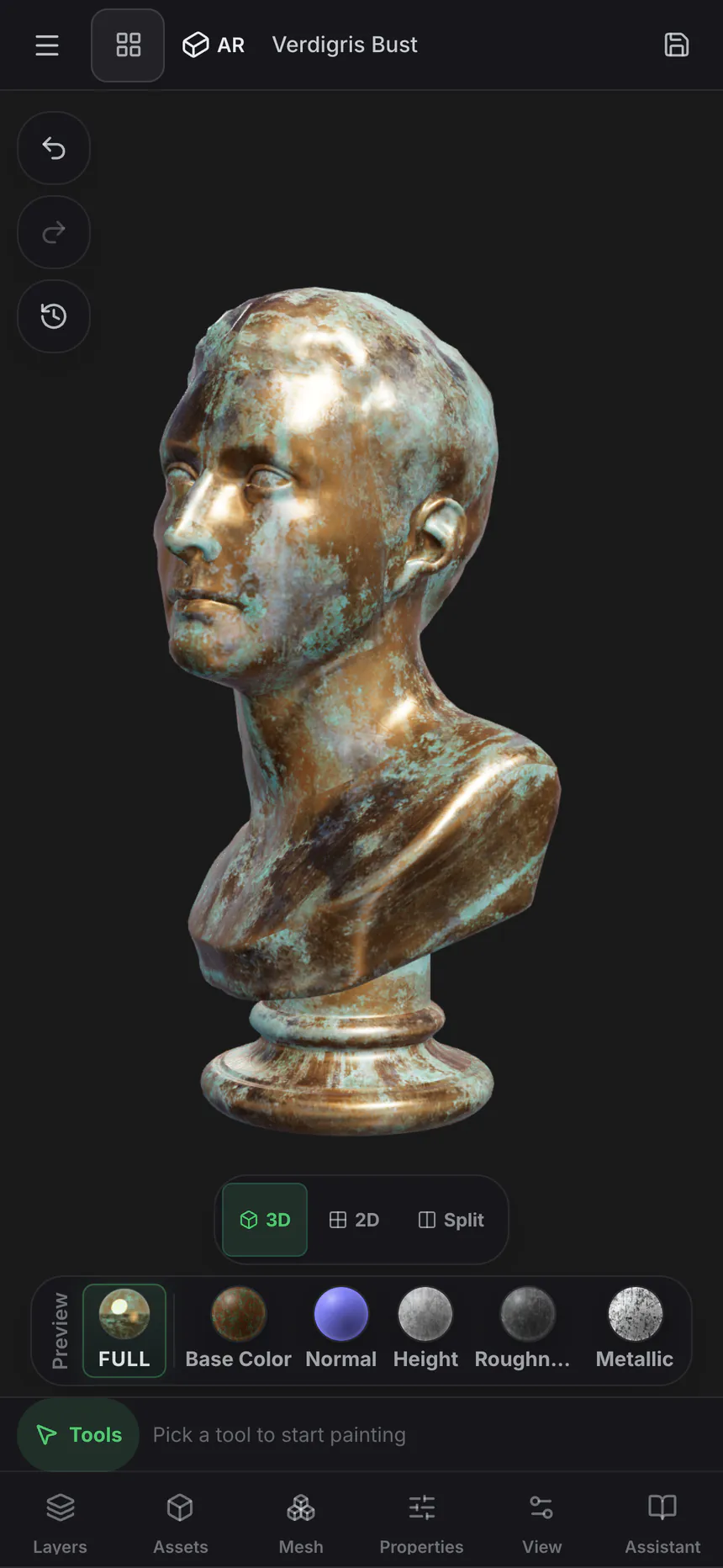
Mac、Windows、Linux
Chrome、Edge、Firefox 或 Brave,以及 Safari 26+。滑鼠與鍵盤,或使用有壓感筆刷的 Wacom 繪圖板。
iPad
以觸控為優先的版面,面板會重新排列成上滑式的頁面,並由 Apple Pencil 的壓力與傾斜驅動筆刷。
Android
使用最新版 Chrome 的手機與平板。不需側載,沒有獨立版本——同樣的分頁,同樣的專案。
Chromebook
在完全無法執行桌面軟體的硬體上貼圖,只要 ChromeOS 提供 WebGPU 即可。
iPhone 和 iPad 現在有應用程式了。
Paint 隨免費的 Mixos 應用程式一同提供,採用觸控與 Apple Pencil 版面——而瀏覽器仍然什麼都不用安裝。 iOS 26 or later.
常見問題
執行 Paint 需要什麼?
支援 WebGPU 的瀏覽器——Mac、Windows 或 Linux 上最新的 Chrome、Edge 或 Safari。不用下載任何東西,沒有外掛,也沒有授權伺服器。Paint 也能在 iPad 與手機上執行,採用觸控優先的版面,包括 Apple Pencil 壓力。
Mixos Paint 是 Substance Painter 的替代品嗎?
基礎功能方面,是的——直接在網格上繪製、非破壞性圖層、混合模式、顏色 ID 與程序式遮罩、智慧材質、貼花、烘焙的網格貼圖與 4K PBR 匯出,全部在一個瀏覽器分頁中。大型工作室的製作流程中,Substance Painter 更深入;Paint 以那樣的深度換取零安裝、真正能貼圖的免費層級,以及 Substance Painter 完全做不到的、可回到雕刻的無損往返。
它匯出哪些貼圖?
基礎色、法線、粗糙度、金屬度、高度與不透明度,加上環境光遮蔽與曲率等烘焙貼圖,以及已附上材質的 glTF(.glb)。預設組合會依 Blender、Unreal、Unity、Godot、Cinema 4D、Maya 與 Houdini 各自期望的方式命名並封裝通道,所以貼圖組可以直接放進去。
我可以帶入自己的模型和圖片嗎?
可以。以 GLB、glTF、FBX 或 OBJ 匯入你的網格,在上面繪製並烘焙,也可以帶入照片或掃描作為材質來源。你也可以直接放入整個現有的 PBR 材質資料庫,Paint 會依檔名整理貼圖。
如果我在繪製後更改模型,貼圖會怎樣?
它會保留下來。把貼好圖的專案送回 Mold,重塑基底,貼圖會逐位元組一致地回來——Mixos 在往返過程中帶著 UV 對應,而不是把你的繪製內容重新投影到新表面,所以無論來回多少次,都不會有任何重新取樣。如果在雕刻外出期間你重新展開了模型,或把拓撲改到舊對應已無法描述它,Paint 會改為重建專案——並先複製你的原始專案,所以無論哪種情況,貼圖成果都不會遺失。
開始之前我需要乾淨的 UV 嗎?
不用。三向投影可無縫地把材質鋪在完全沒有可用 UV 的網格上,所以模型載入後你就可以開始繪製。當你想要正式的 UV 時,Paint 會為你展開網格,並提供 UV 編輯器來調整島嶼。
Mixos Paint 是免費的嗎?
繪製是免費的。開啟編輯器,想貼多少圖就貼多少——每個筆刷、圖層、遮罩、智慧材質與整個材質資料庫,沒有時間限制,視埠中的作品也沒有浮水印。免費帳號還包含一份一次性的 AI 生成器試用點數。匯出完成的貼圖屬於付費方案。
AI 點數用於什麼?
只有 AI 生成會消耗點數,每一項的花費與我們的執行成本相符。貼花、風化遮罩或筆刷筆尖是 1 點;無縫貼圖或完整 PBR 材質需要數點,原生 2K 材質略多一些。自動貼圖與 3D 模型生成最貴——一個模型依生成器不同為 4–16 點。其他一切——繪製、分層、遮罩、烘焙與即時預覽——永遠免費,也絕不動用你的點數。
有桌面版應用程式嗎?
有——Mac 與 Windows 版 Mixos 可免費下載。它是同一個編輯器,放在原生外殼中,突破瀏覽器的限制:在所有核心上烘焙、原生機器學習推論、完整離線支援,以及在你繪製時把貼圖串流到 Blender、Cinema 4D 或 Unreal 的 Live Link,完全不需匯出循環。一個帳號涵蓋應用程式與任何瀏覽器。
繼續探索